- Google’s Gemini AI has received a new feature to let you tune specific portions of a response using a different prompt.
- You can also modify selected portions to regenerate themselves or make them shorter or longer.
- To modify a response, generate something on Gemini > select a portion of text to modify > pencil icon and make the necessary changes.
Soon after the launch of its next-generation Gemini model , Google released a new update for the AI chat tool to offer you the ability to tweak and regenerate Gemini’s responses precisely according to your preferences. The feature was rolled out on March 4 and only supports the English language as of now.
How to Modify Gemini’s Responses on the Web
The update to Gemini allows you to select the portion of the response and modify it using custom instructions that you enter as a prompt. You can also alter the responses without any specific instruction to make the selected text shorter, or longer, or regenerate it automatically.
- To use this feature, open Gemini on a web browser and ask the AI tool to create something for you.
- When the response is generated, highlight or select a portion of the response that you want to modify.
- Once selected, click on the pencil icon that appears around the selected text.
- From the overflow menu, you select your desired option from these – Regenerate , Shorter , Longer , and Remove . You can also type a prompt inside the text box at the top to request Gemini to modify the selected text precisely the way you to.
I tried this feature and I find it to be a useful addition. I can select particular paragraphs and change them to sound more natural or descriptive, and even add or change information. You can select a sentence, a paragraph, or an entire response .
How to Modify Gemini’s Responses on Phone
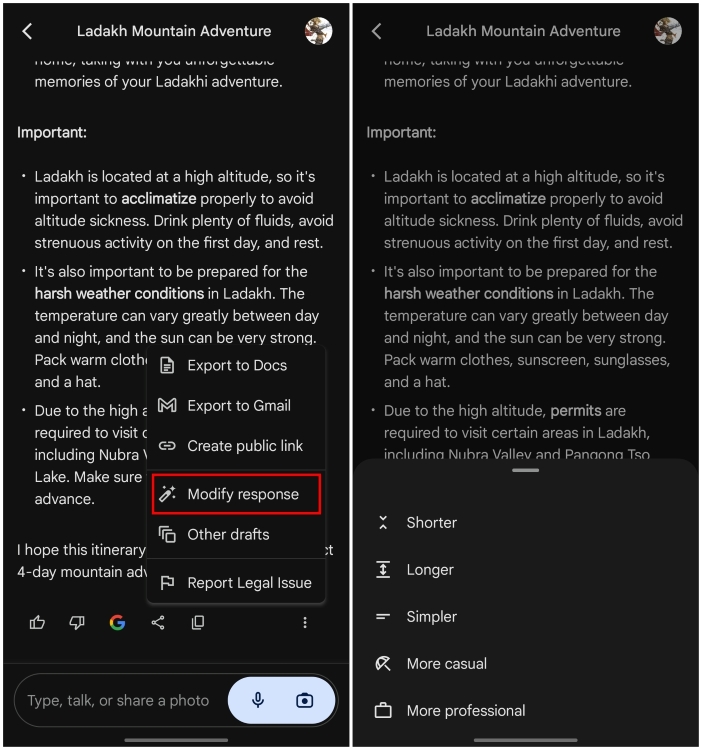
While the ability to modify a selected part of a response is limited to the Gemini web app, you can still modify responses when using the mobile app. One thing to keep in mind is that picking any one of the modification options will change the entire response instead of your desired portion.
- Open the Google Gemini app on Android or go to the Google app on iOS -> Gemini tab .
- Type a prompt to create anything on Gemini and when the response loads up, scroll down to the bottom and tap on the 3-dots icon .
- From the overflow menu, select Modify response .
- You can then choose from the following options – Shorter , Longer , Simpler , More casual , and More professional . Gemini will now regenerate the entire response based on the selected option.
Some Limitations to Keep In Mind
Modifying Gemini’s responses has its limitations as well. Sometimes you may encounter, the “Gemini couldn’t do that” message. As per Google, here are the common reasons why you may get this error:
- Using prompts that don’t tell Gemini how to change the highlighted text.
- If you use prompts to change text format like change color, font style, or size.
- Refrain from entering prompts that breach Google’s Prohibited Use policy .
- Don’t use prompts that change the context of the entire response.
- Complicated prompts that Gemini can fail to understand at times.

With over 4 year of experience under the belt, I cover all facets of consumer tech, from smartphones to other consumer electronics, our favorite social media apps, as well as the growing realm of AI and LLMs. As an Apps and AI writer app Beebom, I provide my expertise in all these areas, weaving stories that help you get familiar with the tech around you. But you will find me playing NYT daily puzzles in my free time.
Add new comment
Name
Email ID
Δ

