- To check the iPad generation, look for the Model Number in the Settings app or at the back of your tablet.
- You can also check external characteristics like the presence of the Home Button or the number of rear cameras to know which iPad you have.
- Once you have the Model Number, you can use the tables to check which generation is your iPad.
If you want to check which generation your iPad is, you’ve landed at the right place. Knowing the exact iPad generation helps you understand how old your iPad is, what the compatible accessories are, which features would work on your device, and other stuff. Apple released its first iPad model all the way back in 2010, and since then, it has launched over 25 different models across iPad generations. If you bought an iPad long ago, you might have forgotten which iPad model you own. In this article, we’ll tell you how to find your iPad’s model number and use it to check the iPad generation. So, let’s figure out which iPad you have.
How to Find iPad Model Number
To find out exactly which iPad you have, you should know the model number of your tablet. Every iPad generation has a unique model number that denotes what iPad it is, when it was made, and other details. There are three ways to find the iPad model. We’ve discussed all of them below.
Method 1: Using the Settings app
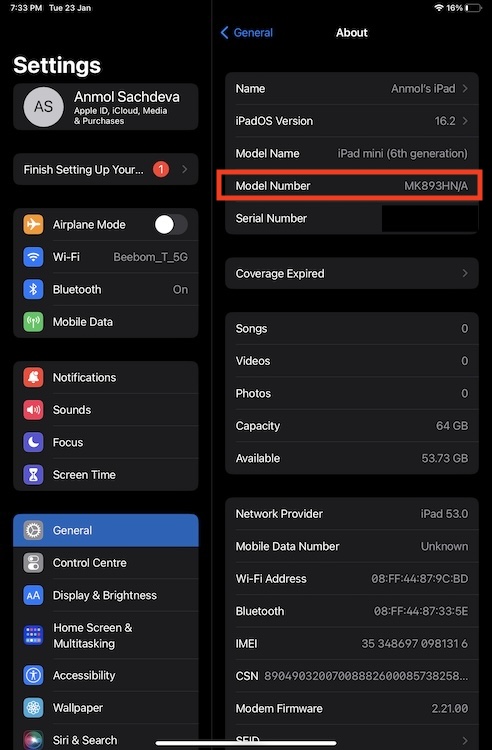
If your iPad is working all fine, with the display turned on, you can head to the Settings app to know which iPad you’re using. It’s a super easy way to identify the model. Here’s how you do it:
- Open the Settings app on your iPad and navigate to the General section.
- Tap on About , the very first option in the list.
- Here, you’ll see the Model Name and Model Number tabs.
- The Model Name will tell you the name and the screen size of your iPad. Bear in mind that multiple iPad units can have this model name. So, it’s not unique to your iPad.
- On the flip side, the model number that begins with A is unique to your iPad . So, it can help you check which generation is your iPad. If the number has a “/” (slash), tap on it to reveal the complete model number. Once you know the model number of your iPad, head to the next section to know the generation of your iPad.
Method 2: Check the Back of your iPad
If your iPad won’t turn on and you’re stuck will charging issues on your iPad , you can still know which iPad you own. Simply turn over your iPad to see its back. Underneath the Apple logo, you’ll see the word “Model” followed by a short code that starts with A . That’s the model number of your iPad.

Image source: Apple
All iPad Generations and Models
Now that you have the model number, use it to find what iPad you have. Since every iPad generation has a unique model number which distinguishes it from the rest of the iPad lineup, you should face any issues to check which iPad generation you have. Use the below tables to check your iPad version. To do it quickly, press Command + F on your Mac or Ctrl + F on a Windows laptop and enter the model number to check the iPad generation.
For easier understanding, we’ve made four tables according to the iPad type- iPad, iPad mini, iPad Air, and iPad Pro.
Every iPad Generation & Model
Every iPad Generation and Model Numbers
Every iPad Mini Generation & Model
Every iPad mini Generation and Model numbers
Every iPad Air Generation & Model
Every iPad mini Generation and Model Number
Every iPad Pro Generation & Model
Every iPad Pro Generation and Model Number
We have 10 generations of iPad, 5 generations of iPad Air, 6 generations of iPad mini, and 6 generations of iPad Pro. So, we have 27 generations of iPad in total.
Apple didn’t release any new iPads in 2023. The newest iPad models launched back in 2022 are the iPad Pro 12.9-inch 6th Generation, iPad Pro 11-inch 4th Generation, iPad Air 5th Generation, and iPad 10th Generation. The iPad mini lineup was last refreshed in 2021 with the iPad mini (6th generation) model.
Launched back in 2017, the iPad Pro (10.5-inch) is the oldest iPad model supported by the latest iPadOS 17 iteration. Besides, the iPad 6th generation or newer, iPad Air (3rd generation) or later, iPad mini (5th generation) or later, and all the models of the iPad Pro are supported by iPadOS 17.
Kanika has been a loyal iPhone user since 2014 and loves everything Apple. With a Master’s in Computer Applications, passion for technology, and over five years of experience in writing, she landed at Beebom as an Apple Ecosystem Writer. She specializes in writing How To’s, troubleshooting guides, App features, and roundups for Apple users to help them make the best use of their gadgets. When not writing, she loves to try out new recipes and enjoy some family time.
Add new comment
Name
Email ID
Δ


