- You may face MacBook screen flickering issues due to software glitches, outdated macOS, malware, or hardware problems.
- To fix this, restart your MacBook, check for macOS updates, run Apple diagnostics, or reinstall macOS.
- For older Intel-based Macs, you can also reset NVRAM and SMC.
A glitchy Mac screen that flickers and flashes can ruin your work day or binge-watching plans. This is annoying and worrisome, especially when facing these issues on an expensive laptop. The screen flickering problems might arise due to something as simple as minor software glitches or something complex like hardware damage. Fortunately, some easy fixes can fix those frustrating display issues in no time. In this article, we’ll discuss 10 ways to fix Mac screen blinking, flickering, flashing, or other problems. So, let’s move along and fix that glitchy display.
Method 1: Restart your MacBook
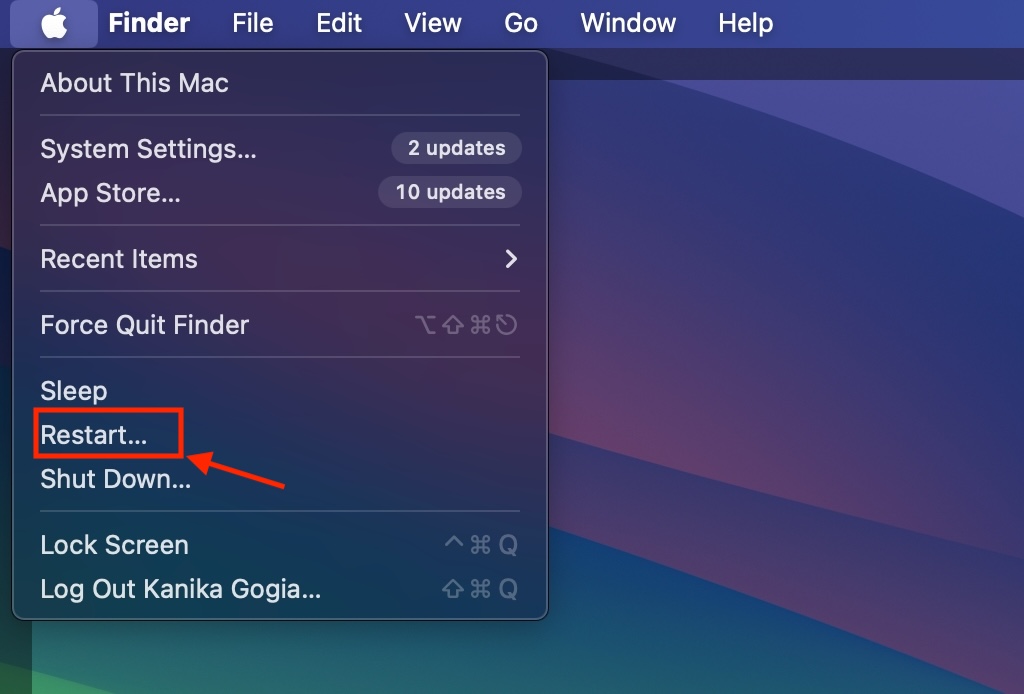
One of the easiest and quickest ways to fix MacBook screen flickering issues is to restart your machine. Sometimes, your Mac screen might be flickering due to some temporary problems, which can be easily fixed by restarting your computer. It might sound old-school, but it works wonders in some cases. So, you must give it a try.
- On your Mac, click on the Apple logo from the top Menu bar.
- Now, choose Restart… from the list of available options.
Method 2: Check for macOS updates
Are you running an older version of macOS? If yes, it might be the reason for MacBook screen flickering problems. The older version might not be compatible with some of the latest apps on your Mac. As a result, it may trigger some problems, including random screen flashes and other display issues on a Mac. To fix this, you must check for the latest macOS updates.
- From the Dock, open System Settings on your Mac. You can also go to Apple Menu -> System Settings.
- Choose General from the left sidebar.
- Click on Software Update and allow your Mac to check for updates.

- If a more recent version is available, download and uninstall them on your Mac.

Method 3: Check External Display If Connected
If your Mac screen keeps flashing and you’ve connected an external display or any other accessory, you must check the connections. Sometimes, your Mac might throw display issues if there are any loose connections. So, just make sure all the connections are tight and secure. Even better, unplug all the external accessories and then plug them firmly into your Mac. This should help you fix Mac screen glitching problems.
Method 4: Run Apple Diagnostics
In some rare cases, your MacBook screen might be flickering due to a hardware problem. To verify if this is the case, you can run Apple Diagnostics. It will help you figure out if your Mac screen flashing issue stems from a faulty display or graphics processor.
Before you run Apple Diagnostics, make sure to do the following:
- If you can, update your MacBook to the latest software version.
- Make sure your Mac is placed on a stable and flat surface with nice ventilation.
- Disconnect all external accessories except the keyboard, display, mouse, power cable, and Ethernet connection (if applicable).
On Macs with Intel processors, hold down the D key during the startup.
If you’re using a MacBook with Apple Silicon, shut down your Mac and turn it back on while holding the Power button . Keep holding the key until you see the Startup Options screen. Now, press Command + D on your Mac’s keyboard.
When the testing is done, you’ll see a reference code. If you see ADP000, it means nothing’s wrong with the hardware. On the flip side, VFD001 to VFD007 indicates a problem with the display or GPU. You can check out the complete list of codes here.

Image Courtesy: Apple
Besides, you may see service and support options. Make sure you’re connected to the internet, and then click on “Get Started” or press Command-G.
Method 5: Disable Automatic Graphics Switching
If you’re using a MacBook Pro that has two graphics systems, Mac screen suddenly flickering issues might be due to the Energy Saver working improperly. There’s an “Automatic graphics switching” option in Energy Saver that reduces power consumption to prolong the battery life. When you enable this feature (which is turned on by default), your Mac will switch between 2 different graphics chips, which might cause the MacBook screen to flicker with horizontal lines.
Here’s how to turn off Automatic graphics switching on Mac:
Note: The Automatic graphics switching setting is only available on MacBook Pro models that have two graphics systems.
- On your Mac, go to System Settings > Battery > Options.
- Here, make sure to deselect the option that says “Automatic graphic switching.”
Once you’ve done this, restart your Mac to see if the problem has been fixed.
Method 6: Disable True Tone
The 2018 and newer Macs have True Tone Display technology that makes the screen more natural and comfortable. This setting automatically adjusts the intensity and color of the display to match the ambient light so it’s easy on your eyes. While it’s an amazing feature, it can occasionally lead to a flickering Mac screen.
Here’s how to disable True Tone on your Mac:
- Go to System Settings -> Displays.
- Here, turn off the True Tone toggle.

Alternatively, you can click on Control Center from the Menu bar, choose Display, and then turn off True Tone.
Method 7: Reset NVRAM (Intel Macs only)
If you’re using an older, Intel-based Mac, you can try resetting PRAM or NVRAM to fix the glitching screen. For those unaware, NVRAM (Non-volatile RAM) and PRAM (Parameter Random Access Memory) are memory areas that store different kinds of data like display resolution, volume preferences, startup disk selection, and more. Your Mac may face display issues if there are any glitches in these memory modules. In such cases, you can reset NVRAM/PRAM to get everything back in place.
You don’t have to worry at all as resetting these memory modules won’t affect the performance of your Mac.
Follow the below steps to reset NVRAM on Intel Macs:

Image Courtesy: Apple
- Shut down your Mac.
- Now, while turning ON your Mac, immediately press & hold the Option, Command, P, and R keys for about 20 seconds.
- Your Mac will boot up with the NVRAM/PRAM reset.
In the case of Apple Silicon Macs, the NVRAM is automatically reset on startup (if needed). You don’t have to do anything manually, as with Intel Macs.
Method 8: Reset SMC (Intel Macs only)
The System Management Controller (SMC) on a MacBook is an important chip that’s responsible for several internal power settings. This chip handles the process of putting your MacBook to sleep and waking it up, switching between different graphics modes, and more. Generally, there’s no need to reset SMC on all the Macs. This is suggested for Intel-based Macs to resolve complex issues related to power. Besides, you can use this method to fix MacBook screen blinking problems.
Before you reset SMC, do the following on MacBooks with Apple T2 chip:
- Shut down your Mac.
- Press and hold the Power button for 10 seconds and then release it.
- Wait for a few seconds before you turn ON your MacBook. ON Macs with Touch ID, press the TouchID button
- After a few seconds, press the power button to turn on your Mac.
In case your MacBook Pro screen is still flickering, you must reset SMC:

Image Courtesy: Apple
- Shut down your Mac.
- From the built-in keyboard, press and hold the Control + Option (Alt) +Shift keys . Your Mac might turn on.
- Keep holding the keys for 7 seconds . Then, press and hold the Power button as well . If your Mac is ON, it will now turn off.
- You need to hold the four keys for another 7 seconds and then release them.
- Wait for a few seconds and then press the Power button to turn ON your Mac.
If you have an Apple Silicon MacBook , you just need to restart your computer.
If you’re using another MacBook model, check out this Apple Support page to learn how to reset SMC.
Method 9: Reboot your Mac in Safe Mode
If your MacBook screen flickers frequently, you must restart your computer in Safe mode to isolate the cause of the issue. It’s been a trusted solution to fix several software-related issues on a device. When you reboot your Mac in Safe mode, the system undergoes certain diagnostics at the startup to check its functioning.
Also, Safe mode prevents macOS from loading certain software when it starts up. This includes unnecessary system extensions, login items, fonts not installed by macOS, and more. This mode performs a quick check on the startup disk and wipes out some system caches such as font and kernel caches.
How to Reboot Apple Silicon Macs in Safe Mode
- First, shut down your Mac.
- Then, press & hold the power button until you see the “Loading startup options” on the screen.
- Select your startup disk , then press & hold the Shift key, and choose “ Continue in Safe Mode ”.
- Finally, log in to your Mac.
How to reboot Intel Macs in Safe Mode
- Turn on or restart your Mac.
- Then, immediately while holding the Shift key as your Mac starts up. Make sure to release the key when the login window appears.
- After that, log in to your Mac.
If the flickering issues are gone, some recently installed apps or software were likely the culprit. So, make sure to uninstall the apps that you don’t need.
Method 10: Reinstall macOS
If the above steps didn’t help, it’s an indication that some complex software bugs are responsible for MacBook Pro screen flickering issues. If this happens to be your case, the ultimate solution is to reinstall macOS on your MacBook. It may seem to be a daunting task, but it’s fairly easy to do through macOS Recovery. It will install the current version of the most recently installed macOS.
Note: Reinstalling macOS won’t delete your apps or any data. So, there’s no need to back up your Mac.
How to reinstall macOS on Apple Silicon Macs
- Press and hold the Power button.
- Keep holding the key as your Mac turns ON and loads startup options.
- Release the key when you see Options.
- Now, select Options, and click on Continue.
- When prompted, enter your Mac’s password and follow the on-screen instructions.
Those were 10 ways to fix MacBook screen flickering and showing horizontal lines. We hope you’ve found this guide useful and the above steps helped you flickering lines on your Mac.
Some of the most common reasons for MacBook screen flickering problems include: 1. Software glitches 2. Fluctuations in the power supply 3. Hardware issues (be it physical or water damage) 4. Malware or troublesome apps 5. Older macOS versions
Kanika has been a loyal iPhone user since 2014 and loves everything Apple. With a Master’s in Computer Applications, passion for technology, and over five years of experience in writing, she landed at Beebom as an Apple Ecosystem Writer. She specializes in writing How To’s, troubleshooting guides, App features, and roundups for Apple users to help them make the best use of their gadgets. When not writing, she loves to try out new recipes and enjoy some family time.
Add new comment
Name
Email ID
Δ


- Apple and Google have officially confirmed their team-up for the next-gen Siri AI.
- The Cupertino Giant will be using Google’s Gemini for a more personalized Siri model as well as Apple Intelligence features.
- We can expect the next-gen Siri to come out with iOS 26.4, sometime in March or April.
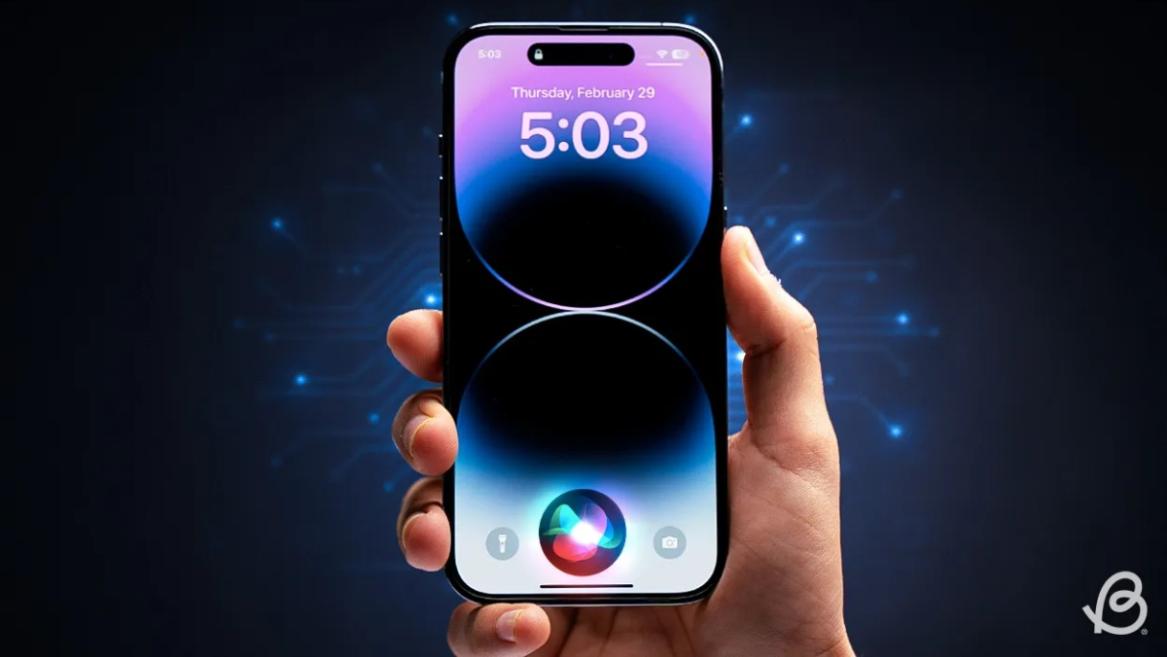
Apple has officially confirmed joining forces with Google to use its Gemini AI model to power the next-generation Siri. It will offer a more personalized experience and will be coming out with the iOS 26.4 update. Apple also plans to leverage Gemini’s capabilities for other Apple Intelligence features as well, later down the line.
The Next-Gen Siri will be powered by Google’s Gemini AI
Apple officially confirmed that it will be partnering with Google in a statement to CNBC . Here’s what it stated, “After careful evaluation, we determined that Google’s technology provides the most capable foundation for Apple Foundation Models, and we’re excited about the innovative new experiences it will unlock for our users.”
Later, Google also shared a post on X confirming the tie-up, “Apple and Google have entered into a multi-year collaboration under which the next generation of Apple Foundation Models will be based on Google’s Gemini models and cloud technology. These models will help power future Apple Intelligence features, including a more personalized Siri coming this year.”

Image Credit: X/@NewsFromGoogle
Both statements clearly mention that the Cupertino Giant will be using Gemini to power its assistant Siri. This was already rumored, as Apple’s attempts to acquire Perplexity went nowhere. With Gemini, Siri will get a major AI update . It will be able to handle more nuanced conversations and provide better results. Something long-time Apple users have been asking for years.
The next-gen Siri will arrive with the iOS 26.4 update, which will launch sometime in March or April. And it is only going to be available for Apple Intelligence-supported devices .
Something else worth noting is how Google’s statement mentions that Gemini will power Apple Intelligence features. This leads us to believe that Apple could use Gemini’s multi-modal capabilities for its Writings tools , Image Playground , and Message summaries, too.
Elon Musk Not Happy With Apple and Google Tie Up
xAI CEO Elon Musk also responded to Google’s announcement post on X, sharing his thoughts on the matter by saying, “This seems like an unreasonable concentration of power for Google, given that they also have Android and Chrome.” Though we don’t expect either Apple or Google to respond to Elon, we will update the situation as it progresses.
It is worth noting that xAI is the company behind Grok, which is in hot water currently due to its inappropriate image generation fiasco , and has been getting backlash from multiple news outlets, X users, and even government authorities.
With over 4 year of experience under the belt, I cover all facets of consumer tech, from smartphones to other consumer electronics, our favorite social media apps, as well as the growing realm of AI and LLMs. As an Apps and AI writer app Beebom, I provide my expertise in all these areas, weaving stories that help you get familiar with the tech around you. But you will find me playing NYT daily puzzles in my free time.
Add new comment
Name
Email ID
Δ
