- Software glitches, damaged sensors, improper magnetic lens attachments, and wrong settings may trigger the iPhone camera to not focus properly.
- Restarting the iPhone, checking the lenses, removing attachments, and updating iOS can fix most camera-related issues on an iPhone.
- In case of any physical or water damage, head to the nearest Apple Store and get your iPhone examined.
It’s damn annoying when your iPhone camera refuses to focus and captures blurry photos. I mean, what’s the point in having blurry photos of your favorite moments? Unfortunately, this can happen with any iPhone model. So if your iPhone camera is not focusing, here is how you can fix it and capture clear, crisp, and clean photos.
Method 1: Clean the iPhone camera lens
If your iPhone camera keeps focusing and unfocusing when you try to click photos, you should closely inspect the camera lenses. If the sensor has dirt, debris, or smudges, your iPhone camera won’t focus properly.
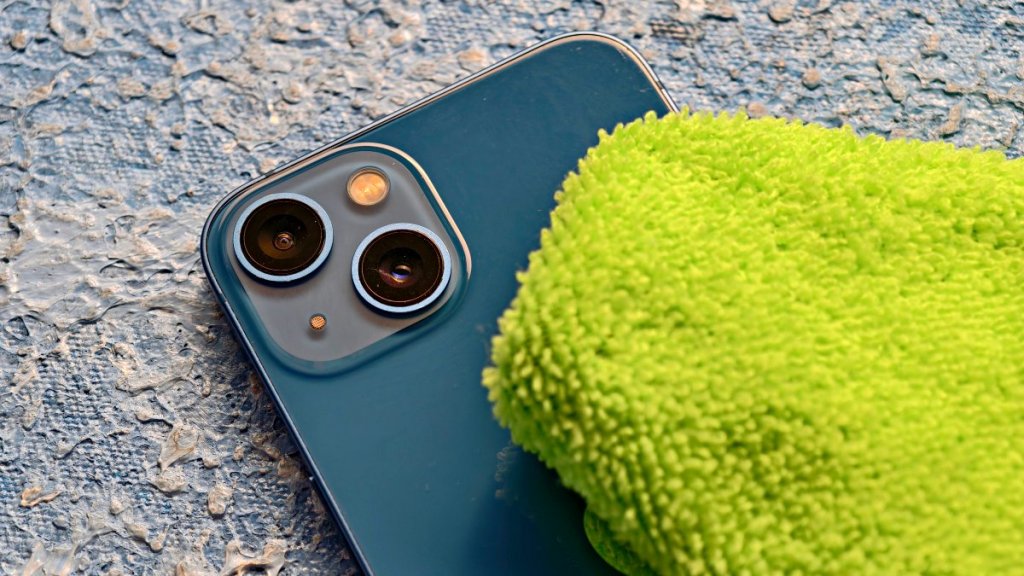
Gently clean the lenses with a soft and dry microfiber cloth. While cleaning, make sure you don’t use any chemical solutions, harsh cleaners, or compressed air on the lenses. You can clean out any loose debris or lint using a manual air blower.
Method 2: Check your case & lens attachments
Many iPhone users choose to put a protective case and camera lens protectors to safeguard the phone and the camera against scratches, cracks, and other damages. While there’s nothing wrong with this, this could partially block the camera lens, flash, or even cause malfunctioning. Therefore, you should take off the case & lens protectors , and then try taking a photo again.
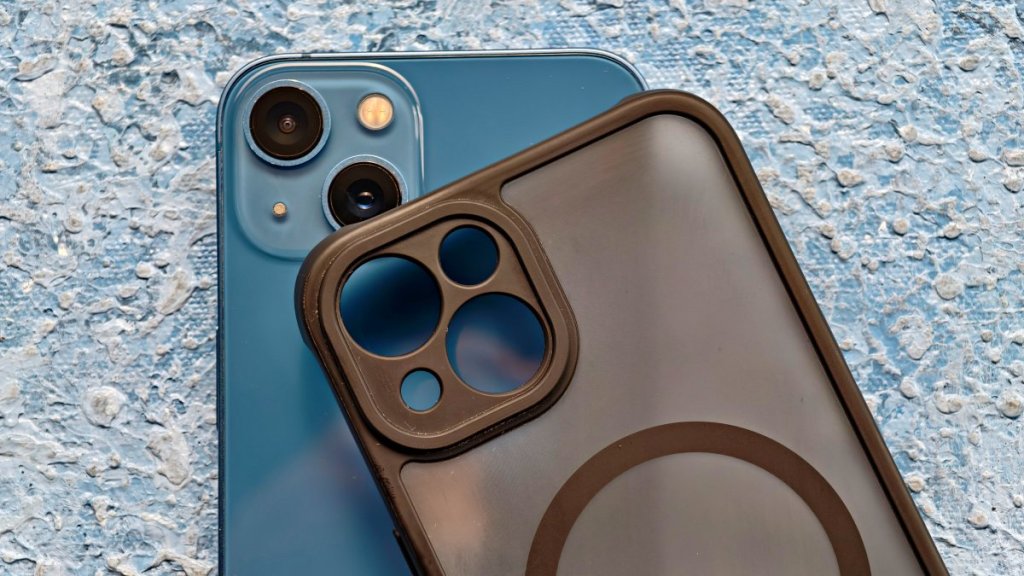
Moreover, if you’ve paired a magnetic lens or any other attachments, remove them and try capturing photos. Wondering why? That’s because metallic lenses or other attachments, especially magnetic ones, are known to interfere with iPhone’s optical stabilization. So, removing them might help you fix your iPhone camera that’s struggling to focus.
Method 3: Check the distance of the object
Unfortunately, iPhone’s camera can’t focus on subjects that are 4-6 cm close. Also, it can’t focus and capture an object that’s too far away. You can zoom in on the subject, but the result may look blurred.
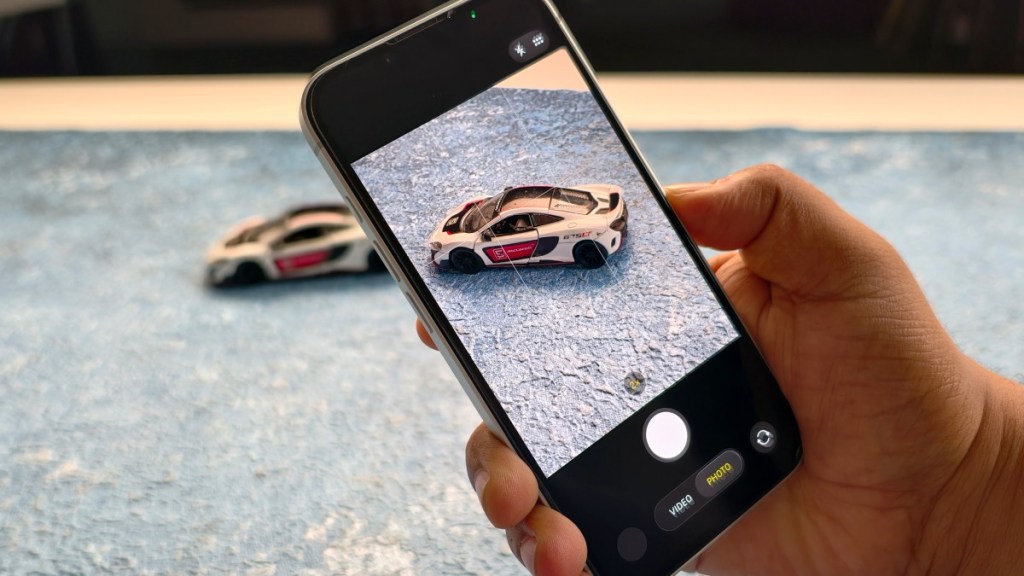
To fix focus issues on your iPhone photos, try moving your iPhone away or close to the subject you want to capture. It’s worth knowing that your iPhone can easily focus on a subject/object that’s a minimum of 10cm away.
Method 4: Set Focus Point
There can be instances when your iPhone camera is going in and out of focus, resulting in blurry photos. This usually happens when the focus is not set correctly. In such cases, you can set the focus manually. To do this, open the Camera app and tap on the subject you’re trying to capture .
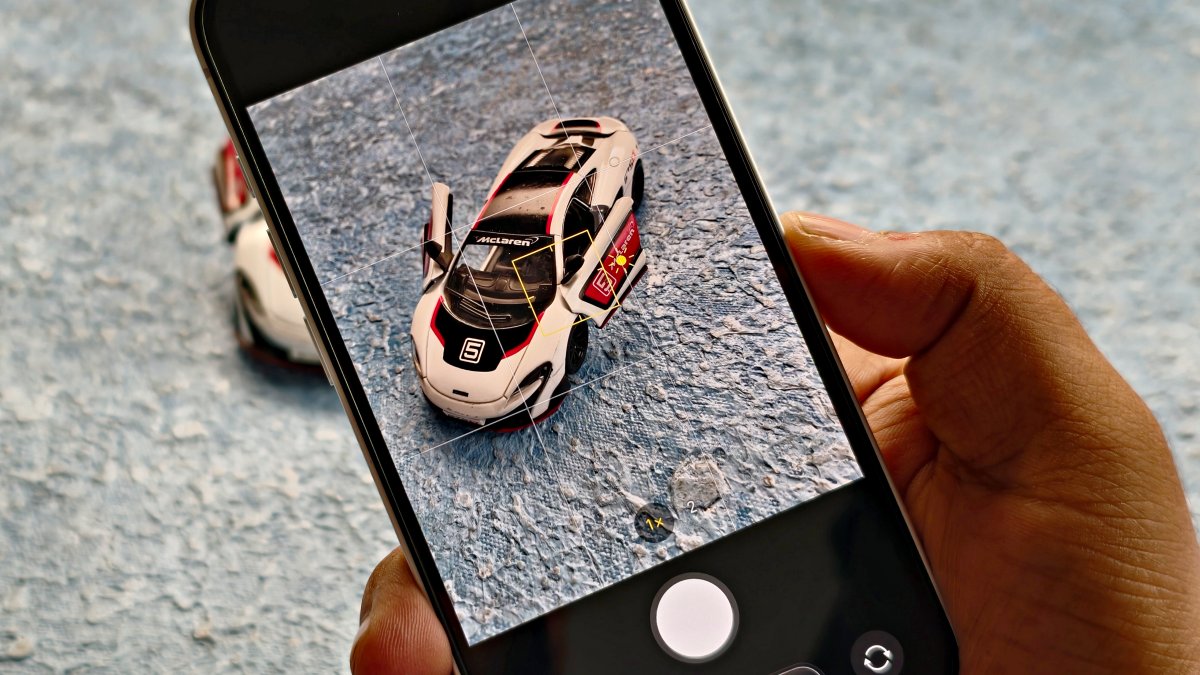
By tapping, you tell the iPhone where you want to focus. You’ll see a yellow box that indicates the selected focus point. Once you’ve set the focus point, your iPhone camera will keep it in focus.
Method 5: Lock the Auto Focus
The Camera app on iPhone has several amazing features. One such cool feature is Auto Focus and Auto Exposure Lock (AE/AF Lock), which can help you in situations when your iPhone camera won’t focus.
When you lock Auto Focus and Auto Exposure, the iPhone camera keeps the target object in focus. In simpler terms, this prevents the camera from changing the focus automatically. For this, tap and hold on the subject (you wish to focus on) for a few seconds until you see a small yellow “AE/AF Lock” label.
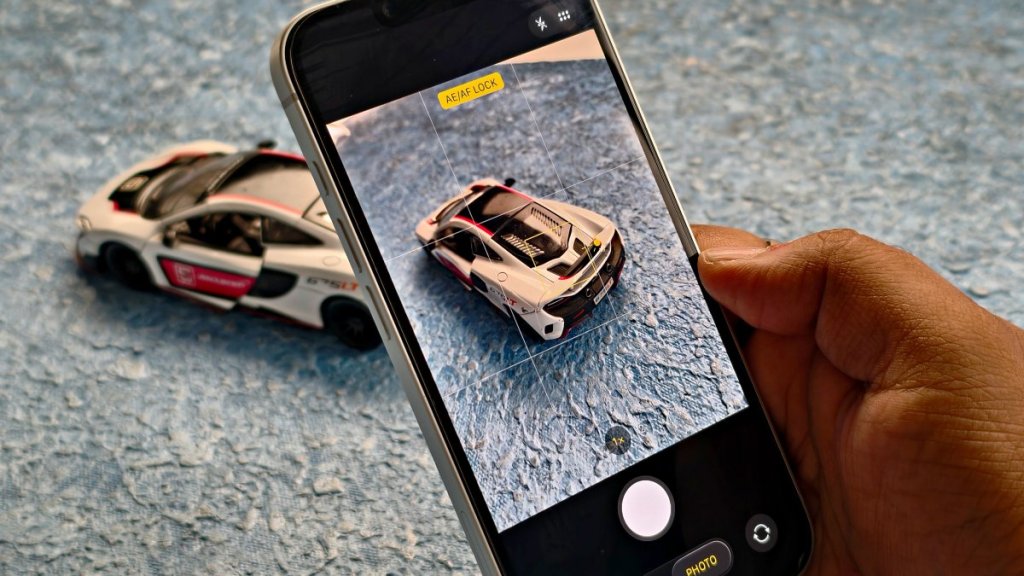
When you use this feature, the camera will keep the subject in focus, even if your iPhone is in motion and some other object enters the frame later.
Method 6: Disable Macro Control
The Pro variants of iPhone come with the Macro Mode. It automatically switches lenses as you move closer to the subject. This optional feature is designed to help you capture true-to-life closeup shots with finer details. However, due to this repeated switching, your iPhone might sometimes struggle to get an accurate focus. To fix this, you should disable the automatic Macro Mode. Here’s how to do it:
- Head to the Settings app on your iPhone, scroll down, and tap on Camera .
- Here, navigate to the bottom and turn off Macro Control .
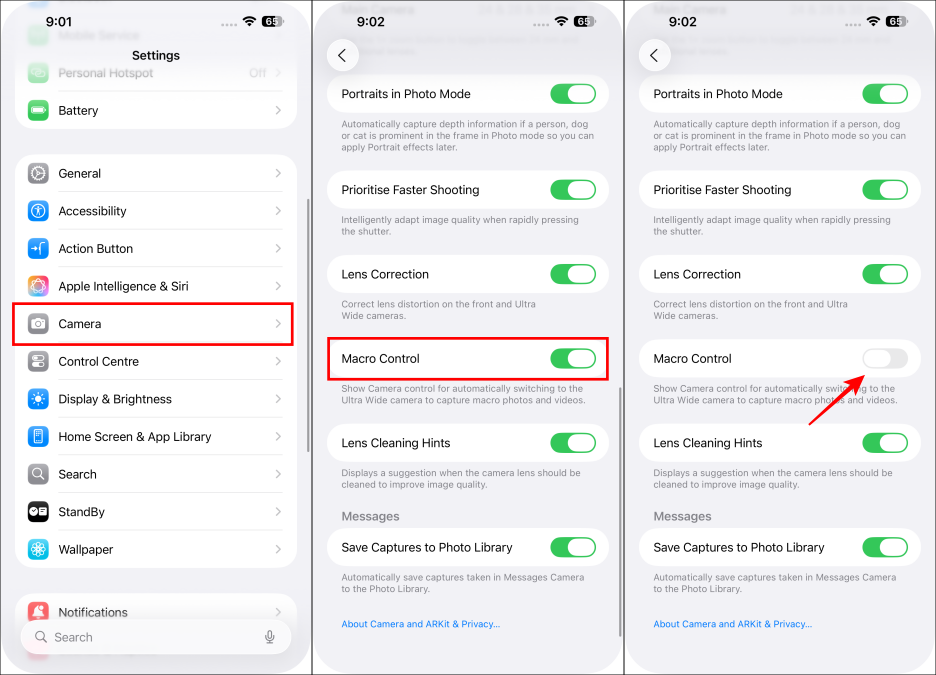
Alternatively, you can also disable Macro Control while taking pictures. For this, simply tap on the flower icon when it appears in the viewfinder.
Method 7: Quit the Camera app
If your iPhone camera won’t focus on close-ups, you should try restarting the Camera app altogether. This is one of the easiest and quickest ways to fix several camera-related issues, including blurry or out-of-focus photos, iPhone camera blinking, and more.
On iPhones with Face ID : Swipe up on the Home Screen and pause in the middle. This will bring up the recently opened apps. Swipe up on the Camera app to close it.
On iPhones with a Home Button : Press the Home button twice to see the recently opened apps. Simply swipe up on the Camera app preview to quit it.
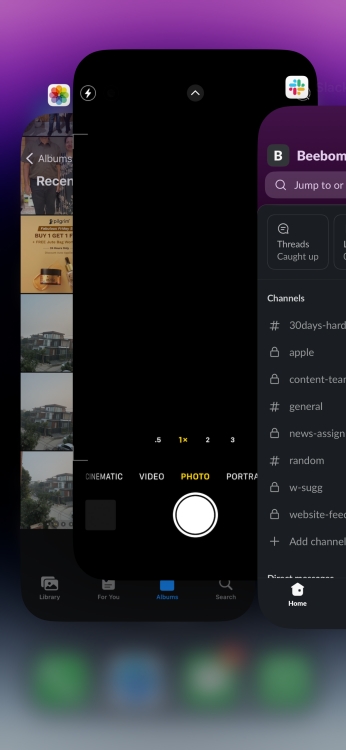
Once you’ve closed the Camera, wait for a few seconds, open it, and then try taking a photo again.
Method 8: Restart your iPhone
At times, software glitches might also trigger camera focus issues on an iPhone. This generally happens after you update iOS or when the app has some temporary bugs. The best way to fix the iPhone camera focusing issue is to restart your device. Doing this will wipe off any minor software glitches, clear the iPhone cache , and reinstate RAM to start the system afresh.
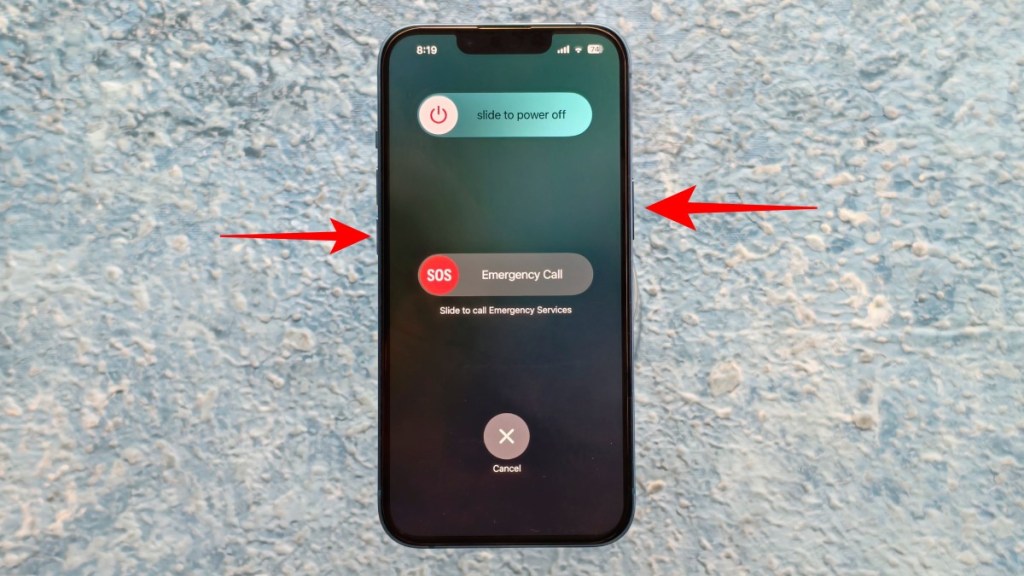
- To restart your iPhone, long-press the power and the volume down key.
- Now, move the slider to the right. This will turn off your iPhone.
- Once the screen goes black, wait for a minute and then long-press the power key again till you see the Apple logo.
- Your iPhone will restart, and then you can jump into the Camera app to see if the issue is fixed.
Method 9: Update iOS
When your iPhone camera is blurry and won’t focus, you should check if your iPhone is running the latest iOS update. Apple regularly releases iOS updates with new features, security patches, and bug fixes for the stock apps to improve the overall functionality.
If your iPhone runs an older iOS version, it may not perform as intended. To fix iPhone camera focusing problems, you must download the latest version of iOS.
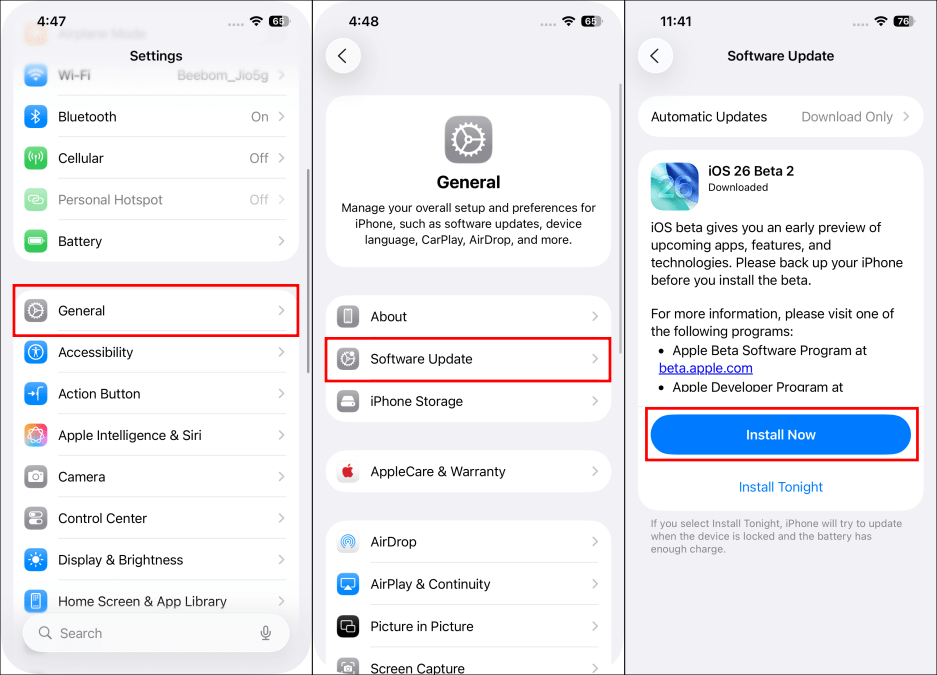
- Open the Settings app and visit the General section.
- Now, tap on Software Update.
- If you see any pending updates, tap on Install Now.
Method 10: Factory Reset Your iPhone
If none of the above steps worked for you, I suggest factory resetting your iPhone before you plan to head to the Apple store. This will reset your iPhone and will start afresh, removing glitches responsible for camera issues or sluggish performance.
However, make sure that you have backed up your data on your iPhone before you factory reset. If you’re a beginner, then factory resetting your iPhone can seem like a tedious process, but it is quite straightforward if you follow our guide.
Method 11: Take your iPhone to Apple Store
If resetting your iPhone didn’t fix the camera focus problem, there might be some deep-rooted issues with the camera hardware. In such cases, you should visit the nearest Apple Store and get your iPhone examined by the experts.
Some of the most common reasons why your iPhone camera keeps focusing and unfocusing include: 1. Software bugs & glitches 2. Dirty or damaged camera lens 3. Phone case or camera attachments aren’t installed properly 4. Low-light conditions 5. Extreme contrasts 6. Hardware issues
Your iPhone might have dirt or smudges on its camera lens, which could result in blurry images. Moreover, it could be because you are standing too close or far away from the subject. You need to be at least 10 cm away from the subject to focus on it and take a clear photo.
Kanika has been a loyal iPhone user since 2014 and loves everything Apple. With a Master’s in Computer Applications, passion for technology, and over five years of experience in writing, she landed at Beebom as an Apple Ecosystem Writer. She specializes in writing How To’s, troubleshooting guides, App features, and roundups for Apple users to help them make the best use of their gadgets. When not writing, she loves to try out new recipes and enjoy some family time.
Add new comment
Name
Email ID
Δ


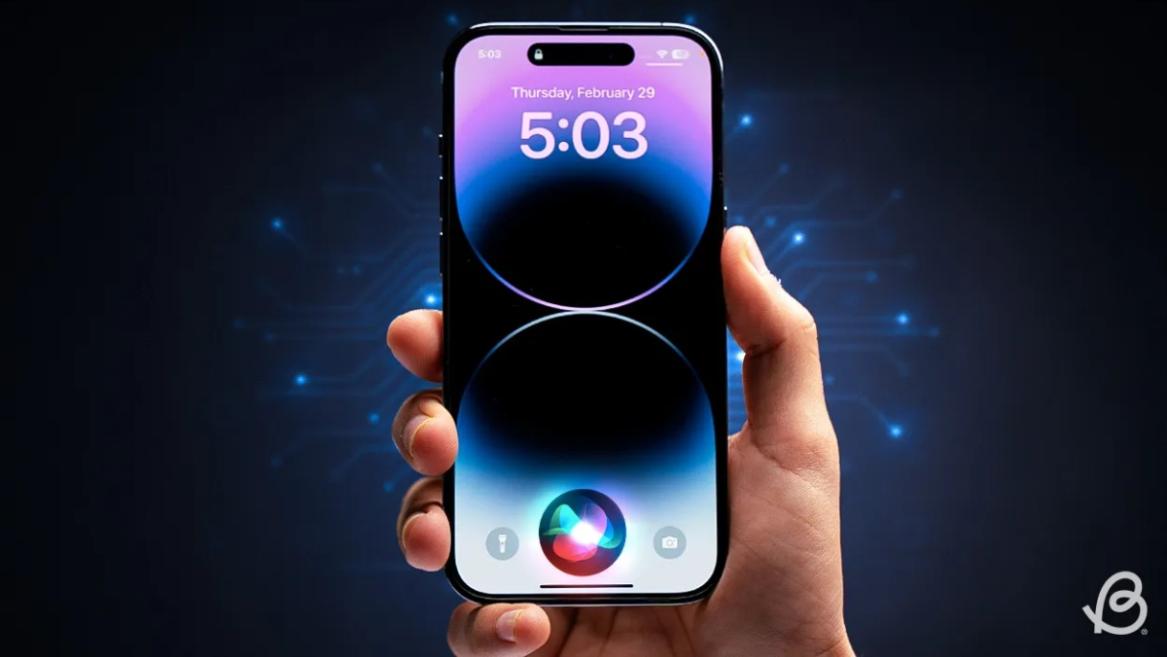
- Apple and Google have officially confirmed their team-up for the next-gen Siri AI.
- The Cupertino Giant will be using Google’s Gemini for a more personalized Siri model as well as Apple Intelligence features.
- We can expect the next-gen Siri to come out with iOS 26.4, sometime in March or April.
Apple has officially confirmed joining forces with Google to use its Gemini AI model to power the next-generation Siri. It will offer a more personalized experience and will be coming out with the iOS 26.4 update. Apple also plans to leverage Gemini’s capabilities for other Apple Intelligence features as well, later down the line.
The Next-Gen Siri will be powered by Google’s Gemini AI
Apple officially confirmed that it will be partnering with Google in a statement to CNBC . Here’s what it stated, “After careful evaluation, we determined that Google’s technology provides the most capable foundation for Apple Foundation Models, and we’re excited about the innovative new experiences it will unlock for our users.”
Later, Google also shared a post on X confirming the tie-up, “Apple and Google have entered into a multi-year collaboration under which the next generation of Apple Foundation Models will be based on Google’s Gemini models and cloud technology. These models will help power future Apple Intelligence features, including a more personalized Siri coming this year.”
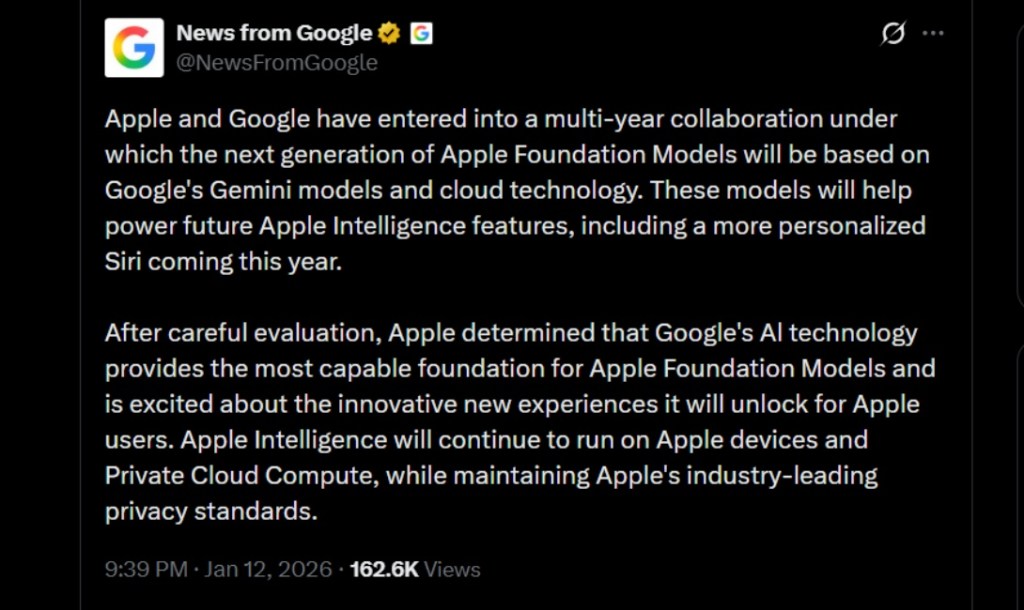
Image Credit: X/@NewsFromGoogle
Both statements clearly mention that the Cupertino Giant will be using Gemini to power its assistant Siri. This was already rumored, as Apple’s attempts to acquire Perplexity went nowhere. With Gemini, Siri will get a major AI update . It will be able to handle more nuanced conversations and provide better results. Something long-time Apple users have been asking for years.
The next-gen Siri will arrive with the iOS 26.4 update, which will launch sometime in March or April. And it is only going to be available for Apple Intelligence-supported devices .
Something else worth noting is how Google’s statement mentions that Gemini will power Apple Intelligence features. This leads us to believe that Apple could use Gemini’s multi-modal capabilities for its Writings tools , Image Playground , and Message summaries, too.
Elon Musk Not Happy With Apple and Google Tie Up
xAI CEO Elon Musk also responded to Google’s announcement post on X, sharing his thoughts on the matter by saying, “This seems like an unreasonable concentration of power for Google, given that they also have Android and Chrome.” Though we don’t expect either Apple or Google to respond to Elon, we will update the situation as it progresses.
It is worth noting that xAI is the company behind Grok, which is in hot water currently due to its inappropriate image generation fiasco , and has been getting backlash from multiple news outlets, X users, and even government authorities.
With over 4 year of experience under the belt, I cover all facets of consumer tech, from smartphones to other consumer electronics, our favorite social media apps, as well as the growing realm of AI and LLMs. As an Apps and AI writer app Beebom, I provide my expertise in all these areas, weaving stories that help you get familiar with the tech around you. But you will find me playing NYT daily puzzles in my free time.
Add new comment
Name
Email ID
Δ
