- Unlike other apps, you will need to manually enable the PiP setting within the official YouTube app.
- To enter the PiP mode, swipe up from the bottom of your screen to access the Home Screen and the video will start playing in PiP mode.
- The PiPfier extension allows you to watch YouTube videos in PiP while the video plays in the Safari app.
Note: Before you proceed to get YouTube in PiP mode on iPhone, ensure that you’ve enabled it from iPhone Settings. Visit Settings>General>Picture in picture> toggle on Start PiP Automatically.
Using YouTube Premium
Back in June 2021, Google announced that it would roll out PiP support for YouTube Premium members on iOS, and it indeed became a reality. However, there is a catch, unlike other apps that have PiP mode automatically enabled, you need to manually enable the Picture-in-Picture (PiP) mode for the YouTube app on iPhone.
Enable PiP Mode in YouTube app on iPhone
- Open the YouTube app on your iPhone and tap your Profile button at the bottom right corner.
- Now, tap on the Settings button at the top right, then tap on General on the subsequent menu.
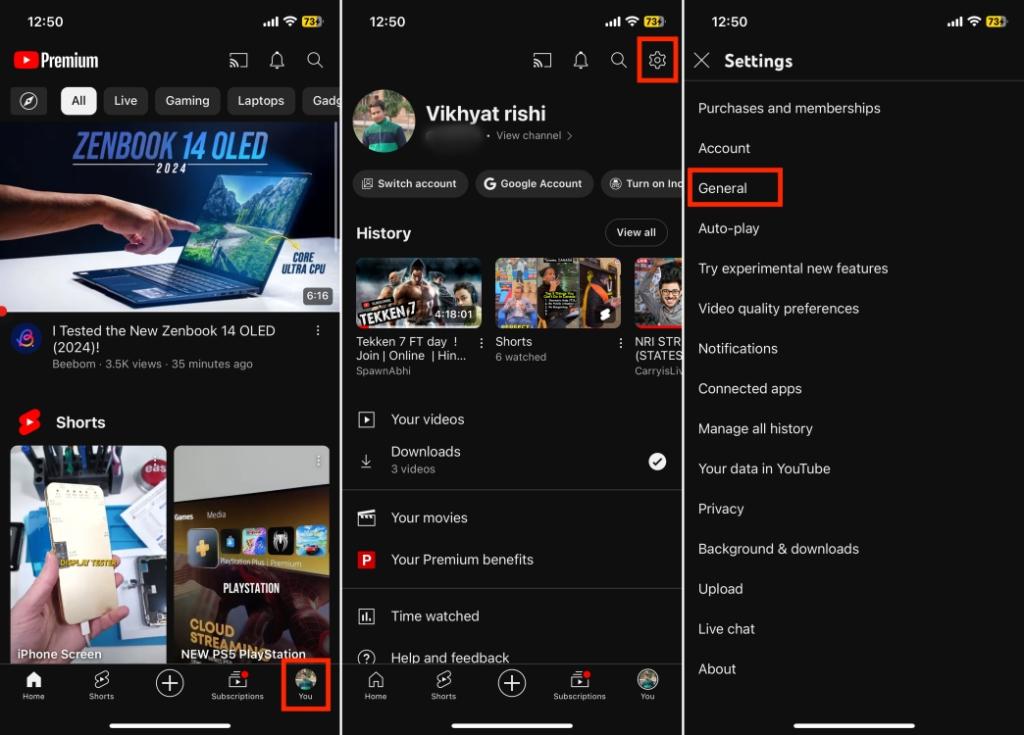
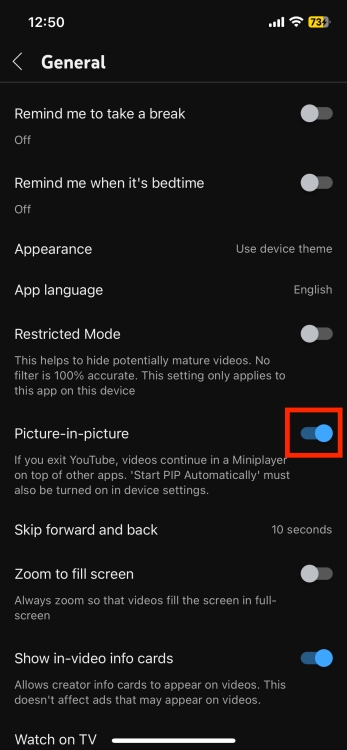
- Here, turn on the Picture-in-Picture toggle to enable PiP mode in YouTube on iPhone.
Use YouTube PiP Mode on iPhone
Now that you have enabled PiP mode for the YouTube app on your iPhone, you can enjoy YouTube videos in a miniplayer on top of other apps even if you exit the YouTube app. Here’s how:
- Open the YouTube app on your iPhone and play the video you’d like to watch.
- Once the video starts playing, swipe up from the bottom of your screen to access the Home Screen.
- This action will trigger the video to automatically switch to PiP mode, allowing you to continue watching while using other apps.

You can easily resize the miniplayer by pinching or expanding it with two fingers and moving the PiP window around your screen for optimal viewing.
Using Browser Extension
But, you can achieve it using an extension named PiPfier, which you can use to watch YouTube videos in PiP mode when playing in Safari. However, unlike other extensions, PiPfier is an app you’ll need to install from the App Store. Here’s how this works:
- Download and install the PiPfier App on your iPhone.
- Once done, open the Safari browser and head to Safari Settings .
- Here, tap on Manage Extensions and toggle ON PiPfier .
- Now, open the YouTube app on your iPhone and play the video you’d like to watch .
- Once the YouTube video start playing, tap the “aA” button in the search bar at the bottom.
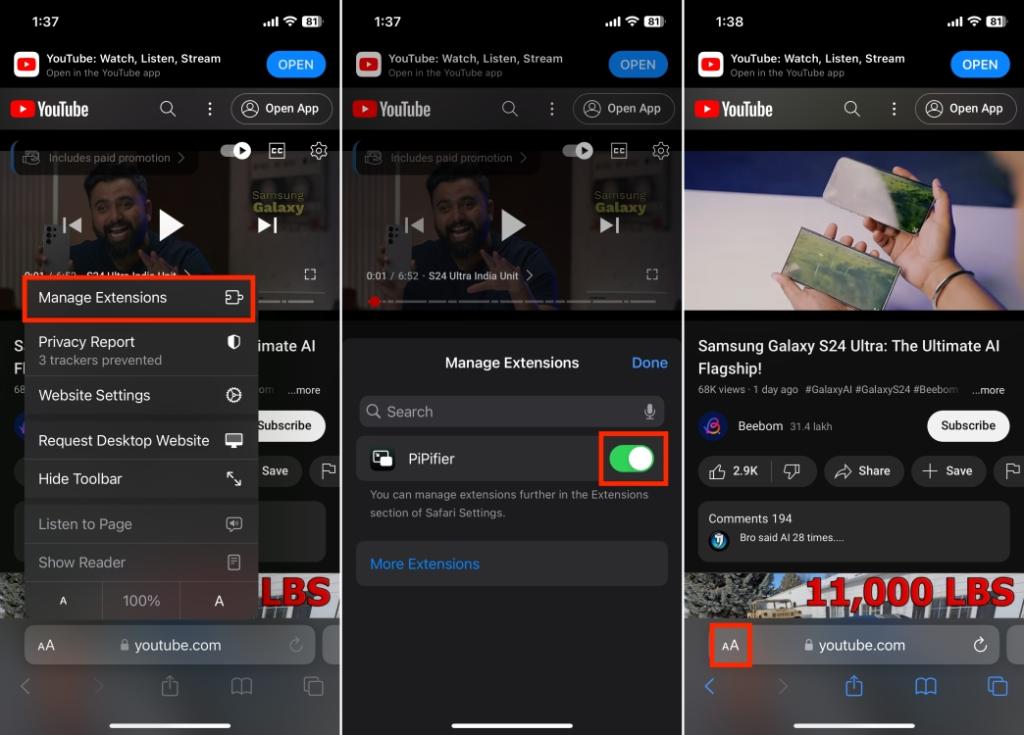
- Here, tap the PiPfier button in the pull-up menu that appears and video will enter the PiP mode.
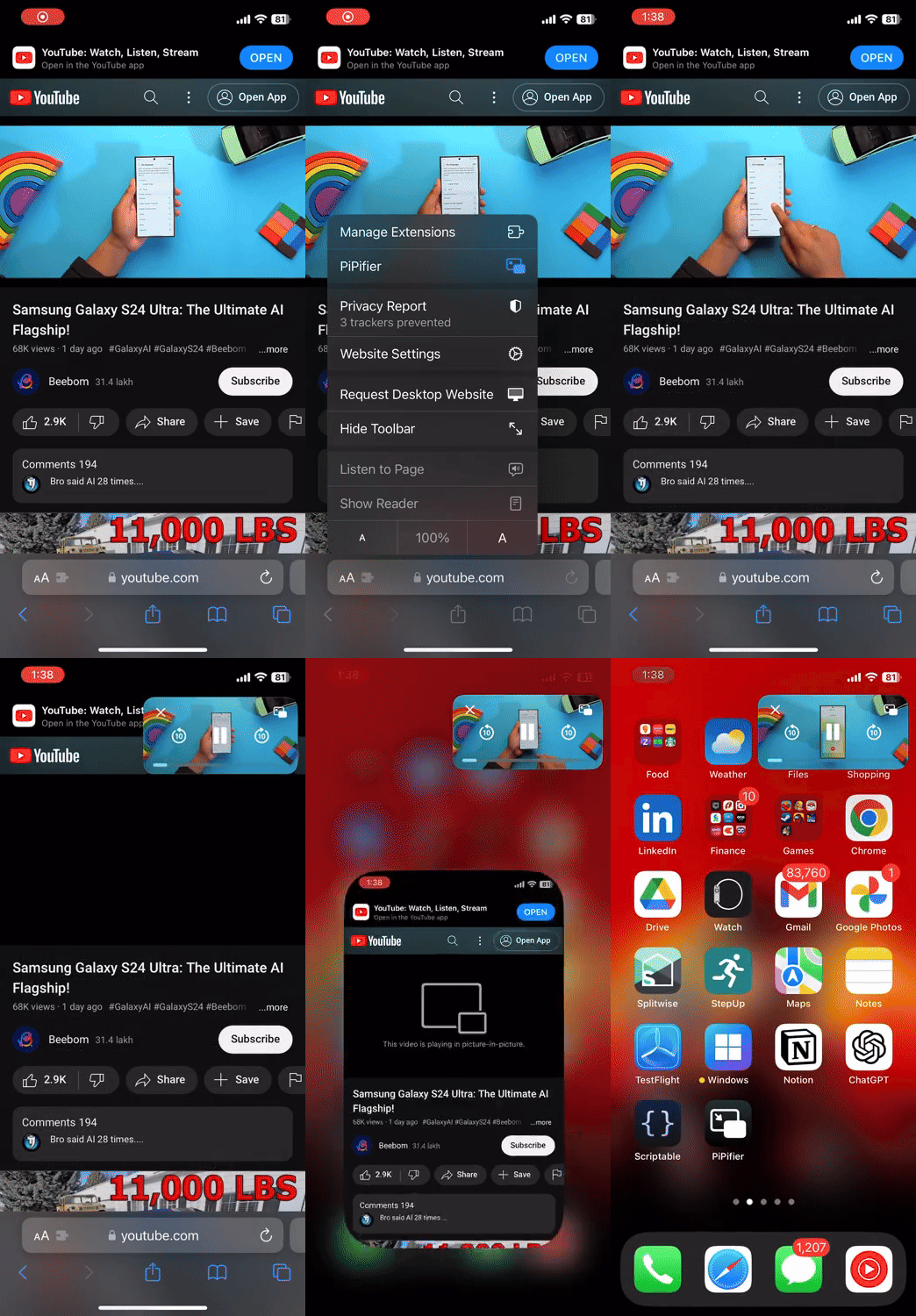
YouTube policies and features can anytime evolve and this workaround might stop working at some point. Always ensure that you are compliant with YouTube’s terms of service and community guidelines.
Check whether Picture-in-Picture is enabled is enabled on your iPhone. To do so, go to Settings > General > Picture in Picture > toggle ON.
Once you have enabled PiP on your iPhone, play any video in the YouTube app and swipe up from the bottom, and the video will start playing in a mini-player.
Vikhyat has a bachelor’s degree in Electronic and Communication Engineering and over five years of writing experience. His passion for technology and Apple products led him to Beebom, where he specializes in writing App features, How To’s and app troubleshooting guides for fellow Apple users. When not typing away on his MacBook Pro, he loves exploring the real world.
Add new comment
Name
Email ID
Δ


