People around the globe have finally started receiving their iPhone 13 devices. With so much excitement around Apple’s newest iPhone iteration, there are several new things users can try. If you are part of the people who have just gotten an iPhone 13 and like to click pictures, this new feature is made for you. Introduced alongside Cinematic Mode at Apple’s recent hardware event, Photographic Styles is a new camera feature included in the iPhone 13 lineup. And it is all set to revolutionize photography for professionals and everyday users alike. But what exactly are Photographic Styles, how do they work, and how can you use them on your iPhone 13? Find all that and more in this guide we have created teaching how to use Photographic Styles in the iPhone 13 camera app.
Use Photographic Styles in iPhone 13 Camera (2021)
While this guide covers how to use Photographic Styles in iPhone 13, we also talk about what exactly are these photo modes and how they work. If you would rather just cut to the chase, use the table below to jump to the desired section.
What Are Photographic Styles in iPhone 13 Camera App?
Photographic Styles are the newest set of photographic presets included in the iPhone 13 lineup. You can apply these before a shot is taken through the iPhone 13 camera and see the tone and warmth changes in the viewfinder. Photographic Presets apply a realistic yet beautiful effect to the photos, making them stand out depending on the chosen style.
The Photographic Styles in iPhone 13 models have been divided across four different presets, each having its own nuances. The styles in the discussion are Rich Contrast, Vibrant, Warm, and Cool . While you can see how each affects the shot in the image gallery above, we have described what each of them does right here:
While you might assume that Photographic Styles are just filters, they aren’t. These styles work more intricately in a way that the image’s elements are first analyzed, and then adjustments are applied in real-time. It ensures that a single template filter won’t be applied to the entire scene, thereby ruining certain elements that would do fine without it.
That is also the reason why you cannot apply the Photographic Styles after clicking an image from the iPhone 13 camera. Any styles must be chosen and applied during the pre-capture stage before clicking the image itself.
How Do iPhone 13’s Photographic Styles Work?
Unlike mere filters, Photographic Styles on iPhone work on the principle of pre-processing and have the added benefit of being directly in the camera’s pipeline. What that means is that Photographic Styles are accounted for while the image is being taken, and Apple’s smart image processing algorithm works accordingly.
So instead of applying a generic filter that makes template adjustments, a Photographic Style works inside the iPhone’s camera system and applies changes in real-time. The result is a finely edited image with all its original properties but encompassing the chosen stylistic output.
As described above, the chosen Photographic Style will be intelligently applied , but not every element in the scene will receive the same treatment. For instance, certain elements such as skin tones will be preserved while making improvements to the neighboring shades. This way, the entire image blends along nicely with any effects it receives.
However, that does not mean you have no hand in this at all. Apart from choosing from the various Photographic Styles on your iPhone 13 or iPhone 13 Pro model, you can also adjust the Tone and Warmth of each style according to your needs. You can even set a single style to be your default, which is something we will explain how to do below. So keep reading and learn how to enable Photographic Styles in the iPhone 13 camera app.
How to Set up and Use Photographic Styles on iPhone 13
No matter which iPhone 13 model you own, the steps to turn on and use Photographic Styles in the camera app remain the same. Follow closely to learn how to use Photographic Styles.
- Launch the Camera app on your iPhone 13.

- Make sure you are on Photo mode before proceeding further. Then, swipe up from the bottom of the viewfinder and tap the Photographic Styles icon on your iPhone. It looks like three cards stacked in a row, as shown in the image on the right here:

- Study and swipe through the four presets we described above – Rich Contrast, Vibrant, Warm, and Cool . Each one has its own effects, and you can see the changes in real-time through the preview. If you want, you can adjust the tone and warmth sliders according to your preferences.

- Once happy with your choice, tap the shutter button and click your picture.

How to Set a Default Photographic Style on iPhone 13
Besides tapping the card icon in the Camera app, the iPhone 13 allows you to choose a default Photographic Style from the Settings. If you wish to use one of the defined styles for all your future photos, follow the steps below to select the default one:
- Launch the Settings app on your iPhone.
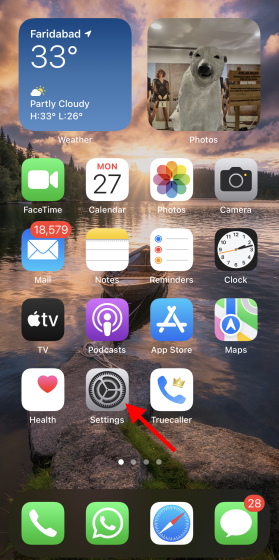
- Scroll down and select Camera to get to its settings.

- Under Photo Capture , tap Photographic Styles .

- Now, swipe left and right to choose the style you would like to keep as a default on your iPhone. Tap on ‘Use [Photographic Style]’ and press Save .

And you are done! Your chosen Photographic Style will now remain as the default until you change it otherwise. Repeat the above methods if you feel like changing them.
Capture Your Best Shot with Photographic Styles in iPhone 13
Bringing the latest in technology, gaming, and entertainment is our superhero team of staff writers. They have a keen eye for latest stories, happenings, and even memes for tech enthusiasts.
Add new comment
Name
Email ID
Δ


