Android 12 reached platform stability with the fourth beta release , and Google has since rolled out the final beta update to Pixel users. As we are merely a couple of weeks away from the stable release, let’s look at one of the most highly anticipated Android 12 features , and it’s called Game Dashboard. This feature brings an in-game overlay to help you access useful tools such as an FPS counter, screen recorder, and more while you game on your Android smartphone. In this article, you will learn all about the Android 12 Game Dashboard and how you can use it during gaming sessions.
Android 12 Game Dashboard: Explained (2021)
Game Dashboard is Google’s attempt to improve the gaming experience on Android. While select gaming phones like the ROG Phone 5 have a floating toolbar with similar handy gaming features, Game Dashboard brings it to all Android 12 phones. With the Game Dashboard, you can enjoy such tools without necessarily purchasing a dedicated gaming phone.
What is Game Dashboard in Android 12?
Game Dashboard is an Android 12 feature that helps gamers record their screen, go live and stream gameplay on YouTube, take screenshots with a tap, and view the FPS of the current game . You can also use Game Dashboard to view your Google Play achievements without opening the Play Games app. According to Google, Game Dashboard will be available on select Android 12 devices this year, with wider availability planned for next year.
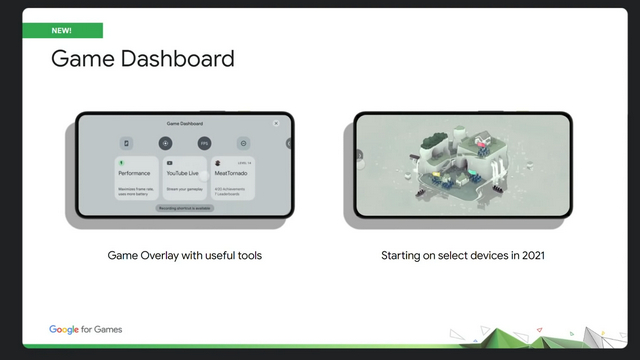
Image courtesy: Google
Another key feature integrated into Game Dashboard is the ability to use performance profiles if the device supports them. Notably, Google has teamed up with Samsung for Game Mode APIs, with more OEMs coming onboard later. If you have a compatible device with Android 12 installed, you can pick between two game modes – performance mode to increase frame rate or battery saver mode to extend your gaming session.
In case you are a developer, check Game Mode API documentation to implement Game Mode in your game or opt-out of Game Mode interventions.
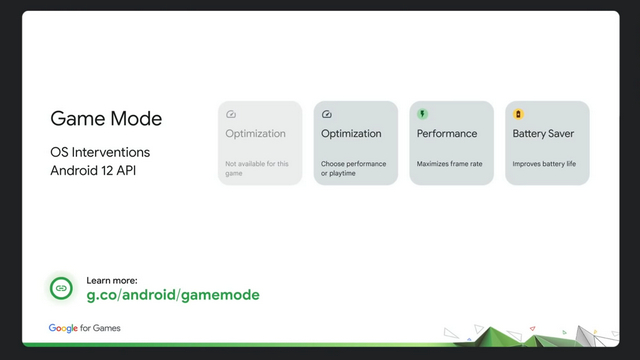
Image courtesy: Google
How to Enable Game Dashboard in Android 12
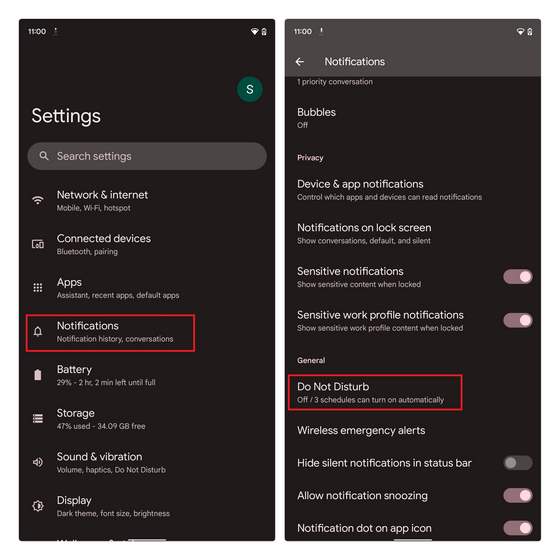
- Open the Settings app and tap on ‘Notifications’. Scroll down until you find the ‘Do Not Disturb’ option under General settings.
- From the Do Not Disturb settings page, select ‘Schedules’ and tap on the gear icon next to ‘Gaming’.
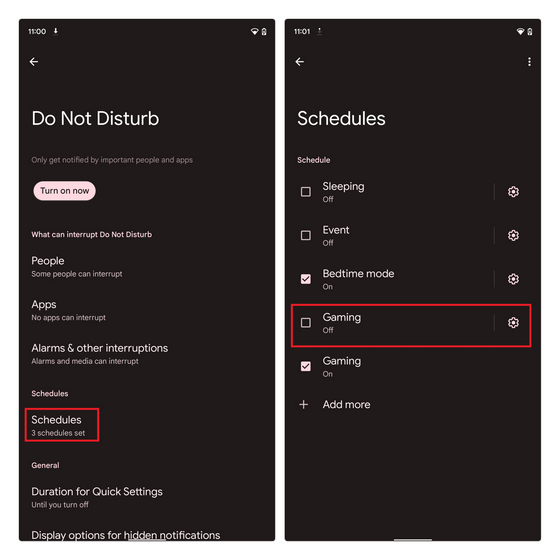
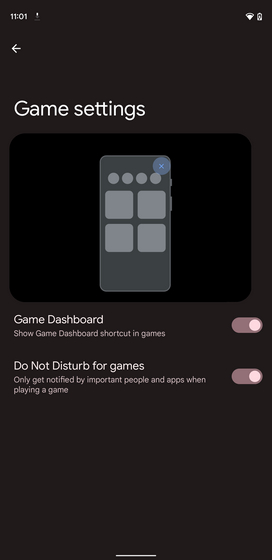
- From here, make sure that the Game Dashboard toggle is enabled . You can also enable the ‘Do Not Disturb for games’ toggle for an uninterrupted gaming experience. Google notes that you will get notifications from important people and apps while you are using this DND mode (which is similar to Focus mode in iOS 15 ).
And that’s it. You should now be seeing Game Dashboard while playing your favorite Android games .
Manage Game Dashboard During Gameplay
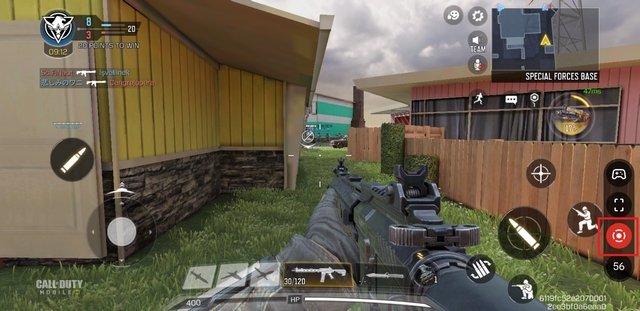
- To access the Game Dashboard, open a game and tap on the floating button at the screen’s corner . When you see a controller icon, tap on it to open the Game Dashboard on your Android 12 device. Check the images below for reference:

The game achievements feature has not started widely rolling out just yet, but when it does, you will see in-game achievements and leaderboards from games connected to Google Play Games.

- To record your gameplay, tap on the Record button in the Game Dashboard shortcut and wait for the recording confirmation screen to appear.
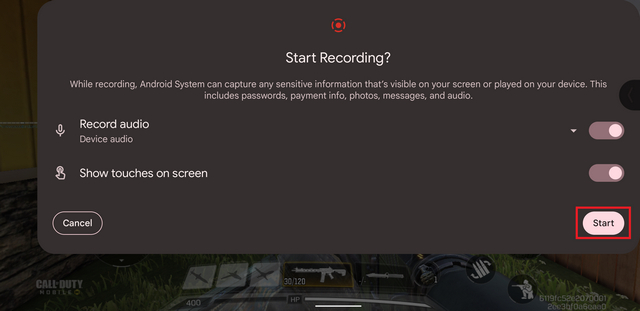
- In the screen recording pop-up, you can choose to record audio or show touches on the screen. After tweaking the settings as per your liking, press ‘Start’ to record your game .
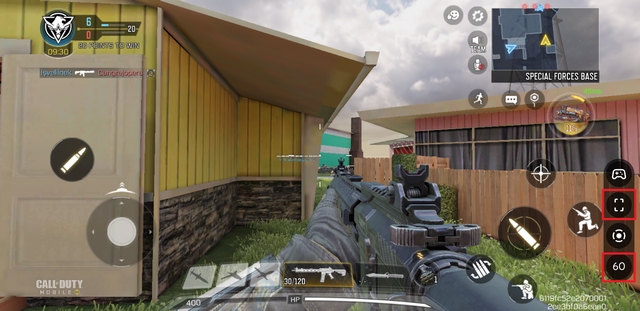
- The other two options you see above and below the screen recorder icon are for capturing a screenshot and viewing the real-time FPS of the game you are playing.
Try Game Dashboard’s Powerful Tools in Android 12
Subin writes about consumer tech, software, and security. He secretly misses the headphone jack while pretending he’s better off with the wireless freedom.
Add new comment
Name
Email ID
Δ


