- The two ways to use Emojis on Windows are by using keyboard shortcuts and an on-screen keyboard.
- Using the Windows + “.” keyboard shortcut opens the emoji menu where you can access Emojis, GIFs, special symbols, Kaomoji, and more.
- You can also enable the on-screen keyboard and select the Most recently used button to access and use emojis.
Emojis unlock a new way to express yourself via text, on the internet, and in emails; Okay, maybe not in professional emails, but if you have a Windows PC and want to quickly add emojis, GIFs, or special characters or symbols to your text, here are a few ways to use Emojis on Windows machines.
Method 1: Using the Windows Keyboard Shortcut
- Using the keyboard shortcut Windows + “.” key opens a non-resizable Emoji panel.
- The panel consists of six additional menus — Most recently used, Emoji, GIF, Kaomoji, Symbols, and Clipboard History. Besides, each section has many subsections.
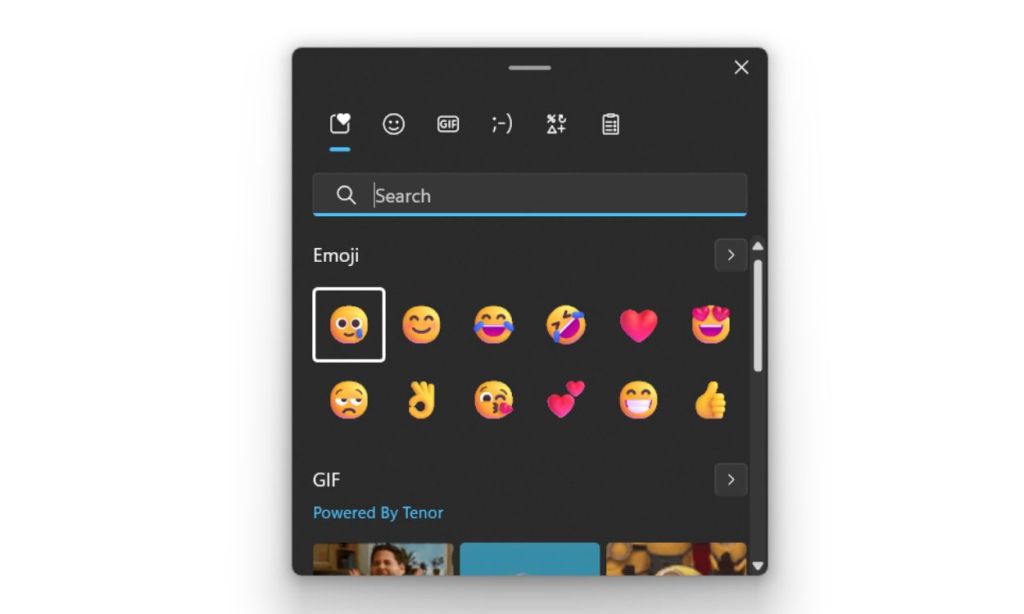
- Go to an empty text field, use the shortcut to open the Emoji panel, and click an Emoji to add it to the text.
- You can also use the search bar to search for Emojis and GIFs.
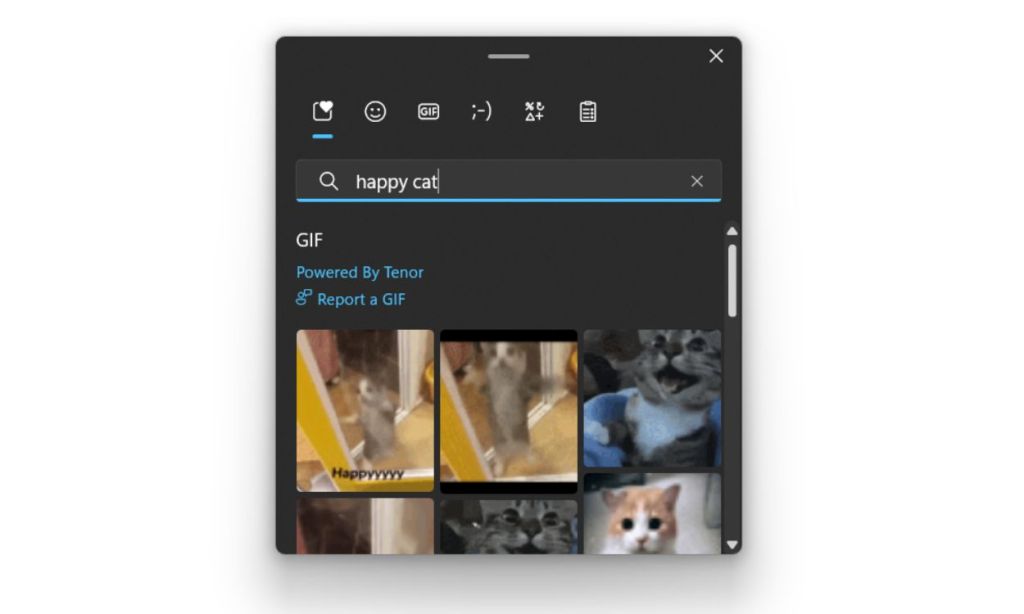
Unlike the Emoji panel on ChromeOS , you don’t need to be on an empty text field to access the panel.
Method 2: Using the on-screen Keyboard on Windows
Another way to access the Emoji menu on Windows is by using the on-screen keyboard. There are a few ways to activate Windows’ on-screen keyboard.
- If your Windows laptop is convertible, you can flip the screen for Windows to enter into Tablet mode.
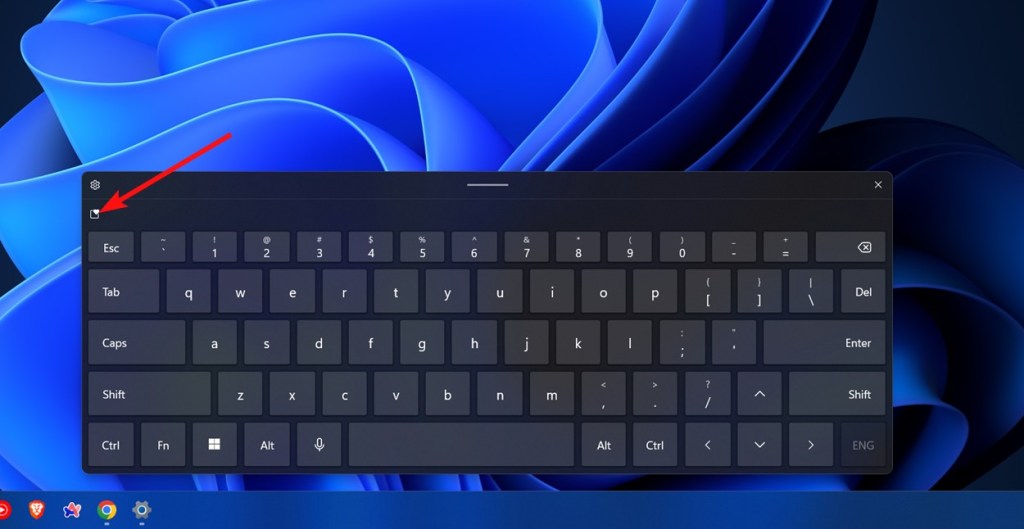
- Tap an empty text field and a keyboard should pop up. Tap on the Most recently used button in the top-left corner of the keyboard – it’s a small square with a heart symbol.
- This will open the Emoji section. You can now tap and add emojis, GIFs, special symbols, or Kaomoji, or use the search bar to search for a specific Emoji or GIFs.
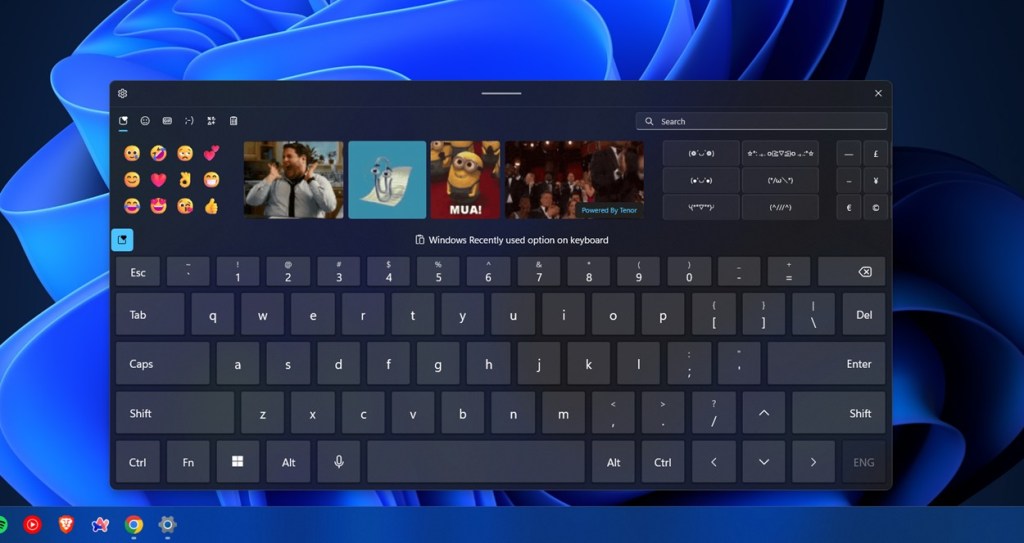
- Windows allows you to have an on-screen keyboard as an accessibility function. If your Windows or Period key is broken, you can use the on-screen keyboard instead.
- Right-click on the Taskbar > go to Taskbar settings > Touch keyboard , and select Always .

- Now, click on the keyboard icon that shows up on the taskbar to open the on-screen keyboard.
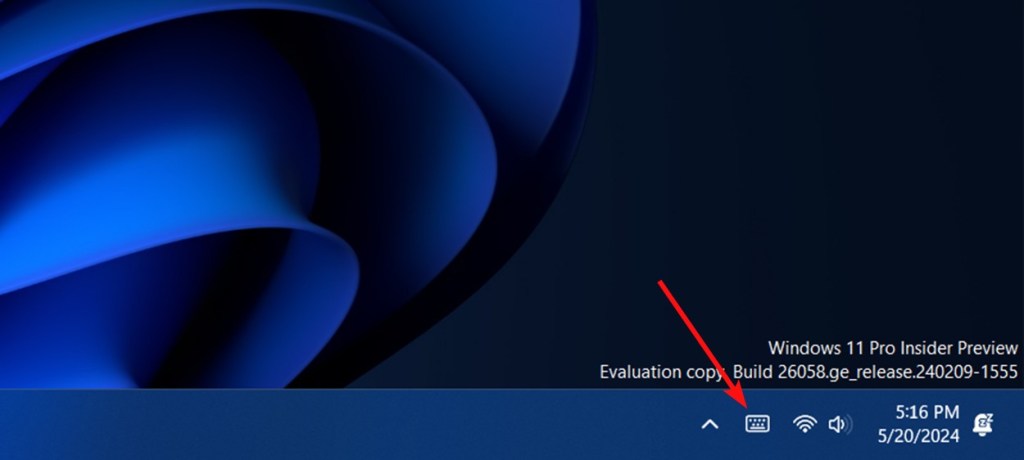
- Use the steps mentioned above to add an emoji. Alternatively, you can also press and hold Windows with your mouse and drag the cursor to the period key to open the Emoji menu.
Abubakar covers Tech at Beebom, with his passion for technology tracing back to 2011 when he received a Dell Inspiron 5100 as a gift. He’s also a passionate advocate for the right-to-repair movement, believing in empowering users to maintain and extend the life of their devices. Outside the tech world, he enjoys watching anime and exploring his newfound enthusiasm for Japanese cars. In his free time, you’ll often find him immersed in Genshin Impact or researching his next gadget purchase. Before joining Beebom, he contributed to leading publications like Android Police, How-To Geek, and Fossbytes.
Add new comment
Name
Email ID
Δ


