- The Pixel-exclusive Audio Eraser feature can get rid of noise in videos.
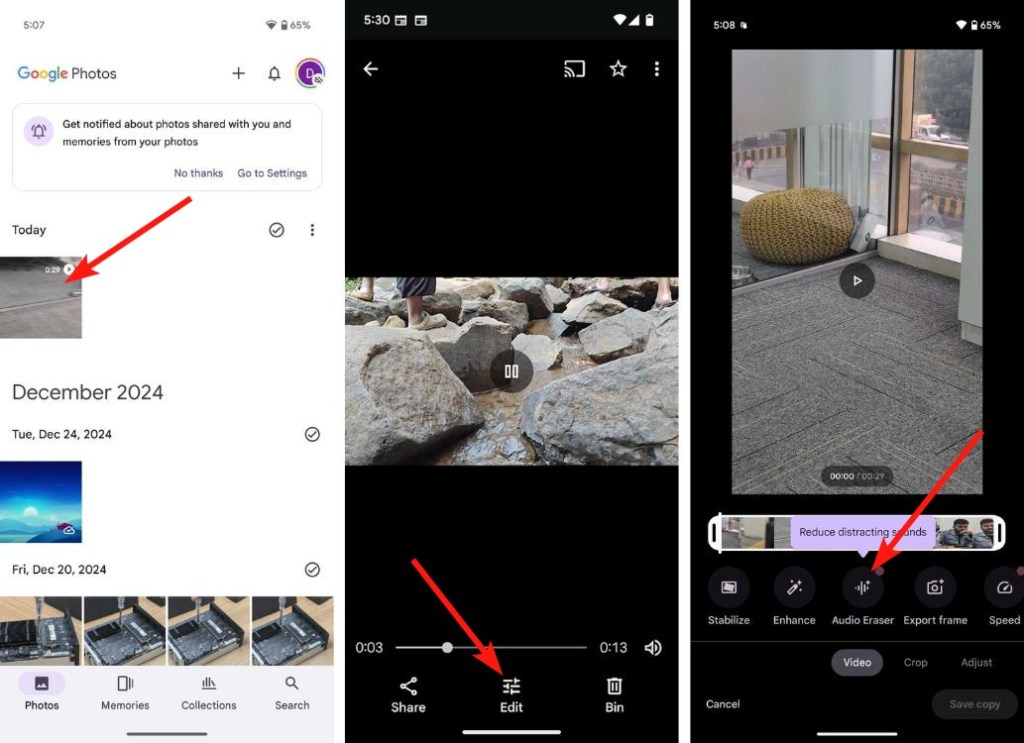
- It can be accessed from the Google Photos app by clicking the Edit option below a video.
- The suggested options inside Audio Eraser will be different depending on the kind of noise present in the video.
There are times when the overall sound quality of a video you shoot on your phone may appear noisy, making the video impractical to upload on social media. While there are ways to edit the audio to make it better, it requires advanced knowledge of tools and is time-consuming. But if you have a Pixel, the issues can be fixed in just a few taps using a feature called Audio Magic Eraser. Here’s how to use it on your Pixel phone.
First introduced with the Google Pixel 8 series, Audio Magic Eraser is one of the easiest ways to fix issues like wind noise, enhance speech, and reduce the overall noise. It uses AI that separates different sounds from the audio to get rid of or enhance those sounds individually, resulting in a fuller and cleaner audio experience.
Use Audio Magic Eraser on Google Pixel
The Audio Magic Eraser feature can be found in the Google Photos app on your Pixel device.
- Open Google Photos and head over to the video you want to fix.
- Tap on Edit from the bottom toolbar.
- When the editor mode appears, swipe rightwards on the toolbar until you reach the Audio section.
- Here, tap on Audio Eraser .
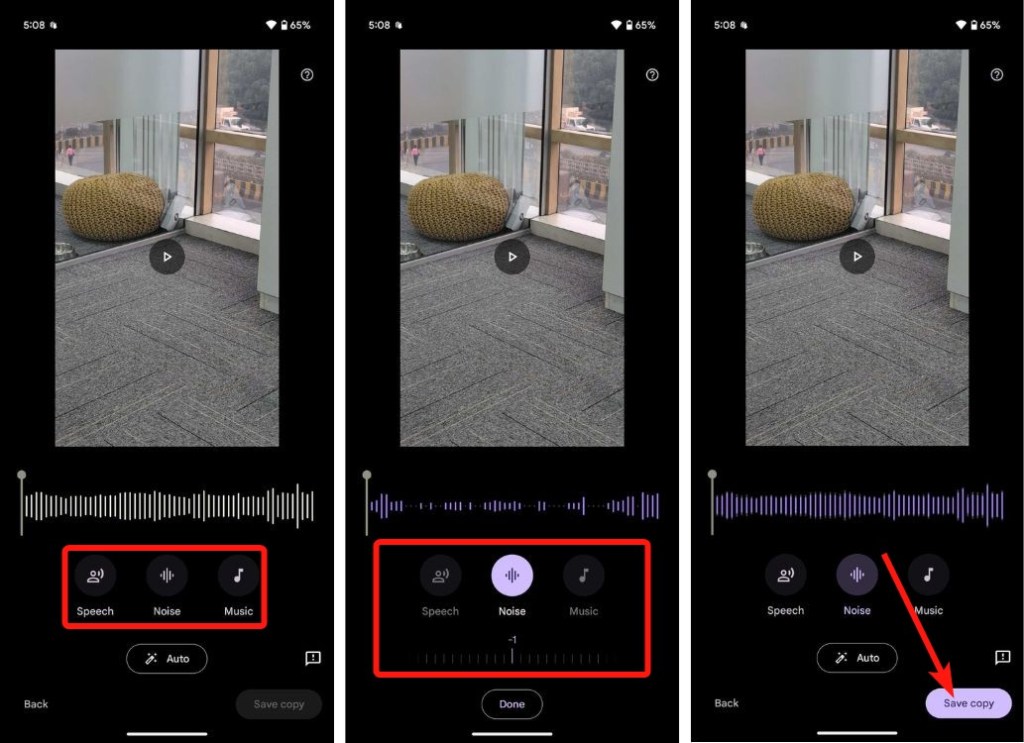
- Now, choose your preferred options from the suggestions. You will see 3 or more options (depending on the noise present in the video). In this instance, we have Speech , Noise , and Music .
- Once selected, swipe left or right on the bottom slider (underneath the chosen option) to increase or decrease the respective sounds.
- You can also use the Auto option below to let the feature decide what to fix.
- Before you confirm changes, you tap on Play button inside the video preview to check the new sound levels.
- Once done, tap on Save copy to save the edited video on your Pixel phone.
And that’s how you can use the Audio Magic Eraser on Google phones. As mentioned earlier, the feature is only available on Pixel 8 series and above devices, including the Pixel 8a.
How Well Does it Work?
In the last year we’ve spent testing the feature, we found the Audio Magic Editor works phenomenally well. It really does stand up to its name and enhances the overall audio in a video. Sure, there were a few inconsistencies, but there were times we had another phone blasting music at full volume next to the Pixel, and it cancelled the noise out very well. The same goes for speech and wind noise.
The suggestions in Audio Eraser are based on the Video’s audio. If a video has music, the Photos app will give you an option to adjust the music level. As of writing this, the Audio Magic Eraser works with Speech, Wind Noise, Music, Nature, and just plain noise. Also, the video doesn’t have to be shot by a Pixel. It can be from any device and Pixel will do it for you.
Abubakar covers Tech at Beebom, with his passion for technology tracing back to 2011 when he received a Dell Inspiron 5100 as a gift. He’s also a passionate advocate for the right-to-repair movement, believing in empowering users to maintain and extend the life of their devices. Outside the tech world, he enjoys watching anime and exploring his newfound enthusiasm for Japanese cars. In his free time, you’ll often find him immersed in Genshin Impact or researching his next gadget purchase. Before joining Beebom, he contributed to leading publications like Android Police, How-To Geek, and Fossbytes.
Add new comment
Name
Email ID
Δ



- Android 16 DP2 on Pixel 9 adds a new Screen-off Fingerprint Unlock option.
- When enabled, it allows users to unlock their devices even when the screen is completely off.
- This should be a useful feature for those who don’t want to use AOD because of battery woes but want the Fingerprint to always be active.
Pixel 9 series was the first set of Pixel devices to get ultrasonic fingerprint sensors for faster unlock and better accuracy. However, like on most phones, users need to wake up the screen before they can use their finger to unlock the device unless the always-on display is enabled. Well, that’s changing with the Pixel 9 series as Google has added an option to unlock using their Pixel 9’s fingerprint sensor even when the screen is off.
In the Android 16 Developer Preview 2 that Google rolled out today, there’s a new Screen-off Fingerprint Unlock toggle on the Fingerprint Unlock page with the description “Use Fingerprint Unlock even when the screen is off”.

As the name suggests, this keeps the Fingerprint sensor active even when the screen is completely off. Users can then roughly predict where the fingerprint scanner is, and place and scan their registered finger to easily unlock the device without waking the screen up first.
Unfortunately, this only seems to work with the Pixel 9 ( review ) series and will probably be exclusive to the series because it sports an Ultrasonic Fingerprint sensor. However, users with older Pixel devices can still unlock when the screen is off (technically) by enabling the Always-on display from Settings > Display > Lock screen > Always show time and info . Mind you, Always-on affects battery life.
The Screen-off fingerprint unlock is definitely a great feature for those who don’t use AOD but still want to unlock the device without tapping and waking it up, especially when it’s lying flat on a table.
Abubakar covers Tech at Beebom, with his passion for technology tracing back to 2011 when he received a Dell Inspiron 5100 as a gift. He’s also a passionate advocate for the right-to-repair movement, believing in empowering users to maintain and extend the life of their devices. Outside the tech world, he enjoys watching anime and exploring his newfound enthusiasm for Japanese cars. In his free time, you’ll often find him immersed in Genshin Impact or researching his next gadget purchase. Before joining Beebom, he contributed to leading publications like Android Police, How-To Geek, and Fossbytes.
Add new comment
Name
Email ID
Δ
