- Wi-Fi Calling lets you use Wi-Fi to make/receive audio calls, iMessages, and FaceTime calls on your iPhone.
- Go to Settings -> Wi-Fi Calling -> Wi-Fi Calling on This iPhone and hit Enable to turn on Wi-Fi Calling on your iPhone.
- If you can’t enable Wi-Fi Calling, contact your network provider or update software on your device.
Wi-Fi Calling is a supremely handy feature that lets you use Wi-Fi to make/receive audio calls on your iPhone, even if it says “No Service” or “SOS” . It’s a lifesaver in situations when you’re stuck in a cellular dead zone and need to make an important phone call. If you can access a nearby Wi-Fi signal, you can make and receive calls on your iPhone. Damn convenient, right? So, you should know how to turn on Wi-Fi calling on an iPhone and how to use it. In this article, we’ve summed up everything about calls over Wi-Fi on an iPhone. So, let’s get started.
Prerequisites to Use Wi-Fi Calling on an iPhone
- Your network carrier must support Wi-Fi calling.
- Your iPhone needs to be connected to a stable Wi-Fi network.
All the iPhone models (iPhone 5c or later) support Wi-Fi calling. So, you shouldn’t face any compatibility issues on the model you own.
How to Enable Wi-Fi Calling on iPhone
- Open the Settings app on your iPhone and visit the Phone or Mobile Data/ Cellular section.
- Now, tap on Wi-Fi Calling.
- Here, turn ON the “Wi-Fi Calling on This iPhone” toggle and hit the “ Enable ” option in the pop-up menu.
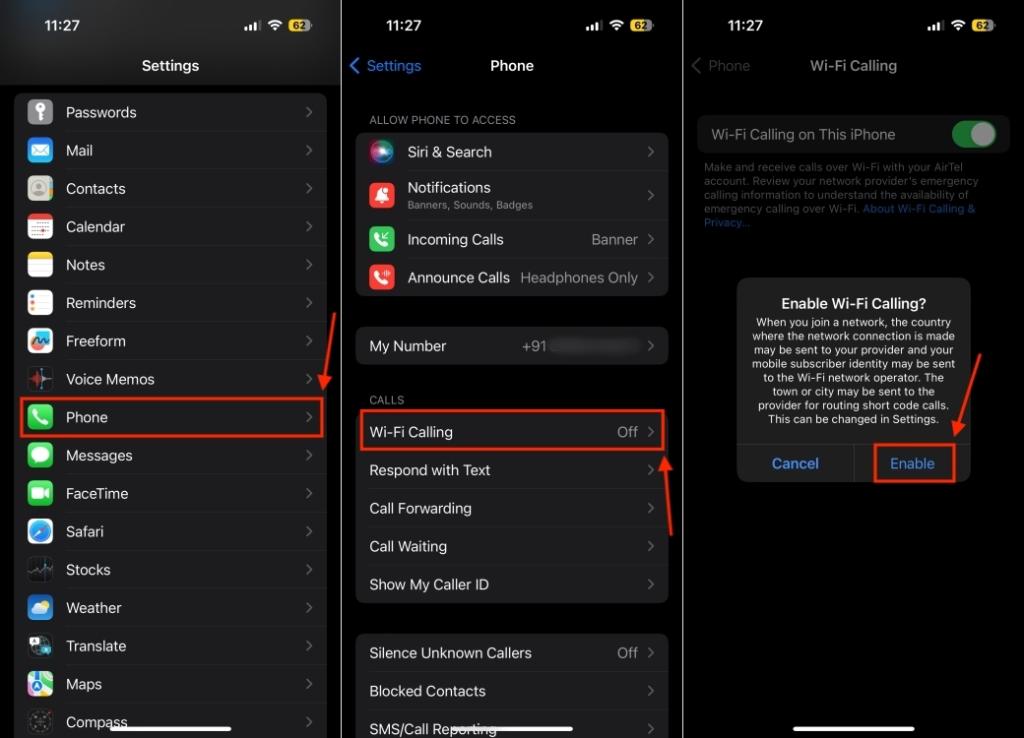
- If prompted, enter or confirm your address for emergency services.
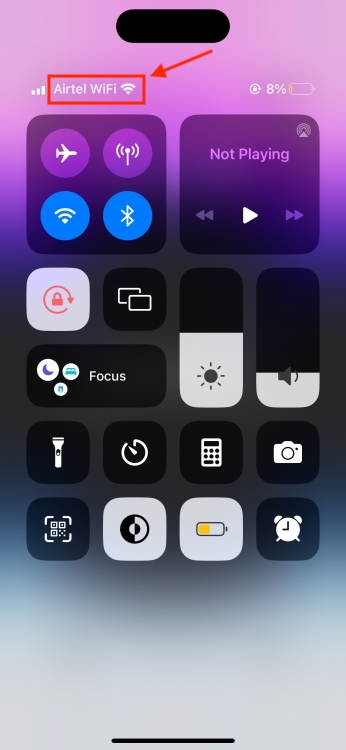
Once you’ve done this, you should see “Wi-Fi” in the status bar- next to the name of your network carrier. This ensures that “Wi-Fi Calling” is available and all your calls will go through Wi-Fi.
How to Use Wi-Fi Calling on iPhone
After you enable Wi-Fi Calling on iPhone, all the calls will automatically switch from cellular network to Wi-Fi, when you’re connected to a Wi-Fi network. If there’s no or poor Wi-Fi signal strength, the call will automatically switch back to the cellular network. Bear in mind that you cannot use Personal Hotspot when making calls over Wi-Fi.
If Wi-Fi Calling is not an option on your iPhone or you can’t enable it, here’s what to do: 1. Check if your network carrier supports Wi-Fi Calling or not. ( See here ) 2. Make sure your iPhone is running the latest version of iOS. 3. Restart your iPhone. 4. Connect to a different network. The Wi-Fi network you’re connected to might not support the Wi-Fi Calling feature. 5. Toggle the Wi-Fi Calling option. 6. Reset Network Settings on your iPhone.
In most cases, network providers offer Wi-Fi Calling at no additional cost. They treat Wi-Fi calls as normal calls and deduct minutes from your active plan. Bear in mind that this rule applies only when you make or receive Wi-Fi calls in your country. For international calls, you will be charged extra. Also, some public Wi-Fi networks may charge you a fee to connect to and access the network.
Kanika has been a loyal iPhone user since 2014 and loves everything Apple. With a Master’s in Computer Applications, passion for technology, and over five years of experience in writing, she landed at Beebom as an Apple Ecosystem Writer. She specializes in writing How To’s, troubleshooting guides, App features, and roundups for Apple users to help them make the best use of their gadgets. When not writing, she loves to try out new recipes and enjoy some family time.
Add new comment
Name
Email ID
Δ


