With the battery percentage indicator, it becomes easier to keep track of the battery status and find out exactly how much juice is left in the tank. That means you are less likely to get caught off guard and don’t have to run for the power adapter at the eleventh hour. Surprisingly, macOS Monterey (just like macOS Big Sur) doesn’t show battery percentage in the menu bar by default. However, you can choose to show the battery percentage on macOS Monterey to monitor the battery charge easily. Let me show you how you can enable this feature.
How to Show Battery Percentage on Mac
Since the battery menu bar setting is present under System Preferences, many macOS users might not be aware of the fact that they can easily see the battery percentage in the menu bar. Some might even be left wondering if Apple has completely scrapped the feature in the newest versions of macOS. Before we move ahead, it’s worth pointing out that the steps are the same for both macOS Monterey and Big Sur.
Show Battery Percentage in Menu Bar on macOS Monterey
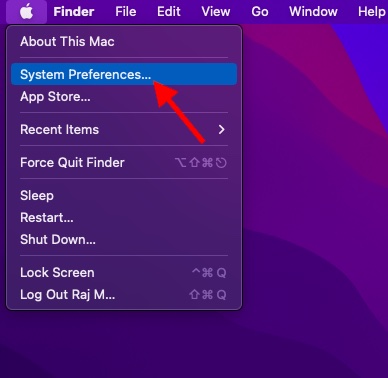
- Click the Apple icon at the top left corner of the screen and choose System Preferences .
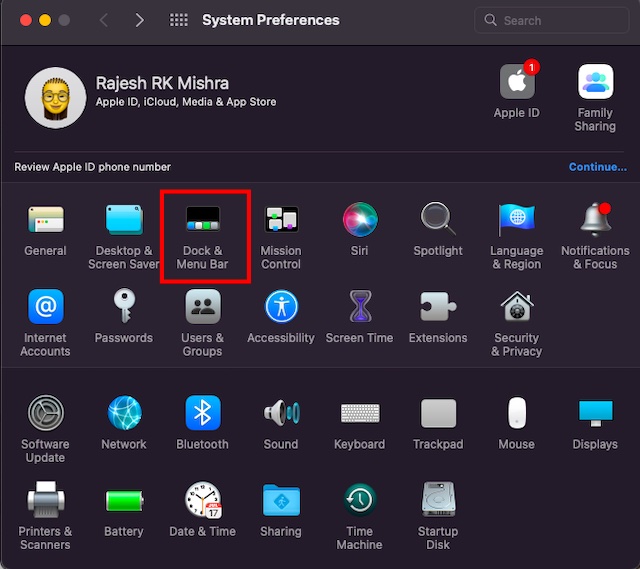
- Then, select Dock & Menu Bar .
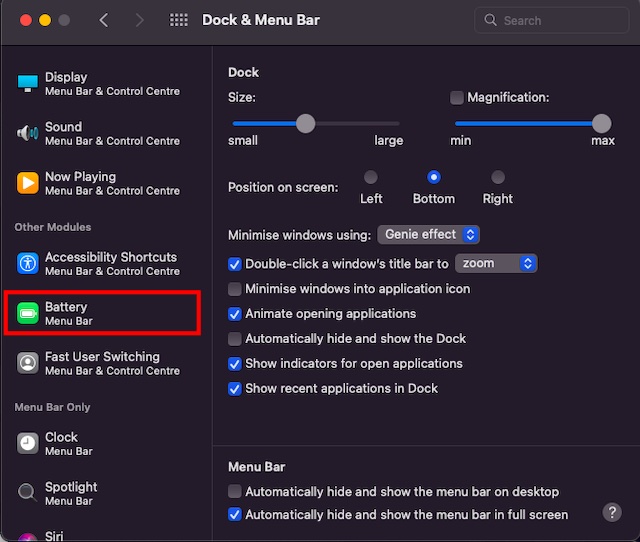
- Next, scroll down and choose the Battery option from the left sidebar.
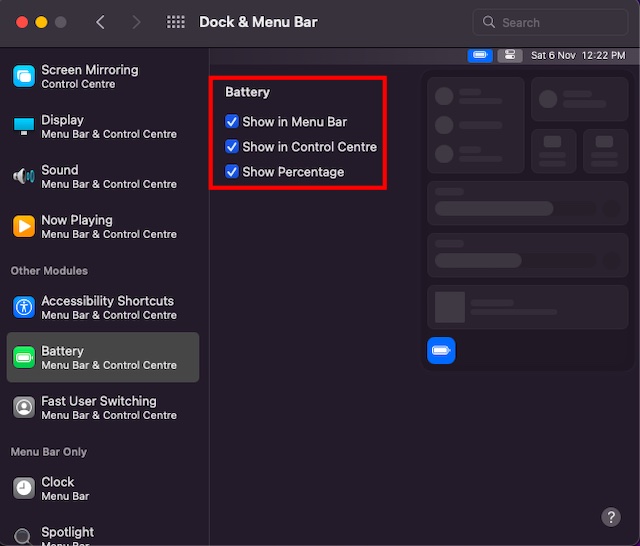
- Finally, check the box next to the Show Percentage option. Do note that you also have the option to show the battery icon with the percentage in the Control Center. If you prefer to use the iOS-style control center to manage basic controls on macOS, you may want to display the battery percentage there as well. To do so, make sure to check the box for Show in Control Center .
Check Remaining Battery on macOS Monterey
From now onwards, you can easily keep track of the remaining battery of your Mac. Check out the battery percentage indicator that appears to the left of the battery icon in the menu bar on your Mac. And if you have ticked the “Show in Control Center” box as well, the battery icon will appear in the Control Center at the bottom.
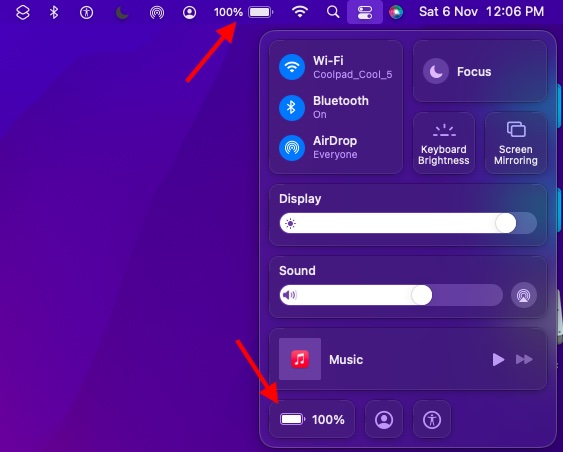
Now, whenever you click the battery percentage icon in the menu bar, a context menu will open up and show an accurate estimate of the remaining battery life in macOS Monterey. It will also reveal the app that’s consuming a significant amount of battery, so you can tame them to extend the battery life. And upon clicking the Battery Preferences option, you will see the redesigned macOS battery settings , which you can customize to extend the battery life of your Mac device.
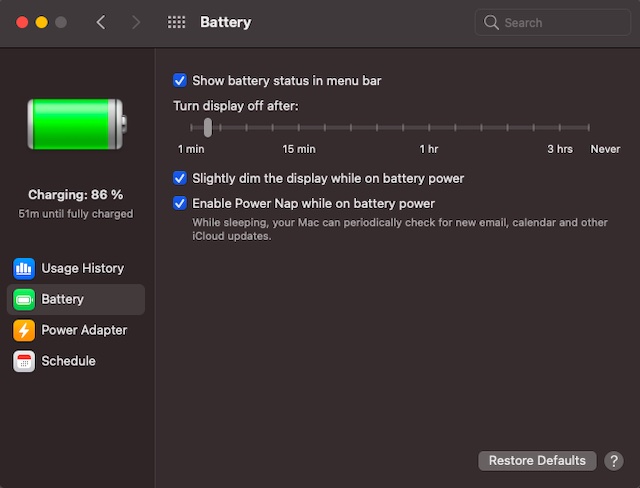
New battery settings on Mac
If you ever wish to hide the battery percentage on macOS Monterey, repeat the steps explained in the above section and then uncheck the Show Percentage option.
Show/ Hide Battery Percentage on macOS Monterey
An old school bibliophile who turned a tech nerd out of obsession. When he is not digging into hacks and tracking down stories that are breaking the internet, you may find him reciting poems.
Add new comment
Name
Email ID
Δ


