- To set up your Amazon Alexa device, you will need to download the Alexa app that’s available for both Android and iPhone.
- Once downloaded, follow the on-screen instructions to set it up and get to the Home screen.
- To add a new Alexa device, tap the plus + icon at the top right, select the device and follow the on-screen instructions.
While the thought of setting up a smart home is enticing, the process may seem all too overwhelming at first. The same goes for setting up your new Alexa device. So, if you have just got your new Echo smart speaker and want to learn a quick and effective way to set it up, then I have outlined a guide on how to set up your Alexa device in detail down below.
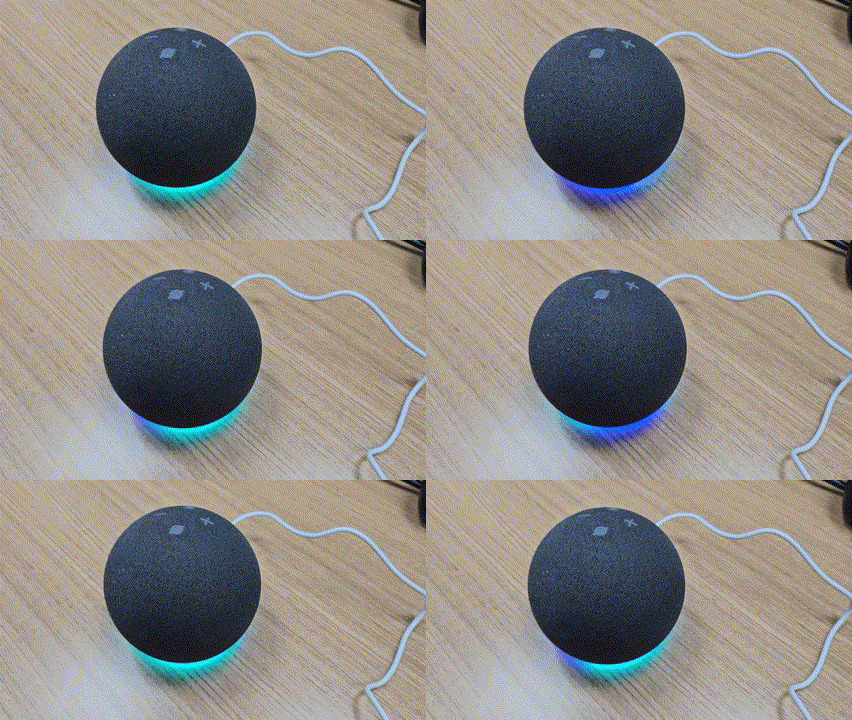
- First things first, plug in your Amazon Echo device, and you will see the base emit a blue light ring.
- Next, install the Amazon Alexa app ( Android , iPhone ) on your phone and open it.
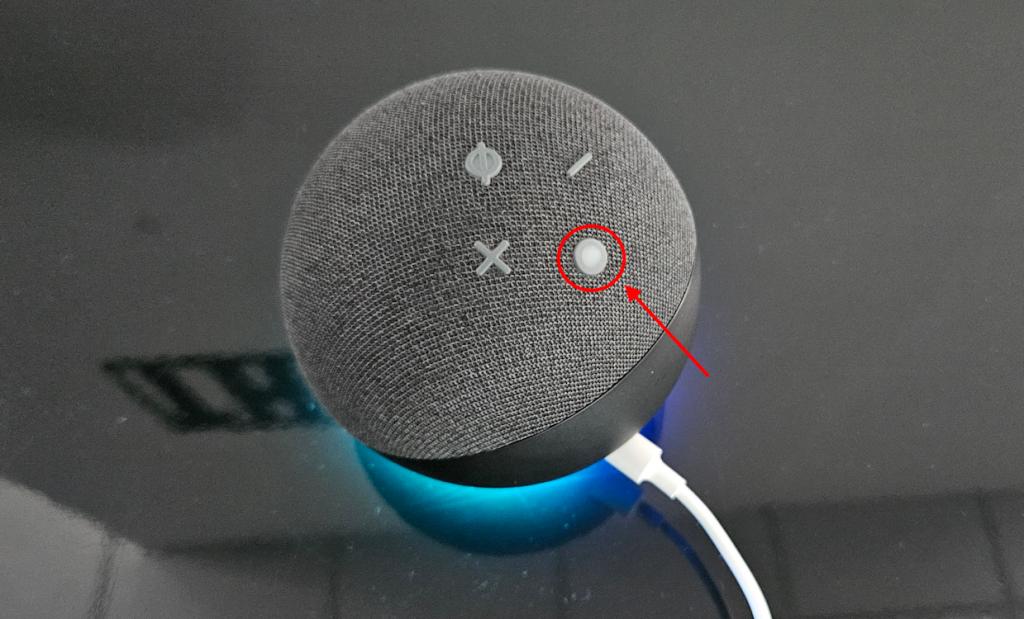
- In the meantime, long press the Action button at the top to enter Setup mode on your Amazon Echo.
- The device will now emit an orange light instead to suggest that it’s in Setup mode. Alexa will also ask you to follow the on-screen instructions of the dedicated app at this point.
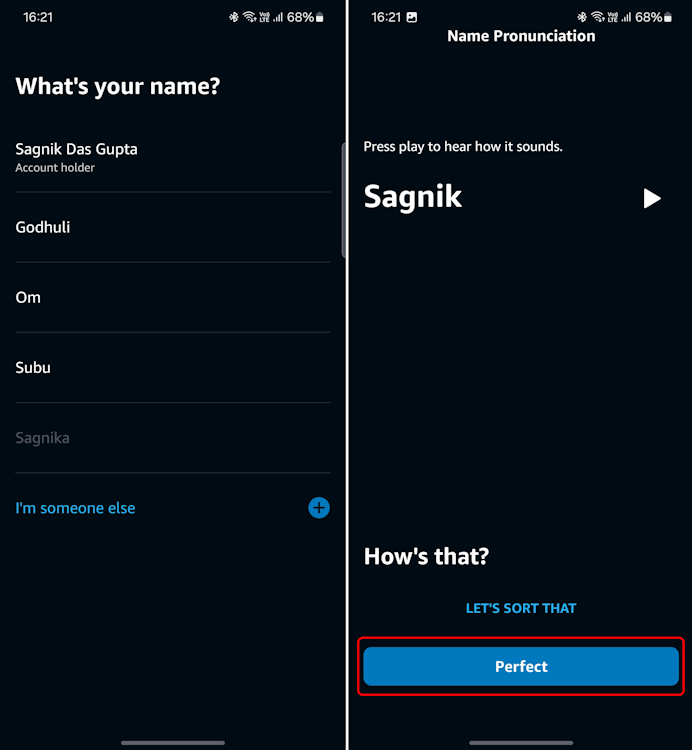
- Head over to the app, sign in to Amazon Alexa using your Amazon account credentials.
- Then select your name and its correct pronunciation, and finally select Perfect to move on.
- On the Voice ID page, tap on Agree & Continue to set up your voice to summon Alexa.
- In the permission window, give the Amazon Alexa app access to record audio.
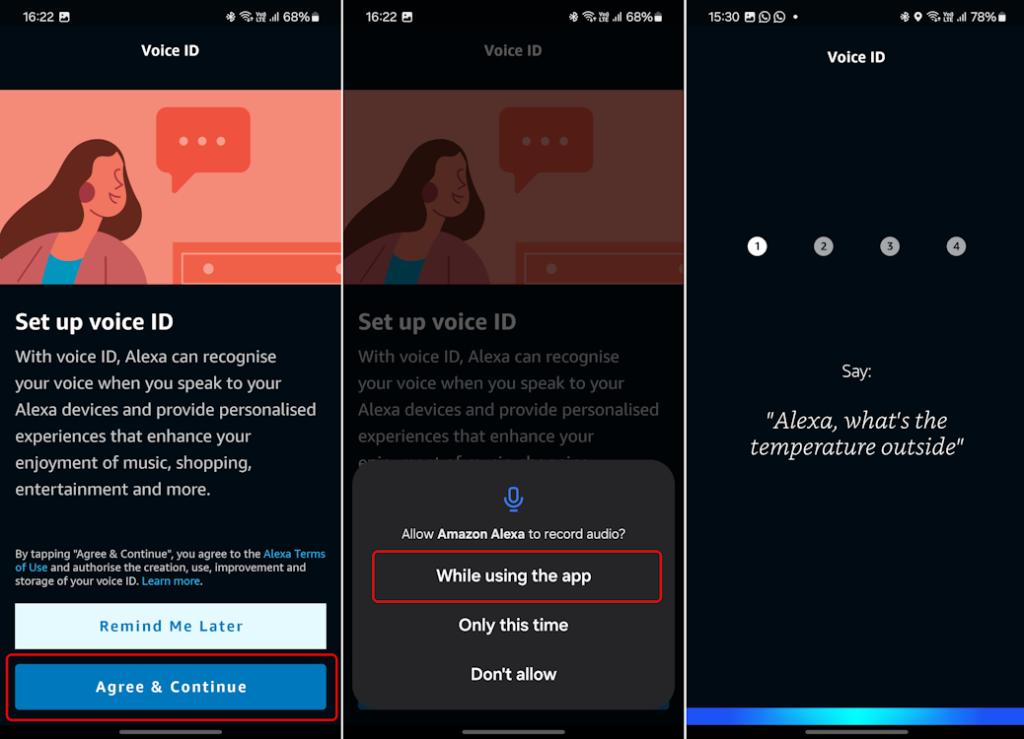
- You will then need to speak out a bunch of guided one-liners for Alexa to analyze your voice. Once it’s all done, your Voice ID will be created.
Note: On the last voice prompt, instead of saying, “Alexa, add milk to my shopping list,” say, “Alexa, milk to my shopping list”. If you say the prompt as is with “add” in it, the app literally takes you to the shopping list and the Voice ID process gets interrupted.
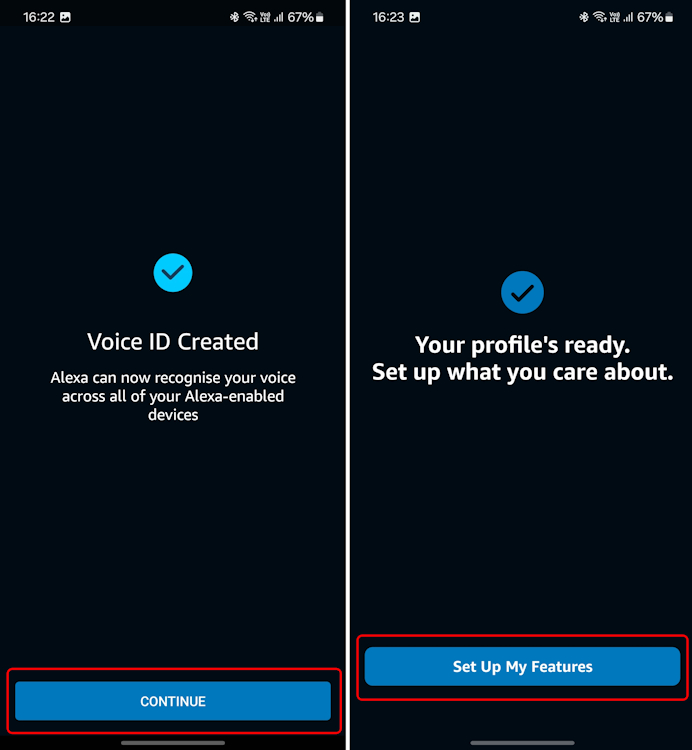
- Now hit CONTINUE, and on the next page, tap on Set Up My Features .
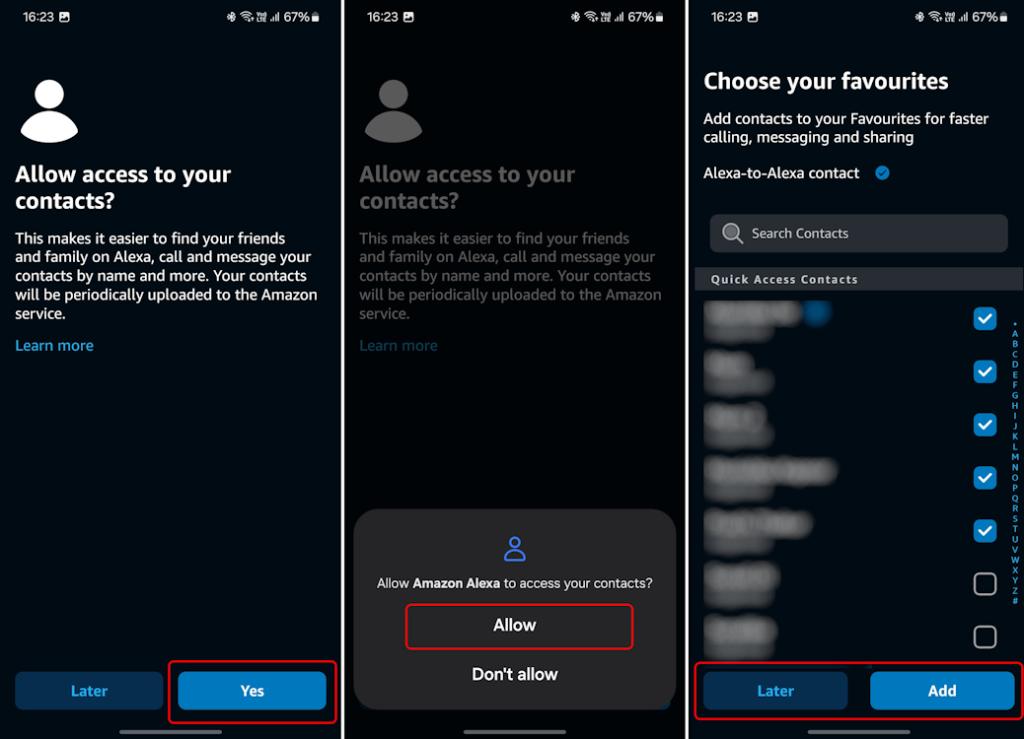
- Start by giving the app access to your contacts by hitting Yes and Allow in the confirmation window. You can also choose to Add your favorite contacts if any or hit Later .
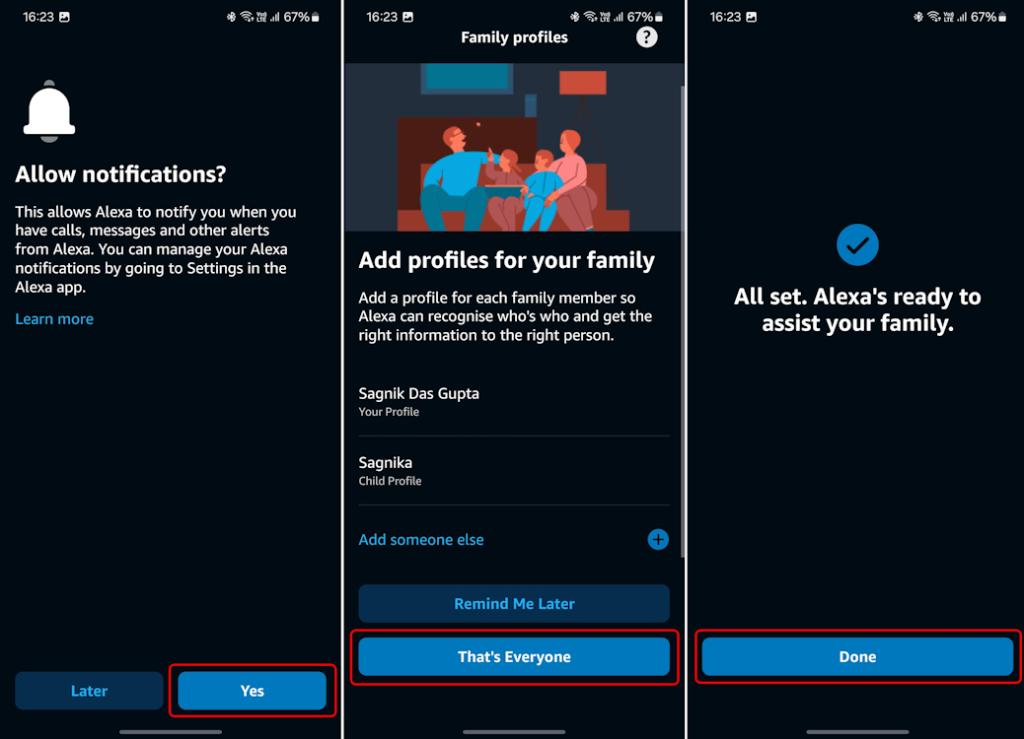
- Similarly, give it access to your notifications, and next, add extra profiles for your family if any.
- Once done, tap on That’s Everyone, and finally, hit Done on the final screen.
Now that we are through the initial setup process of signing in to Alexa with your voice, and creating your voice ID, it is time to look at how you can add the Alexa device itself to the Echo app.
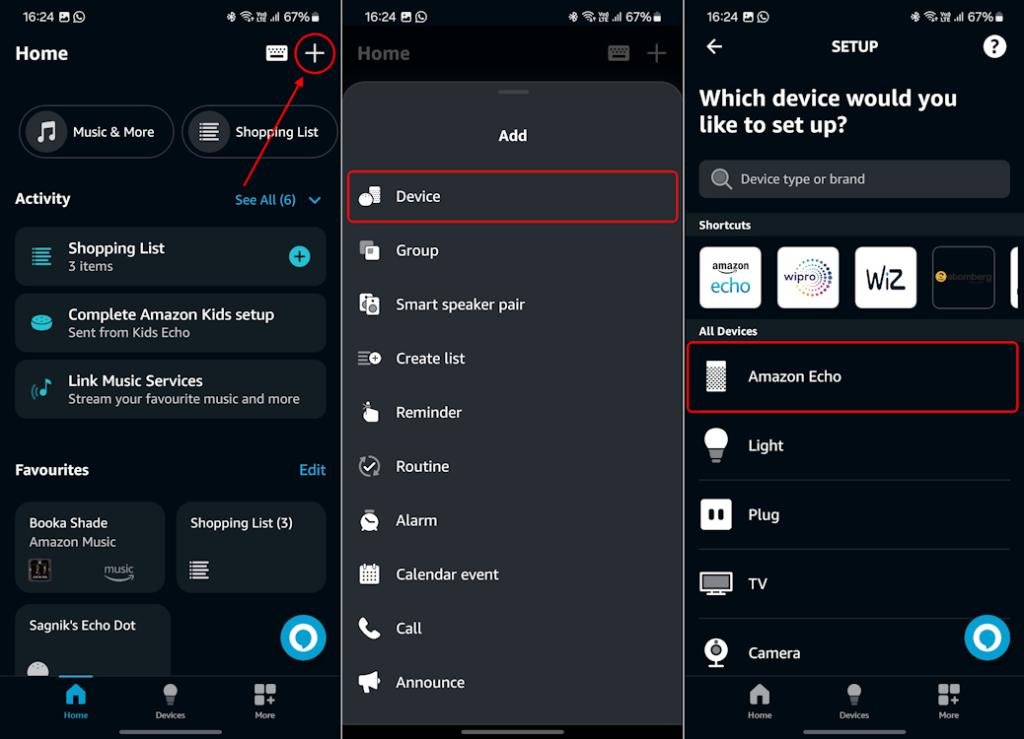
- Next, from your Amazon Alexa Home screen, tap on the plus (+) icon at the top right.
- From the list of options, tap on Device and select the device you want to add. I chose Amazon Echo from the available selection.
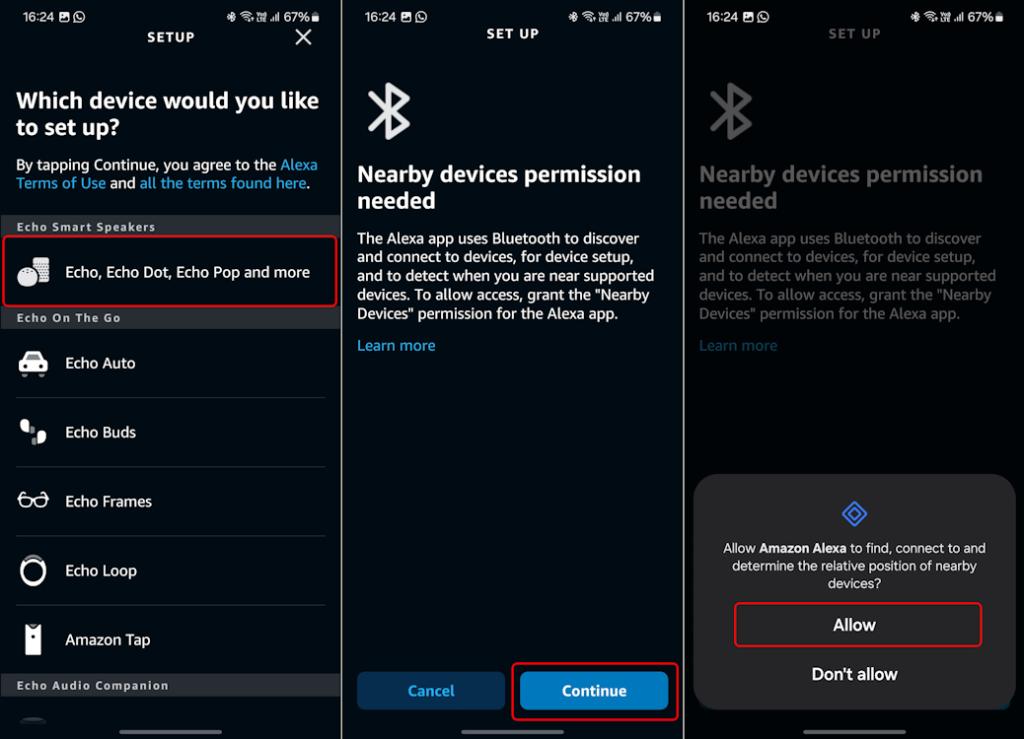
- Then, select Echo, Echo Dot, Echo Pop and more under “Echo Smart Speakers”.
- Next, in the “Nearby devices permission needed” screen, hit Continue and then tap on Allow in the confirmation window.
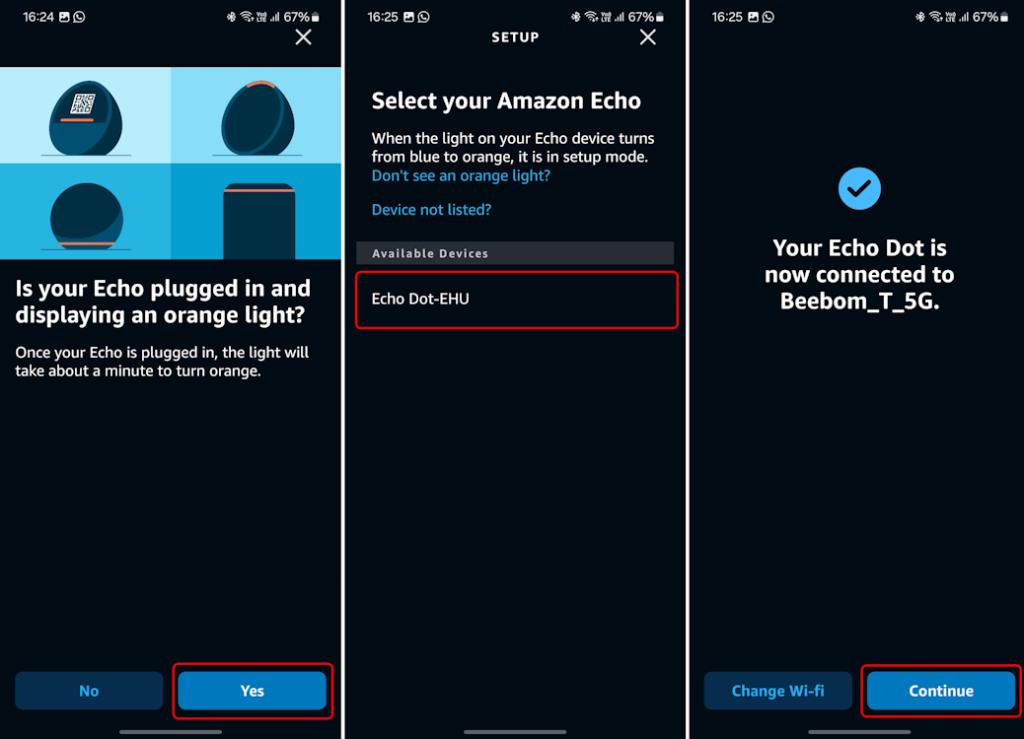
- The app will ask you to confirm if the Echo Dot is plugged in and displaying the orange light. Hit Yes here.
- The app will start looking for nearby devices and once it detects your Amazon Echo, select it from the “ Available Devices ” section.
- Then, the Echo Dot will search for Wi-Fi networks saved to Amazon. Connect to the desired Wi-Fi network and move forward.
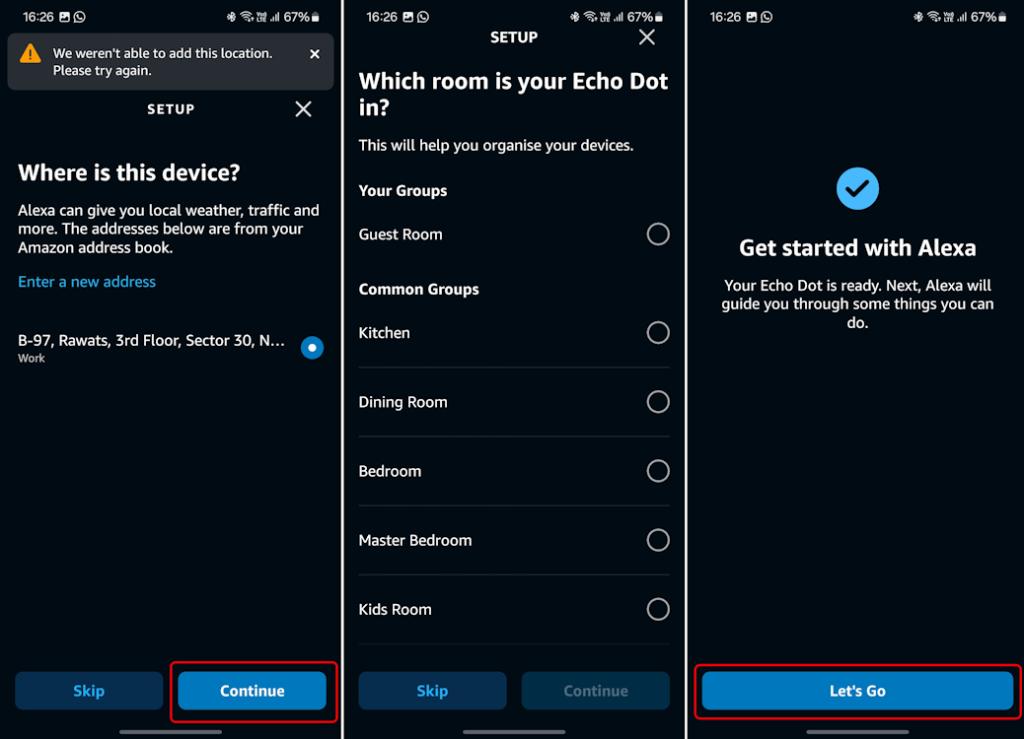
- Next, Amazon Alexa will need to determine your location, so you can either select it from the available fetched options and tap Continue or hit Skip .
- On the next page, select the room where you want to place your Echo in and hit Continue . Or, you can Skip it.
- Finally, tap on Let’s Go and that’s it.
Sagnik is a tech aficionado who can never say “no” to dipping his toes into unknown waters of tech or reviewing the latest gadgets. He is also a hardcore gamer, having played everything from Snake Xenzia to Dead Space Remake.
Add new comment
Name
Email ID
Δ


