Aiming to put more emphasis on enhanced health tracking, Apple has introduced two significant features in iOS 15. In addition to a number of new changes, including Health Sharing , there’s a new feature called Walking Steadiness. Walking Steadiness is designed to track your fall risk so that you can keep fatal falls at bay. So, if you’re interested in using Walking Steadiness on your iPhone, here is how to set up walking steadiness notifications, and keep a track of your fall risk.
Set Up and Use Walking Steadiness on iPhone (2021)
To get going, let’s first have a broad understanding of Walking Steadiness and why it could prove to be a well-timed shot in your arm against fall risk.
What is Walking Steadiness in iOS 15?
Simply put, Walking Steadiness is an estimate of your stability while walking . Walking Steadiness is inversely proportional to the fall risk; if it goes down, the risk increases. While it’s not a foolproof indication of how likely you can fall at any given moment, it does provide a better insight into the fall risk in the next 12 months. Though your Apple Watch can already do fall detection, walking steadiness is more of a preventative measure in the same vein.
According to World Health Organization, over 37.3 million falls are serious and need medical attention each year. It is estimated that 6,84,000 people die from falls every year. This is more in the case of adults older than 60 years of age. Unsurprisingly, falls are the second biggest reason for unintentional deaths in the world.
These numbers just go on to show how critical it is to address falls and come up with workable preventive measures that can reduce fatal falls. On this very note, it’s great to see Apple’s commendable effort to help iPhone users have better insight into the fall risk and take the much-required action to prevent fatal falls before it’s too late.
How Does iPhone Calculate Your Walking Steadiness?
iPhone uses crucial health and fitness data including your step length, double support time, walking speed, and walking asymmetry data to calculate your walking steadiness. For the seamless tracking of the Walking Steadiness, an iPhone is equipped to automatically record your walking steadiness when you carry it in a pocket or holder.
That means you don’t need to own an Apple Watch in order to track your walking steadiness. The feature makes use of the iPhone’s sensors to track and measure your balance, stability, and coordination.
Do note that the Health app takes the Walking Steadiness measurements over the course of seven days. To keep you fully informed and also help you ward off fatal falls, the Health app sends you notifications whenever your walking steadiness is low or very low. If it remains low, you will receive an alert every three months.
What are Walking Steadiness Levels?
For a better understanding, Apple has classified Walking Steadiness into three levels — OK, Low, and Very Low.
- OK: It means your walking steadiness is fine. More importantly, you don’t need to bother about the increased risk of falling – at least for the next 12 months.
- Low: If your walking steadiness has hit the low level, you must get your act together sooner than later. In other words, it’s a clear warning sign that you are at the risk of falling in the next 12 months.
- Very Low: If your walking steadiness has crossed the “Very Low” mark, it’s high time you start improving your strength and balance. Any delay in this regard could prove to be detrimental to your life.
If you’re wondering how to improve walking steadiness, exercises can help to boost strength and improve balance. Climbing chairs, cycling, dancing, working with resistance bands, push-ups, sit-ups, and squats can go a long way in improving strength and flexibility.
Set Up Walking Steadiness in iOS 15 on iPhone
- Open the Health app on your iPhone. Then, tap the Browse tab at the bottom and select the Mobility option.

- Now, scroll down to find the Walking Steadiness option. Then, tap “ Set Up .”

- On the Walking Notifications screen, tap Next.

- Confirm your details. The Health app needs information like your sex, date of birth, weight, and height to estimate your walking steadiness levels. You can enter the details by tapping each section. Once done, tap “Next” to continue.

- The app will display some information regarding walking steadiness levels. Tap Next to proceed.

- Next up, tap “Turn On” to receive walking steadiness notifications.

- Finally, you will get the confirmation that walking steadiness notifications are now turned on. Just tap on “Done,” and that’s it.

Check Walking Stability on iPhone
Once you have set up the Walking Steadiness feature on your phone, you can keep a track of it, much like how you can track your steps, sleep, and more. Here’s what needs to be done:
- Head to the Health app and click on the Browse option.

- Now, head to the Mobility section and tap on ‘Walking Steadiness’

- Here, you will be able to see your Walking Steadiness data.
In case you wish to avoid these steps and view the data directly from the main page of the app, you can just add it to your favorites. Here’s how:
- Once you have reached the Walking Steadiness section by following the aforementioned steps, scroll down a bit.
- Tap on “Add to Favorites”. Now, the feature will become a part of the Summary on the homepage for easy access.

To reiterate, you will even receive a notification if your walking steadiness level changes drastically.
Take Advantage of Walking Steadiness to Prevent Fatal Falls
There you go! This is how you can set up and use the all-new Walking Steadiness feature on your iPhone running iOS 15 . As a health-conscious person, I’m really glad to see this notable health feature. And I’m sure most health and fitness-loving folks would appreciate it as well.
An old school bibliophile who turned a tech nerd out of obsession. When he is not digging into hacks and tracking down stories that are breaking the internet, you may find him reciting poems.
Add new comment
Name
Email ID
Δ


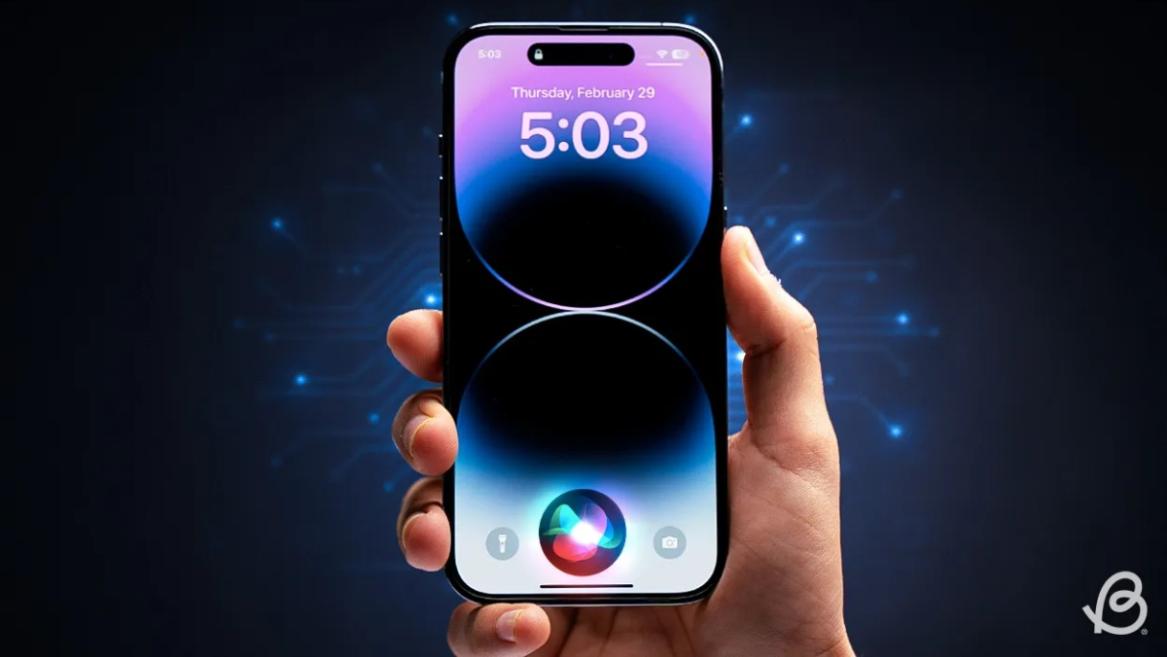
- Apple and Google have officially confirmed their team-up for the next-gen Siri AI.
- The Cupertino Giant will be using Google’s Gemini for a more personalized Siri model as well as Apple Intelligence features.
- We can expect the next-gen Siri to come out with iOS 26.4, sometime in March or April.
Apple has officially confirmed joining forces with Google to use its Gemini AI model to power the next-generation Siri. It will offer a more personalized experience and will be coming out with the iOS 26.4 update. Apple also plans to leverage Gemini’s capabilities for other Apple Intelligence features as well, later down the line.
The Next-Gen Siri will be powered by Google’s Gemini AI
Apple officially confirmed that it will be partnering with Google in a statement to CNBC . Here’s what it stated, “After careful evaluation, we determined that Google’s technology provides the most capable foundation for Apple Foundation Models, and we’re excited about the innovative new experiences it will unlock for our users.”
Later, Google also shared a post on X confirming the tie-up, “Apple and Google have entered into a multi-year collaboration under which the next generation of Apple Foundation Models will be based on Google’s Gemini models and cloud technology. These models will help power future Apple Intelligence features, including a more personalized Siri coming this year.”
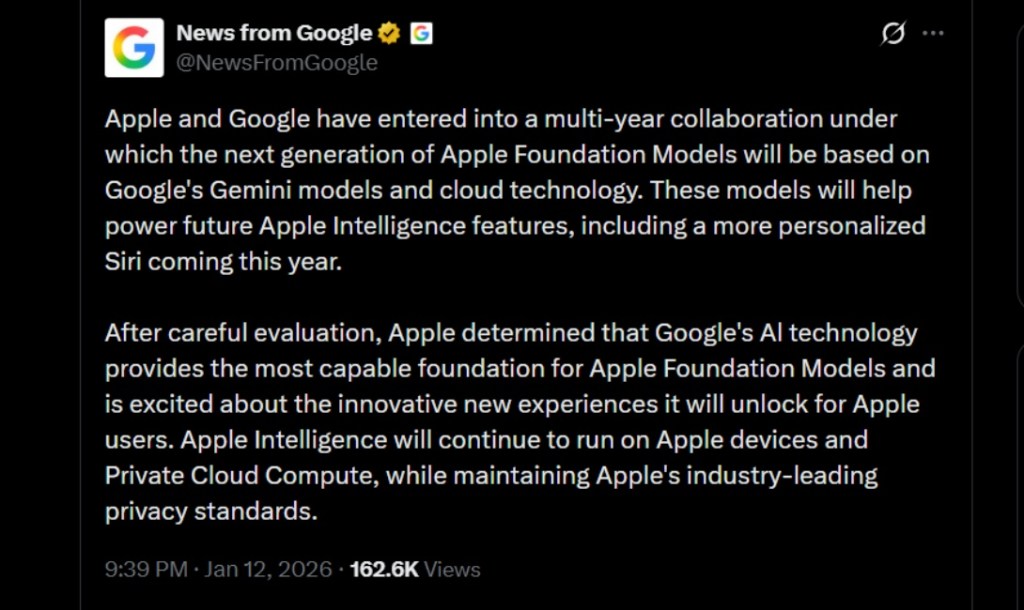
Image Credit: X/@NewsFromGoogle
Both statements clearly mention that the Cupertino Giant will be using Gemini to power its assistant Siri. This was already rumored, as Apple’s attempts to acquire Perplexity went nowhere. With Gemini, Siri will get a major AI update . It will be able to handle more nuanced conversations and provide better results. Something long-time Apple users have been asking for years.
The next-gen Siri will arrive with the iOS 26.4 update, which will launch sometime in March or April. And it is only going to be available for Apple Intelligence-supported devices .
Something else worth noting is how Google’s statement mentions that Gemini will power Apple Intelligence features. This leads us to believe that Apple could use Gemini’s multi-modal capabilities for its Writings tools , Image Playground , and Message summaries, too.
Elon Musk Not Happy With Apple and Google Tie Up
xAI CEO Elon Musk also responded to Google’s announcement post on X, sharing his thoughts on the matter by saying, “This seems like an unreasonable concentration of power for Google, given that they also have Android and Chrome.” Though we don’t expect either Apple or Google to respond to Elon, we will update the situation as it progresses.
It is worth noting that xAI is the company behind Grok, which is in hot water currently due to its inappropriate image generation fiasco , and has been getting backlash from multiple news outlets, X users, and even government authorities.
With over 4 year of experience under the belt, I cover all facets of consumer tech, from smartphones to other consumer electronics, our favorite social media apps, as well as the growing realm of AI and LLMs. As an Apps and AI writer app Beebom, I provide my expertise in all these areas, weaving stories that help you get familiar with the tech around you. But you will find me playing NYT daily puzzles in my free time.
Add new comment
Name
Email ID
Δ
