- To rotate the screen on an iPhone, you have to turn off the Portrait Orientation Lock.
- On the home screen, swipe down from the top-right corner to reveal the Control Center and tap on the Portrait Orientation Lock to make sure it is Off.
- If your iPhone won’t rotate the screen, you can quit & re-open the app, restart your iPhone, or contact Apple Support.
When you hold your iPhone, it’s in Portrait mode, and it makes all the sense to keep it the same way in most cases. That said, there will be times when you wish to rotate your iPhone screen the other way. Whether it’s watching Netflix, playing a game, or reading an e-book, it’s a great idea to unlock the standard screen orientation and flip it. In this quick guide, we’ll tell you how to rotate the screen on an iPhone. You can use the same steps on your iPad as well. Here you go!
How to Rotate your iPhone Screen
It’s super easy to rotate the screen on an iPhone, and it should only take a few seconds. All you have to do is turn off the Portrait Orientation Lock on your iPhone. Here’s what you need to do to flip your iPhone screen around:
- On the Home Screen, swipe down from the top-right corner to reveal the Control Center.
- Now, locate the icon that has a circular arrow and a small lock inside it. That’s the Portrait Orientation Lock button.
- Tap on this button to allow your iPhone to unlock the screen orientation and rotate the screen automatically. On the top, you’ll see a message “Portrait Orientation Lock: Off”.
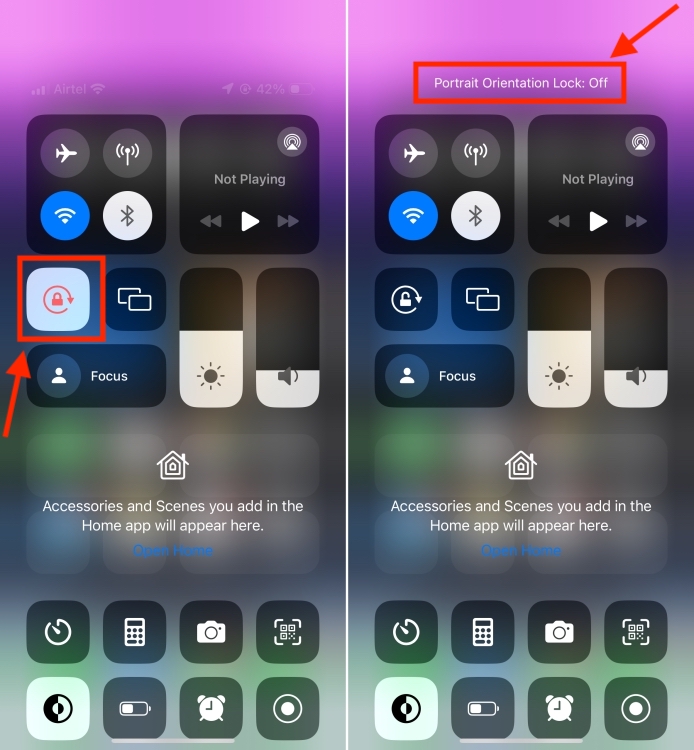
Now, your iPhone will rotate the content on the screen based on how you’re holding the device. Bear in mind that, unlike an iPad, iPhones (with Face ID) won’t rotate the home screen or lock screen on all apps. Rather, you can only rotate the screen on your iPhone on apps that support rotation.
To check rotation, open an app like YouTube or Netflix that supports landscape view. Now, rotate your iPhone on its side, i.e., hold your iPhone in the landscape mode. The content on the screen should automatically rotate in landscape mode.
If you don’t want your iPhone to rotate the screen automatically, you can tap on the Portrait Orientation Lock button again to lock the screen in place.
Why is Auto Rotate not working on my iPhone?
Although it’s a rare occurrence, your iPhone screen won’t rotate in some cases. If this happens to you, there are a couple of things you can do to fix this issue.
1. Make sure the app supports rotation
If your iPhone won’t rotate the screen, the first thing you need to do is to make sure the app supports rotation. Some apps don’t support the auto-rotation feature. As a result, the screen won’t rotate even if the Portrait Orientation Lock is turned off.
To verify if the app is causing the issue, switch to a first-party app like Safari or Messages, that works in landscape mode. If the issue is gone, it’s evident that the previous app didn’t support the rotation.
2. Quit and re-open the app
If your iPhone won’t rotate even if you’re using a supported app, there might be some in-app bugs and glitches. The simple solution to fix this is to quit the app and restart it again.
To do this, swipe up from the bottom and pause in the middle to see your opened apps. Now, swipe up the thumbnail preview of the app you wish to close. Once you’ve done this, re-open the app to see if the rotation feature works now.
3. Restart your iPhone
If re-opening the app doesn’t work, you should try restarting your iPhone. Today, most people never switch off their phones, so maybe your iPhone needs a restart. It helps give a fresh start to the system, fixing all the minor iOS bugs. A soft reboot often helps your iPhone get things right. So, it’s worth giving it a try.
On iPhones with a Face ID, press and hold the Volume Up/Down and Power buttons at the same time. Now, drag the slider to turn off your iPhone. Now, wait for a few seconds and then press & hold the Power button to turn on your iPhone.
4. Contact Apple
If nothing works, it’s probably a sign of some deeper issue with your iPhone. In such a case, you must contact Apple Support to help you fix the problem. Take your iPhone to the nearest Apple Store and get it examined.
An iPhone doesn’t have a dedicated auto-rotate option in the settings app. Rather, the orientation lock is tucked in the Control Center. The icon that has a circular arrow and padlock in it is the Portrait Orientation Lock button.
Go to the Control Center and tap on the Portrait Orientation Lock button to make sure it is off. Once you’ve done this, your iPhone screen will rotate automatically so you can see apps in portrait and landscape orientation.
Kanika has been a loyal iPhone user since 2014 and loves everything Apple. With a Master’s in Computer Applications, passion for technology, and over five years of experience in writing, she landed at Beebom as an Apple Ecosystem Writer. She specializes in writing How To’s, troubleshooting guides, App features, and roundups for Apple users to help them make the best use of their gadgets. When not writing, she loves to try out new recipes and enjoy some family time.
Add new comment
Name
Email ID
Δ



- Apple is developing its own large language model (LLM) to bring AI features to iPhones.
- Apple’s AI features will run on-device and not cloud services like the existing AI services.
- On-device models offer faster responses than sending requests through a cloud service. Also, they are less capable when it comes to complex tasks.
Mark Gurman said “All indications” apparently suggest that it will be entirely on-device. Therefore, the AI features will run on-device and not cloud services like the existing AI services. That means, the technology is tuned to the Apple processors inside its devices. When it comes to on-device models, they offer faster responses than sending requests through a cloud service. Additionally, they offer the advantage of functioning offline in areas with limited or no connectivity.

Image Courtesy: Mohit Singh/Beebom
Despite some advantages, we cannot ignore the fact that Apple’s on-device AI tools may be less capable or less powerful in doing complex tasks than its direct cloud-based rivals. However, Gurman suggested that Apple could “fill in the gaps” by leveraging technology from Google and other existing AI service providers.
Last month, there were reports that Apple is in discussions with Google to build a Gemini Artificial Intelligence engine into an iPhone.
The on-device AI features will provide users with quicker response times and complete privacy , as compared to cloud-based solutions. This AI technology strategy seems to be based on how it can help users in their daily lives, rather than complex capabilities and power. For instance, an on-device LLM could help users generate auto-replies to Messages or deliver better responses for many common Siri requests.
We’ll get all the details about Apple AI goals at its annual Worldwide Developers Conferences which is scheduled for June 10 to June 14. During the event, the giant is expected to give a first look at iOS 18 and AI features which will give us a clear picture of what to expect from the iPhone 16 series.
Kanika has been a loyal iPhone user since 2014 and loves everything Apple. With a Master’s in Computer Applications, passion for technology, and over five years of experience in writing, she landed at Beebom as an Apple Ecosystem Writer. She specializes in writing How To’s, troubleshooting guides, App features, and roundups for Apple users to help them make the best use of their gadgets. When not writing, she loves to try out new recipes and enjoy some family time.
Add new comment
Name
Email ID
Δ
