- The easiest way to recall an email in Outlook is by using the Recall option in the ribbon.
- You can also click on the 3-dots icon > Advanced actions and Recall message.
- Finally, you can use the 3-dots icon on Android and tap Recall on Android or iPhone apps.
Admit it, we’ve all sent emails with embarrassing mistakes, sometimes without the “Attacked” documents (you know, the ones we meant to attach but forgot). However, platforms have been quite generous in letting you undo or recall emails because we all know, to err is human. If you’re new to an email platform, you might not be aware of the ability to recall an email on it. And if you’ve recently started using Outlook, here’s how to recall an email in Outlook.
How to Recall an Email in Outlook Desktop App or Website
There are a couple of ways to recall an email in Outlook’s Desktop app. You can either use the top bar to select the recall option, or use the options in the email body to do it.
Method 1: Recall Email From Outlook’s Top Bar
The process to recall an Outlook email is pretty easy. If you use the Outlook app on Windows or the web app, here’s how to do it.
- Launch Outlook and head over to the Sent Items from the left pane.
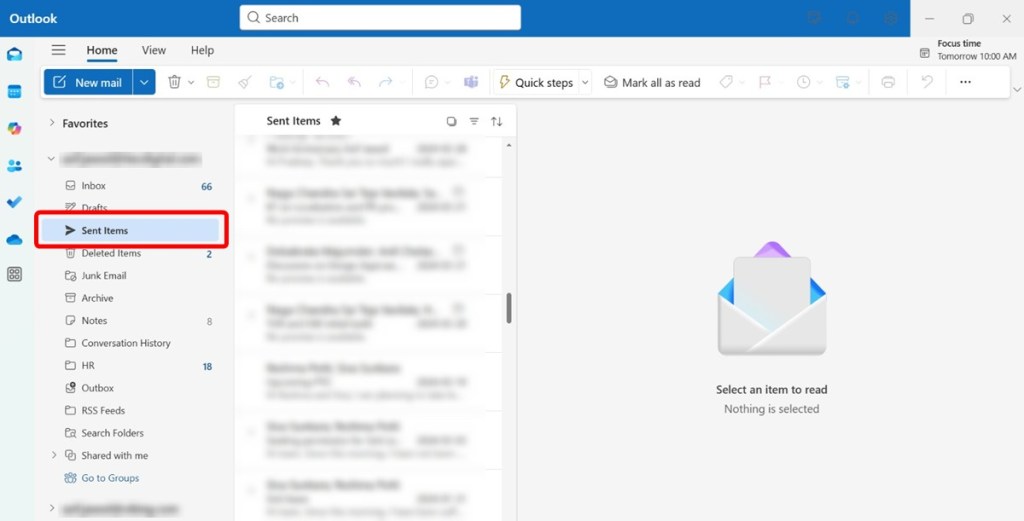
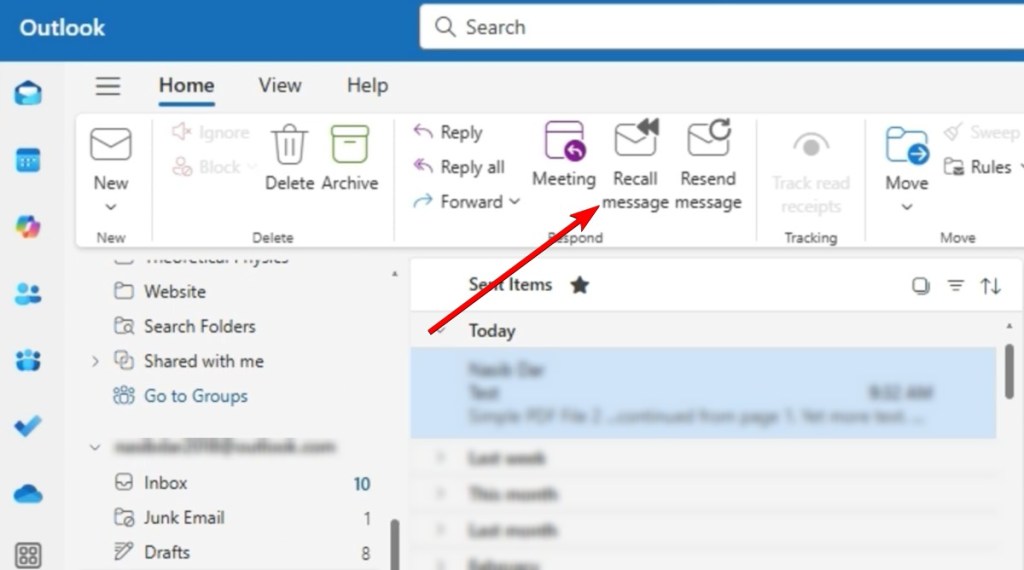
- Select the Outlook email you want to recall and click on Recall message from the top toolbar.
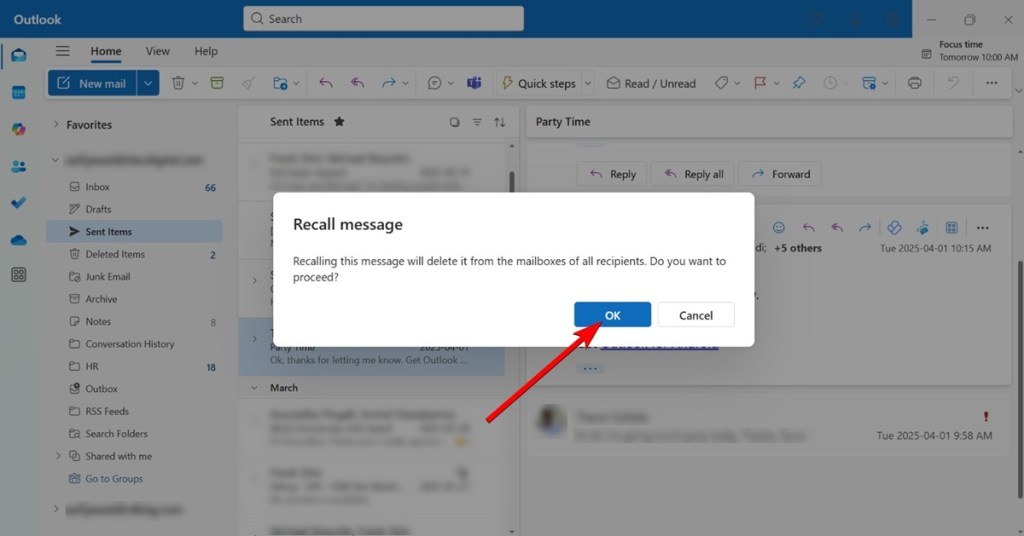
- In the prompt that pops up, click on OK to recall the email and Outlook should attempt to recall it.
- Similarly, you can right-click on the sent email, go to Advanced actions , and click on Recall message .
Method 2: Unsend in Outlook Using More Actions
Outlook has two interfaces for drafting and viewing content — one that remains inside the main Outlook window, and another opens up the draft in a separate window. One thing that both have in common is that you get a few action options you can use by clicking on the three-dot icon. It also houses an option to recall email in Outlook. Here’s how to use it:
- Double-click on a message to open it in a new window, or just click it once.
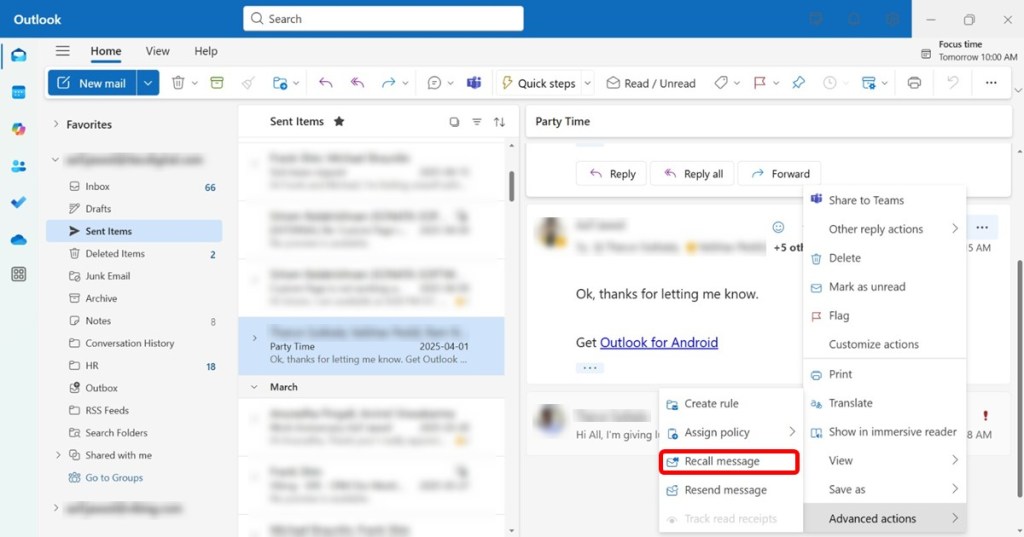
- Click on the 3-dots icon and go to Advanced actions .
- From the list, select Recall message , and click on OK inside the prompt.
In both cases, if the Outlook recall was successful, you should get a new message with a “Recall Report.” Clicking on the same will tell you if the message recall request succeeded.
How to Recall an Email in Outlook on Android and iPhone
The Recall option is present on both Android and iPhone versions of the Outlook app. The process is more or less the same in both the clients, so we’ve chosen Android for this tutorial.
- Launch Outlook on your on Android or iPhone, tap on your profile picture at the top left and select Sent from the left sidebar.
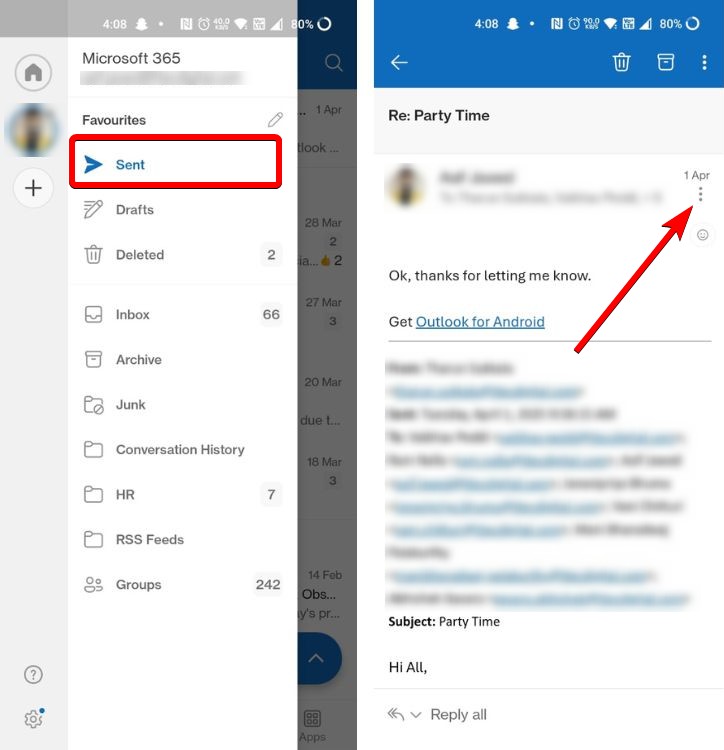
- Tap on the 3-dots icon from the top right, select Recall , and tap on OK to confirm.
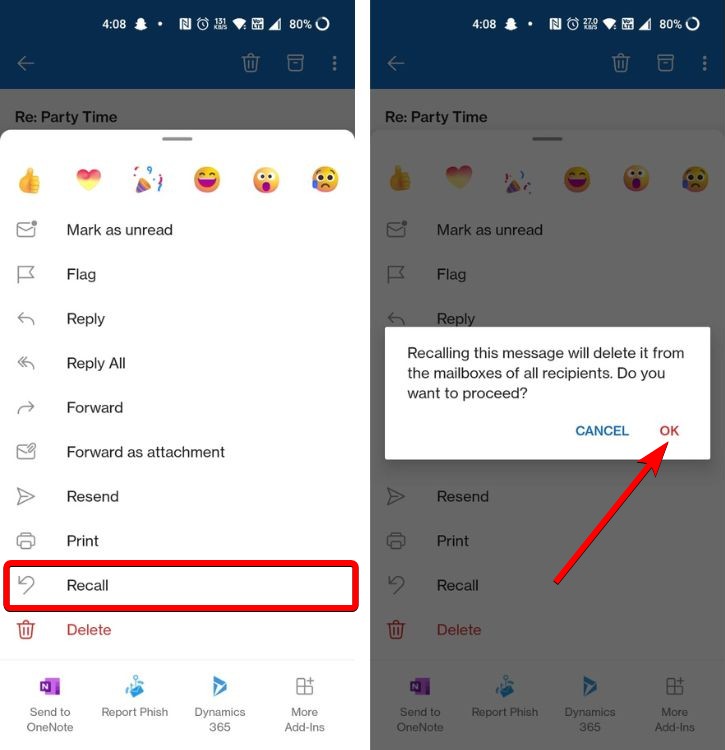
- Once sent, you shall receive a notification about whether Outlook succeeded in recalling it.
To recall an email on Outlook desktop, go to Sent items, click on the email you want to recall, and click Recall message in the top bar. On Android or iOS, go to Sent items, open an email, tap the three dots, and tap Recall message.
If you recall after the recipient opened the message, they will be notified that you’ve recalled it and the original message will still appear in their inbox.
Yes, if the recipient has already opened the email, they will be notified.
Once you recall an email, you should receive a link with the status of the recall. In it you will see the current status like succeeded, pending, or failed.
Abubakar covers Tech at Beebom, with his passion for technology tracing back to 2011 when he received a Dell Inspiron 5100 as a gift. He’s also a passionate advocate for the right-to-repair movement, believing in empowering users to maintain and extend the life of their devices. Outside the tech world, he enjoys watching anime and exploring his newfound enthusiasm for Japanese cars. In his free time, you’ll often find him immersed in Genshin Impact or researching his next gadget purchase. Before joining Beebom, he contributed to leading publications like Android Police, How-To Geek, and Fossbytes.
Add new comment
Name
Email ID
Δ


