- To pause Snapchat location, you can disable Live Location in Snapchat settings.
- Ghost Mode in Snapchat also hides your location on Snap Map, but this will remove your Bitmoji from the Snap Map.
- Revoking precise location accuracy or disabling location entirely on Snapchat shows your last updated position on Snap Map.
Snap Maps can help you figure out what your friends are up to at any given time as it lets you view their current location within the app. However, it can also be a nuisance and a privacy concern at times. Especially, in situations when you have other plans but don’t want your friends to know about them. Here are a few ways to pause location sharing on Snapchat, so you can stay off the grid when you need to.
Method 1: Disable Live Location in Snapchat
The Live location service on Snapchat will update your current location within Snap Maps even if you are not using the app. If you don’t want to actively share your exact location with your friends then I recommend turning it off. Here are the steps to do that.
- On Snapchat, tap on the Maps icon from the bottom toolbar.
- In the Snap Maps section, tap on the settings icon in the top right corner.
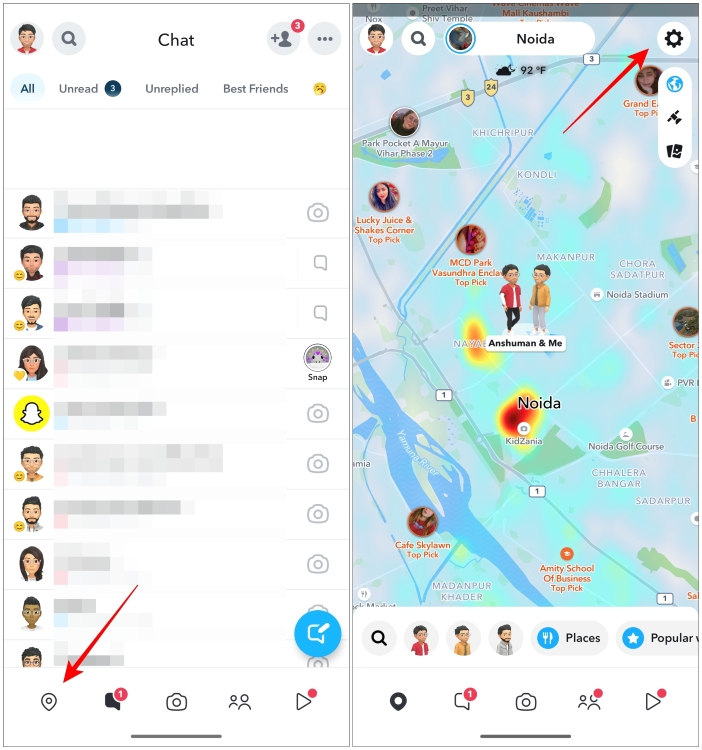
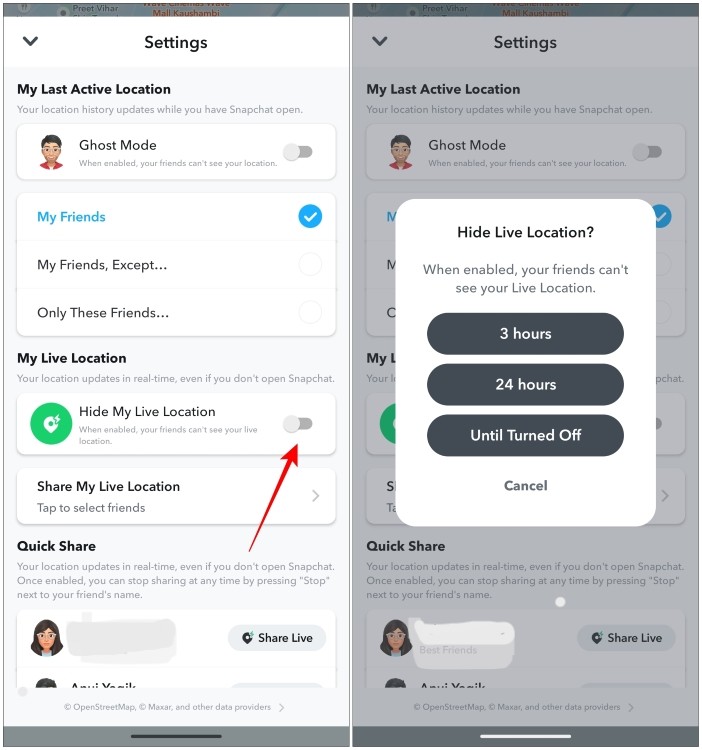
- Here, turn on the toggle for Hide My Live Location .
- In the pop-up, choose the duration for the period you don’t wish to share your location. You can pick Until Turned Off if you want to disable live location indefinitely.
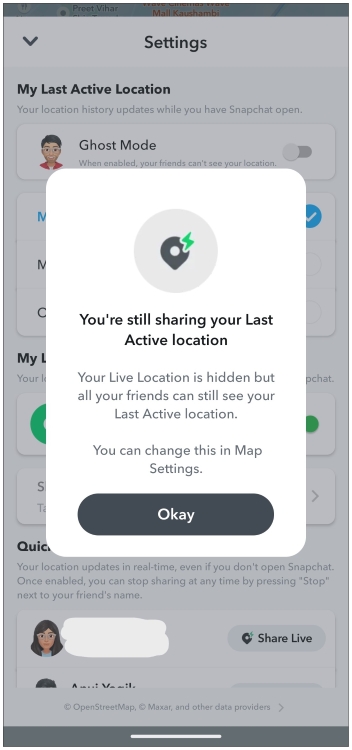
Turning it on will still share your last active location on Snap Map with your friends.
Method 2: Keep Snapchat in the Background
While turning off the live location won’t update your current coordinates in the background , Snapchat will update your location whenever you open it. So if you don’t want your friends to figure out your secret hangout plans then I would advise you to stay off of Snapchat for a while.
This will show them your last active location on the Snap Maps making them think that you are still at your home. This might work but it is not foolproof as you might accidentally end up opening the app. But worry not as we have other tricks up our sleeves.
Method 3: Hide Yourself with Ghost Mode
Another way to pause your location sharing on Snapchat is via Ghost Mode. Turning it on will hide your location from your friends on Snap Map. As the name suggests, your Bitmoji will vanish from the face of the Snap Map and your friends won’t be able to figure out where you are.
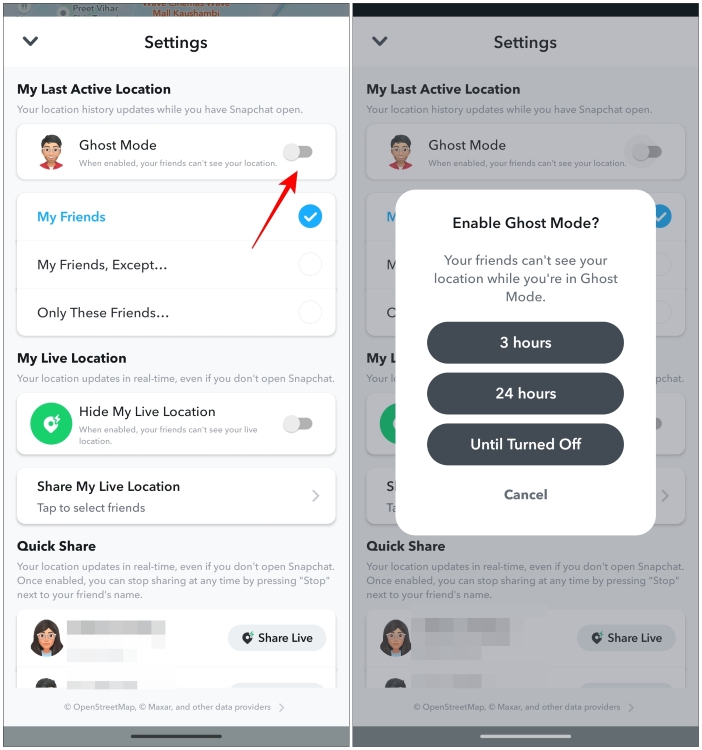
- To turn on Ghost Mode, go to the Snap Maps section by tapping on the Location tab at the bottom left corner on Snapchat.
- Then tap on the settings icon .
- Now enable the toggle for Ghost Mode .
- In the pop-up menu, pick the duration to keep Ghost Mode active for your account.
One major giveaway with Ghost Mode is that your Bitmoji won’t appear anywhere on the map, so some of your keen-eyed friends might be able to tell that you have turned on Ghost Mode.
Method 4: Revoke Precise Location Accuracy
Snapchat requires you to allow precise location sharing to pinpoint your location on Snap Maps down to which side of the street you are on. Revoking access to a precise location affects Snap Map’s functionality. The app will have no other option but to show your last updated position on the map. So try out this method as well. We have labeled the steps to change location accuracy for Snapchat on Android and iOS. Have a look.
On Android
- To change location accuracy for Snapchat, long-press on the Snapchat app icon .
- Now tap on the i icon to visit the App info page then go to Permissions .
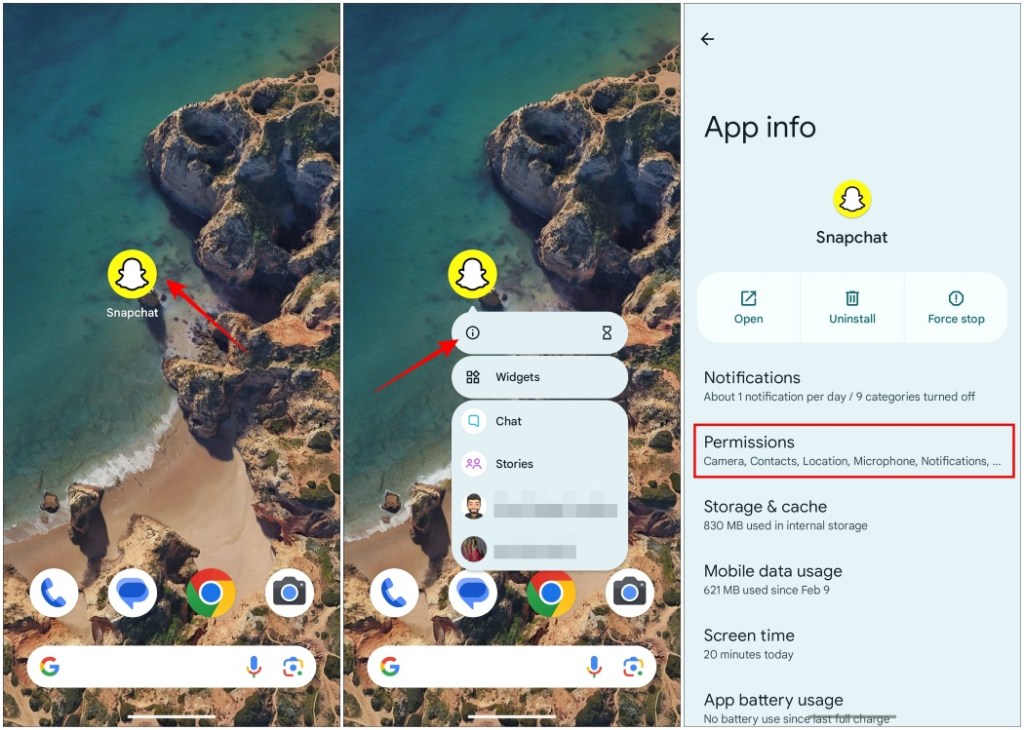
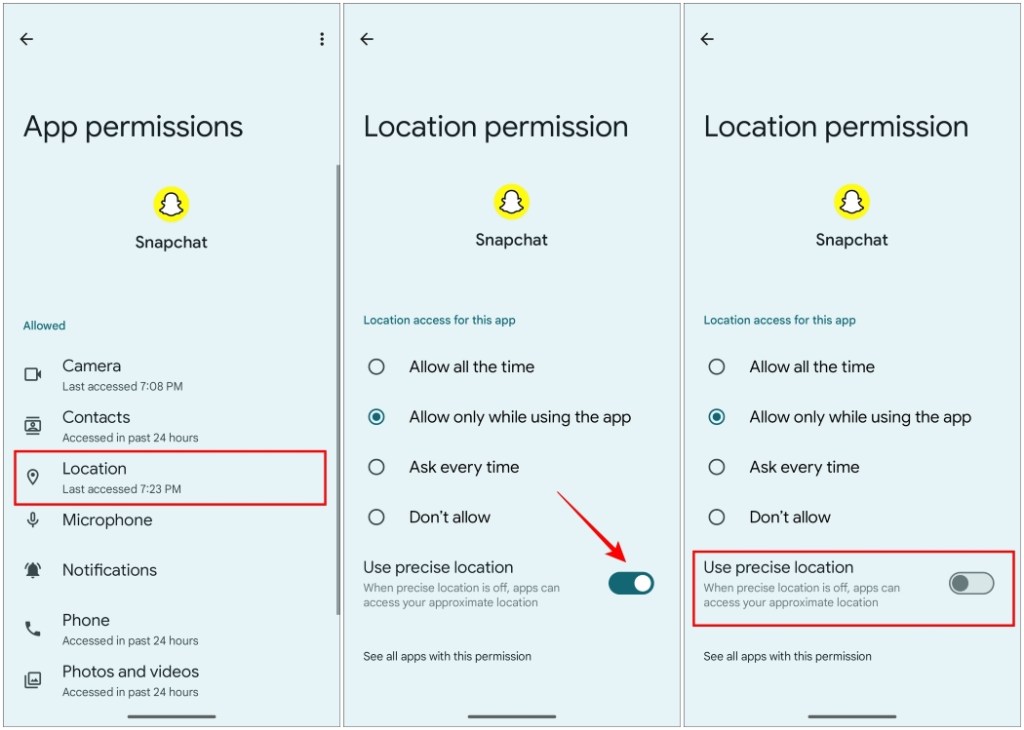
- Next, tap on Location .
- Here, turn off the toggle for Use precise location .
On iOS
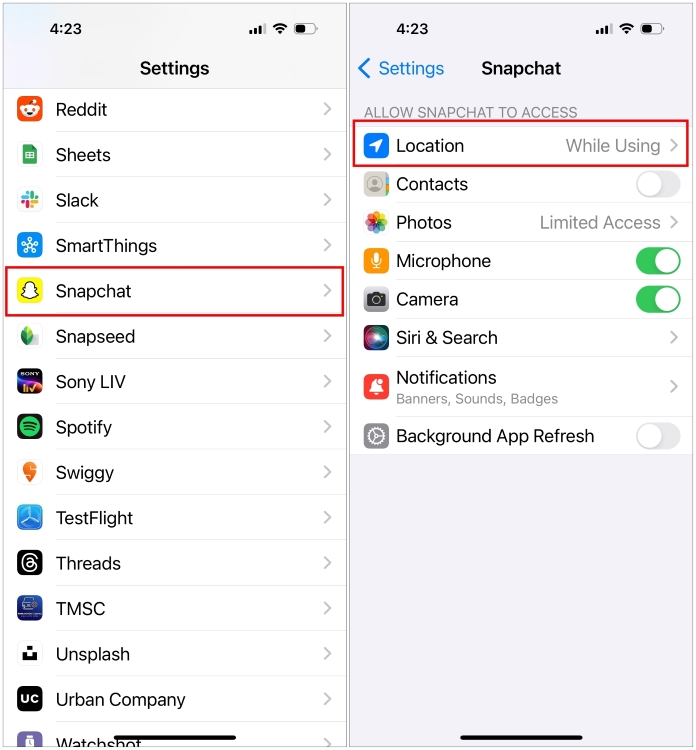
- On your iOS device, open the Settings app .
- Scroll down the settings page and tap on Snapchat .
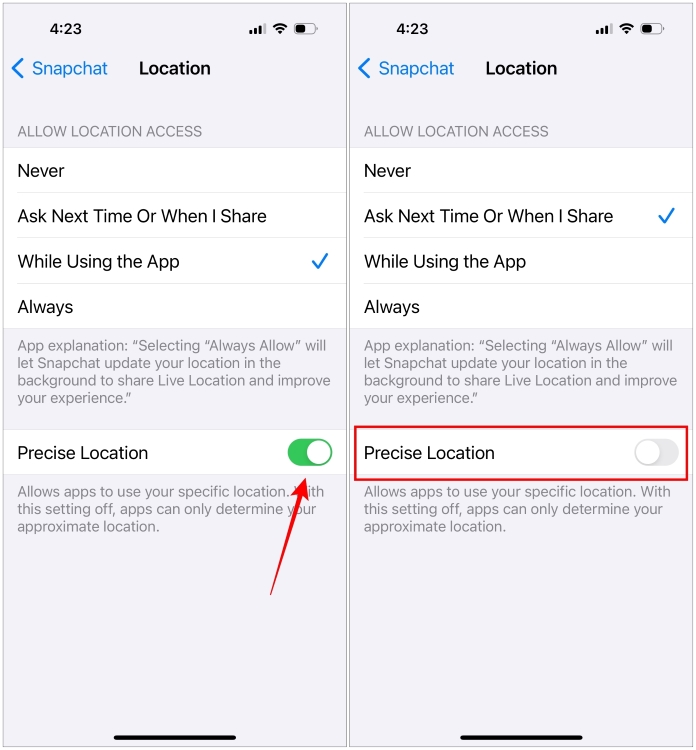
- Here, go to the Location option.
- Now turn off the toggle for Precise Location .
Now when you open your Snap Map, you will see that the feature has stopped working and it shows your last updated location.
Note Your location will expire on Snap Map if it is not updated within the next 24 hours. This will result in your Bitmoji vanishing from the map just like it would do in Ghost Mode.
Method 5: Remove Location Permission for Snapchat
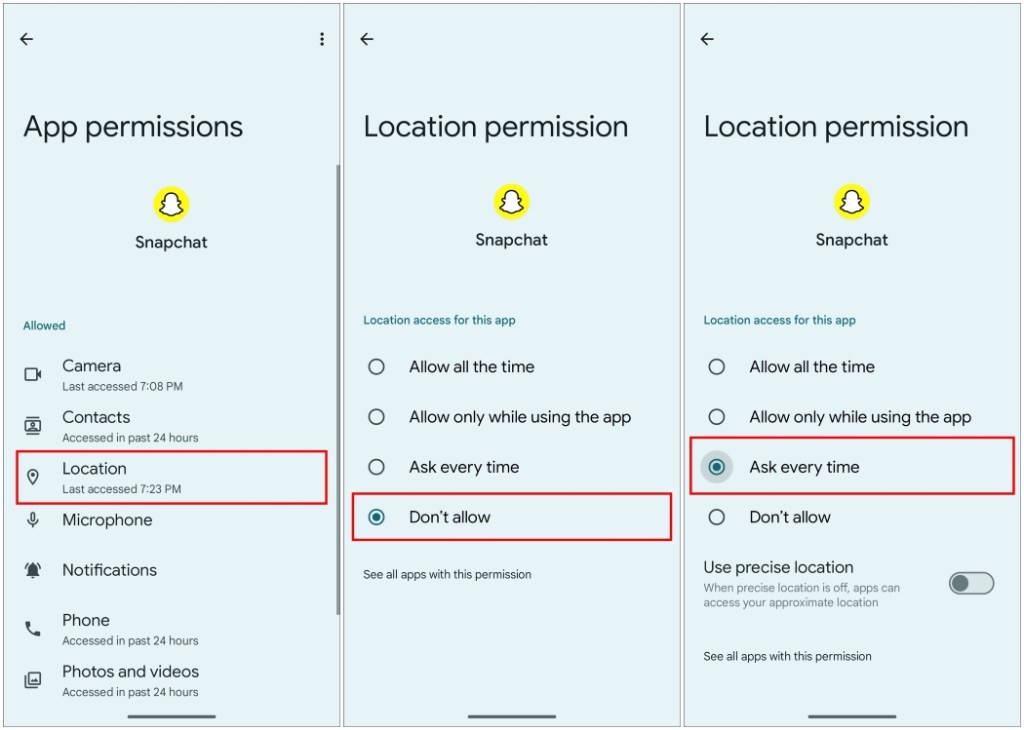
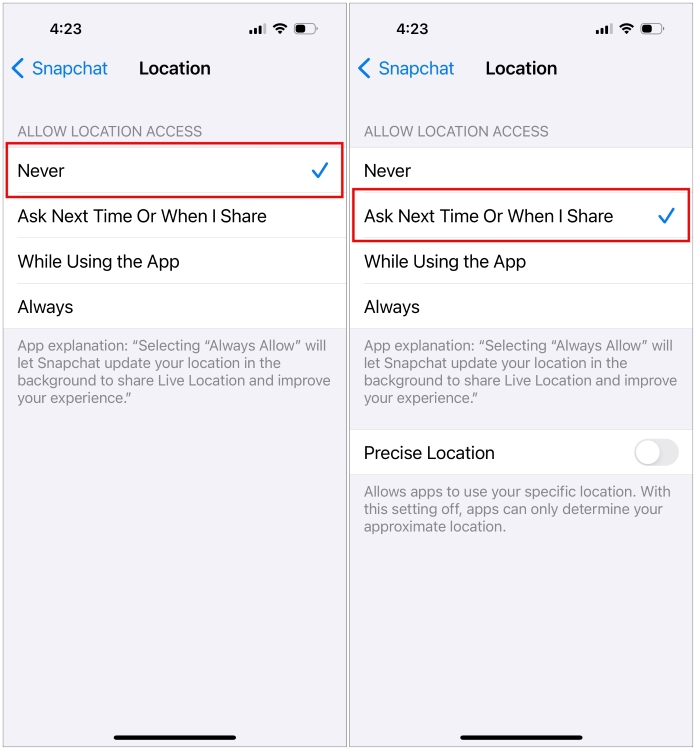
Last but not least, you can choose to remove the location access for the app completely. Do this if you don’t use Snap Map or don’t want to share your location any further through the app. This way you can continue to have location services enabled on your phone, but Snapchat won’t have a clue about your whereabouts. Like above, we’ll discuss the steps for both Android and iOS.
On Android
- To remove location access for Snapchat, long-press on the Snapchat app icon .
- Then tap on the i icon to enter the App info page.
- From here, tap on the Permissions option.
- Now, tap on Location and then select Don’t allow to remove location access for Snapchat.
- Alternatively, you can pick Ask every time if you want to use Snap Map occasionally.
On iOS
- Open the Settings app on your iOS device.
- Navigate to Snapchat from the list of apps and then tap on it.
- Next, go to the Location option.
- Here, pick Never to stop sharing your location details with Snapchat.
- Alternatively, you can go with Ask Next Time or When I Share when you want to use Snap Map less frequently.
These are all the ways that there is to pause location sharing on Snapchat. While Snap Map is a pretty solid social feature on the app to learn what’s going on with your friends, it can also be a cause of concern especially in terms of privacy. But the methods that we have mentioned above should help you keep your stalker friends at a distance so you don’t have to come up with not-so-convincing excuses the next time you go out.

With over 4 year of experience under the belt, I cover all facets of consumer tech, from smartphones to other consumer electronics, our favorite social media apps, as well as the growing realm of AI and LLMs. As an Apps and AI writer app Beebom, I provide my expertise in all these areas, weaving stories that help you get familiar with the tech around you. But you will find me playing NYT daily puzzles in my free time.
Add new comment
Name
Email ID
Δ

- The “x” icon next to someone’s name on Snapchat may appear when the user you’re chatting with is not your friend.
- To get rid of the “x” icon, you can accept a pending friend request from this user or ask your friend to accept your request.
- You can accept friend requests by tapping on Add friends icon -> Added Me -> tap Accept next to the user’s Snapchat name.
If the “x” icon has left you confused as it did for me, this post will help you understand what the “x” icon means on Snapchat and how you can remove it.
What Does the “x” Icon Mean on Snapchat?
If you see an “x” icon next to someone’s name like the one in the screenshot below, it means you are chatting with someone who is not on your friend list. It appears when any one of two users has not accepted the other’s friend request .

Once you or the other user accepts the friend request, the “x” icon will be replaced with a camera icon that you can tap on to send Snaps to each other.
It can also show up if someone you were already friends with has removed you from their friends list. A quick way to tell that you have been removed is to make sure that you were friends with them previously.
Removing someone is not the same as blocking . This is because when you get blocked, your entire chat with them will disappear automatically. You can check if you are blocked on Snapchat using the steps in our guide.
Can You Send Snaps to Someone with an “x” Icon?
Yes, you can still send Snaps and chats to people whose chats show an “x” icon . If you have sent or received someone’s friend request on the app then your Snaps and chats will be visible to the other person and they can even reply to it.
However, if you were removed by someone, they won’t be able to see your sent messages despite what the app says. Your chat will be deleted for them automatically. Only when they add you back will your delivered messages be visible to them.
Remove “x” Icon By Accepting Friend Requests
The “x” icon automatically disappears when two users accept each other’s friend requests on the app. So if you are seeing the “x” icon next to someone’s name then check if you have a pending friend quest from them. Here’s how to do this.
- To do this, tap on the Add icon in the top right corner.
- The pending requests will be visible under the Added Me section. If there’s a pending request from someone, tap on Accept .

Now you both will be friends on the app and the “x” icon will no longer be visible. In case you have added them on the app then ask them to accept your request.
Remove “x” Icon By Clearing Unwanted Conversations
You can also clear the conversation with someone who has removed you as a friend or if you don’t wish to talk to them anymore. Clearing the conversation will remove the person’s profile from your chat window as well. Remember that moving forward with these steps will also clear out your entire chat history. Here’s how you can do it.
Note Clearing a conversation on Snapchat will also delete the entire chat history. But it won’t block or remove it from your friend’s chat list.
- On Snapchat , tap on the chat icon in the bottom toolbar.
- This will open your chat list. Now long press on the conversation that you want to clear.
- Go to the Chat and Notification Settings menu.

- Pick the Clear from Chat Feed option.
- In the confirmation pop-up, choose Clear .

After clearing the chat, if you want to continue talking to them then you can start a new chat anytime.
Try Other Troubleshooting Methods
If the cross symbol still won’t go away even after becoming friends with that individual, then it could be because the app is not updating the changed data. Snapchat does this, which makes it difficult to tell whether or not you have been blocked . In this case, you can either wait for a while or try these troubleshooting tips.
- Force close the Snapchat app by removing it from the Recent Apps screen.
- Log out of your account on the Snapchat app and log back in again. This usually fixes the issue for me.
- Clear the cache for the Snapchat app on Android, or delete the app and reinstall it on iOS.
In conclusion, the “x” icon on Snapchat does not necessarily mean anything negative. It shows your current friendship status with another user on Snapchat. Though this is a good indicator to let users know if they are texting someone in their friend list or not, I think there should be a more obvious indicator for this.
No. When someone blocks you on Snapchat, your conversation with them gets removed automatically. The “x” icon represents your friendship status with this person. It means that the user has removed you as a friend or has added you back as a friend.
When you clear a conversation with someone, the entire chat history with them including saved photos, videos, messages, and Snaps will get deleted. The user remains in your friends list so you can continue messaging them.
Yes. You can still send Snaps and texts even when someone has removed you as a friend. The sent messages will show that they were delivered but that is not the case. The person who removed you will not receive any of your sent Snaps and messages until they add you back.
Yes. When you add a user as a friend and they accept your request, the “x” icon gets replaced with a camera icon that you can use for sharing Snaps.
With over 4 year of experience under the belt, I cover all facets of consumer tech, from smartphones to other consumer electronics, our favorite social media apps, as well as the growing realm of AI and LLMs. As an Apps and AI writer app Beebom, I provide my expertise in all these areas, weaving stories that help you get familiar with the tech around you. But you will find me playing NYT daily puzzles in my free time.
Add new comment
Name
Email ID
Δ
