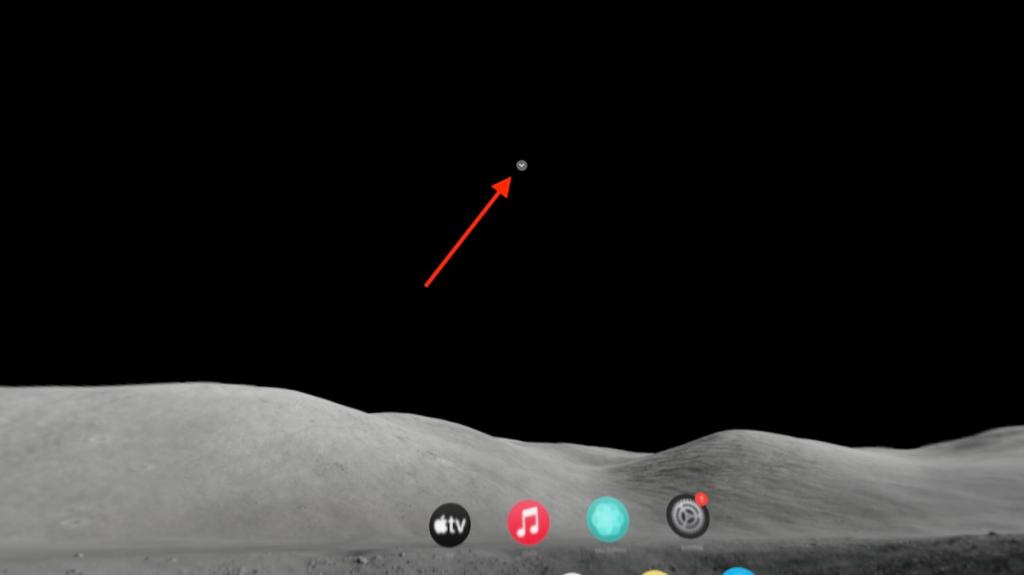
- To access the Control Center on Vision Pro, simply look up and keep your gaze steady for a second.
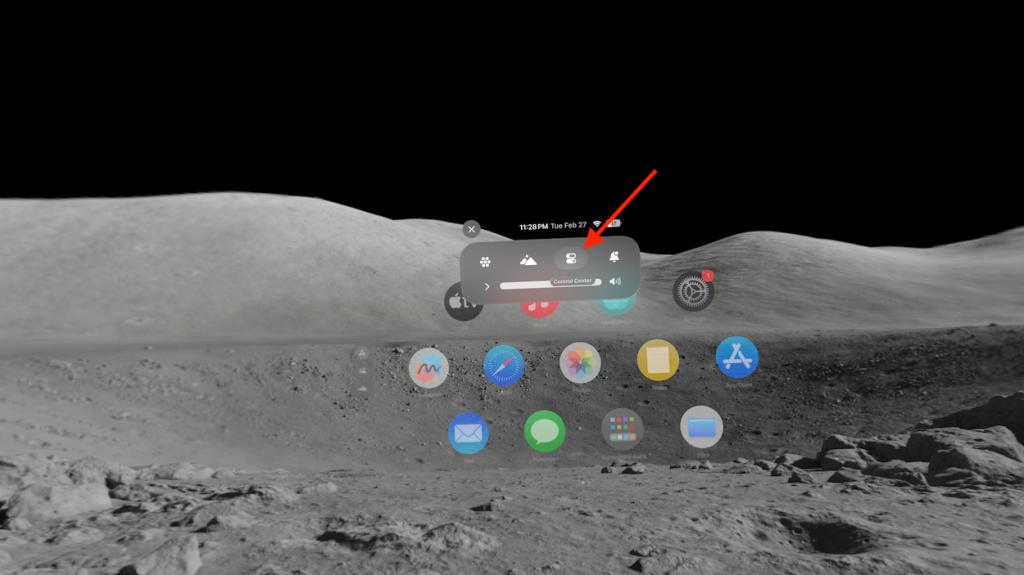
- Next, tap on the Control Center icon indicated by a switch in black and white.
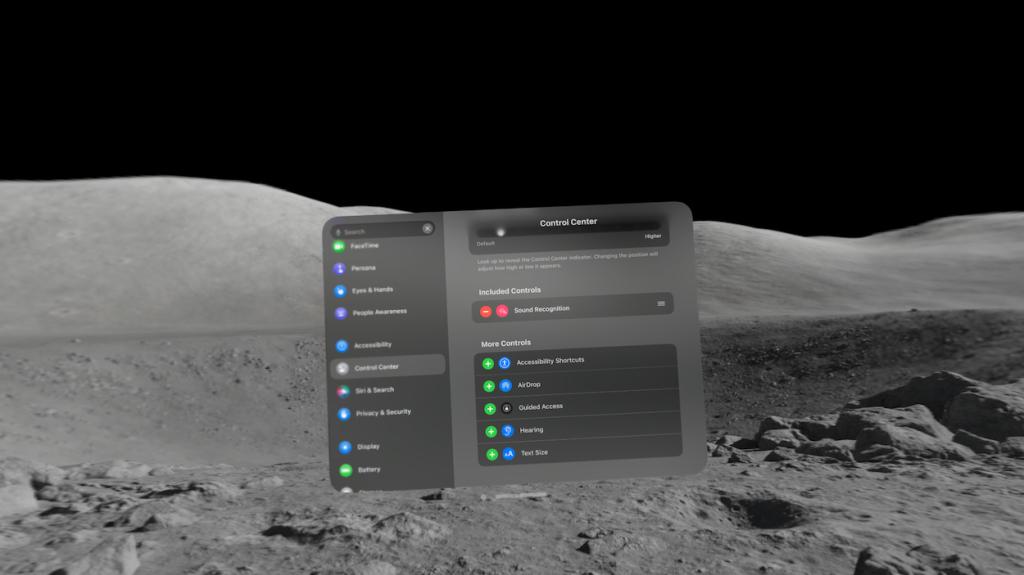
- To customize the Control Center on Vision Pro, go to Settings> Control Center, and add or remove the features as per liking.
Apple Vision Pro has introduced a new method of input – eye-tracking and it’s only natural to take some time to get accustomed to the new input method. If you have recently bought the Apple Vision Pro and are now struggling with as simple a task as finding the Control Center to quickly access features like Guest Mode, Travel Mode, or AirDrop, it’s a little tricky. Here are the easy steps to access the Control Center on Vision Pro and even customize it to your liking.
Open Control Center on Vision Pro
Note: If the Control Center indicator is not appearing for you, keep your gaze still for a second while looking up and it will appear.
- While wearing Vision Pro, look up and you will see a downward-facing arrow. Tap your thumb and index finger together while looking at the arrow.
- Next, select the Control Center icon.
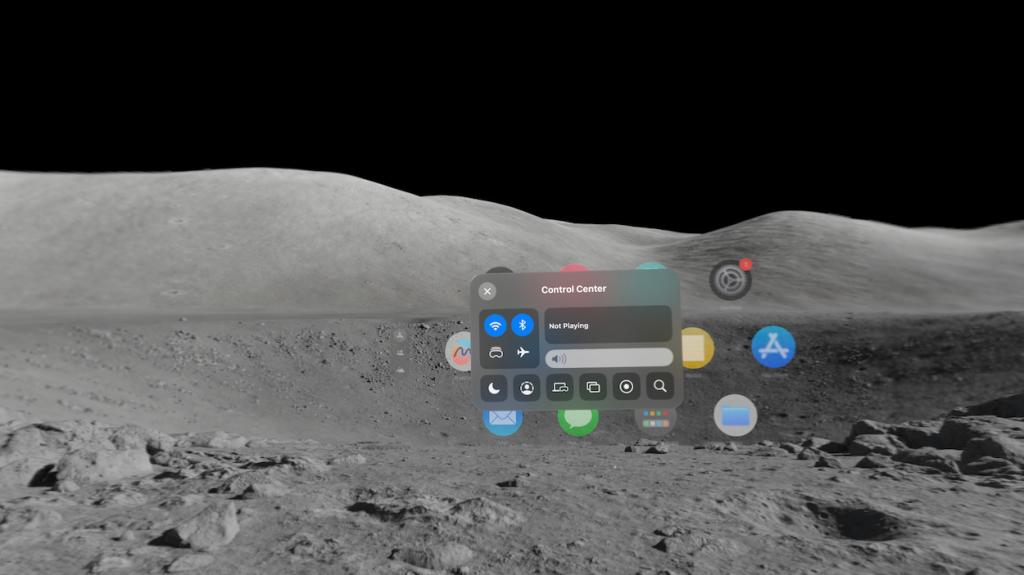
- This will open the Control Center on Vision Pro. By default, it shows a volume bar, Wi-Fi and Bluetooth buttons, Guest Mode, Travel Mode, View Recording, and more options. You can even customize the Control Center and add or remove features from it.
Customize Control Center on Vision Pro
Much like iPhone, iPad, and Mac, you can customize the Control Center on Vision Pro to set the features that you want to appear there. Here’s how.
- Press the Digital Crown on the Vision Pro to access the home screen and then visit Settings.
- Scroll down a bit and then choose Control Center.
- Now, choose the feature that you want to add to Vision Pro’s Control Center by selecting the green colored + (Plus) button.
- Similarly, you can remove the feature by selecting the red-colored – (minus) button.
Change Position of Control Center Indicator on Vision Pro
As I mentioned in the beginning, accessing the Control Center on Vision Pro is a bit tricky. Sometimes the dropdown arrow might not appear at all or sometimes it might appear until you tilt your head almost awkwardly upward. Thankfully, Apple has provided an option to adjust the position of the Control Center dropdown arrow on Vision Pro.
- Open the home screen by pressing the Digital Crown and then visit Settings.
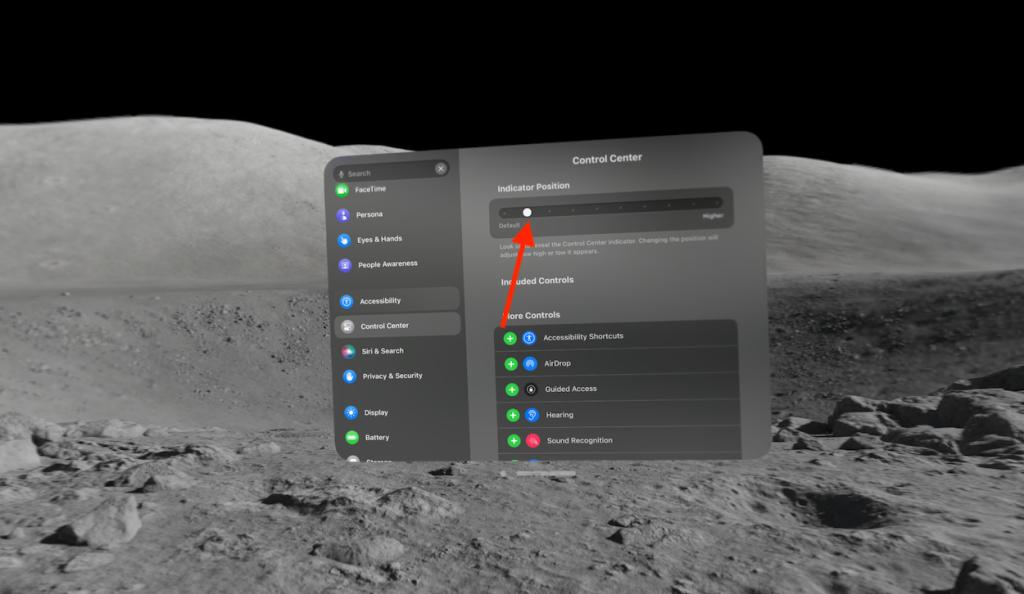
- Go to Control Center from the left pane and here, select the indicator position.
- Drag the pointer to adjust how low or high the Control Center pointer appears.

With seven years of experience in digital media, including more than three years as an editor, I have successfully transitioned from tech to the vibrant world of entertainment. I previously served as a Senior Tech Writer at Fossbytes Media, but my passion for movies and television led me to pivot. As an Entertainment Editor at Beebom, I manage and create content covering movies, TV shows, and anime across major streaming platforms like Netflix, HBO Max, and Disney+. I’m an avid fan of timeless classics and modern hits, with a particular love for the horror genre.
Add new comment
Name
Email ID
Δ


- Apple and Google have officially confirmed their team-up for the next-gen Siri AI.
- The Cupertino Giant will be using Google’s Gemini for a more personalized Siri model as well as Apple Intelligence features.
- We can expect the next-gen Siri to come out with iOS 26.4, sometime in March or April.
Apple has officially confirmed joining forces with Google to use its Gemini AI model to power the next-generation Siri. It will offer a more personalized experience and will be coming out with the iOS 26.4 update. Apple also plans to leverage Gemini’s capabilities for other Apple Intelligence features as well, later down the line.
The Next-Gen Siri will be powered by Google’s Gemini AI
Apple officially confirmed that it will be partnering with Google in a statement to CNBC . Here’s what it stated, “After careful evaluation, we determined that Google’s technology provides the most capable foundation for Apple Foundation Models, and we’re excited about the innovative new experiences it will unlock for our users.”
Later, Google also shared a post on X confirming the tie-up, “Apple and Google have entered into a multi-year collaboration under which the next generation of Apple Foundation Models will be based on Google’s Gemini models and cloud technology. These models will help power future Apple Intelligence features, including a more personalized Siri coming this year.”
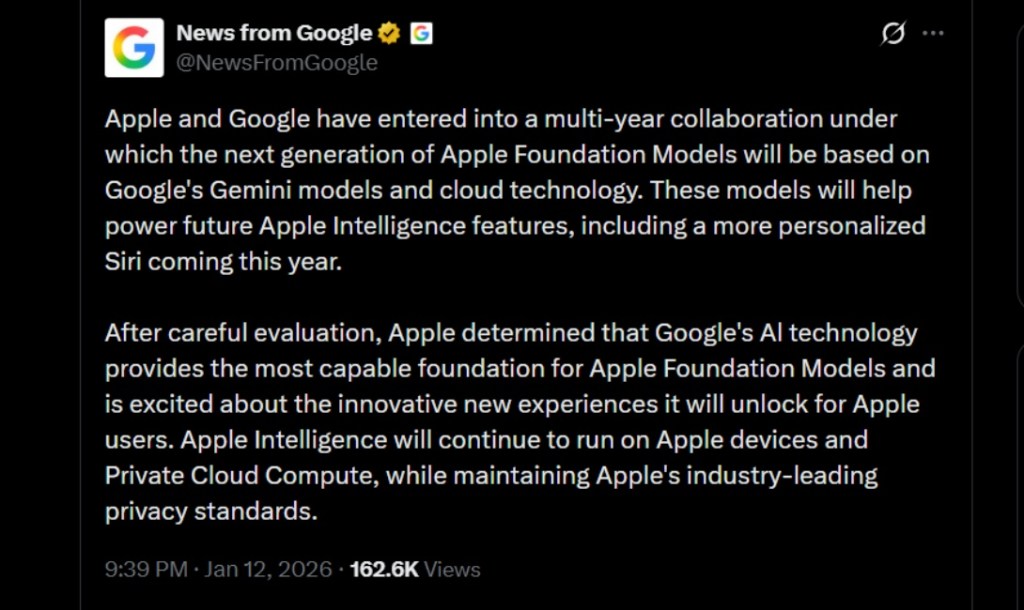
Image Credit: X/@NewsFromGoogle
Both statements clearly mention that the Cupertino Giant will be using Gemini to power its assistant Siri. This was already rumored, as Apple’s attempts to acquire Perplexity went nowhere. With Gemini, Siri will get a major AI update . It will be able to handle more nuanced conversations and provide better results. Something long-time Apple users have been asking for years.
The next-gen Siri will arrive with the iOS 26.4 update, which will launch sometime in March or April. And it is only going to be available for Apple Intelligence-supported devices .
Something else worth noting is how Google’s statement mentions that Gemini will power Apple Intelligence features. This leads us to believe that Apple could use Gemini’s multi-modal capabilities for its Writings tools , Image Playground , and Message summaries, too.
Elon Musk Not Happy With Apple and Google Tie Up
xAI CEO Elon Musk also responded to Google’s announcement post on X, sharing his thoughts on the matter by saying, “This seems like an unreasonable concentration of power for Google, given that they also have Android and Chrome.” Though we don’t expect either Apple or Google to respond to Elon, we will update the situation as it progresses.
It is worth noting that xAI is the company behind Grok, which is in hot water currently due to its inappropriate image generation fiasco , and has been getting backlash from multiple news outlets, X users, and even government authorities.
With over 4 year of experience under the belt, I cover all facets of consumer tech, from smartphones to other consumer electronics, our favorite social media apps, as well as the growing realm of AI and LLMs. As an Apps and AI writer app Beebom, I provide my expertise in all these areas, weaving stories that help you get familiar with the tech around you. But you will find me playing NYT daily puzzles in my free time.
Add new comment
Name
Email ID
Δ
