- Android 15 brings a slew of features over Android 14 and you can try them by installing Android 15 Beta.
- There are three ways to install Android 15 Beta — Enrolling your device, using the Flash tool, and the manual method.
- Enrolling doesn’t reset your device, while the other methods will factory reset your Pixel.
Android developer previews are not meant for general users, hence most users wait for the Beta update of the new Android version. Google just released the Android 15 Beta 2 for Pixels phones, and if you’ve been waiting to try out the same, let’s look at how to install Android 15 Beta right now. If you are already enrolled in Beta, we will show you multiple ways to update to the latest Beta version.
List of Pixels Eligible for Android 15 Beta
- Pixel 6 / 6 Pro
- Pixel 6a
- Pixel 7 / 7 Pro
- Pixel 7a
- Pixel 8 / 8 Pro
- Pixel 8a (New)
- Pixel Fold
- Pixel Tablet
Method 1: By Enrolling In Android 15 Beta Program
One of the easiest ways to get Android 15 Beta on a Pixel and install it conventionally is to enroll your device in Android Beta. Here’s how to do it.
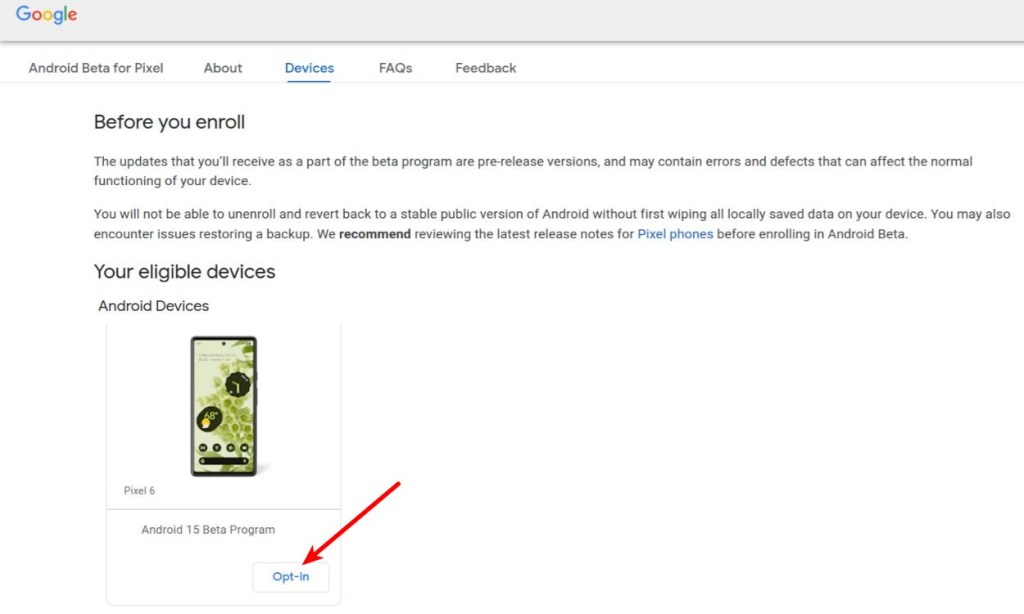
- Head to the official Android Beta Program website and log in to the Google account, which is the primary account on the phone you want to enroll.
- Once logged in, your Pixel should show up under Your Eligible Devices section if it is eligible. Click Opt-in .
- Go to your device’s Settings > System > Updates and tap Check for updates .
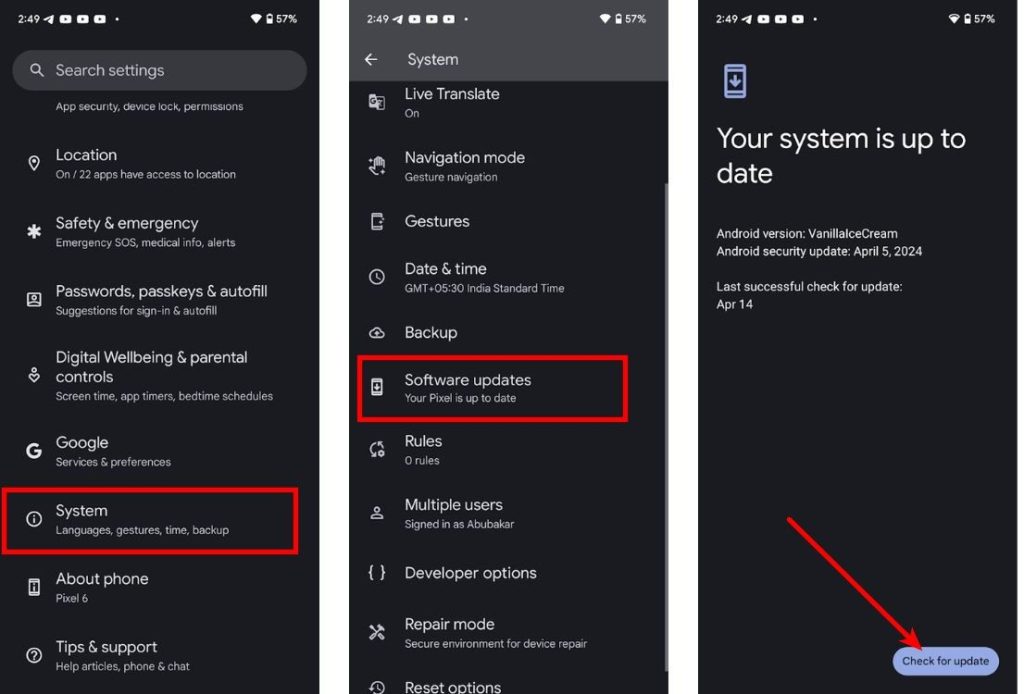
- A huge update should show up. Tap Download and install and once done, tap Restart .
While this process will not wipe your data, do make sure to back up anyway if something goes wrong.
Method 2: Install Using the Android Flash Tool
Before we begin installing Android 15 Beta using the Android Flash Tool, there are a few things we need to enable.
Prerequisites
- Ensure USB drivers are properly installed.
- Enable USB debugging
- Install a Chromium-based browser
- Have a stable internet connection.
If you need detailed info on how to enable USB debugging, refer to the first section of our Android 15 Developer Preview Install guide . Now that you’ve read the prerequisites, note that hopping on to Android 15 Beta from Android 14 stable will wipe your device clean, so make sure you back up all your important files and data.
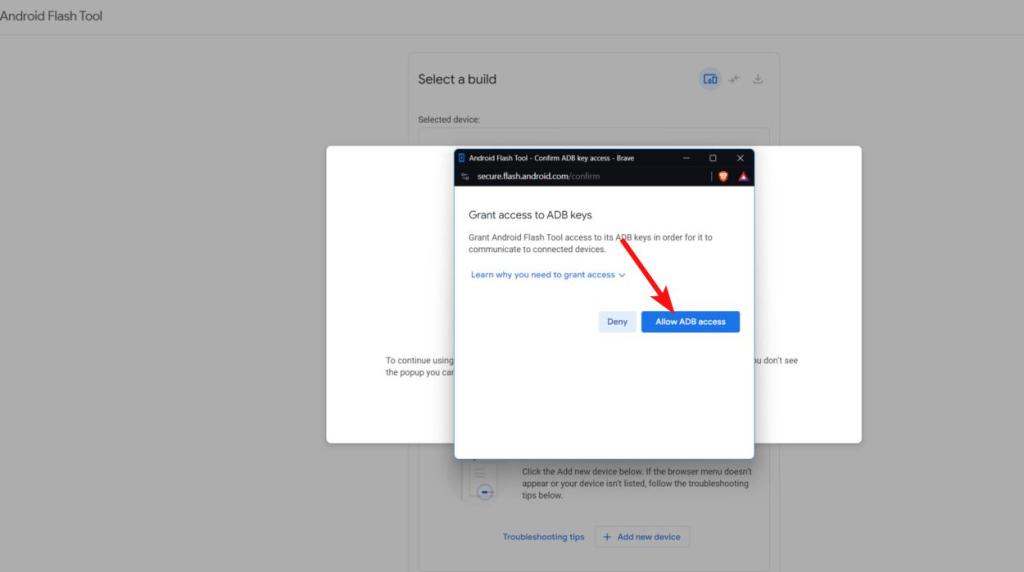
- Go to flash.android.com on any Chromium-based browser and click Allow ADB access in the first popup that shows up.
- Connect your Pixel to the PC via a USB cable. Scroll down and click Add new device .
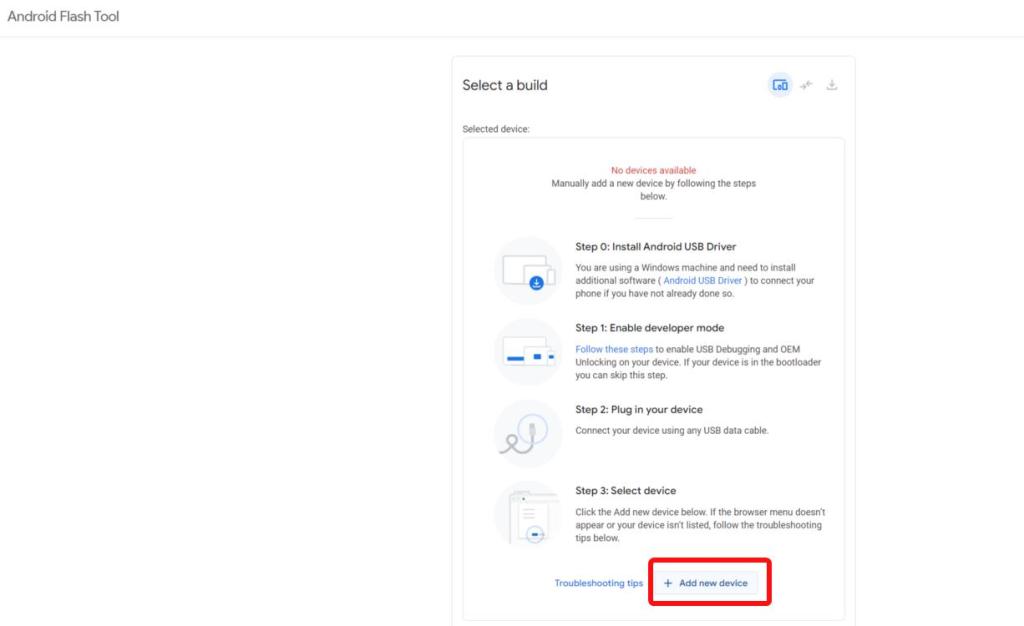
- If connected, your device should appear in the list of devices. Click it.
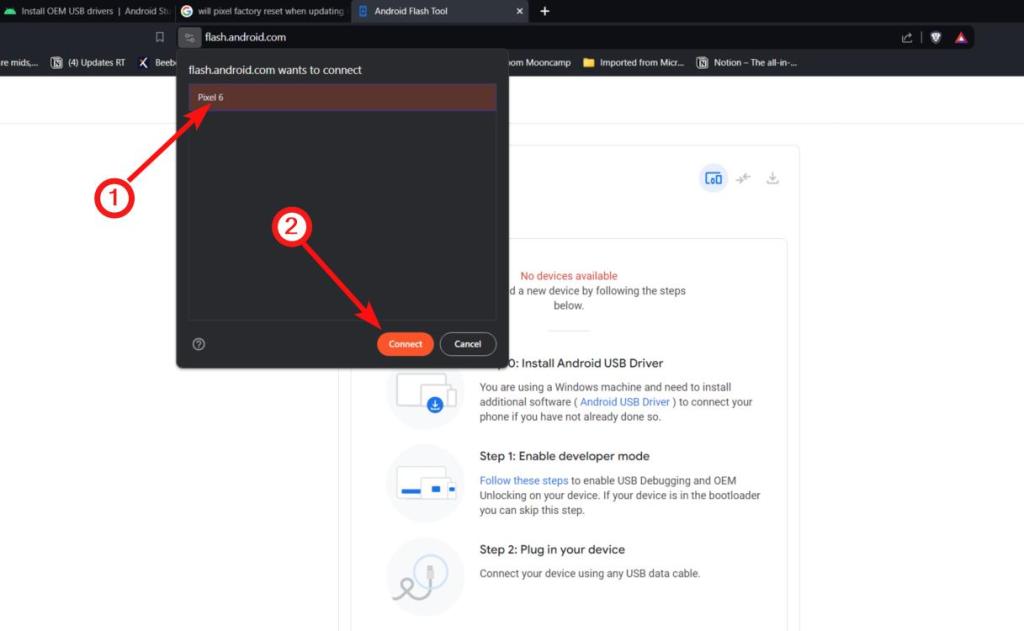
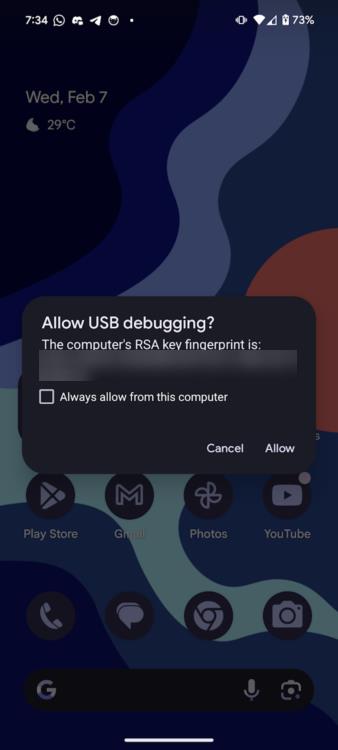
- Check your Android device for the Allow USB debugging pop-up, and tap Allow .
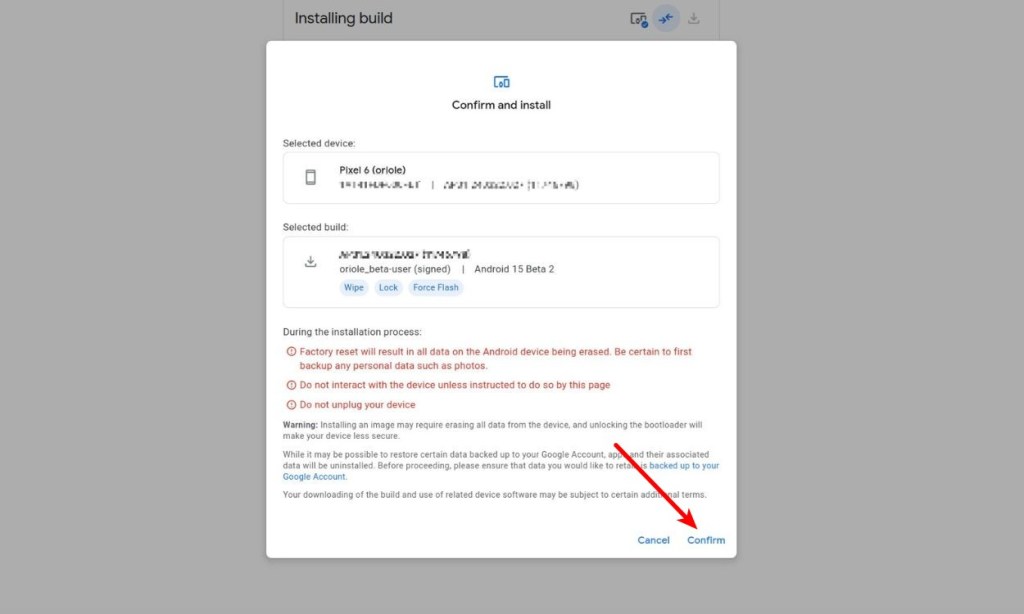
- Once connected, browse and select the Android Beta build you want to install and click on Confirm .
- Finally, click I Accept for the installation to begin.
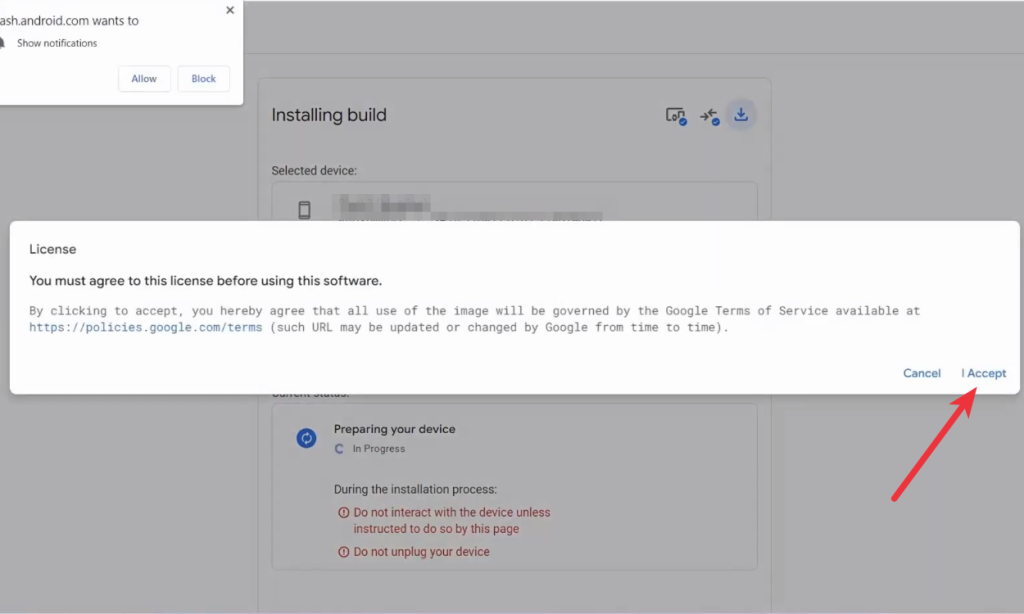
- Don’t divert your attention yet, as the website will throw a few prompts for you to click, to unlock the Bootloader of your Android device. Follow the instructions carefully for a successful flash.
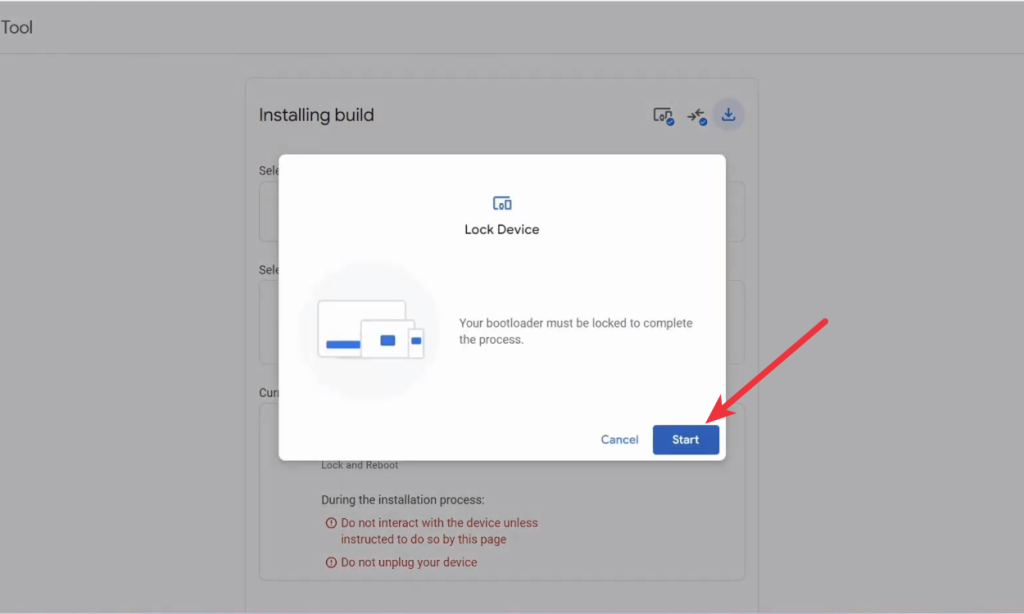
- Wait for some time, and your Pixel should boot into Android 15 Beta in no time. Time to enjoy the new dessert!
Method 3: Install Android 15 Beta Manually
If none of the above methods helped you get Android 15 Beta on your Pixel for whatever reason, you can install it manually. Here’s how to do it.
- Head to the Android 15 downloads page and download the full factory image of the latest Beta for your Pixel device.
- Once done, ensure that you have USB debugging and OEM unlocking turned on. Head over to a Windows or Linux terminal.
- Connect your Pixel to your computer and execute the following command to check if your device is connected.
adb devices
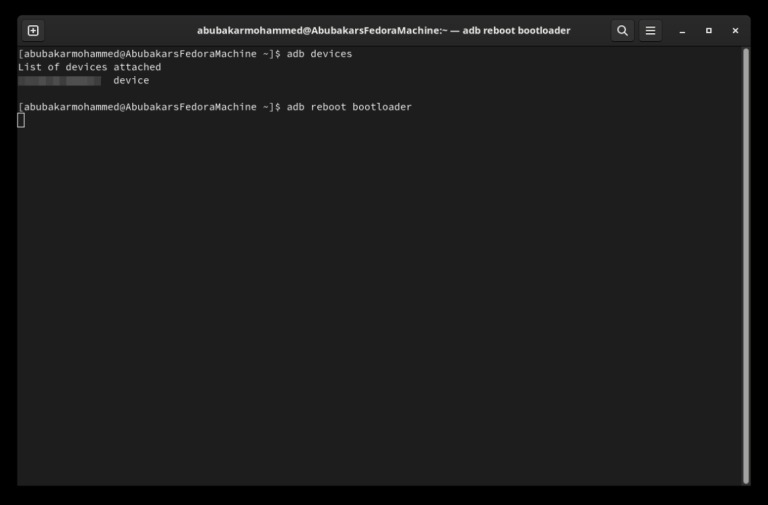
- Then execute the following command to boot into the bootloader.
adb reboot bootloader
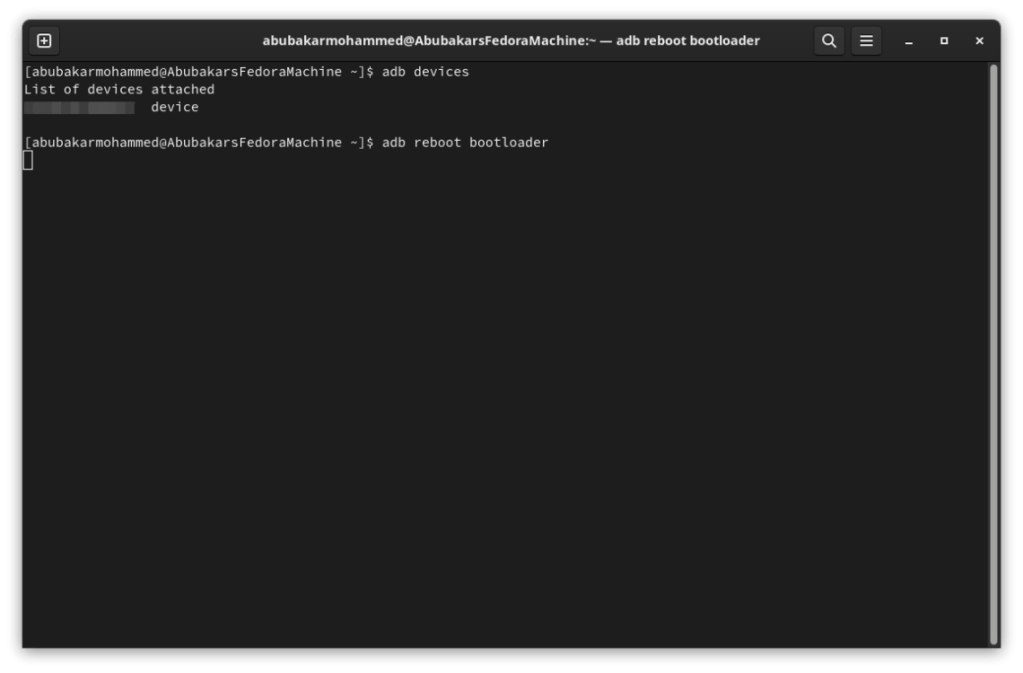
- Unlock your Pixel’s bootloader using the following command. This will wipe your device, so make sure you back up your data.
fastboot flashing unlock
- Once done, boot into the OS, enable USB debugging again, and reboot to the bootloader using the same commands as above. Extract the zip we downloaded at the start, and depending on your operating system, double-click on the “flash-all.bat” (Windows) or “flash-all.sh” (Linux) file.
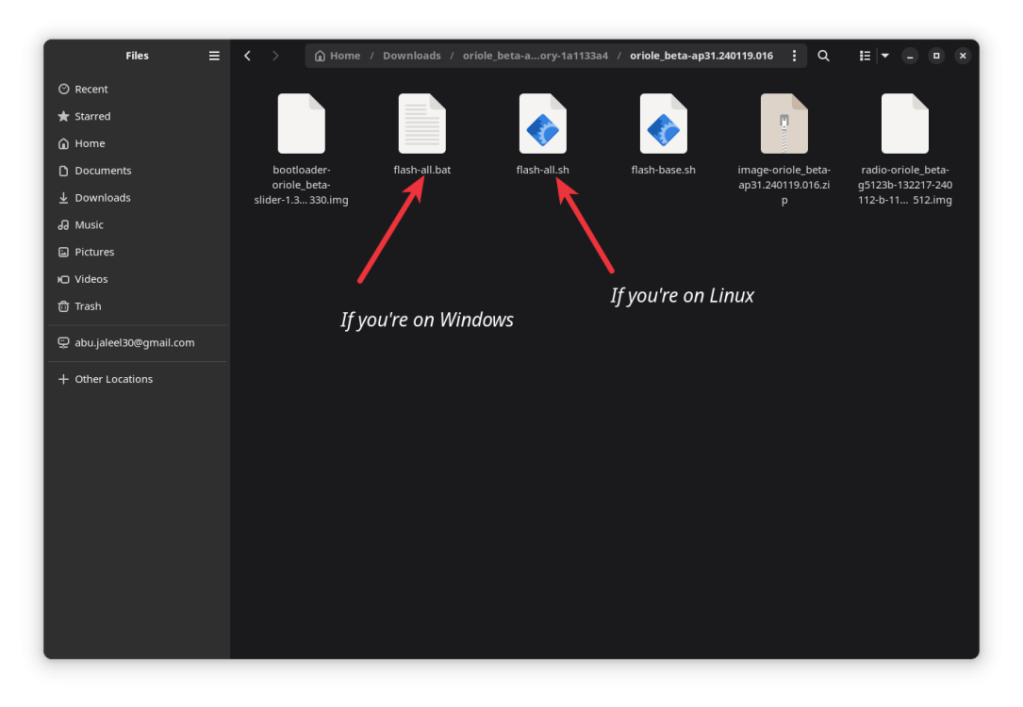
- The flashing process will start, and you should boot into the latest Android 15 Beta in no time.
Abubakar covers Tech at Beebom, with his passion for technology tracing back to 2011 when he received a Dell Inspiron 5100 as a gift. He’s also a passionate advocate for the right-to-repair movement, believing in empowering users to maintain and extend the life of their devices. Outside the tech world, he enjoys watching anime and exploring his newfound enthusiasm for Japanese cars. In his free time, you’ll often find him immersed in Genshin Impact or researching his next gadget purchase. Before joining Beebom, he contributed to leading publications like Android Police, How-To Geek, and Fossbytes.
Add new comment
Name
Email ID
Δ


- Samsung’s One UI 7 is coming around later this year with Android 15, but it could benefit from some improvements.
- These include one-hand-friendly quick settings, better Pro Mode, customizable icons, and a vertical app drawer.
- For privacy measures, Samsung should add an app sandbox to run suspicious apps in a separate instance.
Over the years, Samsung’s One UI has established itself as one of the best Android skins available out there. This is due to its tons of features and customizations, as well as the overall smoothness. One UI 6 brought several changes that everyone was not happy with, and long-requested features were still missing. Keeping that in mind, we’ve created a wishlist of all the improvements, enhancements, and features we hope to see in the One UI 7 release.
Since we know that One UI 7 will be based on Android 15 , we will be skipping features already available in Android 15 Beta like App Archive, Notification Cooldown, and Audio Sharing. This is just a list based on changes we would like to see and some much-awaited features.
Vertical App Drawer
Android devices have had a vertical scrolling app drawer since Android 6.0 Marshmallow yet for some odd reason, Samsung has stuck with a horizontal page-style drawer till now. At first, I used to find it as a novelty, but now I have grown tired of it. It is in need of a dire facelift.

Scrolling through pages upon pages to find the one app I’m looking for. So it would be quite refreshing to see Samsung include a vertical app drawer, or at least add an option to switch to one. However, rumors suggest that this feature is in the works for the One UI 7 update.
Multiple Lock And Home Screen Setups
Apple introduced the ability to create multiple lock screen and home screen setups that you can switch between, just like the watch faces on your smartwatch. Honestly, even as someone who prefers Android, this feature made me jealous of iPhone users.

Since we have seen Samsung carry over some features from the other side of the garden, I would love for Samsung to adapt this feature and bring it to One UI. It would be great to rotate through different setups depending on the occasion or the time of day. They should also include further customizations for the lock screen and add support for third-party widgets if possible.
Battery and Storage Health Data
With the launch of their latest flagship S24 series, Samsung has promised to offer 7 years of Android updates, similar to Google’s Pixel 8 series. Such promises of long-term updates are commendable, but then Samsung should include some sort of way for users to monitor their battery and storage health data.
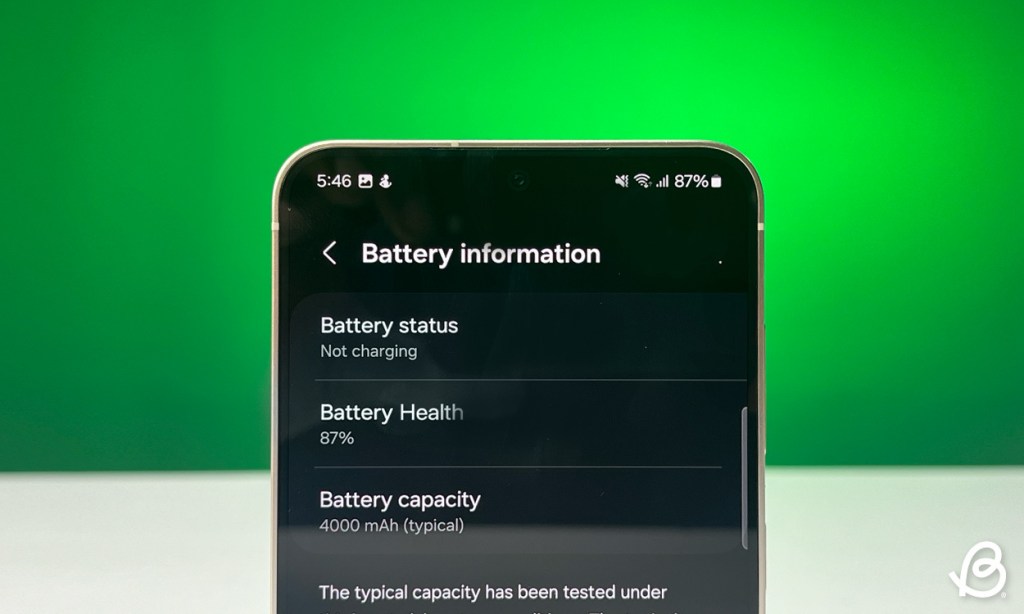
The battery is the first thing that wears out over long-term usage. That is why the option to check your device’s battery and storage health is necessary. It should allow users to check the charging cycles and battery health , like the iPhones and some OnePlus models. Android 15 might incorporate a feature to display storage health that will also degrade over time, so the brand should adopt it as well.
App Sandbox
The open nature of Android allows you to download and install apps from other sources. As someone writing about Android, I have to test multiple apps on my phone that I don’t trust completely. There should be an App Sandbox feature for such situations.
This will run apps in a separate instance with limited permissions so they don’t interfere with system and user data like media files or documents. It should automatically kick in when installing an app from an unknown source as a privacy measure. This will go a long way toward the security of user data.
Improved Pro Mode
I thoroughly enjoy the Pro Mode in One UI, as it lets me tweak a bunch of options to capture that perfect shot. But there are a couple of features that are absent from the viewfinder that I would like to see added in One UI 7.

First is turning on grid lines for the Pro mode viewfinder. Currently, you can enable it from Camera settings, but I don’t use grid lines outside of it. Turning on this feature applies grid lines throughout all camera modes, and I have to open settings again to turn it off.
Next is a toggle to switch between different image formats . S series of devices support shooting in the RAW format along with the usual JPEG. You can choose to shoot with either format in the Pro Mode, but like grid lines, these options are also buried in Camera settings. Xiaomi Mi 14’s Pro Mode lets you change it right from the viewfinder, so Samsung should consider adding it too.
Customizable Icons
There is no doubt that Samsung’s icons are… “icon-ic”. But like the app drawer, they haven’t seen major improvements throughout the years. In a skin as feature-rich as the One UI, asking for an option to customize app icons wouldn’t be too much.

You can currently change them to follow material theming, but I would love to have the option to change shape, size, and even colors if possible. There is a GoodLock module called Theme Park that allows you to do the same, but a native option within the OS will be much appreciated.
Redesigned Quick Settings
One UI is designed to be one-handed friendly, which is why the title of any app and settings take up the top one-third of the screen. This was also present in the quick settings panel. However, with the One UI 6 update, the entire panel changed to take up the whole screen , requiring you to use both hands to access the Wi-Fi and Bluetooth toggles positioned at the top.

This is a jarring shift from the design language followed by the rest of the interface. This is why I want to see a more one-hand-friendly redesign of the quick settings panel for better accessibility . I also couldn’t help but notice that there is no option to switch Wi-Fi and Bluetooth toggles with any other option. So there should also be an option to change that as well.
Other Features Coming to One UI 7
Besides what we have mentioned above, we know that Android 15 features like App Archive, Notification Cooldown, Per App Screen Recording, Default Wallet app and more will make their way to One UI. You can expect that Samsung might have their own twist on some of these features, which will be interesting to see.
These are some of the features that I wish to see in the coming version of One UI. Drafting this list was like creating a Christmas wishlist of all the gifts I wanted this year. Now that the list is complete, we have to wait for the beta to start which just like One UI 6 should be coming near Q3 of this year for the S24 series of devices first.
With over 4 year of experience under the belt, I cover all facets of consumer tech, from smartphones to other consumer electronics, our favorite social media apps, as well as the growing realm of AI and LLMs. As an Apps and AI writer app Beebom, I provide my expertise in all these areas, weaving stories that help you get familiar with the tech around you. But you will find me playing NYT daily puzzles in my free time.
Add new comment
Name
Email ID
Δ
