- Snapchat has added an option to add your custom pet or create your own from their photo.
- The feature is only limited to Snapchat+ subscribers, as it is in its early stages.
- To add pets, head over to Snapchat Maps > your Bitmoji > My pets > select from available options or tap on Choose your own pet! to create your custom pet.
Snapchat lets your friends know about your whereabouts in real time by placing your Bitmoji on the Snap map. But to make it more fun and interesting, you can customize your Bitmoji, by adding a car or even a pet. The app is even taking it a step further by letting you create your pets from selected photos in your gallery. Sounds interesting right? Keep reading as we show you how to set up your custom pet on Snapchat.
How to Get a Pet on Snapchat Map
Snapchat has added a bunch of pets that you can have standing next to you on Snap Maps. These pets range from cute to fantastical. Here is how you can set them on the app.
- Open Snapchat and tap on the maps icon from the bottom toolbar.
- Here, tap on your own Bitmoji shown next to the search icon from the bottom row.
- Now, tap on My pet .
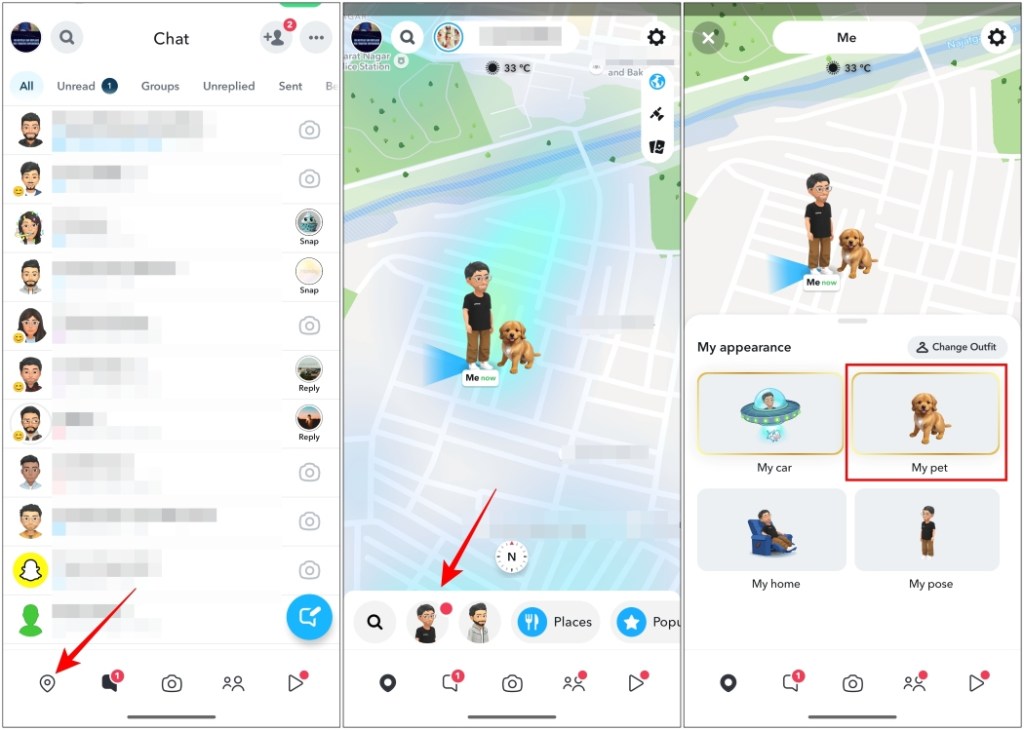
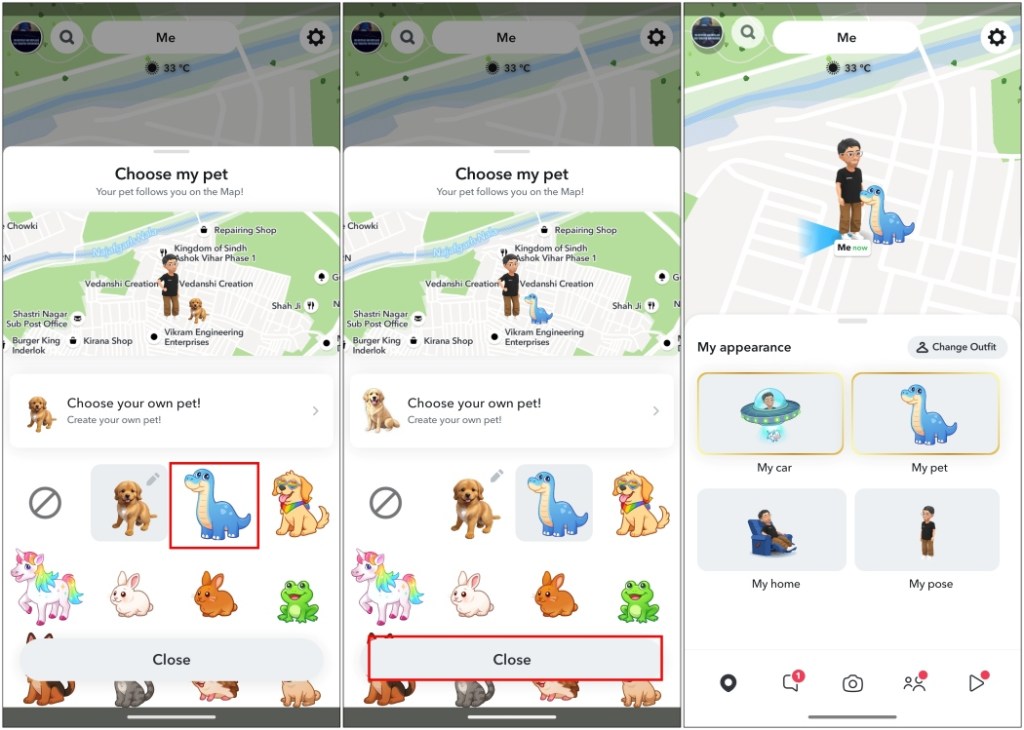
- Pick any available pets to have them standing next to you on Snap Maps.
- Once you are done, tap on Close and your new friend will be added.
Note The My pet section is exclusively available for Snapchat+ subscribers only at the moment. There’s no timeframe for when the feature will be available for other users.
How to Create Custom Pets on Snap Map
Snapchat now also lets you choose an image of your existing real-life pets and export them to Snap Maps. Think of it like creating their own Bitmoji. The feature can even create Snap Map pets from photos of other nonliving objects that you have on your phone. This is how this feature works.
- Head over to Snap Maps by tapping on the map icon in the bottom toolbar.
- Tap on your Bitmoji avatar next to the search icon.
- Then go to My pet and here select Choose your own pet! .
- Now select an image from your gallery. The app will try to recognize it and turn it into an avatar.
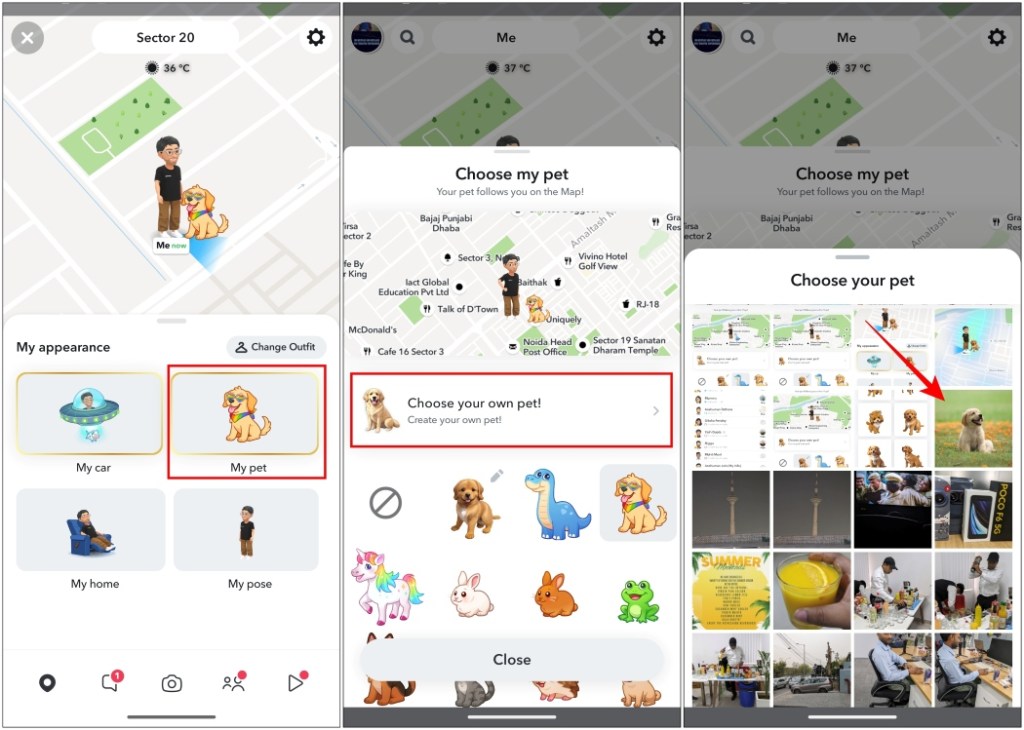
- Once done, it will show you 6 options to choose from. Pick whichever one you prefer.
- Lastly, tap on Close to see your pet on Snap Maps.
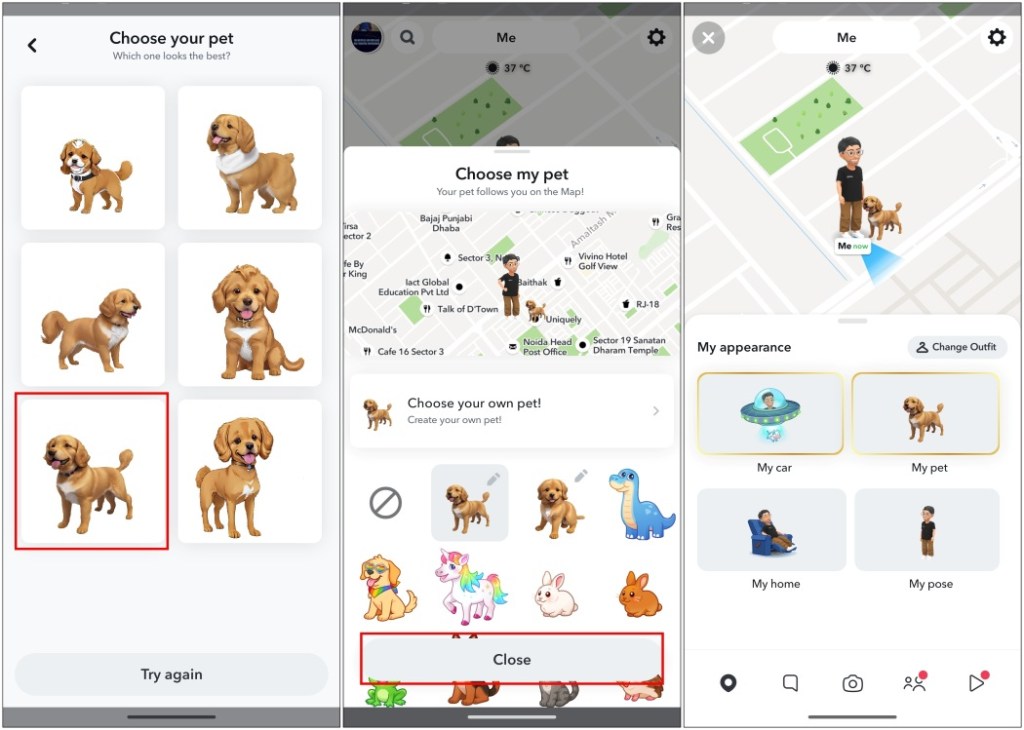
This method doesn’t work at all times, as it has trouble recognizing the object in the photo. But if you have a clear image of your pet, then that should help with better results.

With over 4 year of experience under the belt, I cover all facets of consumer tech, from smartphones to other consumer electronics, our favorite social media apps, as well as the growing realm of AI and LLMs. As an Apps and AI writer app Beebom, I provide my expertise in all these areas, weaving stories that help you get familiar with the tech around you. But you will find me playing NYT daily puzzles in my free time.
Add new comment
Name
Email ID
Δ

