- Steam disk write error appears when the Steam app cannot write and save games on the drive.
- This could be due to both software restrictions and hardware issues.
- Some of the solutions are unchecking the read-only option, allowing Steam through the firewall, moving the game to another disk, and reinstalling Steam.
Steam is one of the leading gaming platforms thanks to its ever-expanding games library. While downloading and playing games on Steam is pretty effortless, there could be times when you encounter an error when doing so. One of the uncommon errors when installing a game is the Steam disk write error, which could be a bit challenging to troubleshoot. If you’ve encountered the same, here’s how you can fix the Disk Write error on Steam.
Why Does Steam Disk Write Error Occur?
The Steam disk write error appears when the Steam app is unable to write, store, or save games and data on the hard drive. Some of the reasons why this may happen are — a bad hard drive, firewall, missing write permissions, or the Steam app being corrupted due to a bad update or install. Some of the ways to fix the error are as follows.
Method 1: Uncheck Steam Folder Read-only Option
One of the primary reasons behind the Steam disk write error is the Steam folder lacking write permissions. When a folder in Windows is Read-only, it means applications cannot add or change anything in the folder and require administrator access to do so. However, you can change this from Windows file properties. On Mac, you’ll need to allow full disk access to Steam.
On Windows:
- Go to the drive where Steam is installed. You can check this by clicking Steam > Settings > Storage .
- Open This PC and go to the Drive where the “Steam” folder is located. It’s usually located in C:\Program Files (x86)\Steam
- Shift+ Right-click the “Steamapps” folder and click on Properties .
- Uncheck the Read-only checkbox and click Apply .
- Once done, go back to Steam and try installing the game again.
While Steam and Windows by default decide to not keep the folder Read-only, it is possible that the setting might’ve been inadvertently changed by you or someone else. Thankfully, the above method is an extremely popular fix and should get rid of the Steam disk write error.
On Mac:
Similar to Windows, the Steam Disk w rite error usually occurs on Mac when Steam doesn’t have access to the disk. To fix it:
- Click the Apple icon from the Menu Bar at the top left and select System Settings .
- Go to Privacy & Security > Full Disk Access .
- Turn on the Steam toggle.
- Use the Touch ID on your Mac. Alternatively, you can click on Use Password and enter your Mac password to proceed.
- Now, go back to the Privacy & Security screen and click on Files and Folders .
- Check if Steam is now visible among the list of apps on the next screen.
You can now open Steam and try installing games again. If it still doesn’t work, go to App Management in Privacy and Security and turn on the Steam toggle to update/delete.
Method 2: Restart Your PC
One of the easiest ways to solve not just Steam disk write error code, but a host of errors is by restarting your PC. Restarting a PC clears the memory and restarts everything from scratch, and if there are any errors or bad segments in the memory causing Steam to throw “disk write” error, a simple restart could address them.
On Windows
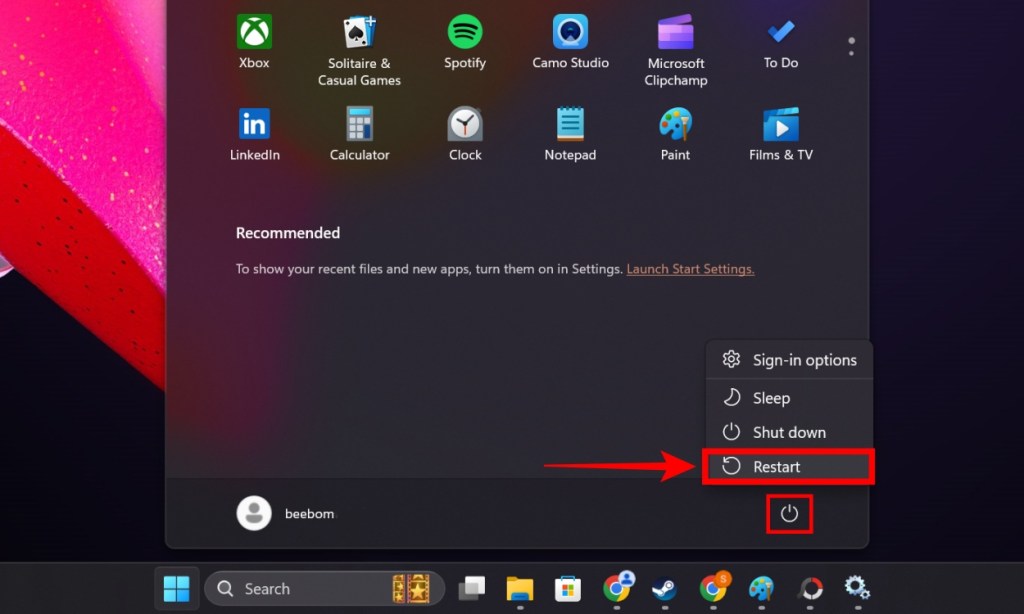
- Click the Start button.
- From the Start menu, click on the Power button and select Restart .
On Mac
To restart a Mac, follow these steps:
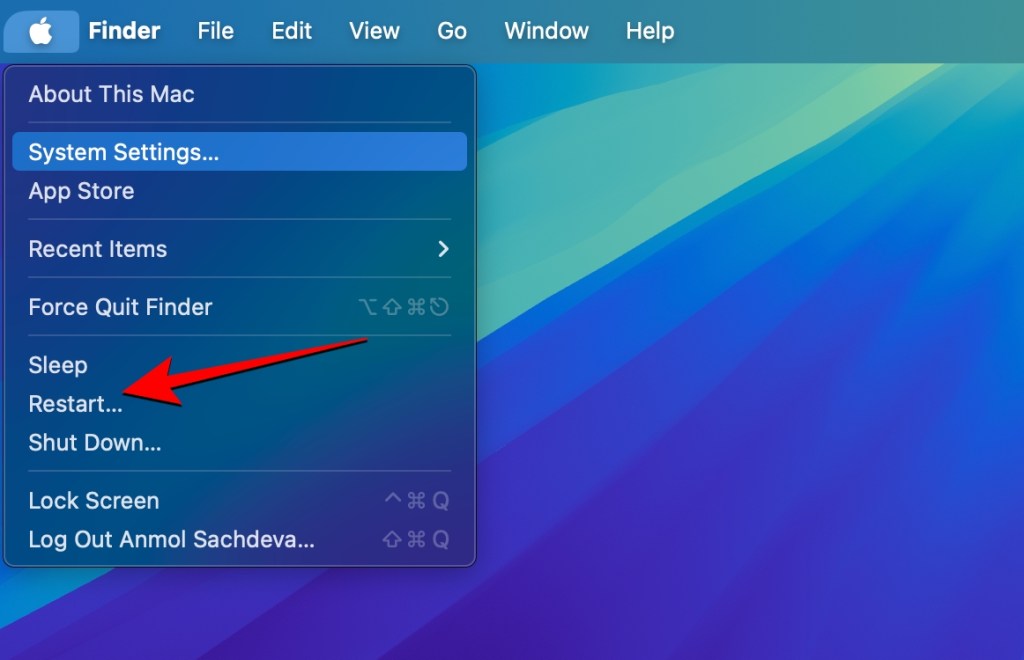
- Click the Apple icon from the Menu Bar at the top left.
- From the overflow menu, select Restart .
Method 3: Change Administrator Permissions
If the PC is shared between the members of your family, it is possible that your account might be lacking administrator privileges. To do this, the administrator needs to log in and follow these steps:
- Open Start, type netplwiz , and hit enter.
- Click a user account you want to convert into an Administrator and click Properties .
- Go to the Group Membership tab and select Administrator .
- Finally, click Apply .
The account should then be converted to an Administrator account, and users should be able to install Steam games without encountering Steam disk write error.
Method 4: Run Steam as an Administrator
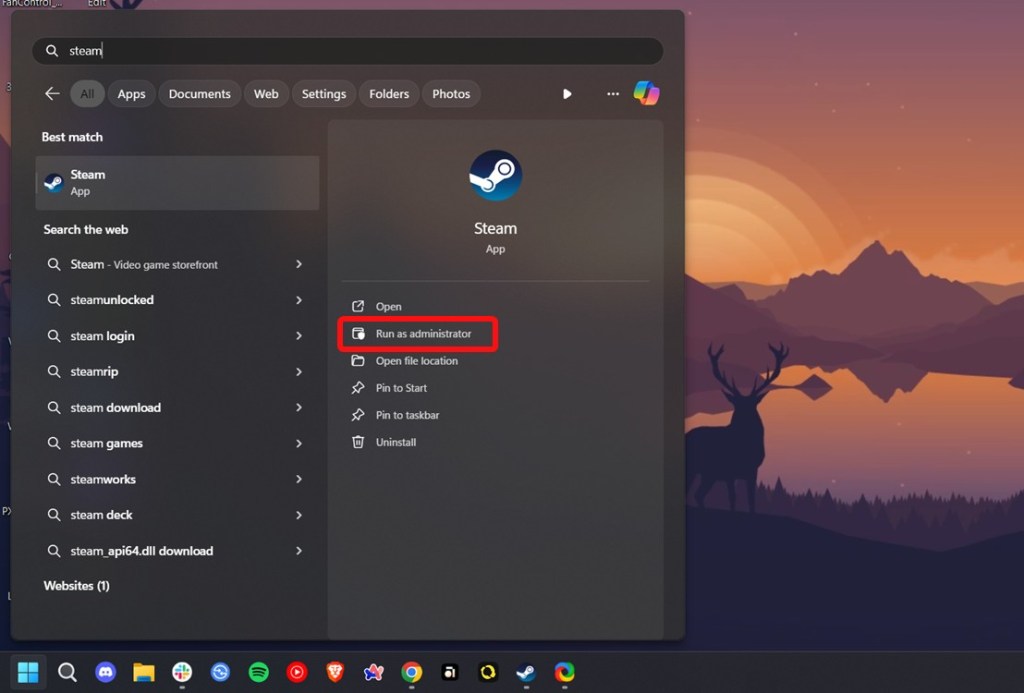
A temporary alternative to the above solution is running Steam as an Administrator. This can be done by opening Start > searching for Steam > Run as Administrator . If your account lacks administrator privileges, Steam will ask you to enter the administrator password . If you are the Administrator, clicking the option should make Steam run directly with Admin privileges.
Method 5: Check Hard Disk for Errors
Software is not the only thing that could be faulty here. If your Steam is throwing a disk write error, you could take it literally and check if your disk has something to do with it. Windows has a built-in Disk Checking tool that can scan your disks for errors.
- Go to Files > This PC .
- Press Shift + right-click and click Properties .
- Click Check and then click Scan drive .
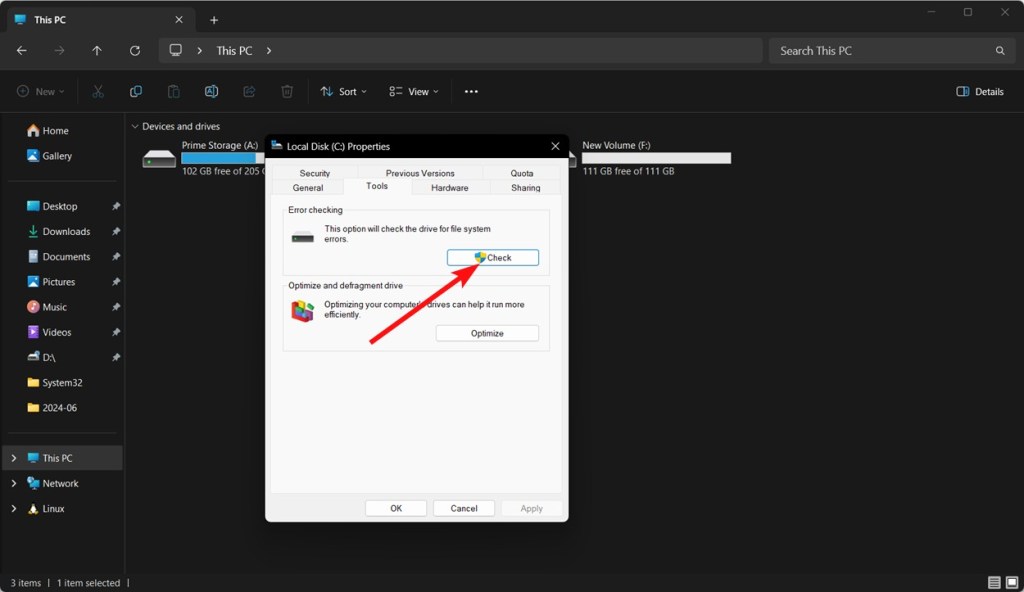
- Windows will begin scanning your drive and will alert you if it finds any errors once it’s done scanning.
If errors are found, it could be the reason why Steam is throwing the disk write error. If your hard disk or SSD is old, the errors might point toward the possibility of them failing. Hence, the best solution would be to get a new SSD before it’s too late and you lose your entire data at once. You could also try fixing errors using Windows’ chkdsk utility using the command line.
chkdsk C: /f /r /x
Here are the parameters /f, /r, and /x denote fix errors, locate bad sectors, and unmount disk before scanning, respectively. Once executed, Windows should begin scanning and fixing the bad areas of a hard drive during the next startup.
Method 6: Turn Off Firewall for Steam
It may seem like the Firewall has nothing to do with Steam throwing the disk write error but you’d be surprised. For starters, a firewall governs the incoming traffic to protect you from malicious attacks but it could be sensitive at times and stop the useful traffic in the process.
On Windows:
To turn off Firewall for Steam on Windows, follow these steps:
- Open Start and type “ Allow an app .” Click the first search result that reads “ Allow an App through Windows Firewall. “
- Scroll down and find Steam . Then click the Change option .
- Select Steam , Public , and Private to allow Steam through both public and private networks on the firewall.
- Once done, click OK to close the window. Launch Steam and check if the game installs correctly.
On Mac:
- Go to System Settings > Network > Firewall > Options . If you have an older Mac system, go to System Preferences > Security & Privacy > Firewall > Firewall Options .
- Click on the plus + icon , select Steam from the Applications folder and click on Add .
- When the app appears inside the list, click on its dropdown menu and select Allow incoming connections , then click on OK to save changes
Method 7: Restart Game Download
As the game sizes increase, the chances of the downloads getting interrupted increase as well. Not everyone has ultra-fast internet to download huge games in a jiffy and that might be the reason why Steam throws the disk write error. Because the download was interrupted many times, the game files might have been corrupted and the only solution to this is to stop the download and restart it .
Method 8: Clear Steam Cache
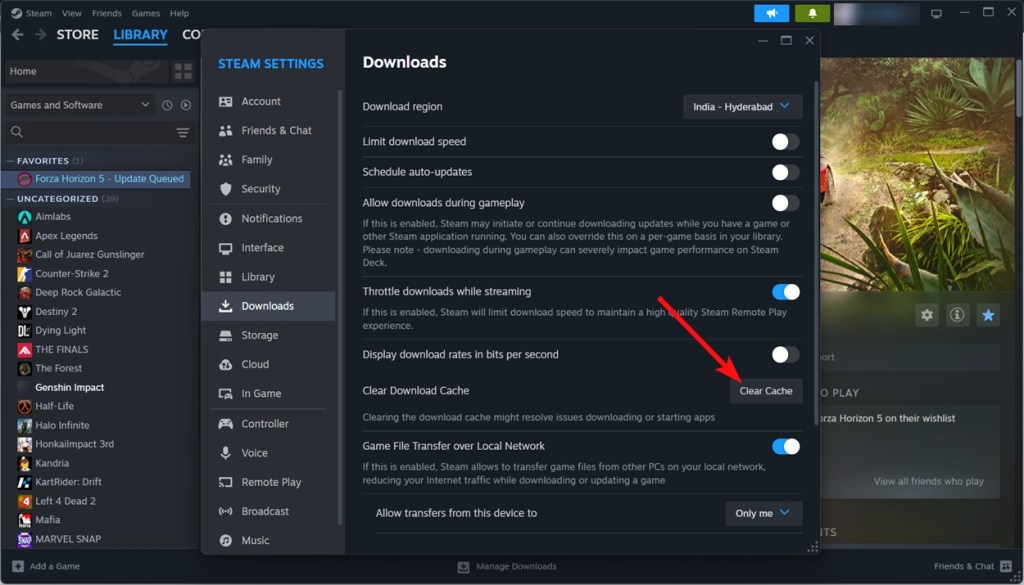
Perhaps the current Steam cache is conflicting with the other Steam files? This could be one of the reasons for the disk write error, and you can clear Steam cache by clicking Steam on the top left corner > Settings > Downloads > Clear Download Cache . Doing so should hopefully allow Steam to succeed in installing the game files.
Method 9: Move the Steam Game Folder
If none of the above methods have worked so far, you might want to try moving your Steam games and their contents to a different disk. This could potentially solve the Steam disk write issue if the error has something to do with the default disk running out of space or having errors. To move your games to other locations:
- Launch Steam and go to Settings > Storage .
- Select the games you want to move and click Move at the bottom.
- Select the disk you want to move the games to and click Move once again.
This should take some time depending on the size of the games and the read/write speeds of your hard disk or SSD.
Method 10: Verify a Game’s File Integrity
Steam has a built-in option to verify a game’s file integrity. In layman’s terms, when you check a game’s file integrity, you’re essentially checking if all the files needed for the game to function are in place and are installed correctly. Here’s how to check a game’s file integrity on Steam:
- Launch Steam and go to the Library .
- Click the game you want to check the integrity of.
- Click the Settings cog > Properties > Installed files.
- Finally, click on Verify integrity of game files .
Steam Disk Write Error: What Else Could Be Wrong?
The solutions mentioned in this guide should work wonders in solving the Steam disk write error. However, if none of them were able to fix your issue, it’s safe to assume there’s a deeper root cause. You could try reinstalling Steam and move to reinstalling Windows without wiping your entire data. Besides, you could also try to contact Steam support or search Steam forums to check if there are any other potential, quirky solutions users were able to find to fix the issue.
Abubakar covers Tech at Beebom, with his passion for technology tracing back to 2011 when he received a Dell Inspiron 5100 as a gift. He’s also a passionate advocate for the right-to-repair movement, believing in empowering users to maintain and extend the life of their devices. Outside the tech world, he enjoys watching anime and exploring his newfound enthusiasm for Japanese cars. In his free time, you’ll often find him immersed in Genshin Impact or researching his next gadget purchase. Before joining Beebom, he contributed to leading publications like Android Police, How-To Geek, and Fossbytes.
Add new comment
Name
Email ID
Δ



There’s no better time to pick up games on a discount than during Steam sales. Valve’s storefront is known for hosting sales quite regularly, most of which offer mouth-watering discounts on the biggest AAA and indie games. While its most popular promotions are tied to seasonal sales, Steam also features more thematic discounts throughout the year. So, if you’re looking to keep up with its schedule in 2026, we’ve put together a list of the next Steam sales and their dates in this guide.
Current Steam Sale
The current Steam sale is the Typing Fest . It celebrates titles that challenge your speed and dexterity on the keyboard. The promotion kicked off on February 5 and will end on February 9 .
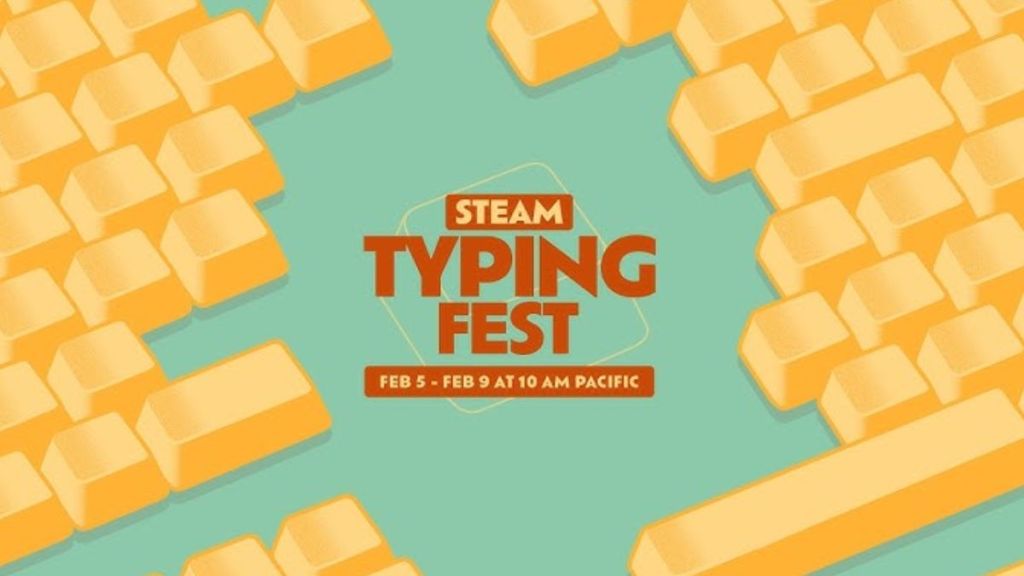
Image Credit: Valve/Steam
While it’s live, you can look forward to discounts on excellent typing games such as Bongo Cat, Final Sentence , and many others – some of which are among the best games on Steam .
Next Steam Sale Date and Time
The next Steam sale is the PvP Fest . As the name suggests, the sale will be all about multiplayer titles that pit you against other players in a competitive environment. The upcoming promotion will kick off on February 9 and end on February 16 .
While it’s live, you can look forward to discounts on excellent games such as Rust, For Honor and many others. To help you keep track of its arrival, we’ve put together a handy timer to count down the release of the next Steam sale:
The Steam PvP Fest is now live!
Upcoming Steam Sale Dates in 2026
The Steam sale calendar mixes genre-focused events with larger seasonal sales throughout the year. Each type of sale has its own advantages. So, while the seasonal sales offer the widest selection and often the deepest discounts, genre festivals help you discover new games in specific categories. With that said, here are all the upcoming Steam Sales in 2026:
- Typing Fest : February 5 – February 9 ( ONGOING )
- PvP Fest : February 9 – February 16
- Horse Fest : February 19 – February 23
- Steam Next Fest (February) : February 23 – March 2
- Tower Defense Fest : March 9 – March 16
- 2026 Steam Spring Sale : March 19 – March 26
- House & Home Fest : March 30 – April 6
- Hidden Object Fest : April 9 – April 13
- Medieval Fest : April 20 – April 27
- Deckbuilders Fest : May 4 – May 11
- Ocean Fest : May 18 – May 25
- Bullet Fest : June 8 – June 15
- Steam Next Fest (June) : June 15 – June 22
- 2026 Steam Summer Sale : June 25 – July 9
- Social Deduction Fest : July 13 – July 16
- Train Fest : July 20 – July 27
- Cyberpunk Fest : August 3 – August 10
- Pins & Pegs Fest : August 17 – August 20
- PvE Survival Fest : August 31 – September 7
- Programming Fest : September 10 – September 14
- Party-Based RPG Fest : September 14 – September 21
- 2026 Steam Autumn Sale : October 1 – October 8
- Cooking Fest : October 12 – October 19
- Steam Next Fest (October) : October 19 – October 26
- Steam Scream V Fest : October 26 – November 2
- Auto-Battler RPG Fest : November 16 – November 23
- 2026 Steam Winter Sale : December 17 – January 4, 2027
As you can see, the list covers all upcoming Steam sales throughout the year. We’ll be sure to update this article in case any new promotions are announced.
When is the Next Major Steam Sale?

Image Credit: Valve
The next major Steam sale will be the 2026 Spring sale event. Scheduled to kick off on March 19 , it is expected to bring fresh discounts on some of the biggest 2025 games, including the likes of Clair Obscur: Expedition 33, Hollow Knight: Silksong, Blue Prince, Doom: The Dark Ages, and many others. Besides this, you can look forward to deep price cuts on games from 2024 and before.
How Often Are Steam Sales?
New Steam sales pop up almost every month – a majority of which are more genre-focused “fests.” These shine the spotlight on a particular niche and offer discounts on a range of games belonging to that category. Of course, what fans eagerly await are the quarterly seasonal sales, which occur four times a year: Spring, Summer, Autumn, and Winter. These provide the widest selection of deals and the sweetest discounts.
Among the four, the Summer and Winter Steam sales are particularly noteworthy. During the former, you’ll find deep price cuts on games released in 2025, while the latter will bring some tempting price cuts on titles released this year.
The Best Steam Sale Tips
The sheer volume of games on sale, paired with eye-catching discount percentages, is enough to send our consumer brains into a frenzy. But this is far from the ideal approach to get the best value from these events. So, if you want to make the next Steam sale a shopping success, keep the following tips in mind:
Stick to Your Wishlist
I know firsthand just how tempting it is to deviate from your wish list and pick up a newly-discounted game that you’re semi-interested in. But take it from me, it’s a waste. The title in your wishlist is there for a reason. You saw its trailers, you read about it online – you’ve already put in the legwork. Trust your initial instincts and keep your wallet shut if it isn’t on sale. There’s no harm in occasionally trying out something new, but your wishlist should dictate your purchasing decisions during most sales.
Use SteamDB
SteamDB is a free-to-use database that tracks the current prices and price histories of almost every game listed on the platform. During a sale, we recommend checking out the website and using filters such as discount percentages and reviews to uncover the best deals on offer. If you’re deciding whether it’s the right time to pull the trigger on a purchase you’ve been eyeing up for a while, take a look at its price history to see if it could receive an even better discount in the future.
Keep an Eye Out for Publisher Sales

Image Credit: Valve, Ubisoft
On seemingly random weekends, publishers can take over the Steam homepage and announce beefy discounts on their games. These announcements are impossible to miss if you fire up Steam every weekend, so make sure to take full advantage. In particular, we recommend picking up publisher bundles – which usually offer two or three games for the price of one – especially if it’s a franchise you’re interested in.
Steam sales typically last for about a week, although the bigger seasonal sales can run for over two weeks.
Steam Next Fest is actually coming up quite soon. The next edition will run from February 23 to March 2.
Yes. Steam’s refund policy is always in place. If you haven’t played the game for over two hours, and it isn’t 14 days old, you can refund it.

A massive gaming nerd who’s been writing stuff on the internet since 2021, Aryan covers single-player games, RPGs, and live-service titles such as Marvel Rivals and Call of Duty: Warzone. When he isn’t clacking away at his keyboard, you’ll find him firing up another playthrough of Fallout: New Vegas.
Add new comment
Name
Email ID
Δ