- To fix an iPad that won’t turn on, force restart your device, connect it to a charger, check battery health, or update iPadOS using a Mac or PC.
- If there’s an error in the iPadOS installation, you can update your iPad in Recovery mode or DFU mode.
- If nothing works, it could be a hardware failure.
Usually, when your iPad shows a black screen, it’s in sleep mode waiting for you to press the Power button or tap on the screen to wake it up. However, it can be dead scary when your iPad refuses to turn on, no matter what you do. Before you freak out, you should know that you can fix this issue on your end. We’ve mentioned 6 tried and tested ways to fix iPad not turning on problems. Without any ado, let’s get in right there and bring your iPad back to life.
Method 1: Force Restart the iPad If It Won’t Turn On
There can be instances when your iPad won’t turn on or shows a dead black screen when you long-press the Power button. When this happens, your iPad won’t wake up or respond, no matter if you keep holding the power button, tap on the screen, or do other tricks. This usually happens due to a software bug or glitch and you can’t restart your iPad like normal in such cases. The most effective remedy to fix an unresponsive iPad is to perform a force restart.
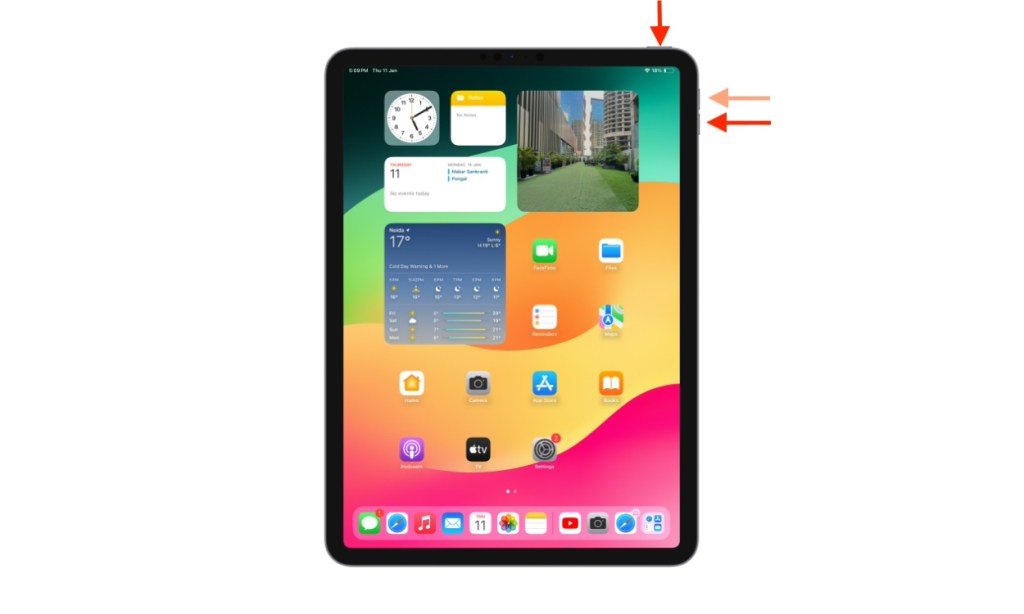
Here’s how to force restart an iPad without a Home Button:
- Press and quickly release the Volume button that’s closest to the power button.
- Immediately after this, press and release the Volume button farthest from the power button.
- Finally, press and hold the Power button until you see the Apple logo.
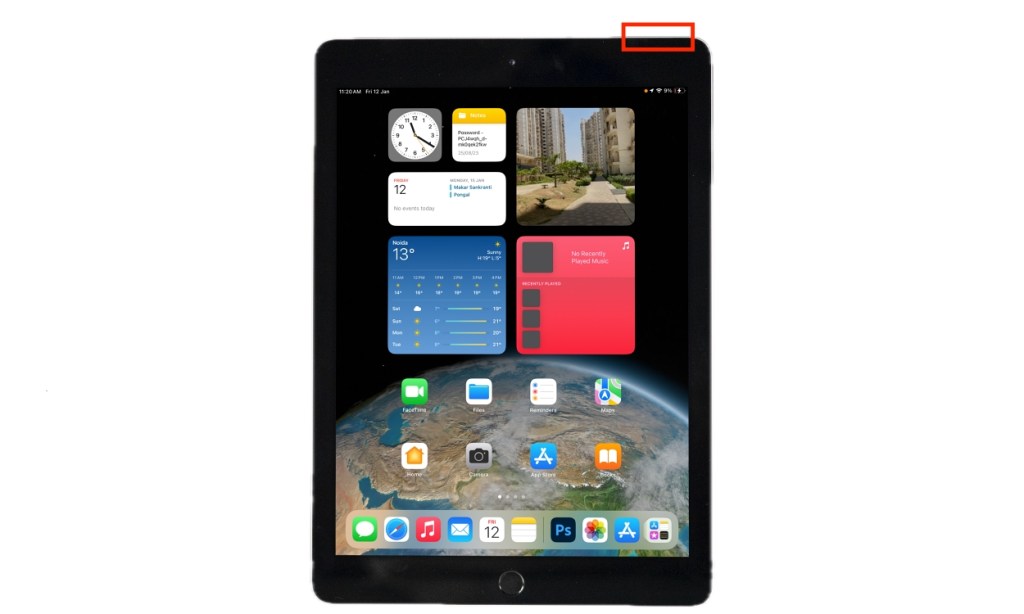
To force restart an iPad with a Home Button, follow the steps below:
- Simultaneously hold the Power Button and Home button.
- Release both buttons when you see the Apple logo.
If your iPad restarts, great! However, if you face this issue frequently, you must dive deeper and figure out what’s giving you the trouble. We recommend trying the following:
- Check for any unverified or misbehaving apps on your iPad. If your iPad won’t turn on after you’ve installed a particular app, try deleting that app, and see if it works.
- Back up your important data and factory reset your iPad.
Method 2: Charge the iPad If iPad Won’t Turn On
If your iPad doesn’t respond to a force restart and continues to show a completely black screen, it could be a sign of a dead battery. When your iPad has completely run out of battery, the system can’t boot up. As a result, your iPad shows a black screen and won’t turn on until you plug in a charger. Take a compatible charging cable and adapter and plug your device into charger. Make sure the power source is working fine and let your iPad charge uninterruptedly for at least 30 minutes. After that, check if your iPad is working fine or not.
In case your iPad won’t charge, try the following:
- Make sure you’re using official or MFi-certified charging accessories.
- Check your charging cable and adapter for any signs of damage.
- Check the power source.
- Inspect and clean the charging port.
For complete details, you can visit our dedicated guide on how to fix iPad not charging problems.
Method 3: Update iPad using Mac/PC
Another way to turn your iPad back on is to update its software using a Mac or a PC. This will download the latest version of iPadOS to wipe off any software bugs and improve the overall functionality of your device. Here’s how to update your iPad using Finder or iTunes:
- Using a compatible cable, connect your iPad to a Mac or PC.
- On your Mac with macOS Catalina or later, open Finder and select your iPad under the Locations section. On older Macs or a PC, open iTunes and click the iPad icon.
- If you don’t see your iPad, it’s probably out of battery. Let it charge for some time and then try again.
- In the window that appears, click on Check for Update .
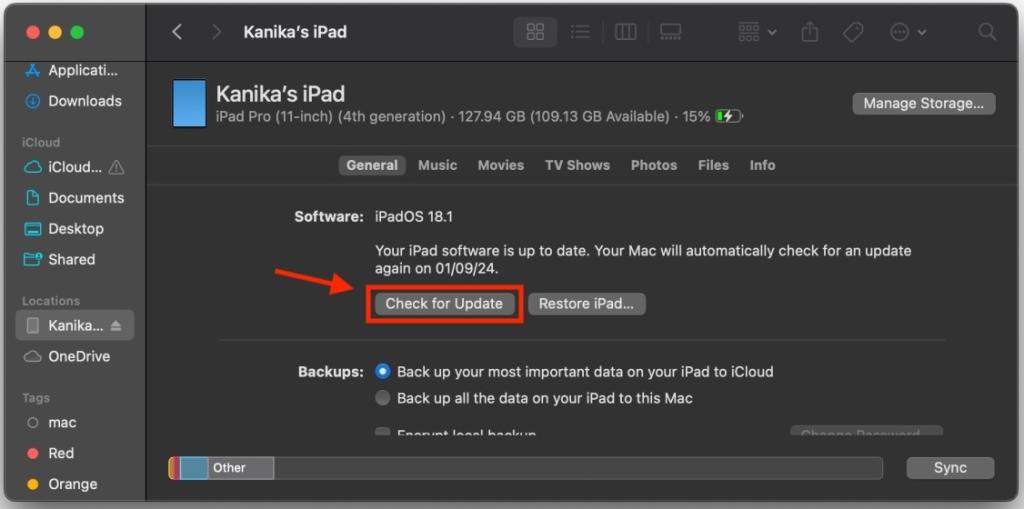
- If a more recent update is available, you should see the option to click Download and Update .
- Now, follow the on-screen instructions to update iPadOS.
Method 4: Troubleshoot Hardware Problems to Turn On iPad
If your iPad won’t turn on at all, there are fair chances of hardware damage. There could be two possibilities. First is the physical damage. If your iPad recently suffered a harsh drop, the impact may have damaged the display or internal components, which could be why it isn’t turning on. Second, you also have to factor in water damage. If your iPad has been exposed to heavy rain or came in contact with some sort of liquid, the internal components might have failed, and that’s why you’re stuck with a lifeless iPad.
In such cases, you must try connecting your iPad to a Mac or a PC. If your machine recognizes your iPad, you’re in luck as it means your tablet is actually powered on. In such a case, you must back up your important data and take your iPad for repair or replacement.
Unfortunately, if your computer doesn’t recognize your iPad, it indicates a major problem. The only wise thing you can do in such cases is to head to the nearest Apple Store and get your iPad diagnosed.
Method 5: Update iPad in Recovery Mode
If your iPad turns on but gets stuck at the Apple logo or a red /blue screen during the startup, there might be a problem with iPadOS installation. In such a case, you must put your device in Recovery Mode. You can then attempt a software update again or restore your iPad. For this, you’ll need a Mac or a Windows computer with the latest version of iTunes.
Here’s how to update your iPad in Recovery Mode:
- Connect your iPad to a computer.
- On a Mac with macOS Catalina or later, open Finder and select your iPad . On older Macs or a PC, open iTunes and click the iPhone icon.
- When connected, do a force restart to put your iPad in Recovery mode.
- Make sure to keep holding the buttons until you see the Recovery mode screen on your iPhone.
- When you get the option to Update or Restore on your computer, choose Update.
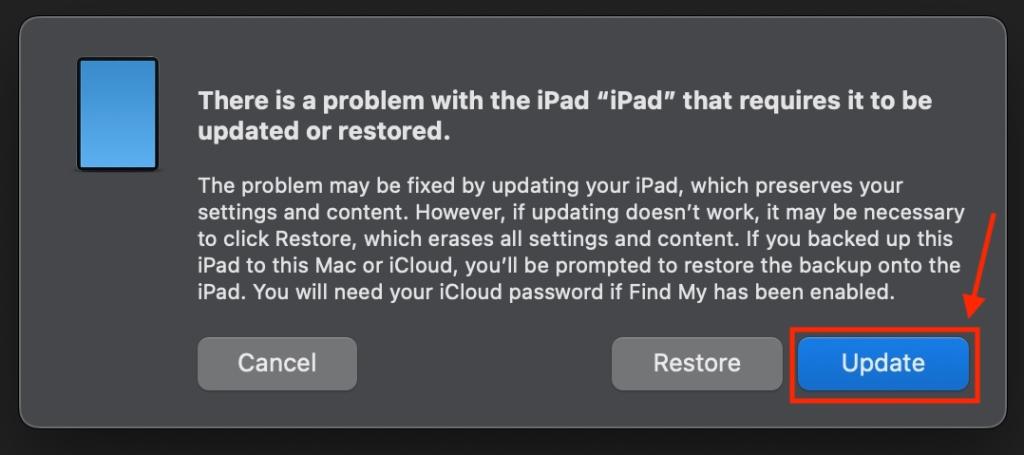
- If you see a message saying your iPad can’t be updated, choose the Restore option. Bear in mind that this process will erase all the data & settings on your iPad.
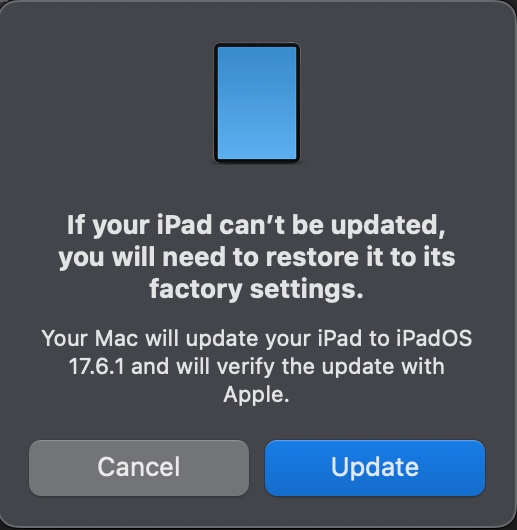
- Confirm your decision and follow the on-screen instructions.
- Your computer might take up to 15 minutes to download the latest software update on your iPad.
- Once completed, your iPad will restart on its own.
Method 6: Update the iPad in DFU Mode
If the above steps don’t work and your iPad isn’t turning on, it’s an indication of some complex software problems. If this happens to be your case, you can resort to the last method of Device Firmware Update (DFU). For starters, DFU is the deepest type of restore that can eliminate even the most complex software issues. The steps are quite similar to restoring the iPad in Recovery mode, but there’s a major difference.
Recovery mode uses iBoot (Apple’s stage 2 bootloader) to update or restore software on your device. On the flip side, DFU Restore bypasses iBoot and restores software to its original, clean state. The DFU method is particularly helpful in situations where your iPad won’t turn on due to some complex software errors like corrupted software or firmware crashes. However, make sure to don’t perform this process on iPads with physical or water damage. Otherwise, your device might become unusable.
Note: DFU Restore will permanently delete all the data from your iPad, including apps, media, contacts, email accounts, and more. So, make sure to back up your important data beforehand.
- Connect your iPad to a Mac or a Windows laptop.
- Open Finder on a Mac or iTunes on a Windows computer.
- On an iPad without a Home button , press and hold the Power/Top button for 3 seconds. Now, press and hold the Volume Down button at the same time. After 10 seconds, release the Power/Top button but keep holding the Volume button.
- On an iPad with a Home Button, hold the Power button and Home Button at the same time. After a few seconds, release the Power button but keep holding the Home button.
- When you see your iPad on your computer, release the Volume/Home button.
- Next up, click Restore iPad , then click Restore and Update .
- Once the process is completed, your iPad will turn on.
If your iPad still shows a black screen, there is a fair chance that something is wrong with your device. It could be an internal component failure, a damaged screen, or broken buttons. In such cases, you must head to the Apple store and get your iPad diagnosed by geniuses. We strongly recommend you stay away from any cheaper alternatives as they can leave your iPad beyond repair.
Some of the most common reasons why your iPad won’t turn on include: 1. A dead battery. 2. Outdated or corrupted software. 3. Physical or water damage. 4. Misbehaving or unverified apps 5. Charging or overheating issues.
Kanika has been a loyal iPhone user since 2014 and loves everything Apple. With a Master’s in Computer Applications, passion for technology, and over five years of experience in writing, she landed at Beebom as an Apple Ecosystem Writer. She specializes in writing How To’s, troubleshooting guides, App features, and roundups for Apple users to help them make the best use of their gadgets. When not writing, she loves to try out new recipes and enjoy some family time.
Add new comment
Name
Email ID
Δ


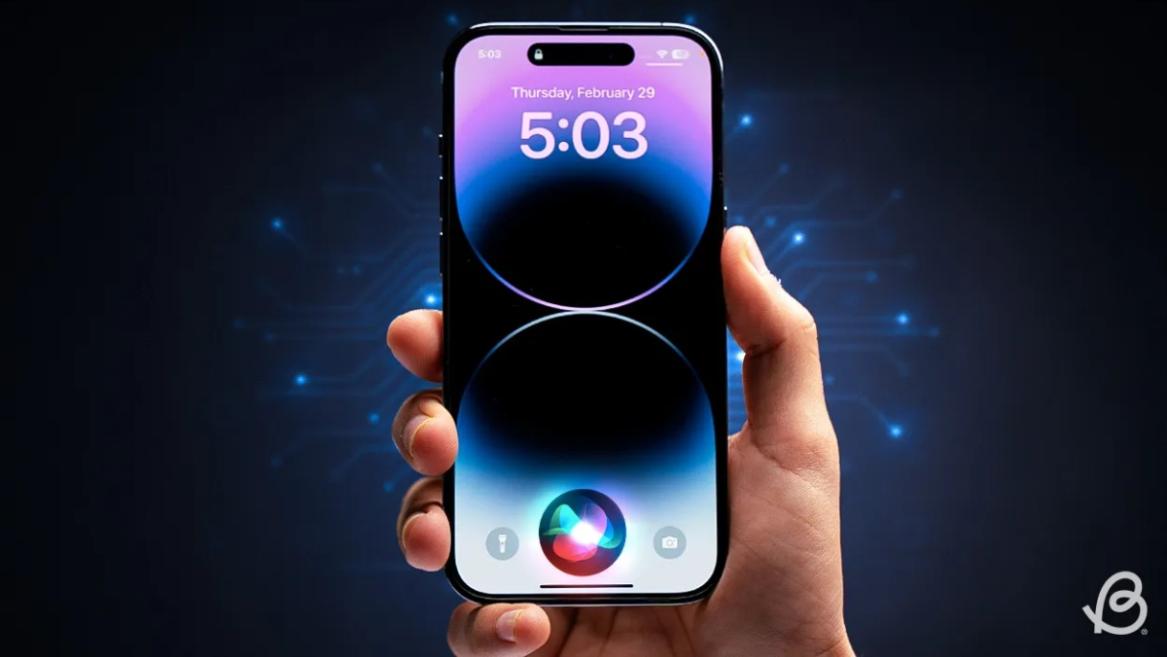
- Apple and Google have officially confirmed their team-up for the next-gen Siri AI.
- The Cupertino Giant will be using Google’s Gemini for a more personalized Siri model as well as Apple Intelligence features.
- We can expect the next-gen Siri to come out with iOS 26.4, sometime in March or April.
Apple has officially confirmed joining forces with Google to use its Gemini AI model to power the next-generation Siri. It will offer a more personalized experience and will be coming out with the iOS 26.4 update. Apple also plans to leverage Gemini’s capabilities for other Apple Intelligence features as well, later down the line.
The Next-Gen Siri will be powered by Google’s Gemini AI
Apple officially confirmed that it will be partnering with Google in a statement to CNBC . Here’s what it stated, “After careful evaluation, we determined that Google’s technology provides the most capable foundation for Apple Foundation Models, and we’re excited about the innovative new experiences it will unlock for our users.”
Later, Google also shared a post on X confirming the tie-up, “Apple and Google have entered into a multi-year collaboration under which the next generation of Apple Foundation Models will be based on Google’s Gemini models and cloud technology. These models will help power future Apple Intelligence features, including a more personalized Siri coming this year.”
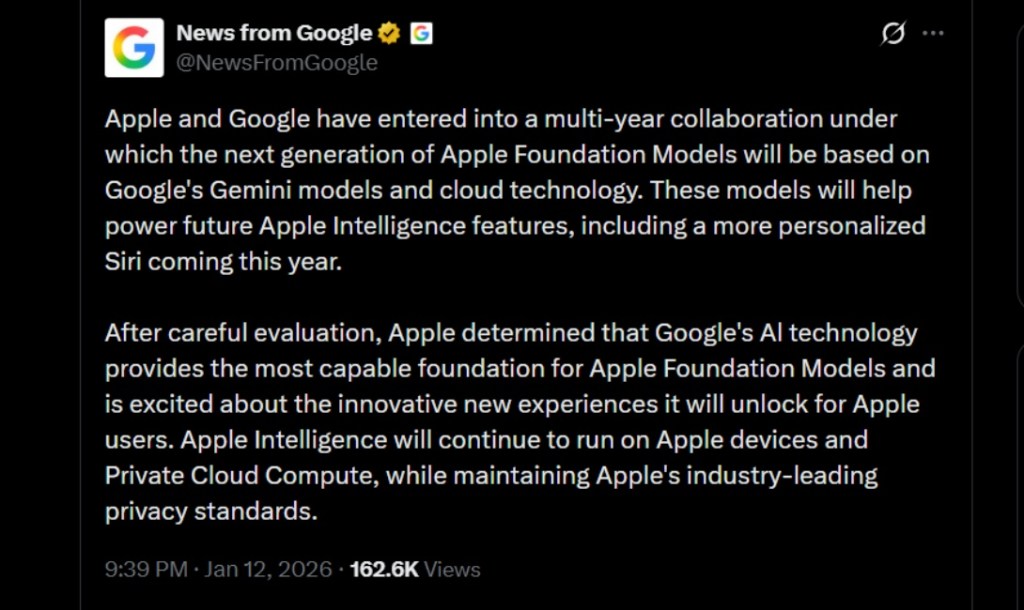
Image Credit: X/@NewsFromGoogle
Both statements clearly mention that the Cupertino Giant will be using Gemini to power its assistant Siri. This was already rumored, as Apple’s attempts to acquire Perplexity went nowhere. With Gemini, Siri will get a major AI update . It will be able to handle more nuanced conversations and provide better results. Something long-time Apple users have been asking for years.
The next-gen Siri will arrive with the iOS 26.4 update, which will launch sometime in March or April. And it is only going to be available for Apple Intelligence-supported devices .
Something else worth noting is how Google’s statement mentions that Gemini will power Apple Intelligence features. This leads us to believe that Apple could use Gemini’s multi-modal capabilities for its Writings tools , Image Playground , and Message summaries, too.
Elon Musk Not Happy With Apple and Google Tie Up
xAI CEO Elon Musk also responded to Google’s announcement post on X, sharing his thoughts on the matter by saying, “This seems like an unreasonable concentration of power for Google, given that they also have Android and Chrome.” Though we don’t expect either Apple or Google to respond to Elon, we will update the situation as it progresses.
It is worth noting that xAI is the company behind Grok, which is in hot water currently due to its inappropriate image generation fiasco , and has been getting backlash from multiple news outlets, X users, and even government authorities.
With over 4 year of experience under the belt, I cover all facets of consumer tech, from smartphones to other consumer electronics, our favorite social media apps, as well as the growing realm of AI and LLMs. As an Apps and AI writer app Beebom, I provide my expertise in all these areas, weaving stories that help you get familiar with the tech around you. But you will find me playing NYT daily puzzles in my free time.
Add new comment
Name
Email ID
Δ
- Apple is close to finalizing a $1 billion deal with Google to use Gemini to power the next-gen Siri.
- It will use a custom version of Gemini AI, which will be used temporarily until Apple develops its own powerful AI model.
- The new AI-powered Siri is slated to launch sometime next spring.
Apple is reportedly set to close an estimated $1 billion annual deal with its rival, Google, to use a custom version of the Gemini AI model to power the next version of Siri. Apple is lagging behind major companies in the AI race so this might help the Cupertino giant to make a comeback.
Apple Turns to Gemini to Power Its AI-Powered Siri
This detail comes from Bloomberg , which reports that Apple is turning to Google’s Gemini as a temporary solution until its own AI model catches up with the rest of the industry. Once ready, it will be used to power a host of new Apple Intelligence features which the company has in the pipeline.
For context, the custom version of Google’s Gemini AI model has about 1.2 trillion parameters , which far exceeds Apple’s current cloud-based AI model which are trained on 150 billion parameters. This shows that Gemini can handle far complex tasks and commands compared to Apple’s in-house model.

Image Credit: Beebom
Typically, the Cupertino Giant prefers to make things on its own, but it has been lagging in the AI race behind several major companies and startups. Apple had plans to acquire Perplexity , and even held talks with OpenAI , but it seems like Gemini is the best fit the company has found for its AI-powered Siri , which is scheduled to come out sometime next spring.
However, there is still some time till then, and Apple’s plan could still change if the deal doesn’t go through.
With over 4 year of experience under the belt, I cover all facets of consumer tech, from smartphones to other consumer electronics, our favorite social media apps, as well as the growing realm of AI and LLMs. As an Apps and AI writer app Beebom, I provide my expertise in all these areas, weaving stories that help you get familiar with the tech around you. But you will find me playing NYT daily puzzles in my free time.
Add new comment
Name
Email ID
Δ
