- Generally, you can find most downloads on the iPad in the Downloads folder located within the Files app .
- Open Files -> iCloud Drive -> Downloads to find saved files and PDFs on your iPad.
- You can also find the downloaded files within their corresponding app.
If you’ve just started using an iPad, you might be confused about how to find downloads on your iPad. It’s easier to access your downloaded files on a Mac, rather than an iPad or even an iPhone. If you’ve never downloaded files on iPadOS or iOS, you’re probably thinking about where those important files and PDFs went. Well, this happened to me when I first got my hands on an iPhone. Accessing downloads on iPad and iPhone might be different, but it isn’t difficult or complex. In this article, we’ll show you how to find downloaded files on an iPad and iPhone. Here you go!
If you’re wondering where you can find downloads on your iPad, here’s what you need to know. Generally, most of your downloads go to the Downloads folder on an iPad, which is located under iCloud Drive, On This iPad, or the Files app .
Bear in mind that some downloads like photos are available in their corresponding app. This rule applies to different file formats as well. In this article, we’ll explain where the most common downloads are saved on an iPad.
Find Downloads in Files app
If you download a file from the internet, it goes to the Downloads folder in the Files app on your iPad. The Files app has several folders which store different types of files. Let’s take a moment to know them:
- On My [Device] folder has files stored locally on the Apple device you’re using.
- iCloud Drive folder has all the files and folders that are synced to iCloud Drive. This includes Numbers, Pages, Keynote documents, and more.
- The Files app also stores files in other cloud services and apps that you’re using, such as Google Drive, Dropbox, One Drive, and more.
- Open the Files app on your iPad.
- In case you don’t find it on the home screen, swipe down from the middle to open Spotlight Search. Then, type “files” in the search bar and select “ Files “.
- Now, tap on the small icon present in the leftmost corner to reveal the left sidebar.
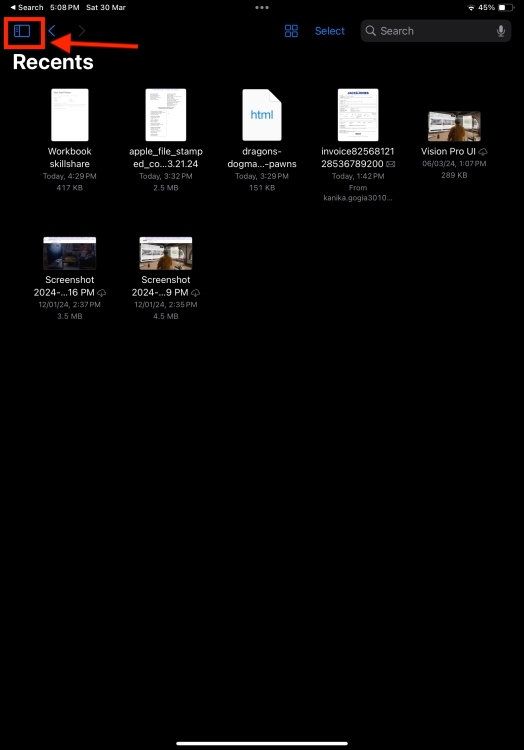
- Next, tap on iCloud Drive.

- Here, tap on the Downloads folder to see your saved files on your iPad.

If you wish to send a file, simply tap on the “ Share ” icon from the top right and then choose how and with whom you want to share that file.
Find Downloaded Apps on iPad
- On your iPad’s home screen, keep swiping left until you see the App Library . It has all the apps, automatically sorted in helpful categories.

- If you feel the categories are too cluttered, tap on the “App Library” to see the alphabetized list of your iPad apps.

- You can also search for a specific app using the search bar at the top.

Once you’ve found the app, you can tap on the icon to open it. Besides, you can long-press the icon to delete the app from your iPad , share it, or move it to the Home Screen.
Find Downloaded Photos on iPad
If you want to find downloaded photos on your iPad, simply head to the Photos app. Once you’ve opened the Photos app, you can browse through the available photos and videos.
You can also use the top search bar to find specific photos on your iPad. This is one of the most useful hidden iOS tricks that can make your life easier. Here’s how to search for a specific image in the Photos app:
- In the Photos app , tap on the Menu icon from the left-most corner to see the left sidebar, and tap on the Search option.
- If you wish to find a photo that was taken from your friend’s iPhone 15, start typing iPhone and tap the iPhone model from the drop-down menu.

- This will reveal all the pictures from that particular iPhone model.
- You can also use this method to find photos downloaded from Safari on your iPhone.
Find Downloads in Safari
- Open the Safari app on your iPad.
- Tap on the download icon present on the right of the search field.

- This will bring up your recent downloads.

If you don’t see the downloads button, there are chances that Safari has already removed your downloads. To verify, you must check the Removed Downloaded Items in Safari settings.
- On your iPad, go to Settings -> Safari -> Downloads .

- Here, tap on Remove Downloaded List Items and choose a suitable option from After one day, Upon successful download, or Manually.

While you’re here, you can also change where the downloaded Safari items are saved on your iPad. You can choose from iCloud Drive, On My iPad, or even pick a different location in the Files app.

That’s how you can find downloads on your iPad and iPhone. We hope this article helped you catch up with all those images and files that you’ve downloaded on your iPad.
Kanika has been a loyal iPhone user since 2014 and loves everything Apple. With a Master’s in Computer Applications, passion for technology, and over five years of experience in writing, she landed at Beebom as an Apple Ecosystem Writer. She specializes in writing How To’s, troubleshooting guides, App features, and roundups for Apple users to help them make the best use of their gadgets. When not writing, she loves to try out new recipes and enjoy some family time.
Add new comment
Name
Email ID
Δ


