- Quick Share on Chromebook can help you share files with Android and vice versa in jiffy.
- You can enable Quick Share on ChromeOS by clicking on the Quick Share option in Quick settings and selecting the “Available to my devices” or “Visible to Everyone” options.
- The “To my devices” option only works if both your Chromebook and Android device are signed in via the same Google account.
To enable Quick Share (Nearby Share) on Chromebook, follow these steps.
- Click on the time section at bottom right corner to open your Chromebook’s quick settings.
- Here, click on the Quick Share option. This will open up the Quick Share settings in the Settings app.
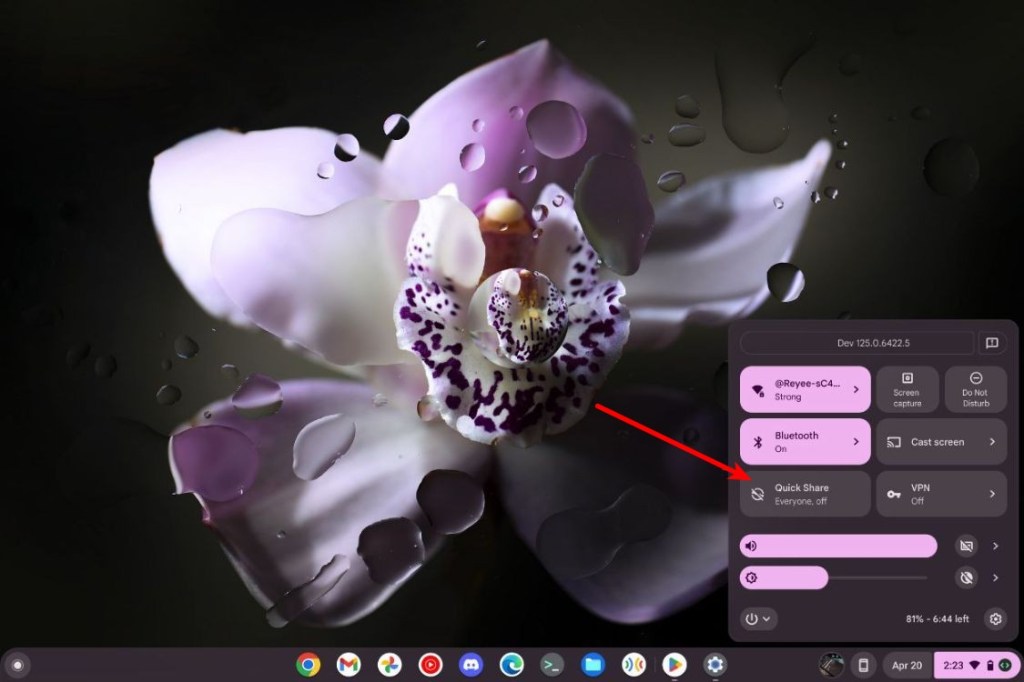
- Click Change visibility to change who can share with you.

- Change from Hidden to Your devices . This way, your Chromebook will appear on all your devices and vice versa when using Quick Share, provided all of them are on the same Google account.

Similarly, for you to seamlessly share from Chromebook, other devices need to be logged in via either the same account or make themselves visible for some time to appear on the network. To do this:
- Open the Settings app on your phone > Google > Quick Share Settings .
- Turn on the Visible to nearby devices toggle.
- You can select Your devices if your Chromebook and Android’s Google accounts match or if you want to share with someone else’s Chromebook, select Everyone .

How to Share Files from Chromebook via Quick Share
To share files from Chromebook to Android, all you need to do is:
- Go to the location where the file is stored, right-click on it to open more options, and click on Share .

- Click Quick Share and wait for it to detect your device.

- Once your device appears, select it and click Next .

- Your Chromebook will establish the connection and send the file to your device via Quick Share.

The images received from Android devices to your Chromebooks are automatically saved inside the Downloads folder on the Files app. The same goes for files sent from Chromebook to Android.
How to Share Files from Android to Chromebook
- Go to the location of the file or photo you want to share and tap the Share icon.
- Tap on Quick Share and your phone will start looking for devices.

- Select your Chromebook when it appears, and the file or photo will be sent in a jiffy.
You can also transfer photos that you recently saved on your phone to your Chromebook from Phone Hub. It shows up to five recent photos.
Quick Share is a great feature to have on your Chromebook. It’s much faster and safer than Bluetooth . If you haven’t used Quick Share yet, you should definitely try it out now that you know how to enable it and use it on your Chrome OS device.
Abubakar covers Tech at Beebom, with his passion for technology tracing back to 2011 when he received a Dell Inspiron 5100 as a gift. He’s also a passionate advocate for the right-to-repair movement, believing in empowering users to maintain and extend the life of their devices. Outside the tech world, he enjoys watching anime and exploring his newfound enthusiasm for Japanese cars. In his free time, you’ll often find him immersed in Genshin Impact or researching his next gadget purchase. Before joining Beebom, he contributed to leading publications like Android Police, How-To Geek, and Fossbytes.
Add new comment
Name
Email ID
Δ


