- To disconnect iMessage from a Mac, you can disable iMessage in iCloud.
- You can also sign out of iMessage and Apple ID to stop getting iMessages on your Mac.
- In case you don’t want to cut off from iMessage, you can choose to mute iMessage notifications on a Mac.
Apple’s iMessage service is a super-convenient way to stay connected to your important texts even if you’re away from your iPhone. Even better, you can choose to sync your messages across all your Apple devices. That said, there can be instances when you want to disconnect iMessage from your Mac. Perhaps you don’t want to be bombarded with frequent notifications and stay completely focused on your work. Or maybe you aren’t interested in getting all your iPhone messages on your Mac. Whatever the reason, it’s easy to turn off iMessage on a Mac. Let’s see how to do it.
How to Turn Off iMessage on Mac
If you want to disconnect iMessage from your Mac so that you don’t get any messages or notifications, you need to turn off iMessage on your MacBook. There are two ways to do it and we’ve discussed both of them below. Let’s check them out one at a time.
Method 1: Deactivate iMessage on Mac
The first and more convenient way to disconnect iMessage from a Mac is to disable iMessage in iCloud only on your Mac. When you do this, you will stop getting iMessages on your Mac. The best part is this method won’t affect iMessage on your iPhone, iPad, or any other device where you’ve signed in with the same Apple ID. Here are the steps to do it:
- Open the Messages app on your Mac.
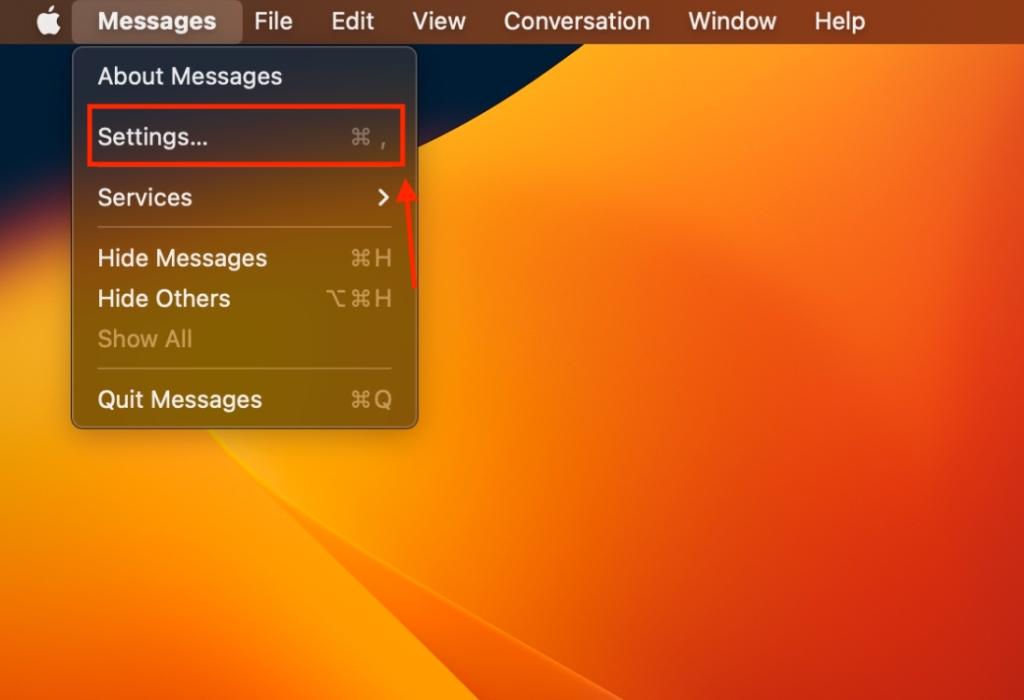
- In the menu bar present at the top, click on Messages and choose Settings from the drop-down list.
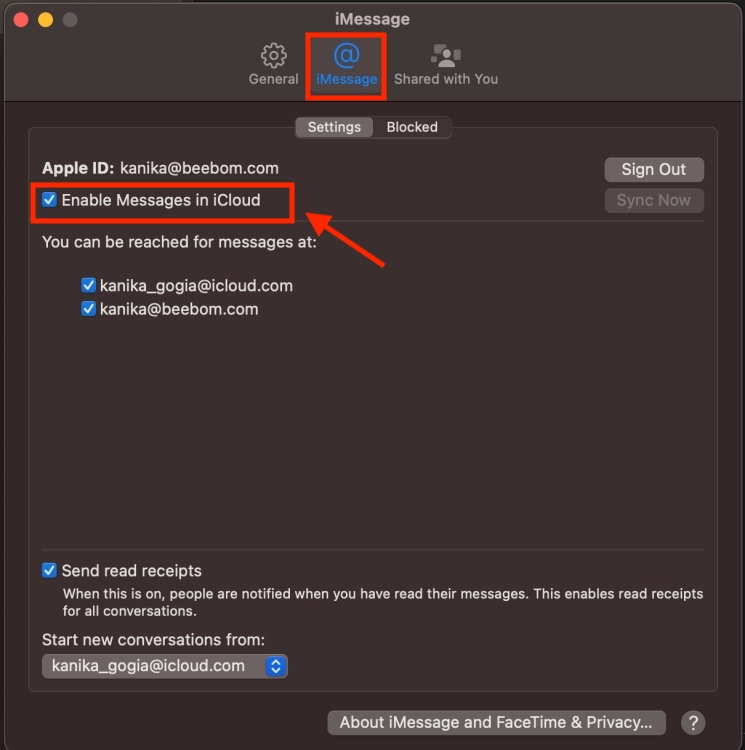
- Here, move to the iMessage tab . Make sure you’re in the Settings section on this page.
- Under Apple ID, uncheck the “Enable Messages in iCloud ” option.
- Now, choose the “Disable This device” option in the pop-up menu. This will disconnect iMessages from your Mac.
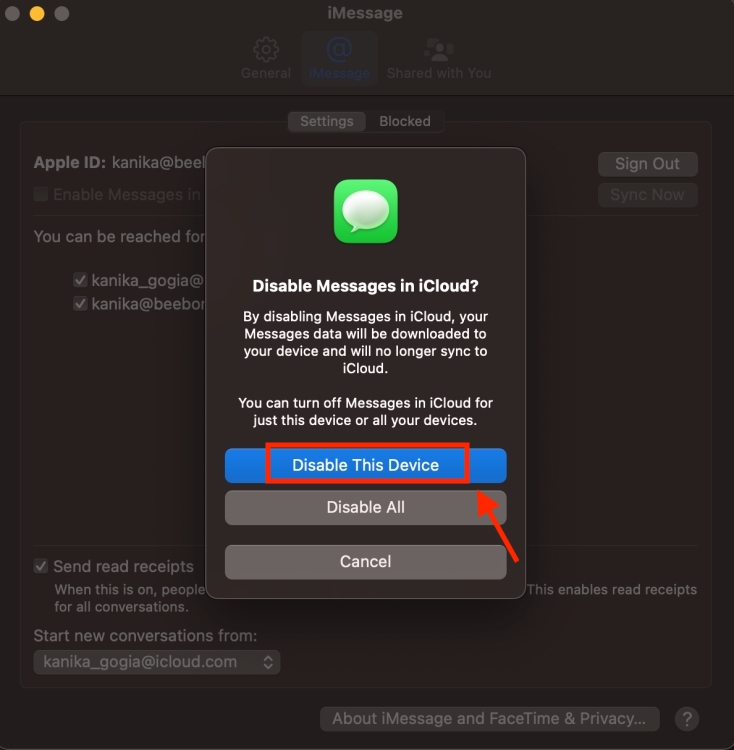
- In case you wish to turn off iMessage on other devices as well, choose Disable All in the pop-up window.
Method 2: Sign Out of iMessage on Mac
If you don’t want to see iMessage notifications on your MacBook, you can simply sign out of iMessage on your Mac, and also your Apple ID. Once you completely sign out of the iMessage, you won’t any message or notification. Here’s how to do it:
Warning This method will sign you out of your Apple ID on your Mac. As a result, you’ll lose access to all the other Apple services. Proceed only if you’re ready to take up the results.
- Open the Messages app on your Mac.
- Click on Messages from the menu bar at the top and choose Settings from the drop-down list.
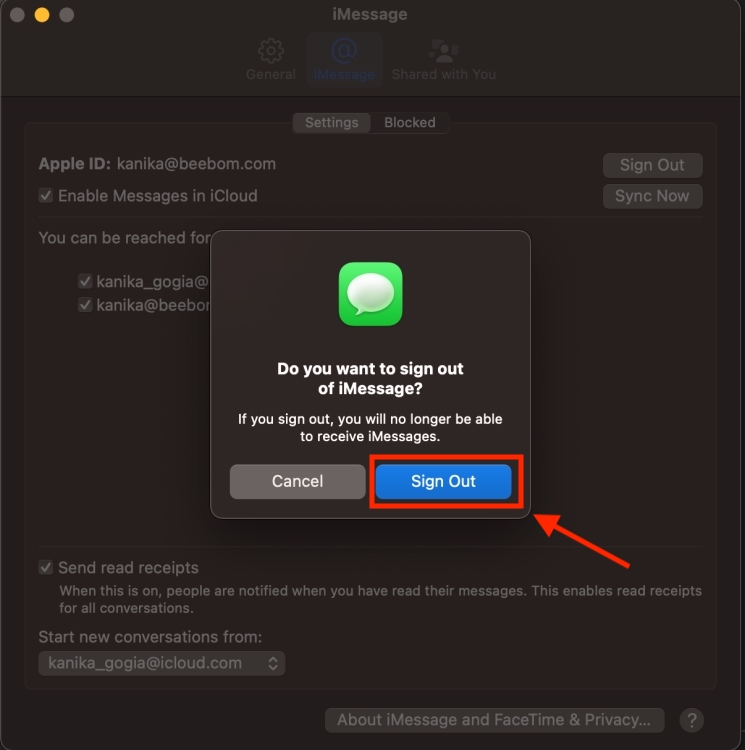
- Here, move to the iMessage tab and click on the Sign Out button next to your Apple ID.
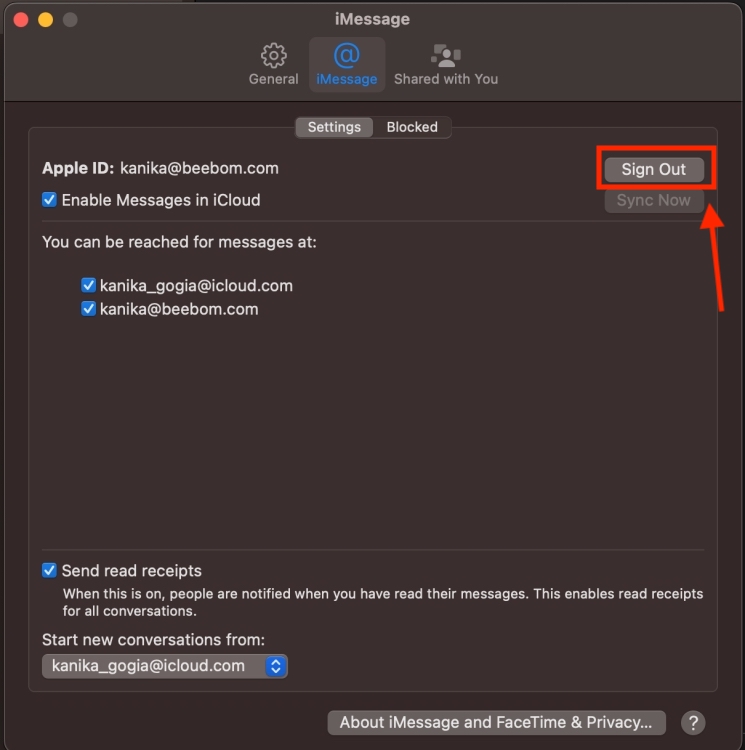
- Finally, click on Sign Out to confirm your decision.
How to Turn Off iMessage Notifications on Mac
It gets damn annoying when you’re bombarded with iMessage notifications, especially if you’re in the middle of something important. Imagine you have a project deadline and your spouse, kids, or friends are constantly messaging you. I know how distracting it can get. If you don’t want to cut off from iMessage on your Mac but wish to have peace of mind that no one disturbs you during work, you can turn off iMessage notifications. You can read the messages during breaks or whenever you want.
Here are two ways to silence iMessage notifications on a MacBook.
Method 1: From System Settings
- On your Mac, go to Apple Menu -> System Settings.
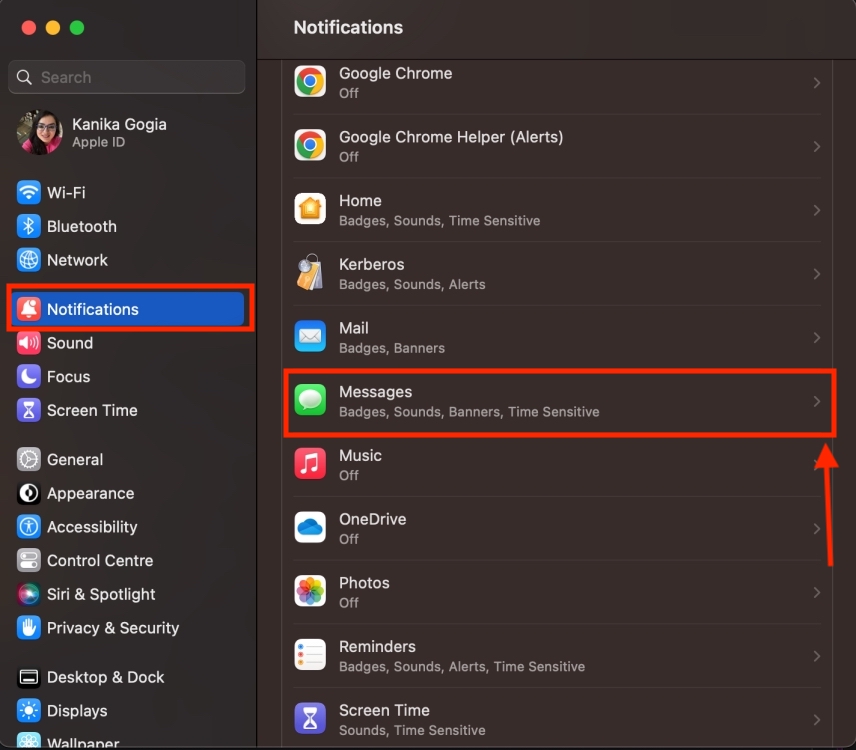
- Here, click on Notifications.
- Scroll down and choose Messages from the list.
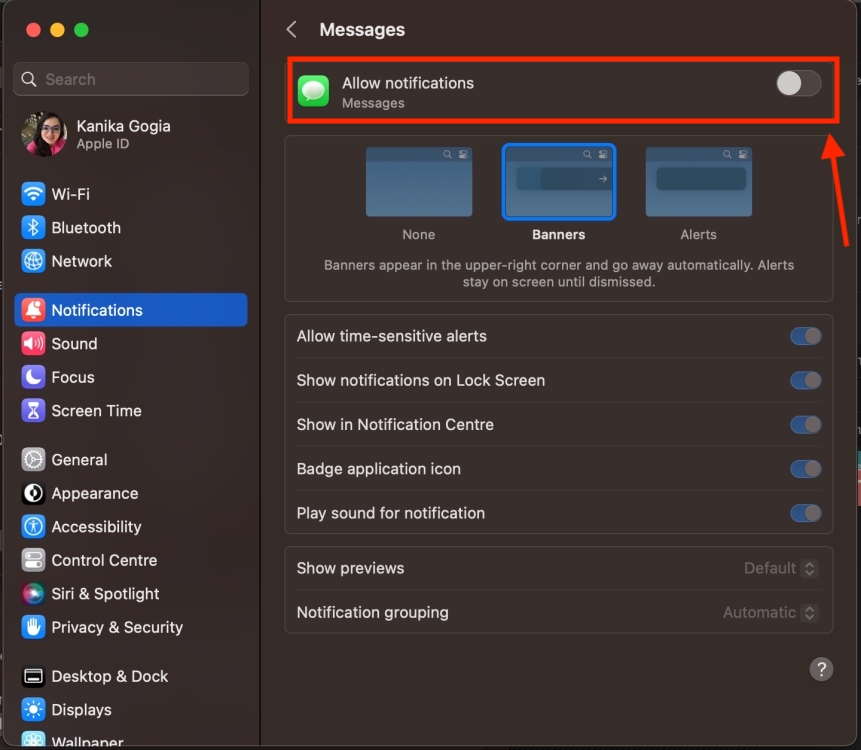
- Now, turn off the Allow Notifications toggle.
Method 2: From the Messages App
- Open the Messages app from the Dock.
- In the menu bar, click on Messages and then choose the Settings option.
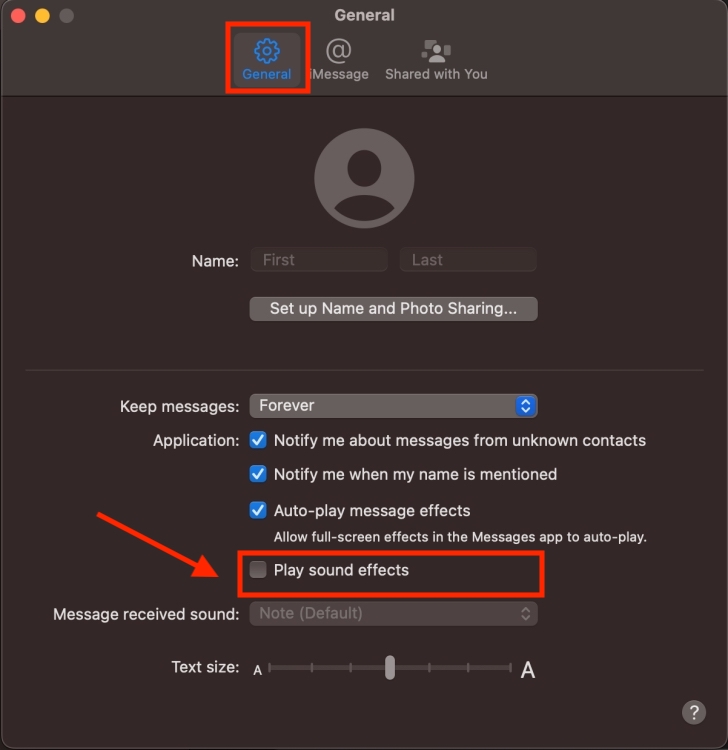
- Now, click on the General tab.
- Finally, uncheck the Play sound effects option to mute iMessage notifications on Mac.
In case you’re having trouble using iMessage, here’s our guide on how to fix iMessage not working on iPhone, iPad, or Mac.
Kanika has been a loyal iPhone user since 2014 and loves everything Apple. With a Master’s in Computer Applications, passion for technology, and over five years of experience in writing, she landed at Beebom as an Apple Ecosystem Writer. She specializes in writing How To’s, troubleshooting guides, App features, and roundups for Apple users to help them make the best use of their gadgets. When not writing, she loves to try out new recipes and enjoy some family time.
Add new comment
Name
Email ID
Δ


