- Google has added many customization features to ChromeOS in the past few years.
- The quickest way to customize ChromeOS is by changing the wallpaper, screensaver, and theme.
- You can also enable rounded corners, change the Chrome theme, and customize the launcher and Taskbar.
One of the first things you can do on your shiny new Chromebook is customize it. ChromeOS has improved on many fronts in the past few years, and one of them is customization. Customizing your Chromebook can help you personalize it and make it feel truly yours. Here’s everything you can do to customize your Chromebook.
Change Wallpaper and Screensaver
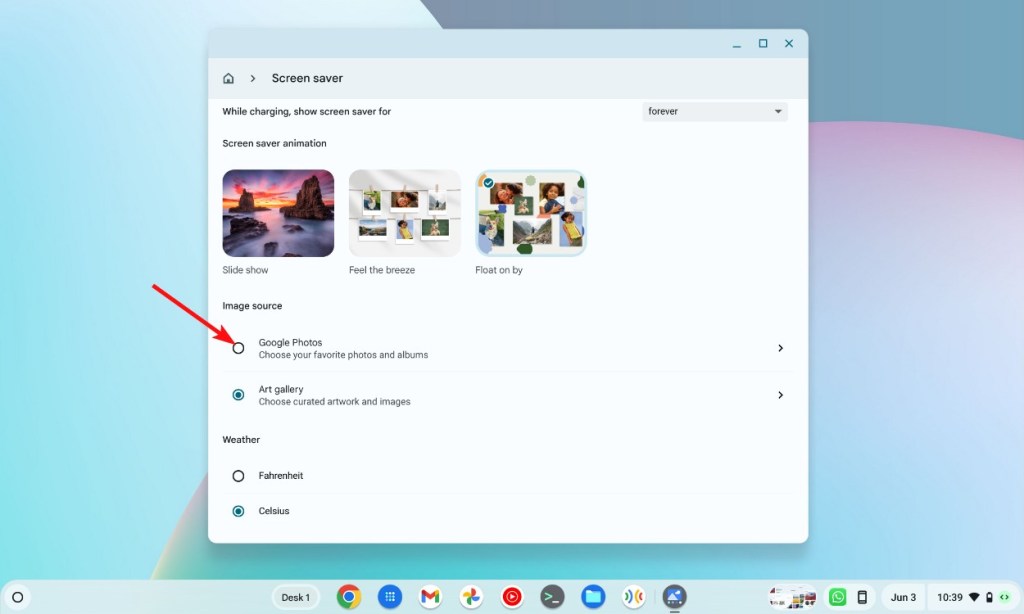
Changing the wallpaper is the easiest and quickest customization you can do to your Chromebook. All Chromebooks come with various sets of wallpapers, including the ability to set your own and change them daily. Chromebook Plus laptops also come with AI wallpapers like Pixels and they’re known to work very well. Similarly, you can set a bunch of photo collages or sceneries as your screensaver.
- Right-click on your ChromeOS desktop and click Set wallpaper and style .

- Click Wallpaper and choose from different sets of wallpapers.

- You can also click Google Photos and select an image to set it as a Chromebook wallpaper.
- Similarly, you can also go to the Screen saver section to set a preloaded screen saver.
- You can also select Google Photos or the albums you want to appear as screen savers.
Turn on Dark Mode
ChromeOS, by default, comes with light mode enabled, and switching to dark mode can not only save you from the brightness but is a way to instantly customize your Chromebook. Google has also added Material You to ChromeOS and you can enable it from the same page.
- Right-click on ChromeOS desktop and go to Set Wallpaper and Style .
- Under the Wallpaper and Accented colors option, you’ll find three options – Light, Dark, and Auto.
- Select Dark to change your Chromebook theme to Dark theme.
- Turn on the Accent colors toggle for the UI to adapt to the colors of your wallpaper.

Customize the Taskbar
The ChromeOS Taskbar is easily the feature we interact with the most, and there are a few customization options in the same. For starters, you can choose where it appears (On the left, bottom, or right), or set it to auto-hide to give you more screen estate to work with.
- Right-click on the Taskbar and select Shelf position .

- Select from options – Left, Right, and Bottom to change the Taskbar’s position.
- Right-click again and choose Autohide shelf to hide it when it’s not in focus. You can bring your cursor towards the edge (where the Taskbar is positioned) to bring it up.
Change Appearance of the Launcher
ChromeOS launcher has seen improvements in the last few major updates. There are a few customization options in it too like the ability to pin an app to the taskbar and sort apps.
- Click the Launcher icon at the bottom left or swipe up with two fingers on the touchpad to bring up the launcher.
- Right-click on an app and click Pin to Shelf to pin it to the ChromeOS taskbar.

- Similarly, click Sort by and choose from two options — Name and Color .

Apply Themes inside Google Chrome
Most people buy Chromebooks to do things like web surfing, handling documents in Google Suite, and consuming web content, and for that, you’ll find yourself extensively using Google Chrome. Hence, you can customize the Chrome browser to your liking.
- Launch Google Chrome and click on the pencil icon at the bottom right.

- From the customization sidebar that appears, click on Themes .

- You can change the theme to one of the preloaded themes. More themes can be downloaded from the Chrome Web Store .

- Similarly, you can turn on the Follow device colors toggle for Chrome to adapt to the colors of your Wallpaper.
- You can also change the theme from light to dark from this screen.

Enable Rounded Corners
ChromeOS has a lot of customization and feature flags hidden in the Flags section, one of which is rounded corners . The UI elements and themes on ChromeOS suit more when app windows are rounded. Here’s how to enable rounded windows on ChromeOS.
- Launch Chrome > type “chrome://flags” on the address bar > hit the Enter key.
- Search for “ #rounded-windows ” in the search bar .
- Click on the Use rounded windows dropdown menu and select Enabled .

- Click on Restart and all windows on ChromeOS should be rounded.

Abubakar covers Tech at Beebom, with his passion for technology tracing back to 2011 when he received a Dell Inspiron 5100 as a gift. He’s also a passionate advocate for the right-to-repair movement, believing in empowering users to maintain and extend the life of their devices. Outside the tech world, he enjoys watching anime and exploring his newfound enthusiasm for Japanese cars. In his free time, you’ll often find him immersed in Genshin Impact or researching his next gadget purchase. Before joining Beebom, he contributed to leading publications like Android Police, How-To Geek, and Fossbytes.
Add new comment
Name
Email ID
Δ


