- On macOS Monterey or later, you can easily change the size and color of the Mac pointer.
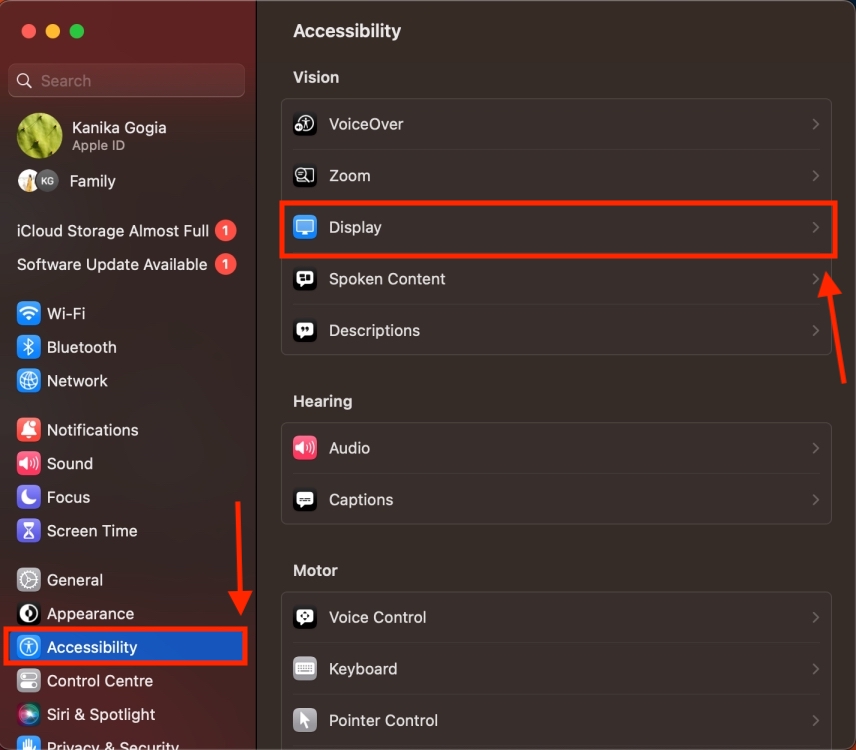
- You can change the size of the Mac pointer by navigating to System Settings > Accessibility > Display and adjusting the Pointer size slider.
- To change the color of the Mac pointer, go to System Settings > Accessibility > Display and choose Pointer Outline Color and Pointer Fill Color.
If you don’t like the default size and color of your Mac’s cursor (Apple calls it a pointer), you can give it an all-new look. With macOS Monterey , Apple introduced an array of personalization features, and one of them is cursor customization. That means you can freshen up the look of your Mac pointer by changing its size and giving it a new color. If you ever change your mind, you can restore your Mac pointer to its default color with a single click. Easy-peasy, right? In this article, we’ll tell you how to change the size and color of the Mac pointer.
How to Change the Mouse Pointer Size on Mac
If you don’t like the default, tiny size of your Mac’s cursor, you can easily change its size. Making the Mac pointer bigger can be helpful to users with visual impairments. Not only this, a bigger Mac pointer is also useful if you’re teaching your kid how to use a computer for the first time. Here’s what you need to do:
- On your Mac, open the System Settings from the Dock. Alternatively, you can click on the Apple icon from the top menu bar and select System Settings .
- From the left sidebar, go to Accessibility > Display .
- Scroll down to the Pointer section.
- Now, move the Pointer size slider to the right to make your Mac’s cursor bigger.
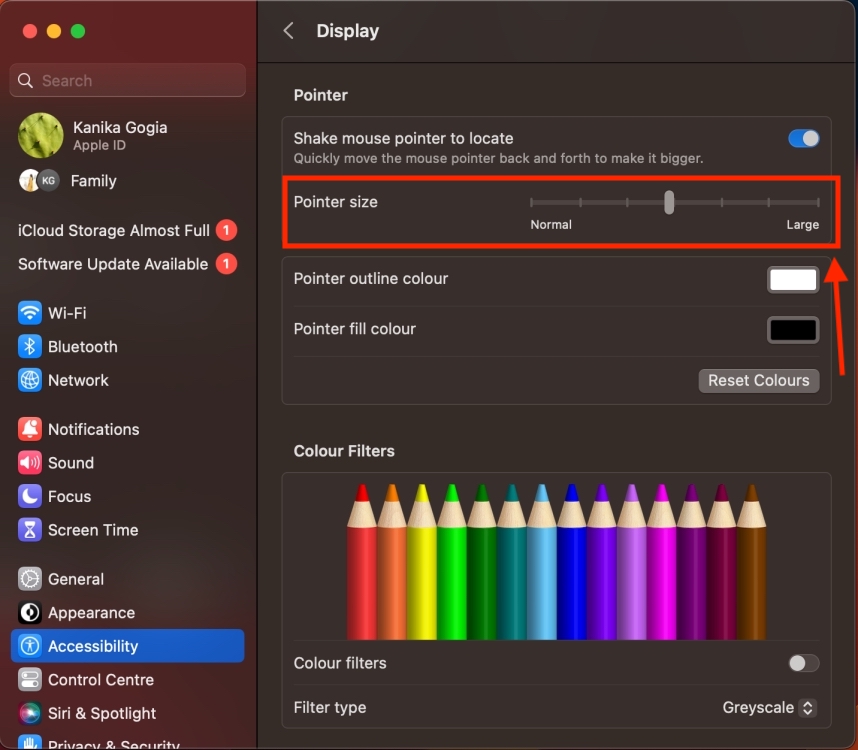
- Moving to the first notch will double up the original size of your Mac pointer. You can drag the slider further towards the right to make your Mac pointer up to 6× bigger.
How to Change the Mouse Pointer Color on Mac
The original black-and-white color may go unnoticed if you have low vision or using a giant screen. Also, it’s kinda boring. Sometimes you may wish to give a colorful aesthetic to your Mac. Whatever your reason is, you can change both the outline and the fill color of your Mac’s cursor. Let me show you how to do it:
- Open the System Settings on your Mac.
- In the sidebar, click on Accessibility and then choose Display.
- Now, scroll down to the Pointer section.
- Click on the white box present on the right of the Pointer Outline Color option. This will show you a color wheel. For precise selection, Apple provides different formats besides the Color Wheel , including Color Palettes , Color Pencil , and more.
- Now, pick a color of your choice from the mini navigation on the Color Wheel pop-up.

- To change the pointer fill color, click on the Pointer Fill Color box to see the color wheel. Here, pick your preferred color, and you’re done. You’ll see the color of the Mac cursor change in real time.

- In case you wish to switch back to the original black-and-white colors of your Mac pointer, click on the Reset Colors option.

Kanika has been a loyal iPhone user since 2014 and loves everything Apple. With a Master’s in Computer Applications, passion for technology, and over five years of experience in writing, she landed at Beebom as an Apple Ecosystem Writer. She specializes in writing How To’s, troubleshooting guides, App features, and roundups for Apple users to help them make the best use of their gadgets. When not writing, she loves to try out new recipes and enjoy some family time.
Add new comment
Name
Email ID
Δ


- Apple and Google have officially confirmed their team-up for the next-gen Siri AI.
- The Cupertino Giant will be using Google’s Gemini for a more personalized Siri model as well as Apple Intelligence features.
- We can expect the next-gen Siri to come out with iOS 26.4, sometime in March or April.
Apple has officially confirmed joining forces with Google to use its Gemini AI model to power the next-generation Siri. It will offer a more personalized experience and will be coming out with the iOS 26.4 update. Apple also plans to leverage Gemini’s capabilities for other Apple Intelligence features as well, later down the line.
The Next-Gen Siri will be powered by Google’s Gemini AI
Apple officially confirmed that it will be partnering with Google in a statement to CNBC . Here’s what it stated, “After careful evaluation, we determined that Google’s technology provides the most capable foundation for Apple Foundation Models, and we’re excited about the innovative new experiences it will unlock for our users.”
Later, Google also shared a post on X confirming the tie-up, “Apple and Google have entered into a multi-year collaboration under which the next generation of Apple Foundation Models will be based on Google’s Gemini models and cloud technology. These models will help power future Apple Intelligence features, including a more personalized Siri coming this year.”

Image Credit: X/@NewsFromGoogle
Both statements clearly mention that the Cupertino Giant will be using Gemini to power its assistant Siri. This was already rumored, as Apple’s attempts to acquire Perplexity went nowhere. With Gemini, Siri will get a major AI update . It will be able to handle more nuanced conversations and provide better results. Something long-time Apple users have been asking for years.
The next-gen Siri will arrive with the iOS 26.4 update, which will launch sometime in March or April. And it is only going to be available for Apple Intelligence-supported devices .
Something else worth noting is how Google’s statement mentions that Gemini will power Apple Intelligence features. This leads us to believe that Apple could use Gemini’s multi-modal capabilities for its Writings tools , Image Playground , and Message summaries, too.
Elon Musk Not Happy With Apple and Google Tie Up
xAI CEO Elon Musk also responded to Google’s announcement post on X, sharing his thoughts on the matter by saying, “This seems like an unreasonable concentration of power for Google, given that they also have Android and Chrome.” Though we don’t expect either Apple or Google to respond to Elon, we will update the situation as it progresses.
It is worth noting that xAI is the company behind Grok, which is in hot water currently due to its inappropriate image generation fiasco , and has been getting backlash from multiple news outlets, X users, and even government authorities.
With over 4 year of experience under the belt, I cover all facets of consumer tech, from smartphones to other consumer electronics, our favorite social media apps, as well as the growing realm of AI and LLMs. As an Apps and AI writer app Beebom, I provide my expertise in all these areas, weaving stories that help you get familiar with the tech around you. But you will find me playing NYT daily puzzles in my free time.
Add new comment
Name
Email ID
Δ
