- On Snapchat, you can change the default notification sound for individual chats if you have Snapchat+ subscription.
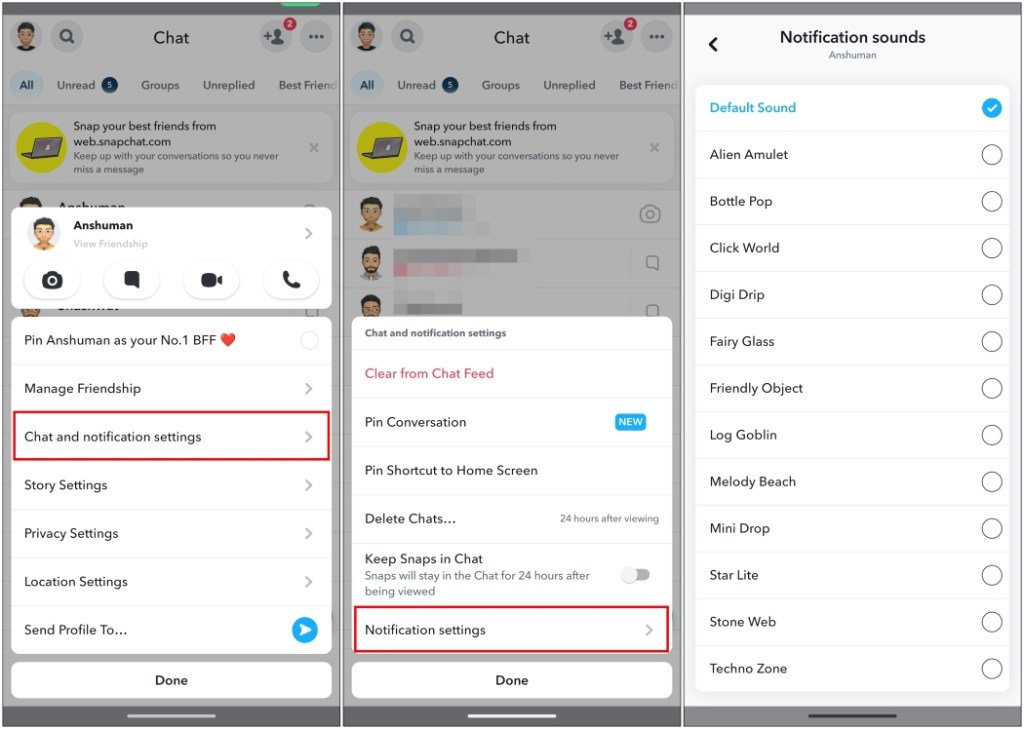
- To change notification sound, long press on a chat > Chat and Notification settings > Notification Sounds and select a preferred sound.
- Alternatively, you can use Android Notification settings to change Snapchat alert sound without needing any subscription.
Snapchat has a really iconic notification sound, but it isn’t particularly loud, which has caused me to miss out on several chats and snaps. There is also no method to distinguish between distinct notifications. So I can’t tell if it’s a friend texting me or a standard Snapchat Team message. To address these concerns, I’ve compiled a list of methods to help you change the notification sound for Snapchat. Let’s take a look.
Method 1: Change Snapchat Notification Sound from Chat Screen
This is one issue that surely must have bothered a lot of people. Not being able to tell apart whether your friend has sent you a Snap or if you have received a text from Team Snapchat. Well, there is an option within the app itself that lets you set custom notification sound on a per-chat basis. Here is how it works.
Note The option to set custom notification sounds for chats is limited to Snapchat+ users only.
- Long-press on a chat whose notification sound you want to change.
- Select Chat and notification settings .
- Then go to Notification settings .
- Here, tap on Notification Sounds .
- Now pick the sound you find suitable from the list that shows up.
Method 2: Choose Alert Tone from Snapchat+ Menu
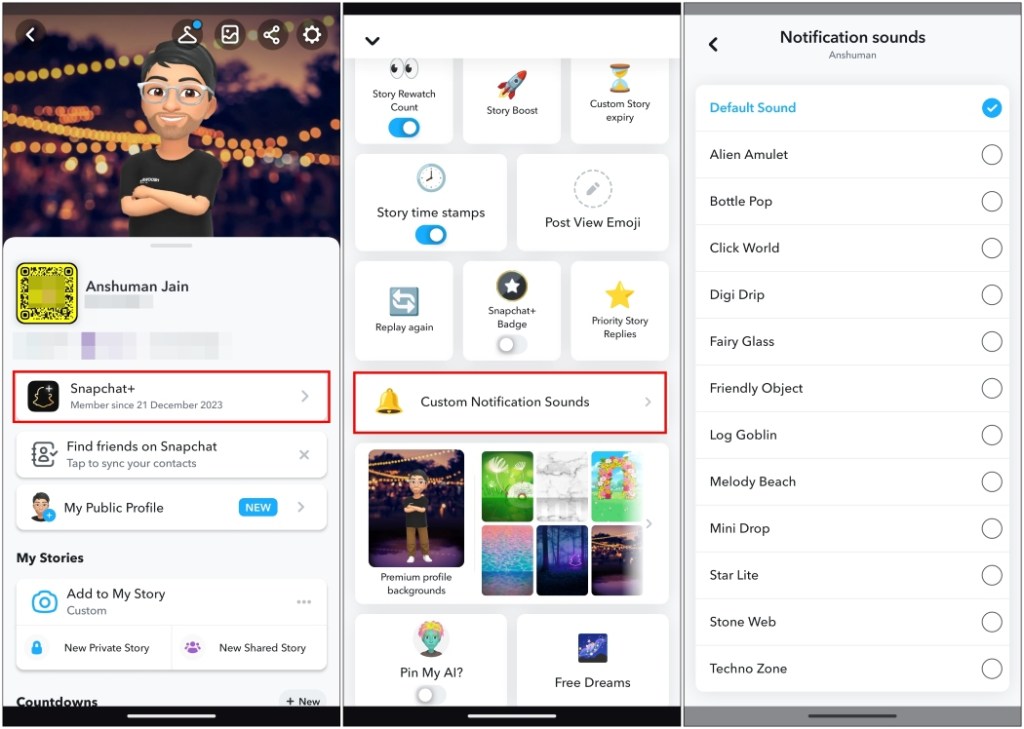
- Tap on your Bitmoji icon at the top left.
- Here, tap on the Snapchat+ card as shown in the attached screenshot.
- In the Snapchat+ menu, scroll down and tap on Custom Notification Sounds .
- Then, tap on the friend whose notification sound you want to change.
- Lastly, select your preferred sound for this person.
Method 3: Pick Notification Sound from Android Settings
- Open the Settings app on your Android phone.
- Go to Notifications > App Notifications .
- Scroll down and tap on Snapchat .
- From the list of notification categories, tap on Snaps and Chats .
- Now go to Sounds and select the tone that you find preferable.
- Make sure to tap on Save to apply changes.
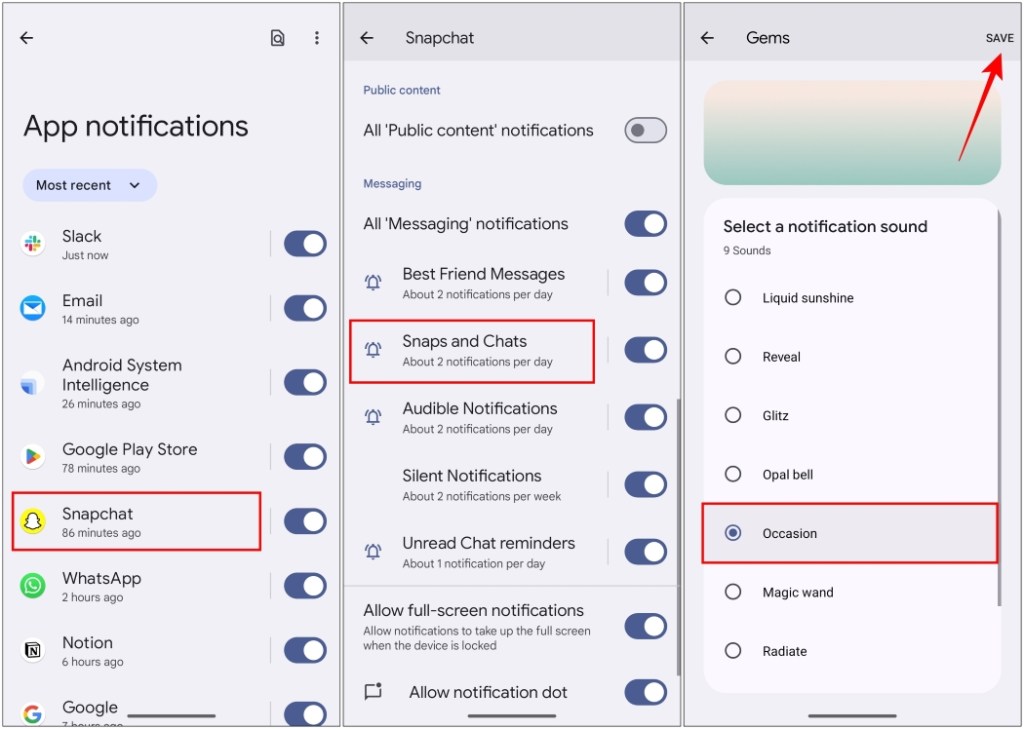
You can repeat this process for other categories that you can find on the Snapchat notifications page on Android.

With over 4 year of experience under the belt, I cover all facets of consumer tech, from smartphones to other consumer electronics, our favorite social media apps, as well as the growing realm of AI and LLMs. As an Apps and AI writer app Beebom, I provide my expertise in all these areas, weaving stories that help you get familiar with the tech around you. But you will find me playing NYT daily puzzles in my free time.
Add new comment
Name
Email ID
Δ

