- If you forgot your password, Spotify lets you reset it with ease.
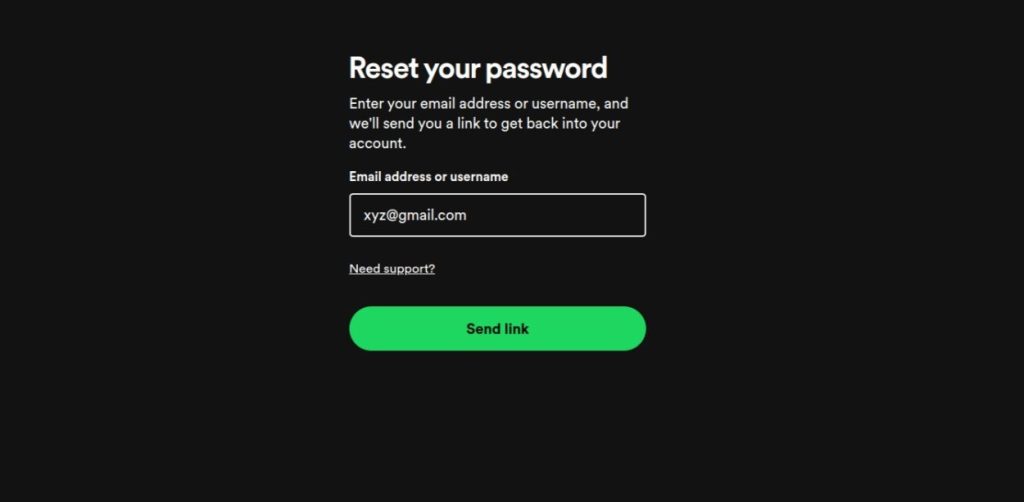
- To reset your password, use the Spotify password reset link and go to Send link > Reset password > Change password.
- You can also change your Spotify account password or set a device-specific password for your account.
It’s essential to have a strong password, but a downside of this is they are easy to forget unless you have a sharp memory. So whether you have forgotten your Spotify password, or suspect that an intruder has access to your account and vibing to your playlists, you’ll need to reset it. So if you need help with that, then here’s a quick guide on how to change or reset Spotify password.
How to Reset Spotify Password
The Spotify app on Android and iPhone lacks an option to reset your account password. In this case, you can go to Spotify’s web app to directly reset your password on the fly. Here’s how:
- Using a web browser, go to Spotify password reset ( website ) and enter your email address.
- Once done, click on Send link and an email with the reset password link should be sent to your email address.
- Open the email ID’s inbox which is registered with Spotify.
- Here, look for the password reset email and open it.
- Next, click on the Reset Password button inside the email.

- Enter your new password on the Reset your password page and then click on Change password .

That’s it! Your Spotify password will now be changed and you can log in to your account back again and keep out the intruder.
How to Change Spotify Password
If you already know your Spotify password and want to change it to something more secure, you can do so using Spotify’s web app.
- Go to Spotify ( website ) and log in with your email and password.
- Click on your profile picture at the top right and select Account .

- In the new tab that opens, click on Change password under “Security and privacy”.

- Enter your current password alongside your new password. Then, enter the new password once more to confirm it and click on Set new password .

Your new password should be set and ready to go.
How to Set Spotify Device Password
- Head to your Spotify Account Overview ( website ) using a web browser and log into your account if required.
- Now scroll down to the “Security and privacy” section and select Set device password .
- On the next page, tap on Set device password .
- Here, enter a password for your device.
- Then, tap on Set device password button to complete the process.

That’s it! Now, Spotify will ask for a password every time you try to log in to your account.
Abubakar covers Tech at Beebom, with his passion for technology tracing back to 2011 when he received a Dell Inspiron 5100 as a gift. He’s also a passionate advocate for the right-to-repair movement, believing in empowering users to maintain and extend the life of their devices. Outside the tech world, he enjoys watching anime and exploring his newfound enthusiasm for Japanese cars. In his free time, you’ll often find him immersed in Genshin Impact or researching his next gadget purchase. Before joining Beebom, he contributed to leading publications like Android Police, How-To Geek, and Fossbytes.
Add new comment
Name
Email ID
Δ


