- To use Apple’s pre-installed backgrounds as your Mac wallpaper, open System Settings -> Wallpaper and choose the one you prefer.
- To choose an existing image on your Mac as the desktop background, right-click on the image in the Safari browser and choose Set Desktop Picture.
- You can also set your photos as Mac wallpapers.
Honestly speaking, it can get damn boring to stare at the yellow and orange combo desktop all day, every day. Also, when everyone at the office sports the same desktop wallpaper on their Macs, you know life’s getting bland. To spice up things, you can change your MacBook wallpaper. Mac’s default desktop styles have gotten better with Dynamic wallpapers and Aerial Shuffle options. Also, you can always choose an image of your choice that reflects your true personality. In this article, we’ll tell you how to change your MacBook wallpaper. Without any ado, let’s move along.
Method 1: Using System Settings
The first way to change the desktop background on Mac is to do it using System Settings. If you’re tired of the default Mac desktop wallpaper, you must try other Apple backgrounds that come pre-installed on your machine. Here’s how you can do it:
- Open System Settings from the Dock or go to Apple Menu -> System Settings.
- From the left bar, click on Wallpaper.
- If you’ve connected an external display to your Mac, choose the display you want to change.
- Apple offers a number of desktop backgrounds, including Solid colors, Pictures, Shuffle Aerials, Light & Dark wallpapers, Dynamic wallpapers, and more.
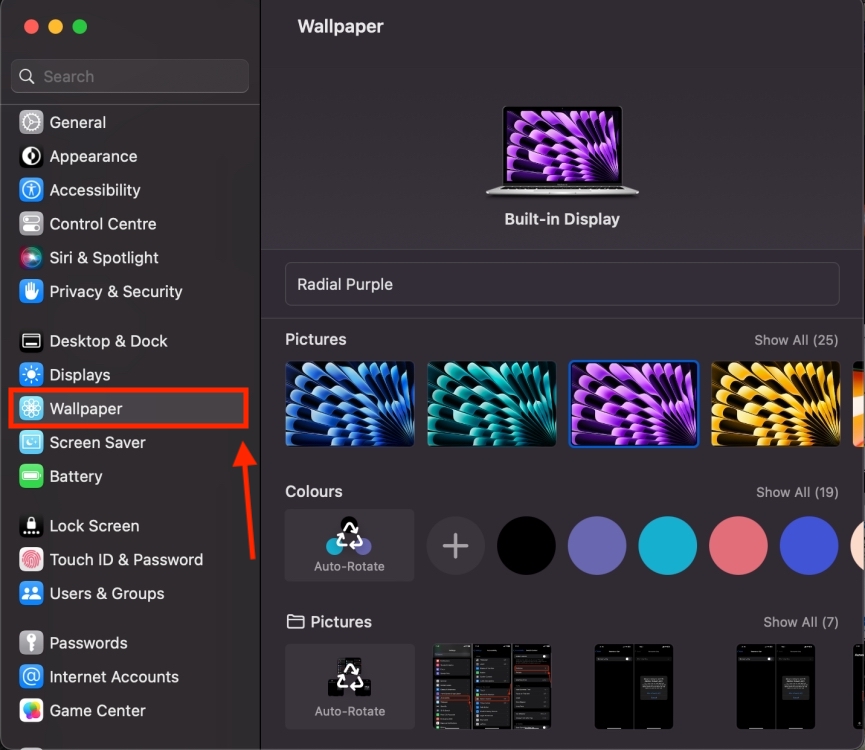
- Browse through the available options and select a wallpaper you like.
- As soon as you make a selection, it will be instantly changed to your Mac desktop background.
Method 2: Using Finder
If none of Apple’s pre-styled wallpapers strikes your fancy, you can choose an image from your Mac as well. Interesting, the process isn’t as complicated as you might think. Let me show you how to change the wallpaper on MacBook to the picture of your choice.
Note: When you want to set an image of your choice as your Mac wallpaper, you should check that it fits the desktop properly.
- Launch Finder and navigate to the location that has your preferred image.
- Once you’ve found the image, right-click on it.
- Now, choose the “ Set Desktop Picture ” option from the list.
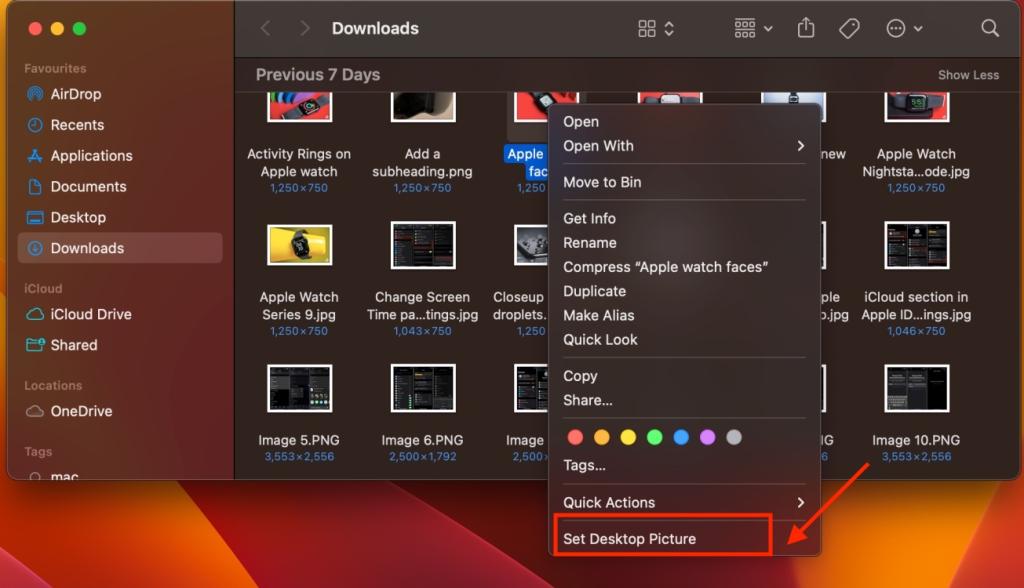
- And, that’s all it takes to put the image of choice as the desktop background on your Mac.
Method 3: Using Photos app
Before you think that you don’t have any images that you could choose as your Mac’s wallpaper, make sure to check your photo albums. When I checked mine, I found many sweet memories worthy of my Mac’s desktop background. While you can set a photo as your MacBook wallpaper from System Settings, there’s also a faster way as well.
- Open the Photos app on your Mac and select the photo you wish to choose as your Mac’s desktop background.
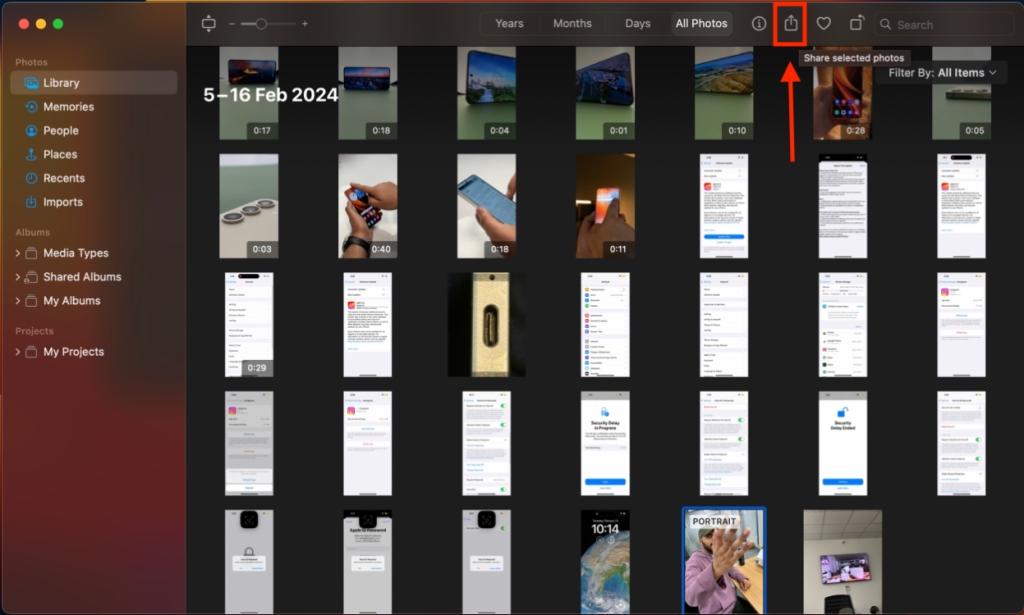
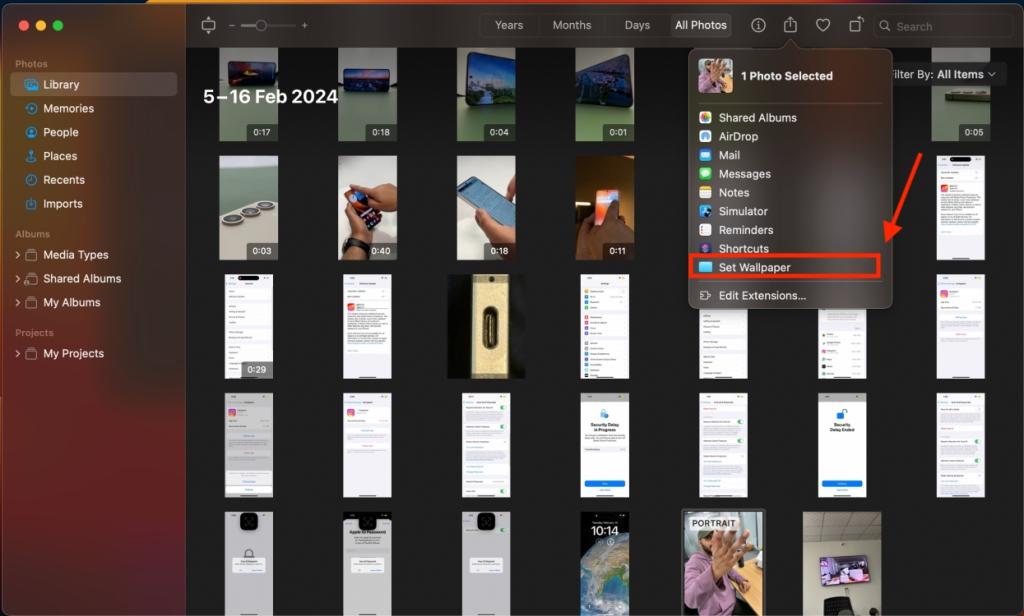
- Click on the Share button from the top and select Set Wallpaper.
Those were the three common ways to change your MacBook wallpaper. Apple offers several pre-styles wallpapers that perfectly blend over the screen. You can always choose an image or picture of your choice as your Mac’s background. Now, go ahead and customize the wallpaper on your Mac.
In case you want to set a wallpaper on Mac from Google, first download the image and open it in the location. Then right-click it and choose the Set Desktop Picture option.
Yes, you can choose an image on the web as your Mac wallpaper. For this, right-click the picture in the browser window and select Use Image as Desktop Picture. However, this method works only on the Safari web browser. For other browsers, you can download the image and then set it up as the wallpaper.
Kanika has been a loyal iPhone user since 2014 and loves everything Apple. With a Master’s in Computer Applications, passion for technology, and over five years of experience in writing, she landed at Beebom as an Apple Ecosystem Writer. She specializes in writing How To’s, troubleshooting guides, App features, and roundups for Apple users to help them make the best use of their gadgets. When not writing, she loves to try out new recipes and enjoy some family time.
Add new comment
Name
Email ID
Δ


