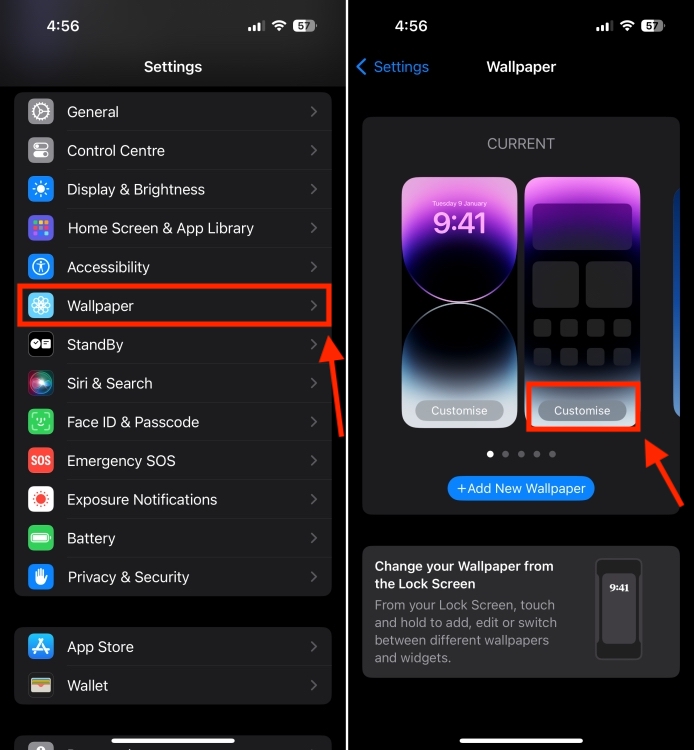
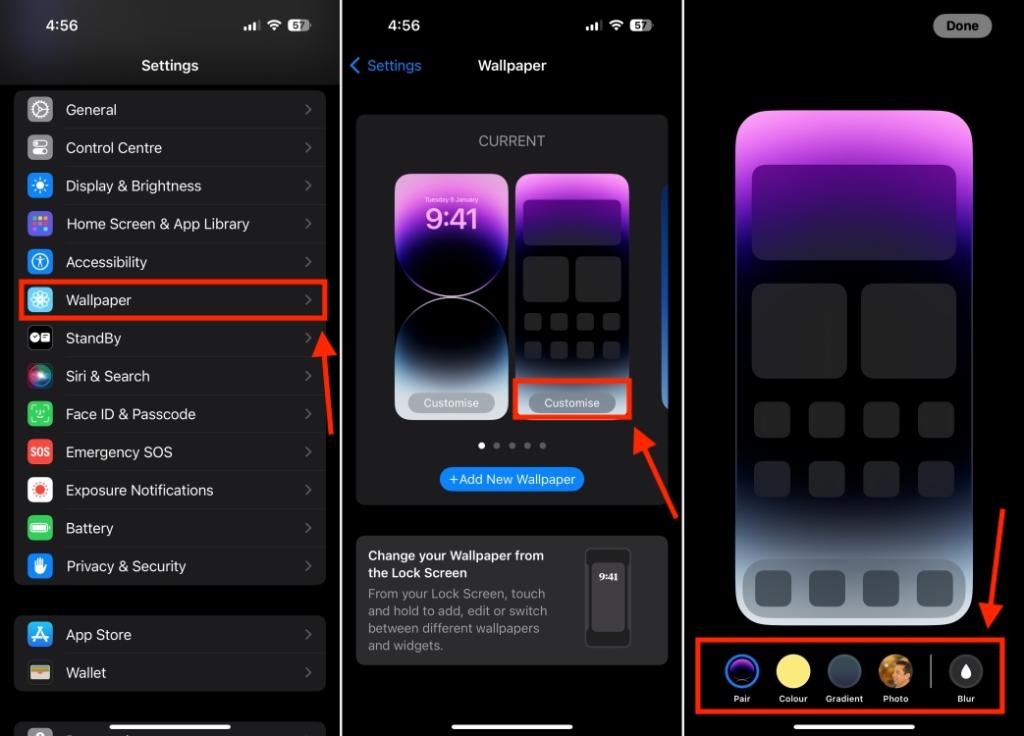
- To change the home screen on an iPhone, go to Settings > Wallpaper and tap on Customize under the home screen wallpaper preview.
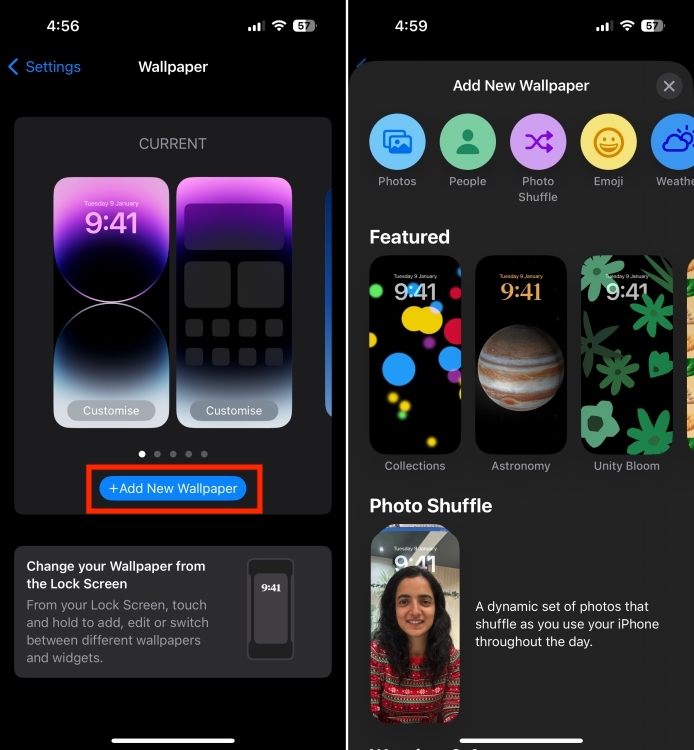
- To choose a new wallpaper, go to Settings > Wallpaper > Add New Wallpaper. Once added, you can tap on the Customize Home screen option.
- You can also add widgets to customize your iPhone’s Home Screen.
The default home screen on an iPhone might look good, but it lacks that personal touch that reflects your true personality. After all, the home screen isn’t only about apps, it’s a way to express your style and preferences. Thankfully, you can take creative control of your iPhone’s home screen and go beyond your imagination. In this article, we’ll show you how to change the home screen on an iPhone. Without any ado, let’s get started and transform your iPhone’s home screen so it reflects your style.
How to Change Home Screen on iPhone
The first and most obvious way to change the home screen on your iPhone is to customize the current wallpaper to switch to a new wallpaper altogether. It will instantly give a much-needed makeover to your iPhone’s home screen that you’ve been craving. Here’s what you need to do:
- Open the Settings app on your iPhone and navigate to the Wallpaper section.
- Here, tap on Customize under the home screen wallpaper (the one that’s on the right side).
- If you wish to add a new wallpaper, tap on Add New Wallpaper and choose the one that best suits your preferences. You can pick one from Apple’s offerings or choose a photo, emoji, or a plain colorful background as your iPhone’s wallpaper.
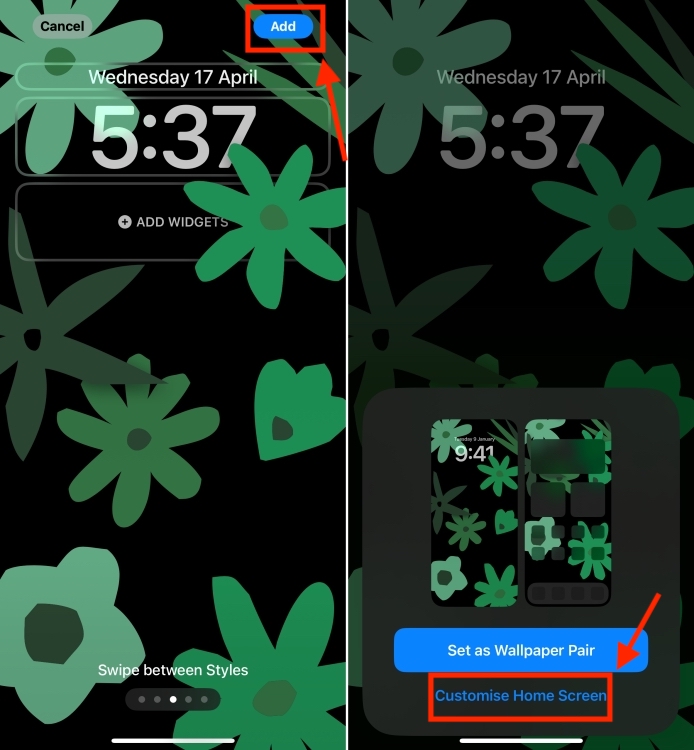
- Once you’ve selected the wallpaper, tap on Add and then choose the Customize Home Screen option.
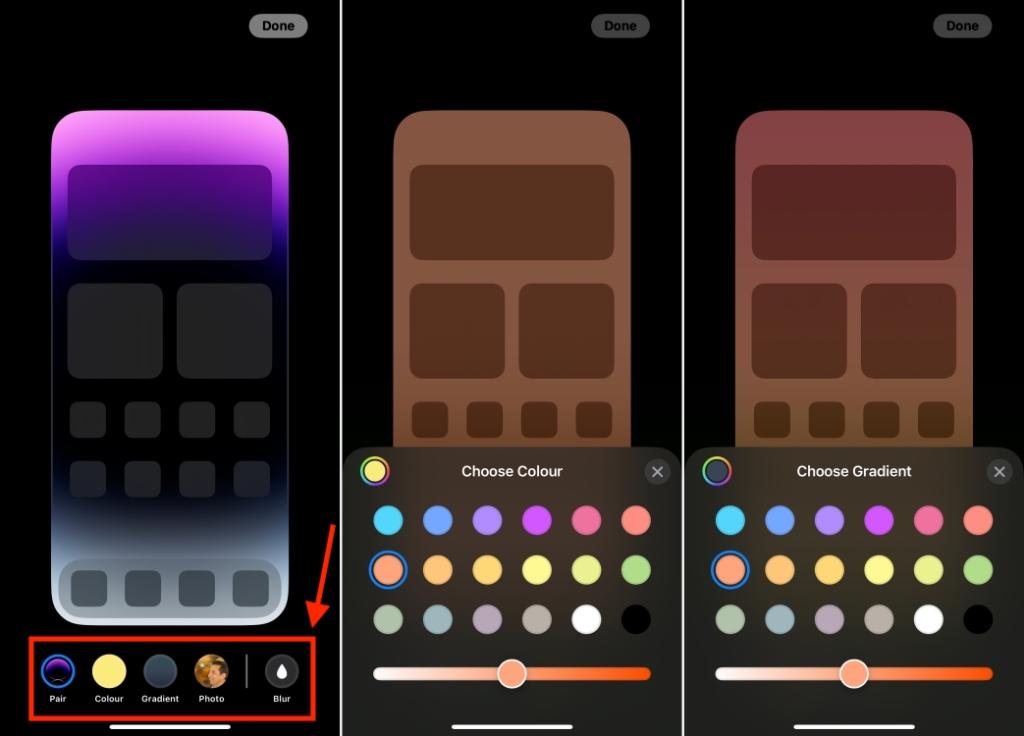
- Now, you can customize the home screen to your liking by using the Color and Gradient options. You get to choose from 18 different color options, Once you’ve selected the color, the Gradient option provides you with the same color presets, but with an ombre effect. Tap on Done to save the changes.
- If you don’t fancy using solid or ombre colors, and want to personalize the home screen on your iPhone with your favorite photos, you can do that as well. Simply tap on Photos, select All , and scroll through your photo gallery.
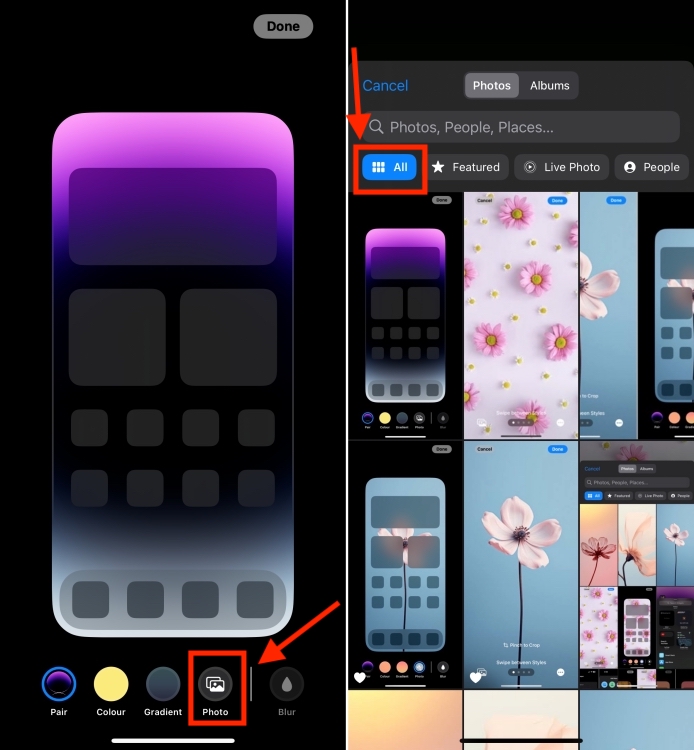
- Once you’ve chosen your favorite photo, tap on Done followed by Done again to save the changes.
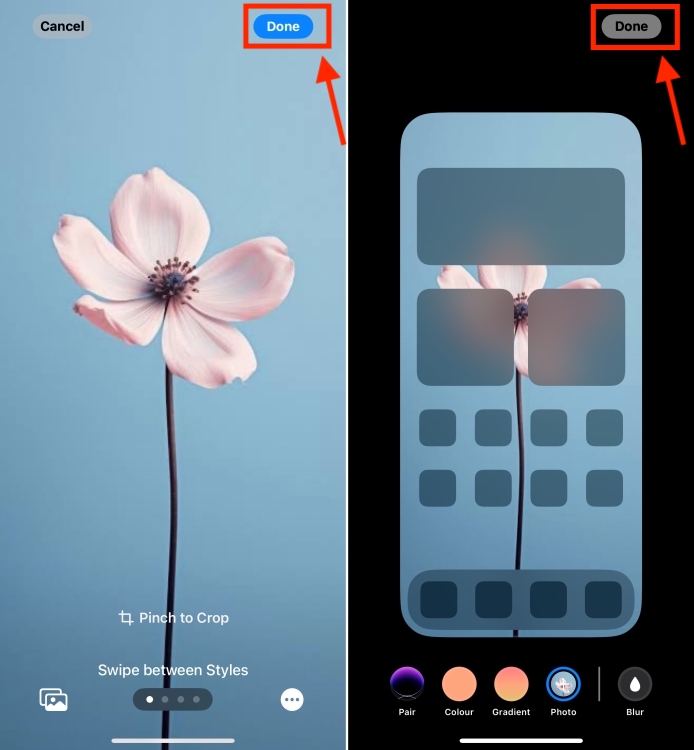
Voilà! You’ve successfully changed your iPhone Home Screen without changing the Lock Screen. Once you head back, you should see a new wallpaper or your existing wallpaper in an all-new avatar.
How to Add Widgets on iPhone
Another way to change the look and feel of your iPhone’s home screen is to add widgets. They are one of the best ways to customize the Home Screen while adding a layer of utility. Widgets offer at-a-glance information and shortcuts to frequently used app features right on the home screen. Therefore, you don’t have to head to individual apps, which helps you save time and effort.
Here’s how to add home screen widgets on an iPhone:
- Long-press anywhere on the empty space of your home screen until the icons start to jiggle.
- Tap on the + icon present in the top-left corner to reveal the widgets gallery.
- Now, select a widget and its size. You can browse through the options or use the search bar to find the one you need.
- Once selected, drag the widget to the Home Screen or tap on the Add Widget button.
- Finally, tap on Done to save the changes.
In case you’re searching for the best iOS widgets, you can browse through our list of the 25 useful iPhone widgets you should use in 2024. Besides the Home Screen, you can also add widgets on the lock screen as well as ob the StandBy screen on iOS 17.
Not to forget, you can also customize the lock screen on your iPhone so it looks catchy and offers all the essential information at a glance.
When you customize the lock screen for the first time, iOS will suggest you set the same wallpaper for the Home Screen. Apple automatically applies all the dynamic transitions to some wallpapers on the home screen, if the backgrounds are the same.
Yes, you can choose different wallpapers for the lock screen and home screen on your iPhone. To do this, open Settings > Wallpaper and choose Customize under the home screen wallpaper preview. Now, tap on Photo from the bottom to select a new image from your iPhone’s Home Screen.
On your iPhone, go to Settings > Wallpaper and tap on Add New Wallpaper. Now, select Photo Shuffle from the top row of the options. On the Photo Shuffle screen, choose the photos you wish to use. You can choose a specific album or select photos manually. Once you’ve made the selection, set a shuffle frequency (On Tap, On Lock, Hourly, or Daily) to allow your iPhone to change the wallpapers automatically.
Kanika has been a loyal iPhone user since 2014 and loves everything Apple. With a Master’s in Computer Applications, passion for technology, and over five years of experience in writing, she landed at Beebom as an Apple Ecosystem Writer. She specializes in writing How To’s, troubleshooting guides, App features, and roundups for Apple users to help them make the best use of their gadgets. When not writing, she loves to try out new recipes and enjoy some family time.
Add new comment
Name
Email ID
Δ



- Apple is developing its own large language model (LLM) to bring AI features to iPhones.
- Apple’s AI features will run on-device and not cloud services like the existing AI services.
- On-device models offer faster responses than sending requests through a cloud service. Also, they are less capable when it comes to complex tasks.
Mark Gurman said “All indications” apparently suggest that it will be entirely on-device. Therefore, the AI features will run on-device and not cloud services like the existing AI services. That means, the technology is tuned to the Apple processors inside its devices. When it comes to on-device models, they offer faster responses than sending requests through a cloud service. Additionally, they offer the advantage of functioning offline in areas with limited or no connectivity.

Image Courtesy: Mohit Singh/Beebom
Despite some advantages, we cannot ignore the fact that Apple’s on-device AI tools may be less capable or less powerful in doing complex tasks than its direct cloud-based rivals. However, Gurman suggested that Apple could “fill in the gaps” by leveraging technology from Google and other existing AI service providers.
Last month, there were reports that Apple is in discussions with Google to build a Gemini Artificial Intelligence engine into an iPhone.
The on-device AI features will provide users with quicker response times and complete privacy , as compared to cloud-based solutions. This AI technology strategy seems to be based on how it can help users in their daily lives, rather than complex capabilities and power. For instance, an on-device LLM could help users generate auto-replies to Messages or deliver better responses for many common Siri requests.
We’ll get all the details about Apple AI goals at its annual Worldwide Developers Conferences which is scheduled for June 10 to June 14. During the event, the giant is expected to give a first look at iOS 18 and AI features which will give us a clear picture of what to expect from the iPhone 16 series.
Kanika has been a loyal iPhone user since 2014 and loves everything Apple. With a Master’s in Computer Applications, passion for technology, and over five years of experience in writing, she landed at Beebom as an Apple Ecosystem Writer. She specializes in writing How To’s, troubleshooting guides, App features, and roundups for Apple users to help them make the best use of their gadgets. When not writing, she loves to try out new recipes and enjoy some family time.
Add new comment
Name
Email ID
Δ
