- Usernames on Facebook are unique to each user and may contain symbols and signs.
- You can find your Facebook username under the Profile section of Accounts Center.
- To change your username, go to Settings & Privacy > Settings > Accounts Center > Profile > Username.
If you are like me and created your Facebook account in your younger years, then you may have also set an edgy but dumb username that you might want to change now. Or even if you have an auto-generated username that you are not satisfied with, then keep reading as we will help you change your Facebook username in a few simple steps. Let us take a look.
How to Change Your Username on Facebook
Changing your Facebook username isn’t a lengthy process and takes only a couple of minutes to do so. You can carry out the process from the Facebook mobile app on your Android or iPhone, and even the Facebook website. So here’s how you can do it.
Method 1: Change Your Username on Android and iPhone
Besides a minor change, the steps to change your username on the Facebook mobile app remain identical on Android and iPhone. That is why we have explained them as one.
- Open the Facebook app and tap on the hamburger icon at the top right (on Android) or the bottom right (on iPhone).
- Visit Settings & privacy and then tap on Settings .
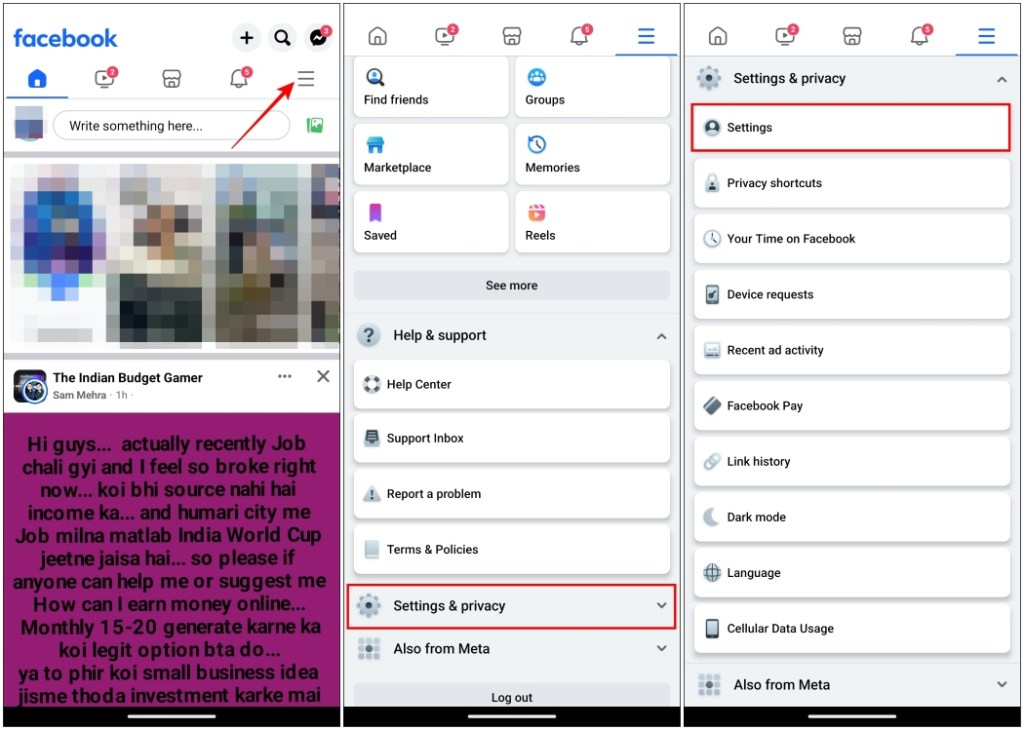
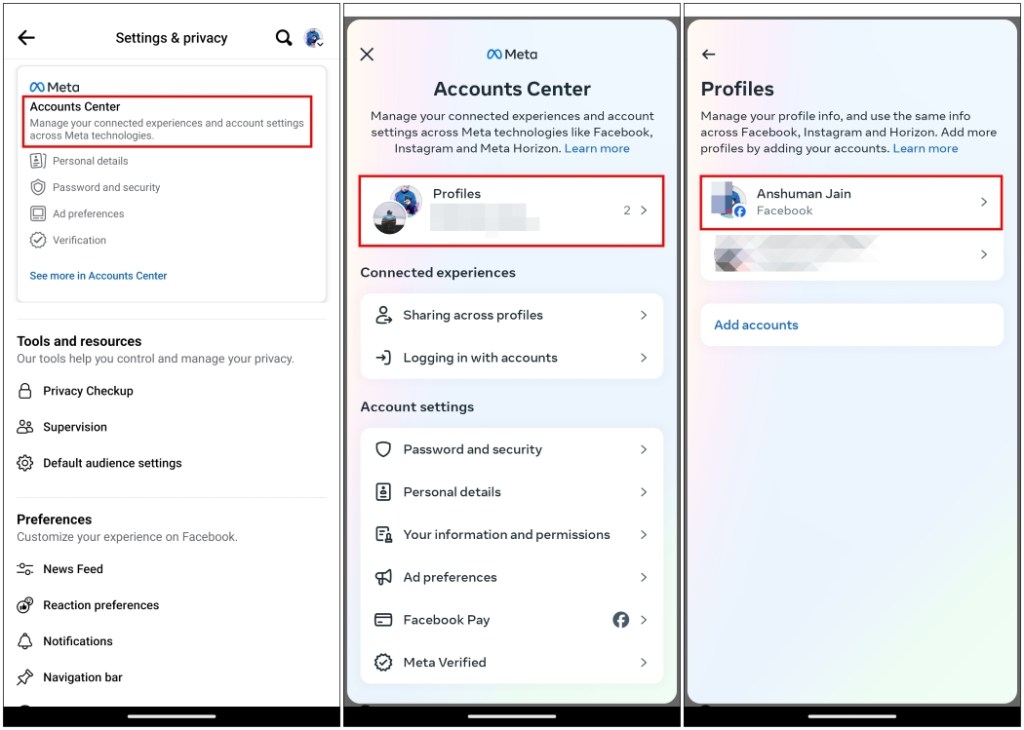
- Tap on Accounts Center , and then select Profiles .
- Pick the profile for which you wish to change the username.
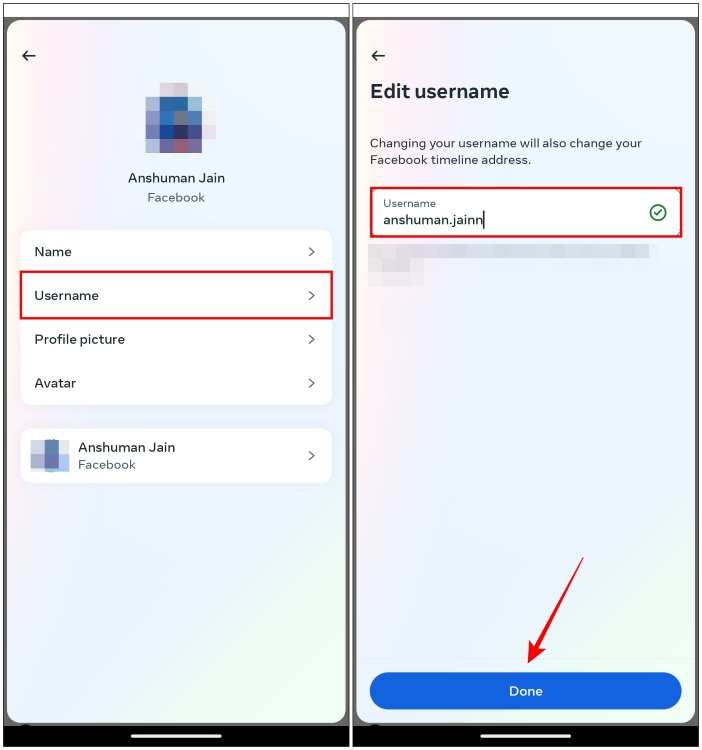
- Here, tap on Username .
- Type your new username and then hit Done to confirm changes.
This is where you can change your username on Facebook.
Method 2: Change Username on Facebook Website
If you want to know how you can change your username, then use the instructions that we have discussed below.
- Visit the Facebook website from the desktop browser and log in to your account.
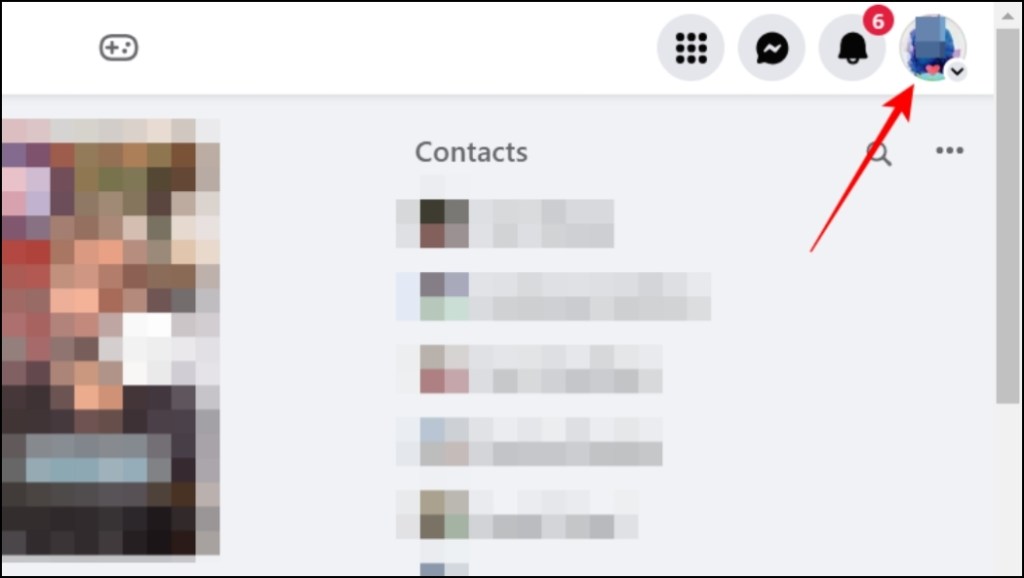
- Now click on the profile icon at the top right.
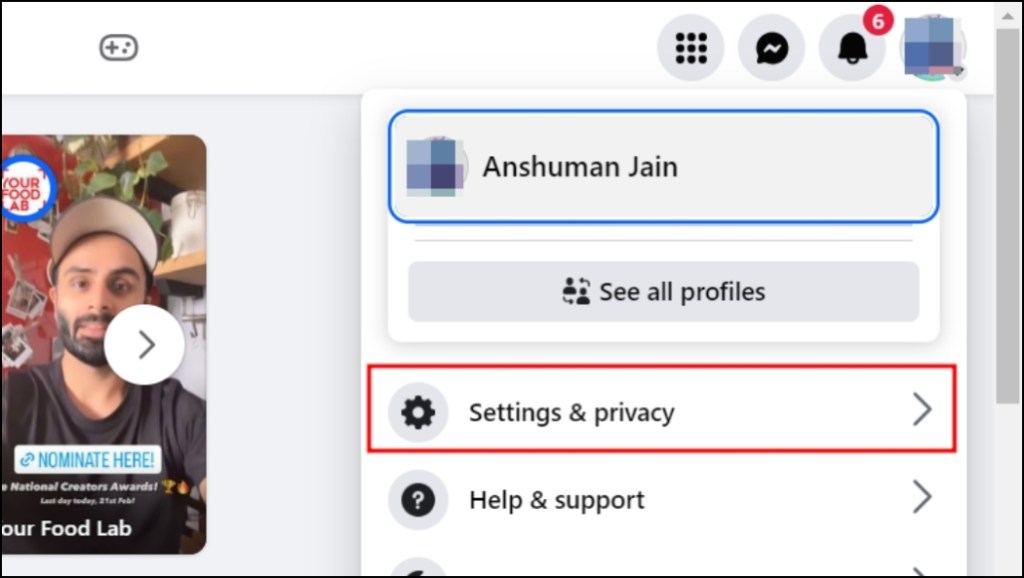
- Click on Settings & privacy .
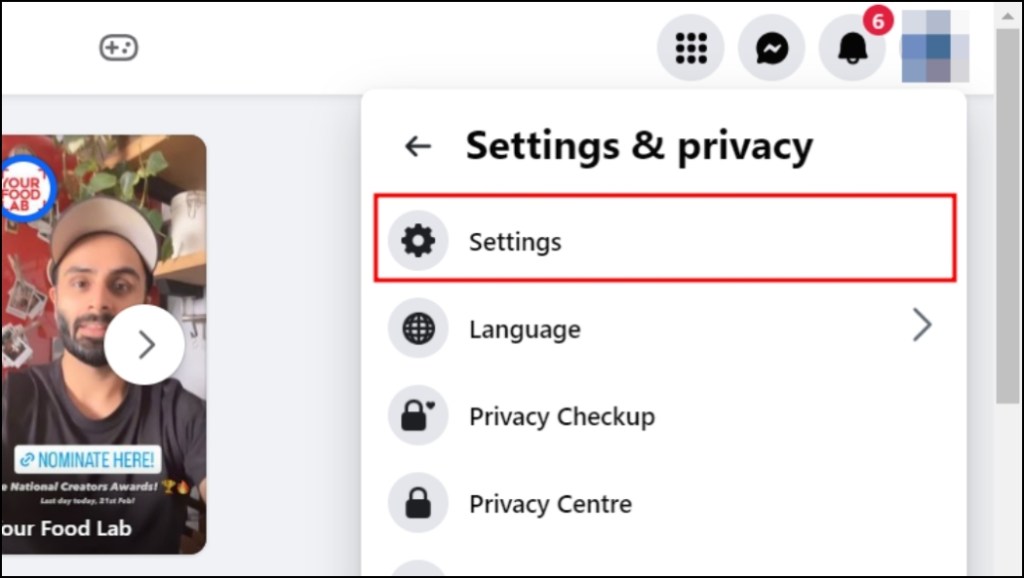
- Then go to Settings .
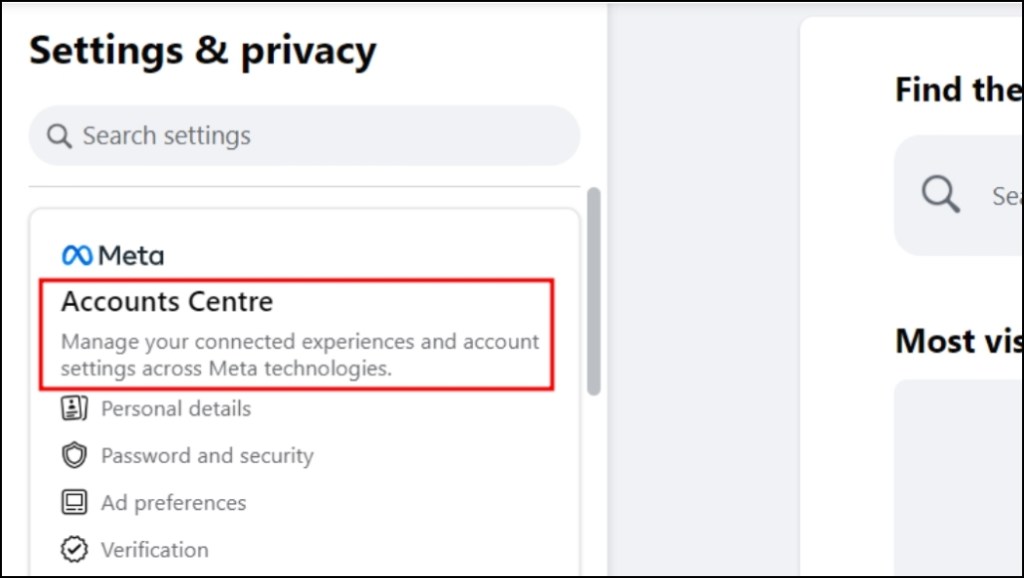
- Here, click on Accounts Center from the left sidebar.
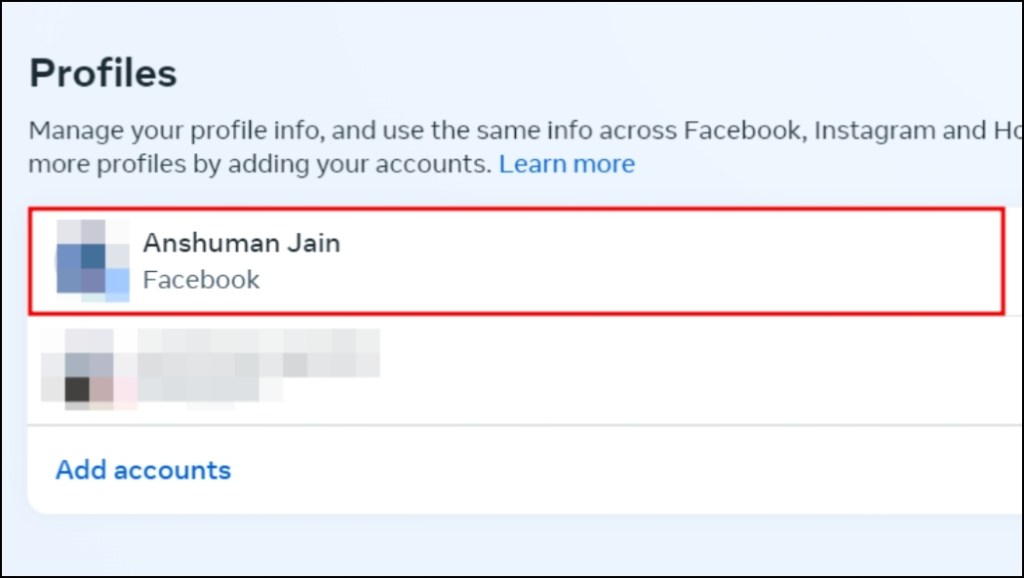
- Choose the Facebook profile for which you want to change the username.
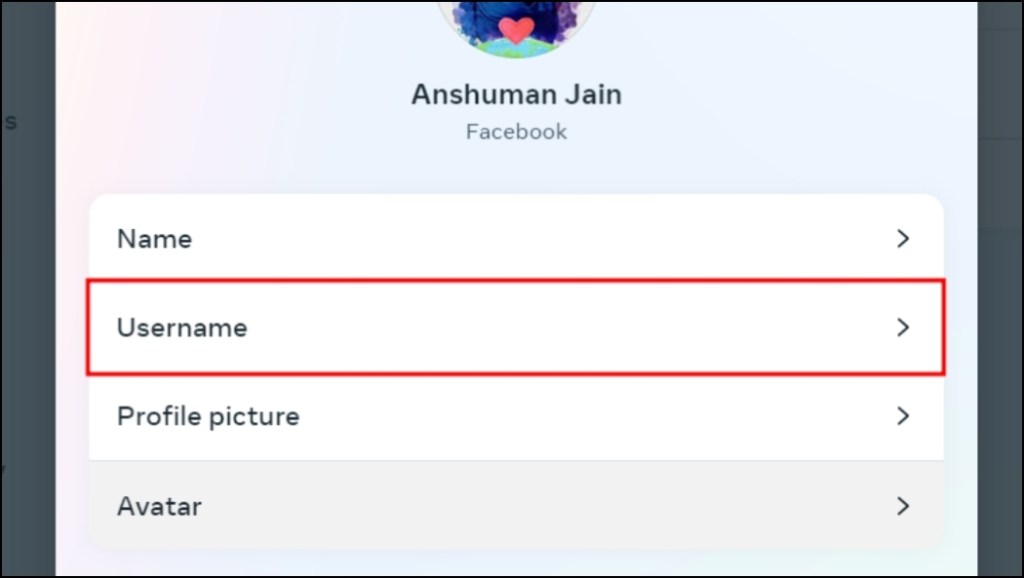
- Click on the Username option.
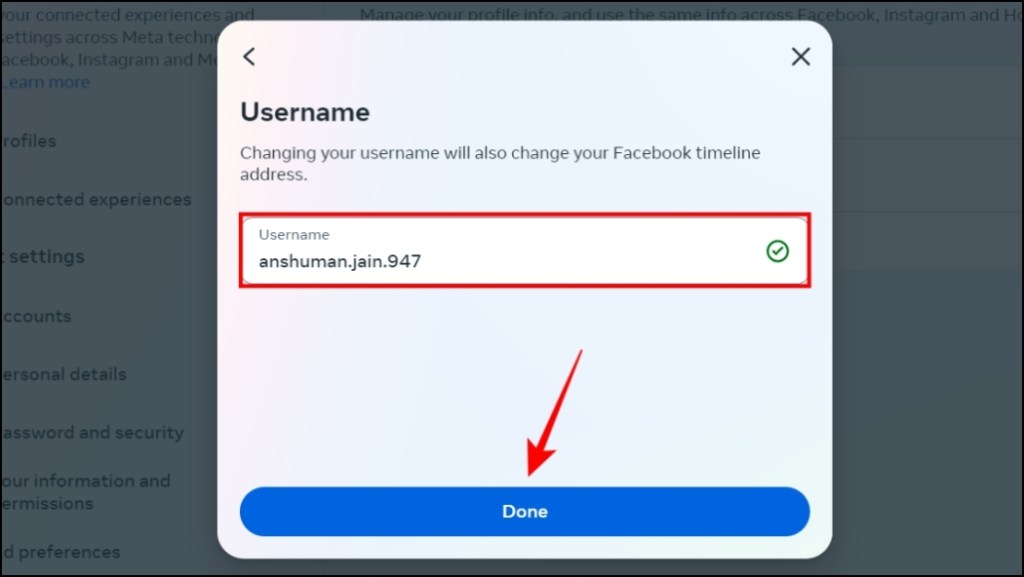
- Now rewrite your username. It is important to type an available username. Then click on Done .
What Happens When You Change Your Facebook Username?
- Changing your username will also change the link to your Facebook account. The link will use the new username.
- Your friends on the platform will still be able to search for you using the name.
- You will not be able to use your old username to sign in or when trying to retrieve your account.
- The app will prompt you to enter the new username instead.
On Facebook, Names are the display identities that your Facebook friends use to look you up. More than one user can share the same name on the platform. Meanwhile, your username is unique and cannot be the same as other users. It may contain symbols and signs as well. It is also used to log into your account and search your profile on the app.
You can only change your assigned username only two times. You must change your username to something you’re satisfied with, as you’ll only get one chance to do so.
Yes. If you have recently changed your username and someone else on Facebook claims it that it is theirs, and you are impersonating them, then Facebook will reclaim the username. Your current username will be reverted to the old one.
To access your Facebook username, navigate to the hamburger menu > Settings & privacy > Settings > Accounts Center > Profile > Choose Account.

With over 4 year of experience under the belt, I cover all facets of consumer tech, from smartphones to other consumer electronics, our favorite social media apps, as well as the growing realm of AI and LLMs. As an Apps and AI writer app Beebom, I provide my expertise in all these areas, weaving stories that help you get familiar with the tech around you. But you will find me playing NYT daily puzzles in my free time.
Add new comment
Name
Email ID
Δ

