- To change your email account on Instagram, go to Accounts Center > Personal details > Contact info > Add new contact.
- Instagram will automatically replace your old email when you link a new account with the social media platform.
- You do not need access to your previous email ID to add a new one to Instagram.
Let’s say you can’t access your old email account that you linked with Instagram, maybe because you can’t remember the password. This could lead you to miss out on all your app-related emails, which could be critical. Especially if you have enabled two-factor authentication, as your security code will be sent to that email address. In any case, you should change and connect a new email account to your Instagram, in this read, we will show you how to do it on Android, iOS, and the web.
Method 1: Change Your Email on Instagram Mobile App
To change your current email account linked with Instagram with a new one, you need to visit the Accounts Center from the Instagram mobile app. Simply use the steps that we have mentioned below. They work for both, Android and iOS versions of the app.
- Open Instagram, and tap your profile photo at the bottom right.
- Tap on the hamburger menu at the top right.
- Under Settings and activity, tap on Accounts Center .
- Here, go to Personal details > Contact info .
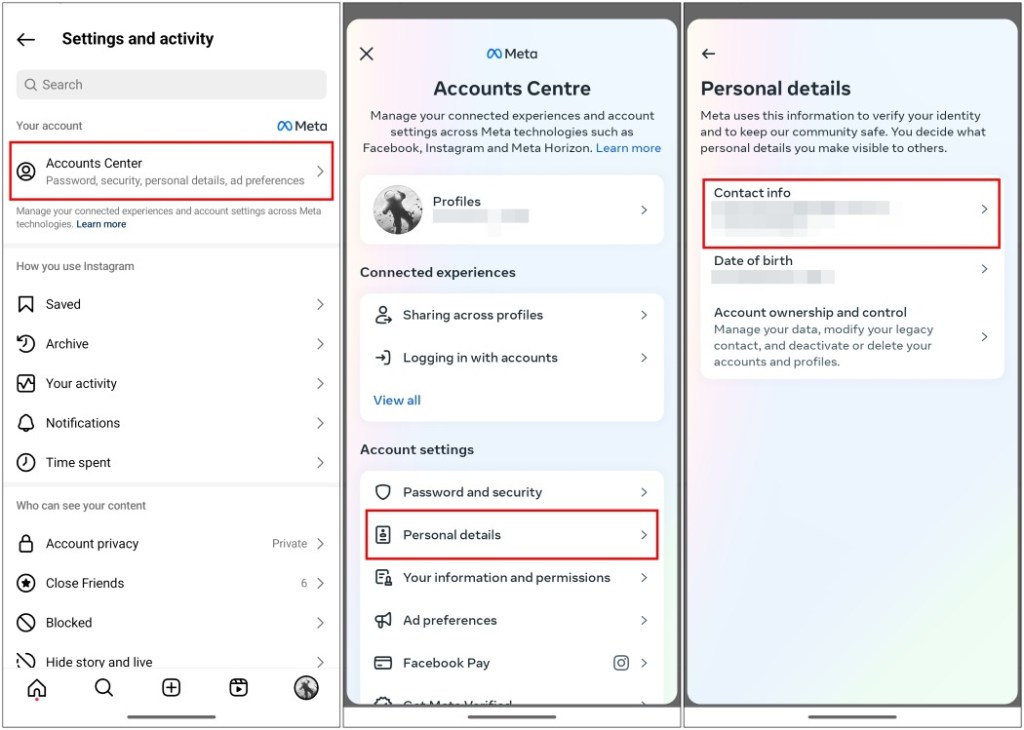
- Now, tap on the Add new contact button at the bottom.
- Choose Add email address .
- On this page, enter the new email account you want to change with your previous one.

- Then select the account whose email address you want to do change and then tap on Next .
- A confirmation code will be sent to your new account. Copy and paste it into the text box and tap on Next to proceed.

This will automatically replace the old one for Instagram. Now all your emails will be sent over to this new account instead of the previous one.
Method 2: Change Your Email on Instagram Website
You can also change your linked email account using the Instagram website from your desktop browser. Here are the steps for the web version of the social media platform.
Visit Instagram.com and click on More from the bottom left corner.
Go to the Settings option.
Under Settings, click on Accounts Center .
Here, select Personal details , then click on Contact info .
Click on Add new contact and select Add email .
Enter the new email account in the blank space.
Check the box next to the Instagram account where you want to change email and click on Next .
Finally, enter the confirmation code sent to the new email.
This is another way that you can use to change your linked email account with Instagram.

With over 4 year of experience under the belt, I cover all facets of consumer tech, from smartphones to other consumer electronics, our favorite social media apps, as well as the growing realm of AI and LLMs. As an Apps and AI writer app Beebom, I provide my expertise in all these areas, weaving stories that help you get familiar with the tech around you. But you will find me playing NYT daily puzzles in my free time.
Add new comment
Name
Email ID
Δ

