- With iOS 18.4, Apple has introduced a new “Ambient Music” control to the Control Center and Lock Screen.
- It consists of 4 pre-curated and non-customizable playlists across different categories like Sleep, Chill, Productivity, and Wellbeing.
- However, Apple Music subscribers can add a shortcut to their preferred playlist to play them instantly from the lock screen.
How to Add Apple Music Playlist to the Lock Screen
You can easily add any of your Apple Music playlists to the Lock Screen or even assign them to the Action Button if your iPhone has one. The only prerequisites are that you need an Apple Music subscription and the latest iOS 18.4 update running on your iPhone. Here’s how you can add them to the Lock Screen.
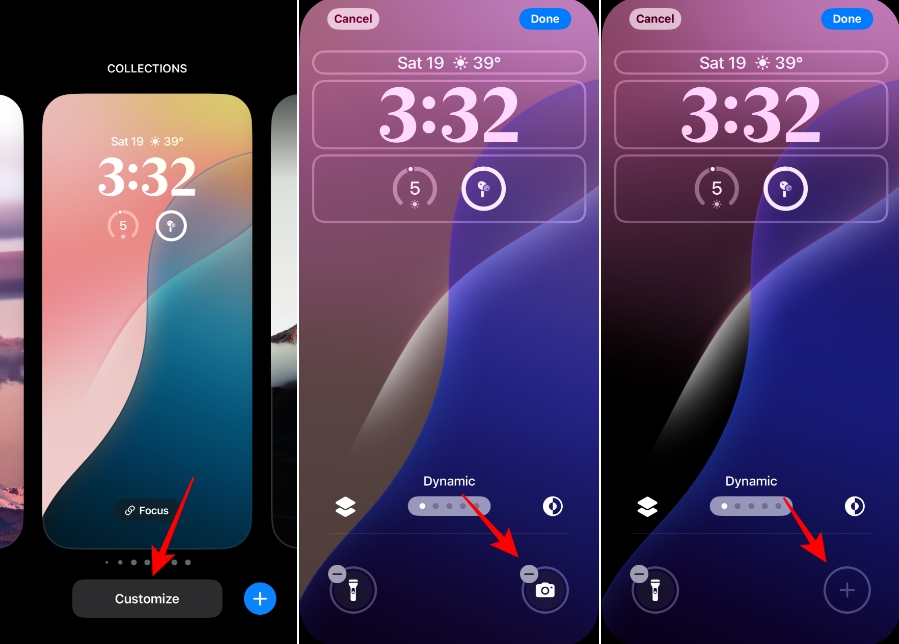
- Unlock your iPhone with Face ID, but don’t swipe up to go to the Home Screen.
- Then, long-press on the lock screen until you enter editing mode.
- Next, swipe to the screen you want to change the controls for, and tap on Customize. Select the lock screen thumbnail on the left.
- Now, tap on the minus (-) icon on the lock screen control you want to replace.
- Then, tap the plus (+) icon that’ll appear in its place.
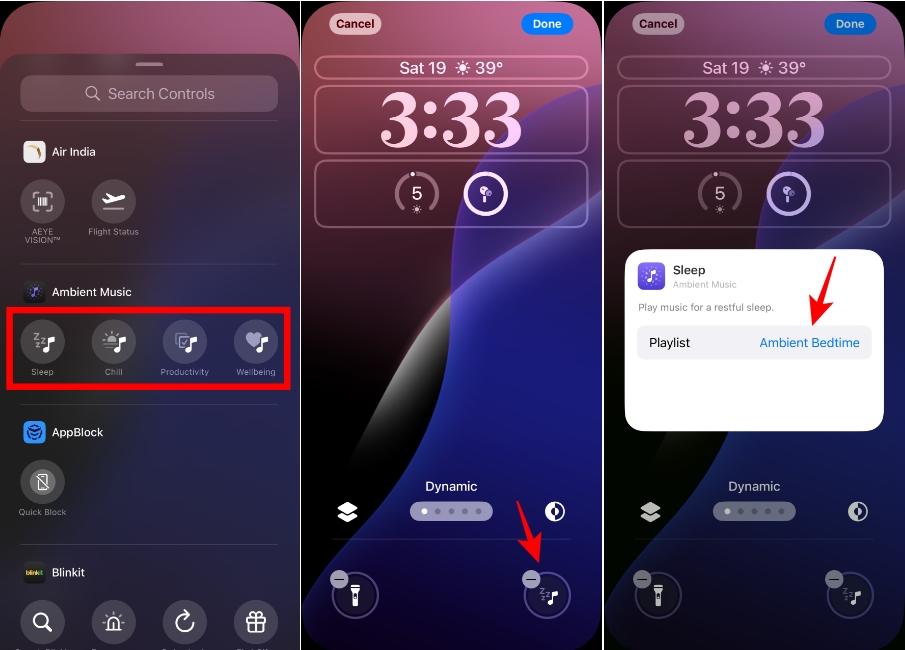
- Scroll down in the Controls menu and select one of the options under Ambient Music. You can add either of these controls, since you’ll be selecting your own playlist. The only difference would be in the icon that would appear on your lock screen.
- The control will be added to the Lock Screen. Tap on it to customize it.
- Tap on the playlist name on the right of Playlist. For instance, Ambient Bedtime.
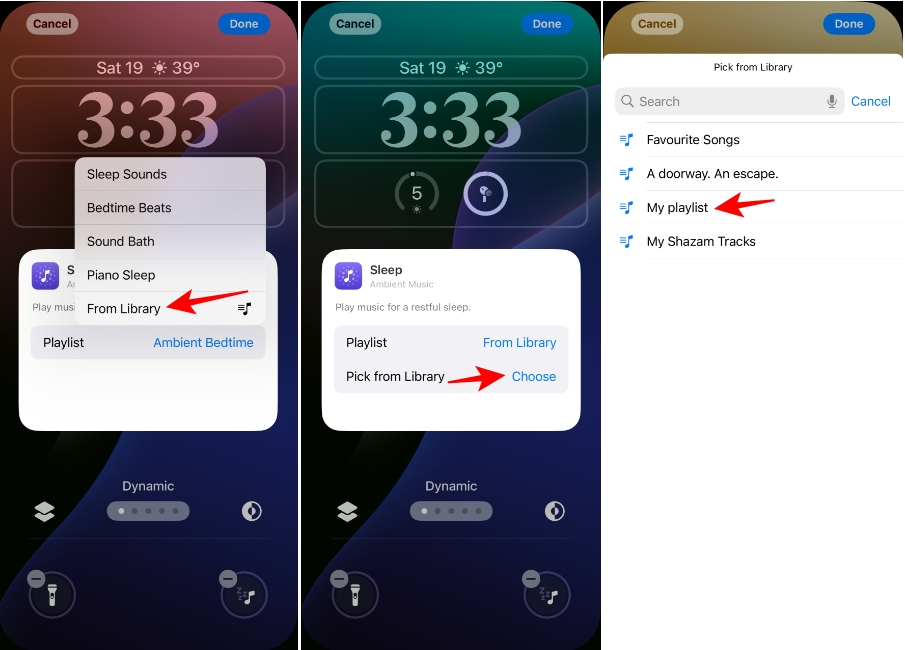
- Next, select From Library from the pop-up menu. This option will only appear if you’re an Apple Music subscriber. Otherwise, it’ll be missing.
- Tap on Choose next to the Pick from Library option.
- A list of all your Apple Music playlists will appear. Tap on the playlist you want to add.
- The playlist will be configured to the control. Tap anywhere on the screen to close the pop-up.
- Next, tap on Done to save the changes.
- Now, when you long-press the control from the Lock Screen, your playlist will start. Similarly, long-press the control and the music will stop.
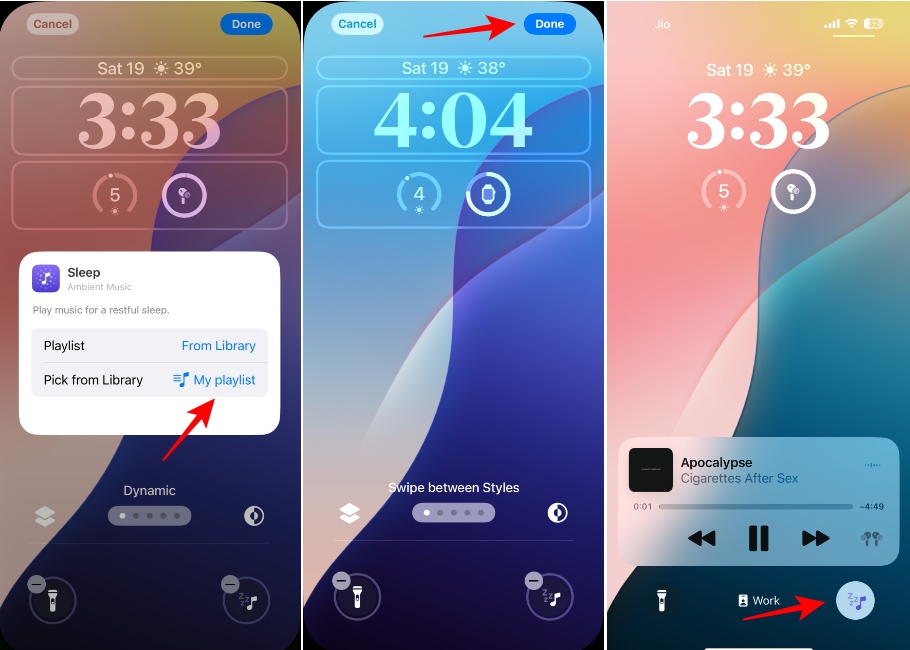
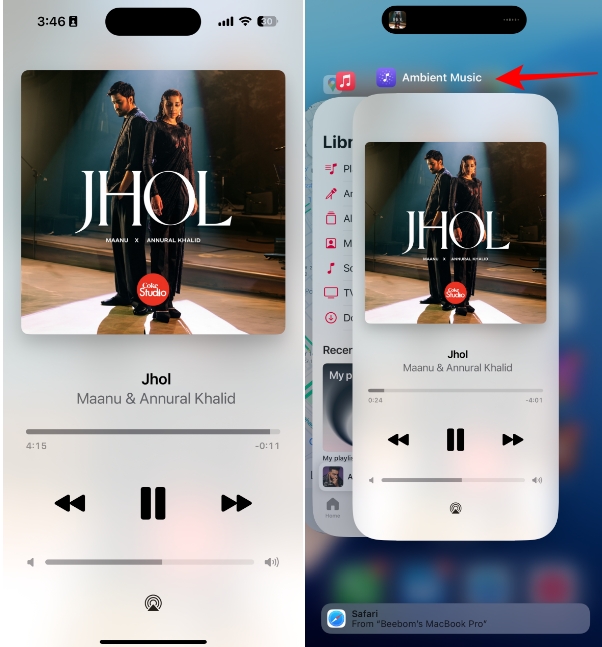
- However, do note that if you tap the Now Playing widget from the screen, it’ll open the Ambient Music mini app and not the Music app. As such, the options on the screen will be virtually non-existent.
It’s that simple to add a custom Apple Music playlist to your Lock Screen using the new Ambient Music controls. If you’re a music buff, you can even configure different lock screens to trigger different playlists. And if you have configured custom lock screens with different focus modes, say Work, Driving, Gym, Personal, etc., you can have different playlists always available at the tip of your fingertips.
Bringing the latest in technology, gaming, and entertainment is our superhero team of staff writers. They have a keen eye for latest stories, happenings, and even memes for tech enthusiasts.
Add new comment
Name
Email ID
Δ


