- The error code 0x80070570 occurs when something on your system is corrupt.
- This could occur in the context of installing Windows or moving files around in the operating system.
- Some of the ways to fix it are by restarting Windows, re-installing an app, updating it, or update to a new Windows update.
Windows can be a happy place and operating system for getting work done, but it doesn’t take long to become a living hell when an unknown problem arises. Like any operating system, Windows isn’t without its issues, and while some error codes are pretty straightforward and easy to troubleshoot, others might require you to do a lot of trial and error, and one of them is the error code 0x80070570.
Windows might throw the code 0x80070570 due to many reasons, but one of the common ones is due to corrupt files when installing a copy of Windows or moving files around. Thankfully, there are many ways you to fix this issue. While the body and text of the error might read differently, it doesn’t mean the error is different; the code 0x80070570 will always be visible at the end.
Method 1: Format the Installation Media
One of the common areas where you see the error 0x80070570 is when installing Windows 10 or 11 using a USB. This could happen if the Windows installation didn’t get in the USB properly, perhaps due to a corrupt ISO or Windows Upgrade Tool not downloading the ISO properly. This could also happen if the installation didn’t complete due to an internet outage.
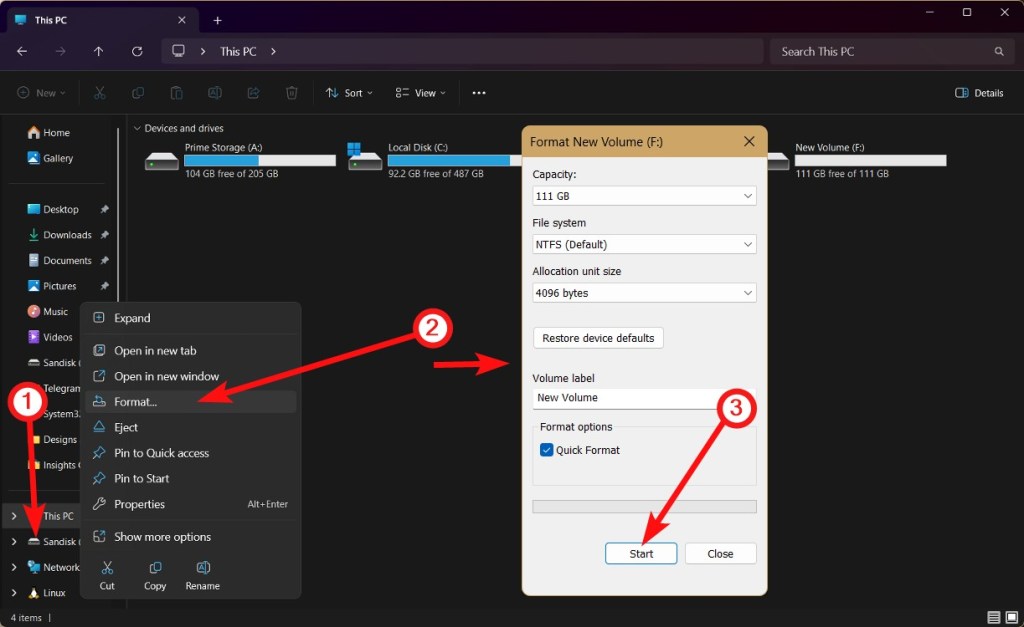
To format the installation media, go to This PC > Right-click on the USB drive > Format > Start . Once done, try to install Windows onto the USB drive using Rufus or Belena Etcher , as they’re one of the best tools in the business.
Method 2: Restart Your Windows PC
Restarting your PC might look like a pretty meek solution to a problem as big as error 0x80070570, but you’d be surprised by just how capable the solution is. Restarting a Windows PC can solve complex issues, and it could solve error 0x80070570 when transferring files.
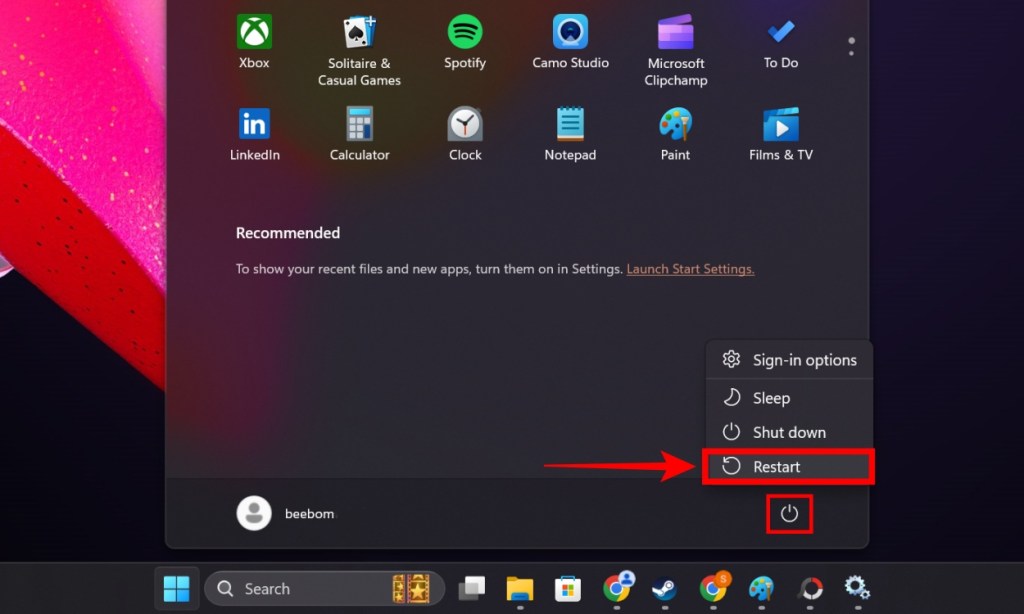
To restart a Windows PC, go to Start > Power button > Restart . Your PC should soon reboot and then check by transferring files if the problem still exists.
Method 3: Download and Install the App Again
If the error 0x80070570 occurs when you try to install an app or a game, chances are, it could be due to a corrupt app installer . This may happen for two reasons — frequent interruption when downloading or if the file data itself is corrupt.
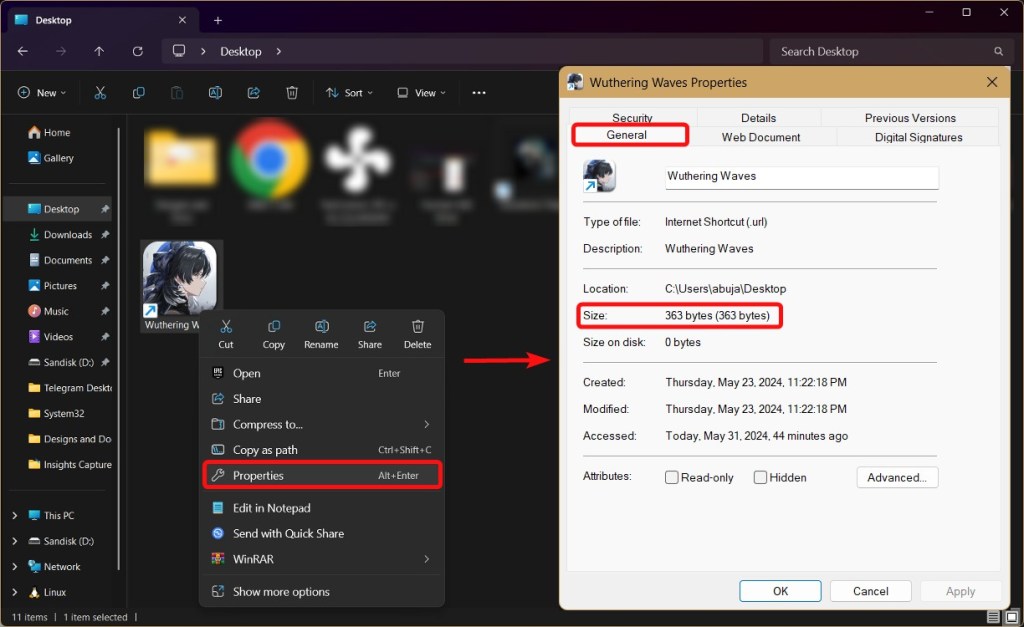
In this case, you might want to re-download the installer or file once again. One of the easiest ways to check after the download’s complete if the file was fully and successfully downloaded is by comparing its size to the one on the website. If they match and the file or installer is still not opening, the file itself might be corrupt.
If that’s indeed the case, you might want to wait until the app developers push a non-corrupt installer or file for you to use. You can check the file size and compare it to the size on the website by right-clicking on the File > Properties > General tab.
Method 4: Restart the App
Most app installers download and verify files from a server, but if the downloaded files are corrupt for any reason, Windows might not be able to verify them and throw the 0x80070570 error. In that case, you will need to restart the app. Corrupt files can sometimes also result in the app hanging on you, in which case you can check out our “ How to Force Quit on Windows ” article.
Restarting the app and initiating the download once again could essentially do the trick and install or run the app normally again. Again, there is a chance that the problem is not with your Windows PC but the downloaded files, and in that case, you’d have no choice but to wait for the app developers to push non-corrupt versions of the required files.
Method 5: Update Windows
If nothing works, the error 0x80070570 could be an underlying issue with your Windows installation. Microsoft is rather quick to release updates if an issue is widespread, and it might be sitting and ready to be installed already.
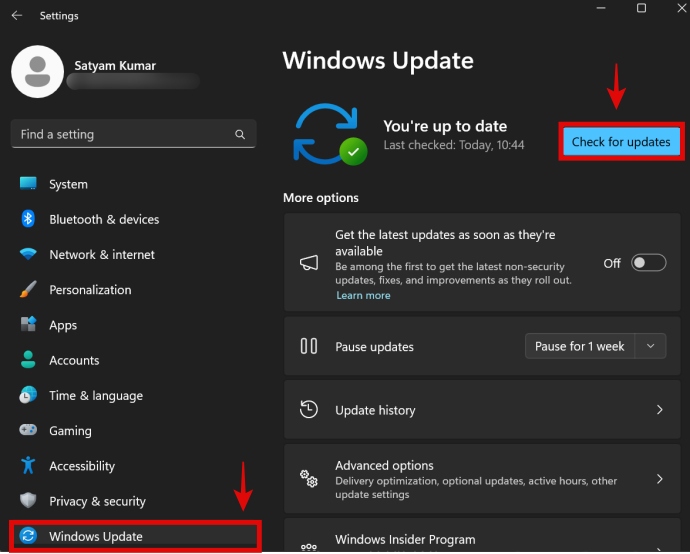
To check for updates on Windows, go to Settings > Windows Update > Check for updates . Tap Install if an update is available, and restart your Windows PC to apply the same.
Abubakar covers Tech at Beebom, with his passion for technology tracing back to 2011 when he received a Dell Inspiron 5100 as a gift. He’s also a passionate advocate for the right-to-repair movement, believing in empowering users to maintain and extend the life of their devices. Outside the tech world, he enjoys watching anime and exploring his newfound enthusiasm for Japanese cars. In his free time, you’ll often find him immersed in Genshin Impact or researching his next gadget purchase. Before joining Beebom, he contributed to leading publications like Android Police, How-To Geek, and Fossbytes.
Add new comment
Name
Email ID
Δ


- Microsoft Surface Laptop is a direct competitor to Apple’s MacBook Air with M3.
- The Surface Laptop is powered by the Snapdragon X Elite and comes with a 120 Hz display, higher base storage and RAM and faster charging out of the box.
- The base variant of the Surface Laptop 13 and 15 costs $1399 and $1499 which is higher than the based variants of 13 and 15-inch MacBook Air.
Microsoft’s latest endeavor into ARM PCs is a serious one, and the company’s calling it Copilot Plus PCs. The repeated jabs Microsoft took at Apple at the Surface event make it pretty evident that the Surface Laptop 7th generation with Qualcomm’s X Elite SoCs is a direct competitor to Apple’s M3 MacBook. So, will Microsoft’s attempt with Copilot Plus PCs cost Apple an ARM ( pun intended ) and disrupt the market? Here’s our Surface Laptop 7 vs MacBook Air M3 comparison.
Surface Laptop 7 vs MacBook Air M3: Specifications
Before we start comparing the two devices in detail, check out their specs below to know what stands out.
Display and Build Quality
Both the Surface Laptop 7 and MacBook Air come with high-quality aluminum chassis. While the MacBook still markets itself as “crafted from a single block of aluminum,” we know very little about how the latest Surface Laptop is built. Although judging by the build quality of previous Surfaces, it should be good.

Image Courtesy: Microsoft
The smallest Surface has a 13.8-inch display whereas the MacBook Air has a 13-inch unit. MacBook has a higher resolution display of 2560×1664 (224 PPI) versus the Surface which has 2304×1536 pixels (201 PPI) of resolution.
Similarly, the display on the 15.3-inch MacBook Air is a taller 16:10 unit with 2880×1864 pixels (224 PPI) in contrast to the 3:2 15-inch Surface display with 2496×1664 resolution (201 PPI). This, not only makes the MacBook sharper but also gives it the ability to view more content.
However, the Surface laptop has a higher refresh rate display of 120Hz whereas the display on the MacBook Air is still a measly 60Hz. Another area where the Surface PC gets an advantage is that it’s tested to peak at 600 nits compared to the 500 nits brightness on the M3 Macbook Air.

An area where Surface clutches is with its touch capacitive display, which the MacBook lacks. The MacBook Air is slimmer at less than half an inch, 0.44 to be exact. The 13.8-inch Surface is 0.69 inches at its widest width, and the 15-inch model is 0.72 inches thick. Microsoft’s Surface Laptop display is protected by Gorilla Glass 5, whereas the MacBook Air doesn’t claim any specific display protection.
Coming back to the design elements, the Surface laptop uses regular chiclet switches while the MacBook Air uses Apple’s Scissor switches. Although we haven’t tested the keyboard on the Surface Laptop, we believe the typing experience will more or less be the same on both laptops.
The 13.8 and 15-inch Surface Laptops weigh 1.34 kg and 1.66 kg, respectively. Whereas, the 13 and 15.3-inch MacBook Air weigh 1.24 kg and 1.51 kg, respectively. This makes the M3 MacBook Air more portable than the latest Surface Laptops.
Surface Laptop 7 Vs MacBook Air M3: Connectivity
The Microsoft Surface Laptop takes this round with 2 x USB 4/Thunderbolt Type-C ports, one USB-A 3.1 port, a Surface Connect port, and a headphone jack. Its 15-inch model gets a microSD card reader too, albeit a microSDXC unit. In terms of I/O, the Surface takes the win in our books.

The MacBook Air, on the other hand, also gets two Type-C USB 4 ports. There’s a MagSafe 3 port for charging and a 3.5mm headphone jack, too. However, it lacks USB-A, which gives the latest Surface a slight edge.
Microsoft’s new Surface Laptop features Wi-Fi 7 and Bluetooth 5.4 which are the latest connectivity standard available. Apple’s M3 MacBook Air only supports Wi-Fi 6E and Bluetooth 5.3. The former should not be a big deal considering how limited the adoption of Wi-Fi 7 has been so far.
Audio and Microphone
Microsoft says the Surface Laptop come with Omnisonic Speakers that are tuned with Dolby Atmos. The company doesn’t mention how many speakers are present on the device or how they’re placed. What’s certain is that the Surface Laptop comes with Dual Studio Mics with voice focus.
It remains to be seen whether the audio setup on the Surface Laptop can dethrone the MacBook Air’s 6-speaker sound system (or 4 speakers on 13-inch) with Dolby Atmos and Spacial Audio, which is known to offer an incredible sound. This along with Apple’s three-mic array with directional beamforming makes the MacBook Air a more compelling choice in the audio department.
Surface Laptop 7 vs MacBook Air M3: Performance
Microsoft claimed in the Surface event that the latest Surface laptops powered by Snapdragon X Elite chipsets are “58% faster” than the M3 MacBook Air. I have my reservations about this claim since early benchmarks reveal that the Snapdragon X Elite cannot even beat Apple’s M3 .

The Surface Laptop uses the second-best X Elite SKU with 12 cores, 8 performance, and 4 efficiency cores. Maximum frequency that the performance cores can reach is 4.0 GHz. The rest of the cores offer a multithreaded frequency of 3.4 GHz.
Its total cache is 42 MB with an Adreno GPU outputting 3.8 TFLOPs of power. The NPU is 45 TOPS, and the RAM starts at 16GB LPDDR5X. The storage is a replaceable PCIe Gen4 NVMe m.2 unit.

Apple’s M3, on the other hand, is an octa-core CPU with four performance and four efficiency cores, and the base variant comes with just 8GB RAM which Apple argues is “enough”.
The performance cores can go up to 4.06 GHz whereas the efficiency cores run at a cool 2.75 GHz. Apple’s Neural Engine outputs 18 TOPS which is less than half of what the X1E-80-100 outputs on the Surface Laptops.
On paper, the X Elite should beat the M3 in performance, but the early benchmarks say otherwise, for now. This doesn’t necessarily mean that the Surface Laptop isn’t powerful, rather they are good indeed. For most users, the differences in performance will be negligible.
It’s worth noting that one area where Apple still excels is in the efficiency aspect . The M3 MacBook Air is fanless, whereas the surface laptop is actively cooled. How long until Qualcomm figures out Apple’s magical efficiency? We’ll have to see.
The bottom line is, that the X Elite could perform just as well as M3, on paper at least. But Apple still remains the best in terms of efficiency.
Battery Life and Charging
Microsoft promises up to 20 hours and 22 hours of battery during “local video playback” on the 13.8-inch and 15-inch models respectively. In contrast, Apple claims that the MacBook Air M3 will last up to 18 hours on “Apple TV app movie playback” on both their 13-inch and 15-inch version.
Another aspect of battery life is web usage. The Surface Laptop is rated at 13 hours and 15 hours respectively on the 13.8-inch and 15-inch models. The Air, on the other hand, delivers up to 15 hours of wireless web usage which has been a standard for previous versions of the series as well.

While I do believe the battery life on X Elite will be better than regular Windows laptops, I do have my reservations. The MacBook Air series, in general, has had an industry-leading battery life. So, only time and real-world testing can help us know whether the Surface Laptop lives up to the promise.
However, charging is where I can expect the Surface Laptop to get an edge over Apple’s offerings. In the box, the 13.8-inch Surface gets a 39-watt adapter and the 15-inch model gets a 65-watt adapter. The MacBook Air 13-inch comes with 30-watt or 35-watt adapters depending on core configuration. Meanwhile, the larger 15-inch Air receives a 35-watt charging unit out of the box.
So, based on what’s available in the box, the Surface Laptop takes the win and can charge faster than the M3 Air . But, and there’s always a but, the new M3 MacBook Air supports up to 70-watt fast charging while the Surface Laptop maxes out at 65-watt. This means, that if you have an existing fast-charging adapter offering higher wattage, you should be able to charge the MacBook Air in less time.
Surface Laptop 7 vs MacBook Air M3: Repairability
From being the least repairable laptops to repair-friendly laptops, Microsoft has taken strides to make Surface Laptops more repairable and claims that the latest Surface is even more repairable.
The m.2 storage can be upgraded which you can’t do on the MacBook, and the parts are easily made available thanks to the partnership with iFixit. Hence, replacing the battery or any other component down the line will be easier on Surface Laptops than on MacBooks.
Pricing
The base 13.8-inch Surface Laptop with Snapdragon X Elite, 16GB RAM, and 512GB storage costs $1,399 , while the 15-inch version with the same specs costs $1,499. The base 13.6-inch MacBook Air M3 with 8GB RAM and 256GB SSD costs $1,099 while the 15.3-inch with the same specs costs $1,299.
If we compare the Surface Laptop to 16GB and 512GB MacBook Air variants, the 13-inch Air costs $1,499 ($100 more than the Surface), and the 15-inch Air costs $1,699 ($200 more than the Surface). This technically makes the Surface Laptop a better buy, on paper at least.
Surface Laptop 7 vs MacBook Air M3: What Should You Buy?
The purchase decision depends on the OS you want. If you need macOS and nothing else, go for the M3 MacBook Air. But if you need a more bang for your buck offering and a higher RAM/Storage offering, the Surface Laptops are what you should be getting. Or you could wait for cheaper laptops from other OEMs since Microsoft has partnered with many to release Copilot Plus PCs.
The bottom line is, if we put aside the operating system for a bit, that the Surface laptop is better overall offering a higher refresh rate display, larger storage and RAM, faster out-of-the-box charging, and better repairability.
Abubakar covers Tech at Beebom, with his passion for technology tracing back to 2011 when he received a Dell Inspiron 5100 as a gift. He’s also a passionate advocate for the right-to-repair movement, believing in empowering users to maintain and extend the life of their devices. Outside the tech world, he enjoys watching anime and exploring his newfound enthusiasm for Japanese cars. In his free time, you’ll often find him immersed in Genshin Impact or researching his next gadget purchase. Before joining Beebom, he contributed to leading publications like Android Police, How-To Geek, and Fossbytes.
Add new comment
Name
Email ID
Δ
