Before jumping into your first Call of Duty Black Ops 7 match, it’s always a good idea to select the best PC settings possible. Treyarch’s latest title might not demand the most powerful hardware, but the game is still prone to frame drops, stuttering issues, and even crashes if you don’t have the right settings equipped. With this in mind, here are the best graphics settings to use in Black Ops 7 for consistent performance in 2026.
Best PC Settings for Call of Duty Black Ops 7
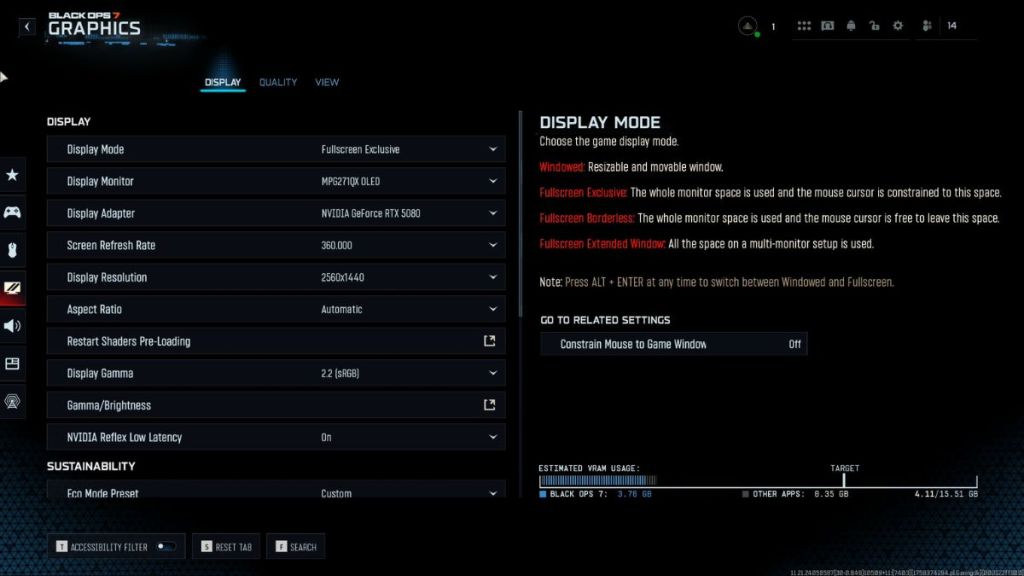
Image Credit: Activision
Our recommendations for the best Black Ops 7 PC settings should improve performance across all fronts, while also reducing crashes. These settings are compatible with all sorts of hardware configurations, be it top-tier or low-end. As always, it’s a good idea to check if your system matches the game’s minimum requirements before firing it up.
With that out of the way, here are the best PC settings to use:
Best Display Settings for Black Ops 7
- Display Mode : Fullscreen Exclusive
- Screen Refresh Rate : Maximum Supported by your Monitor
- Display Resolution : 2560 x 1440/1920 x 1080
- V-Sync (Gameplay) : Off
- V-Sync (Menus) : Off
Best Graphics Settings for Black Ops 7
- Graphics Preset : Custom
- Render Resolution : 100
- Dynamic Resolution : Off
- Upscaling/Sharpening : FidelityFX CAS
- FidelityFX CAS Strength : 100
- Nvidia DLSS Frame Generation : Off
- AMD FSR 3 Frame Generation : Off
- VRAM Scale Target : 80
- Variable Rate Shading : On
- Texture Resolution : Very Low
- Texture Filter Anistropic : Low
- Depth of Field : Off
- Detail Quality : Low
- Particle Resolution : Very Low
- Bullet Impacts : Off
- Persistent Effects : Off
- Shader Quality : Low
- On-Demand Texture Streaming : Minimal
- Local Texture Streaming Quality : Low
For optimal performance, it’s best to turn every option down to its lowest setting. Also, avoid using any other upscaling technique besides FidelityFX CAS since it continues to provide the best performance. If you’re still facing inconsistencies, keep lowering the Render Resolution until things improve.
Best Shadows, Lighting, & Environment Settings
- Shadow Quality : Very Low
- Screen Space Shadows : Off
- Occlusion and Screen Space Lighting : Off
- Screen Space Reflections : Off
- Static Reflection Quality : Off
- Terrain Quality : Very Low
- Volumetric Quality : Low
- Deferred Physics Quality : Off
- Weather Grid Volumes Quality : Off
- Water Quality : Off
Once again, turn down all values to the lowest possible options. After all, only frames matter in a highly competitive first-person shooter like Black Ops 7.
Best View Settings for Black Ops 7
- Motion Reduction Preset : Off
- Field of View : 100-120
- ADS Field of View: Affected
- Weapon Field of View : Wide
- 3rd Person Field of View : 90
- Vehicle Field of View : Default
- World Motion Blur : Off
- Weapon Motion Blur : Off

A massive gaming nerd who’s been writing stuff on the internet since 2021, Aryan covers single-player games, RPGs, and live-service titles such as Marvel Rivals and Call of Duty: Warzone. When he isn’t clacking away at his keyboard, you’ll find him firing up another playthrough of Fallout: New Vegas.
Add new comment
Name
Email ID
Δ