- Notifications may not show up or get delayed due to software optimizations.
- They may also not appear if you haven’t granted app notification permissions.
- It is important to ensure the battery saver and Airplane mode are turned off for notifications to arrive.
1. Disable Battery Optimizations
One of the common reasons why notifications might not show up on your Android device is due to the Battery optimizations put in place by your manufacturer. These optimizations essentially remove apps from memory to enhance the overall battery life of your smartphone. However, since apps are removed from the memory and background, they can no longer push notifications live when they arrive. This can cause Android notifications to not show up until you manually open the app.
Every OEM has its way with Battery optimizations. Some over-optimize which may cause notifications to not show up, while others keep the optimizations minimal. Dontkillmyapp is a perfect app and website to find out which manufacturers’ optimizations kill your apps in the background and prioritize battery.
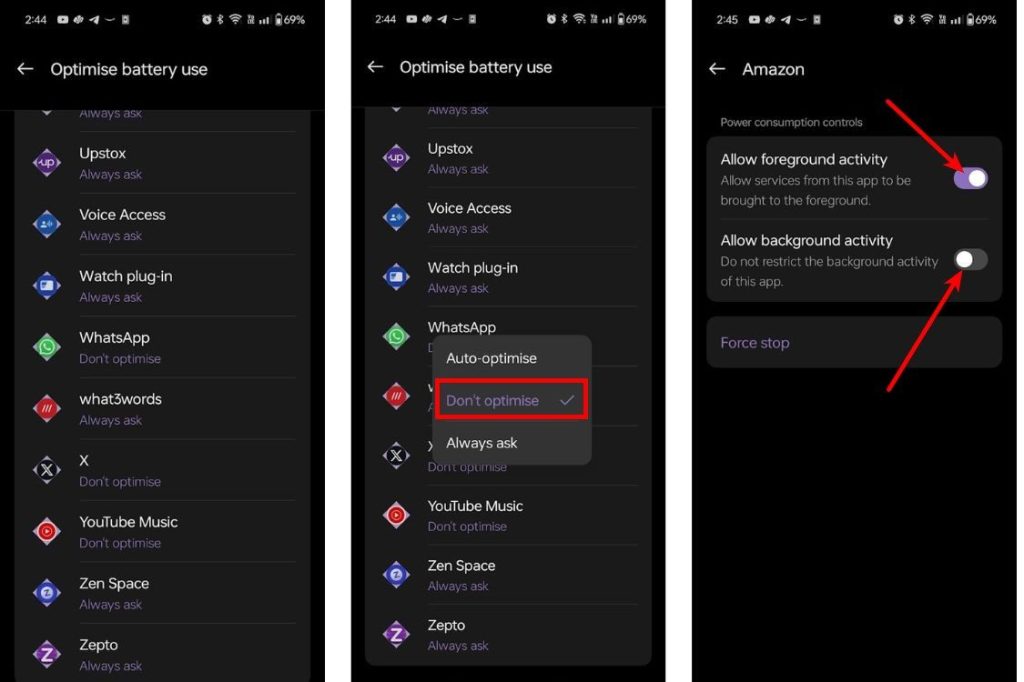
If you own a Pixel, you needn’t fret because Pixel UI doesn’t suppress app notifications and abruptly kills apps from the background. However, if you own a OnePlus, Huawei, ASUS, or Samsung smartphone, go to Settings > Battery > Battery Optimizations , tap the important app, and toggle on the option to allow them to run in the background. This should fix the notifications not showing up the issue on Android.
2. Enable Notifications for Apps
Another reason Android Notifications might not be showing up could be due to the missing notification permissions. Android has recently introduced a new permission stack where when you launch the app for the first time, it has to prompt and ask if you want it to send notifications. If you mistakenly tapped “Deny,” that might be why you aren’t getting notified.
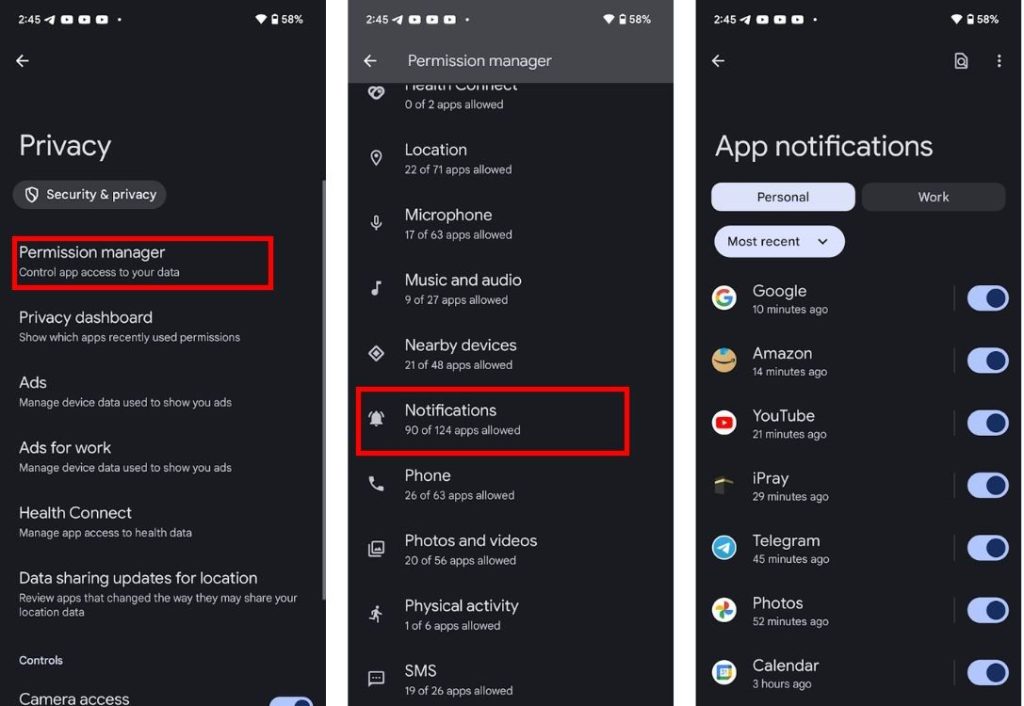
To resolve this, go to Settings > Security and privacy > Privacy > Permission manager . Scroll down till you find Notifications , tap it, and enable the toggle for the apps you want to receive notifications from.
3. Enable Specific Notifications
If you’re still not getting notifications, perhaps you may have accidentally turned off notifications of a particular channel. Android gives you more control by disabling certain types of notifications while leaving the important notification channel active. For example, if you have a food delivery app that sends too many promotional notifications but you fear disabling them because you won’t be notified if your food arrives, you can turn off the “Promotional notifications” channel and keep the “Delivery updates” channel active.
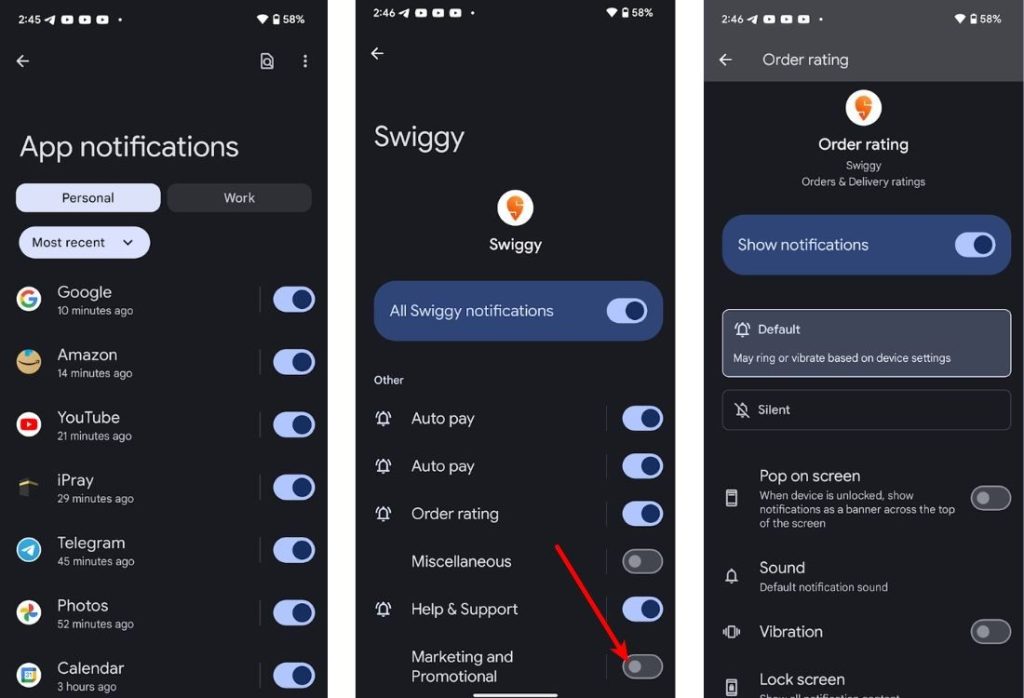
To check if you’ve disabled a specific notification channel, go to Settings > Security and privacy > Permission manager . Scroll down and tap Notifications . Tap on the app you want to receive notifications from and enable the notification channel.
4. Restart Your Device
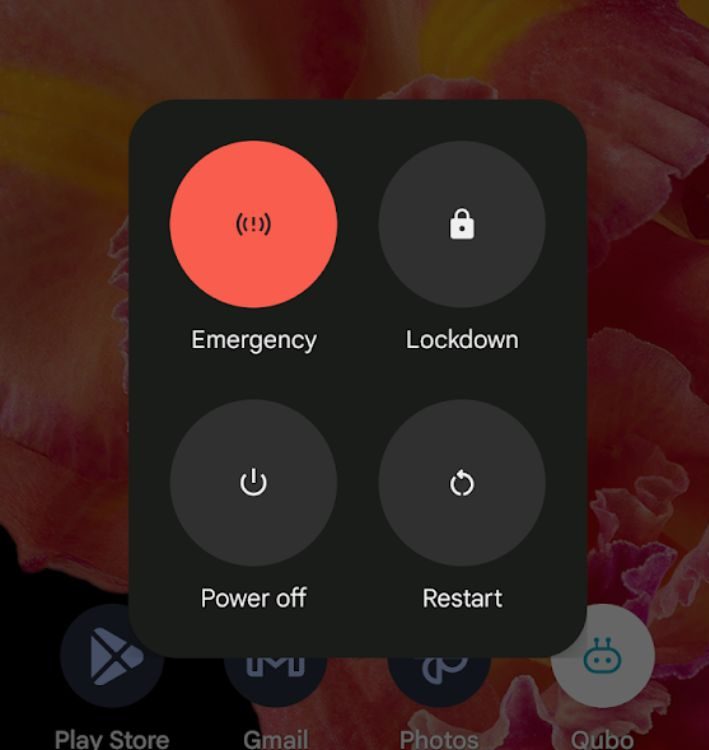
Restarting may seem like too simple of a solution but would you believe us when we say a simple restart could sometimes even solve complex issues with a system? To restart your Android device, press and hold the power button and tap restart. Your notifications should return to normal.
5. Enable Data and Wi-Fi Usage
Apps depend on the internet to send notifications. If you aren’t receiving notifications, it could be due to bad internet. However, if your internet connection seems fine, you might have mistakenly disabled internet access to particular apps and might want to re-enable them.
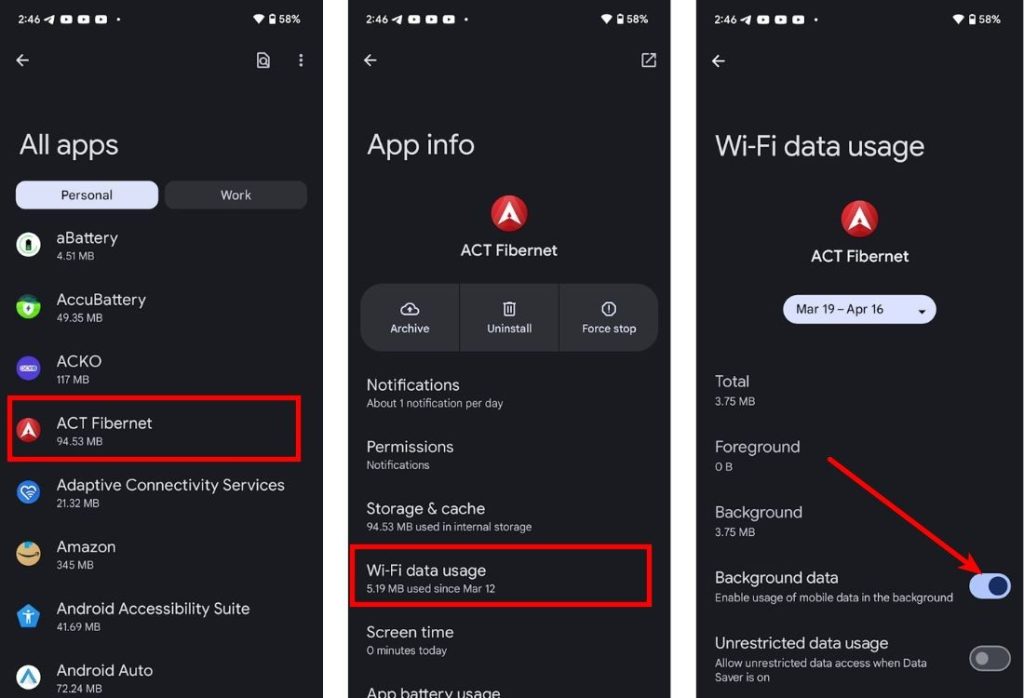
To do so, go to Settings > Apps > See all apps , tap an app, tap Wi-Fi data usage , and toggle on the “ Background data ” option. You can do this to apps from which you’re not receiving notifications, and it should hopefully solve your “notifications not showing up” issue.
6. Disable DND or Airplane Mode
Do Not Disturb mode, when enabled, restricts notifications when it’s turned on, whereas Airplane Mode turns off data which could stop apps from sending you notifications. To turn off DND mode, go to Settings > Sounds > Do Not Disturb and turn it off. You should then see all your piled-up notifications pop up.
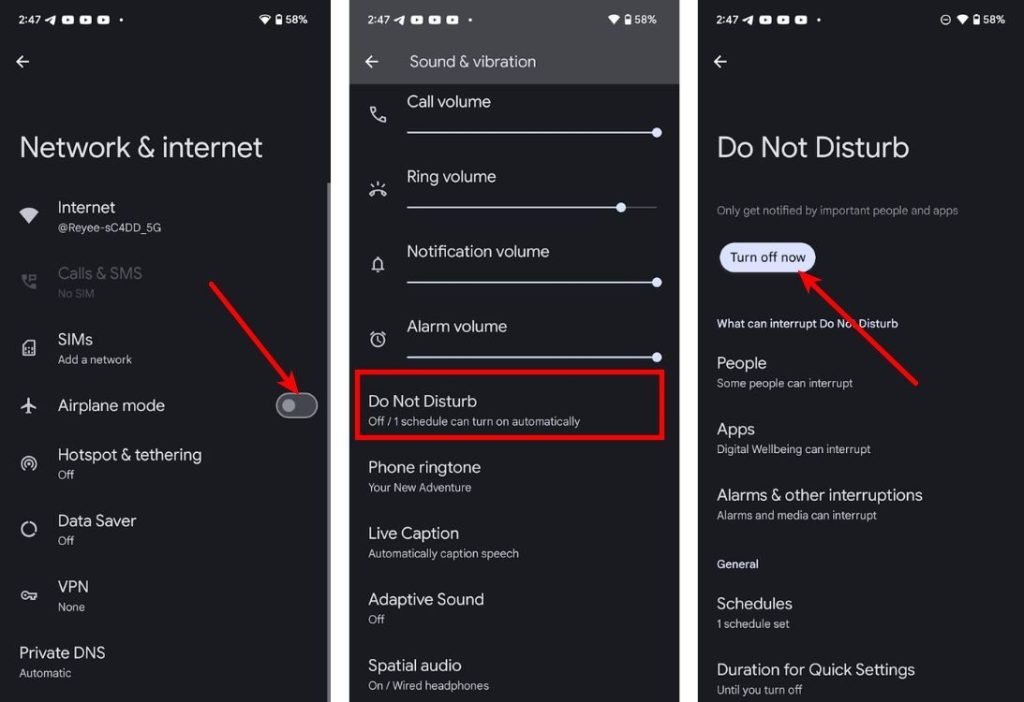
Similarly, to disable Airplane mode, go to Settings > Network & internet and toggle off Airplane mode .
7. Turn off Power Saver Mode
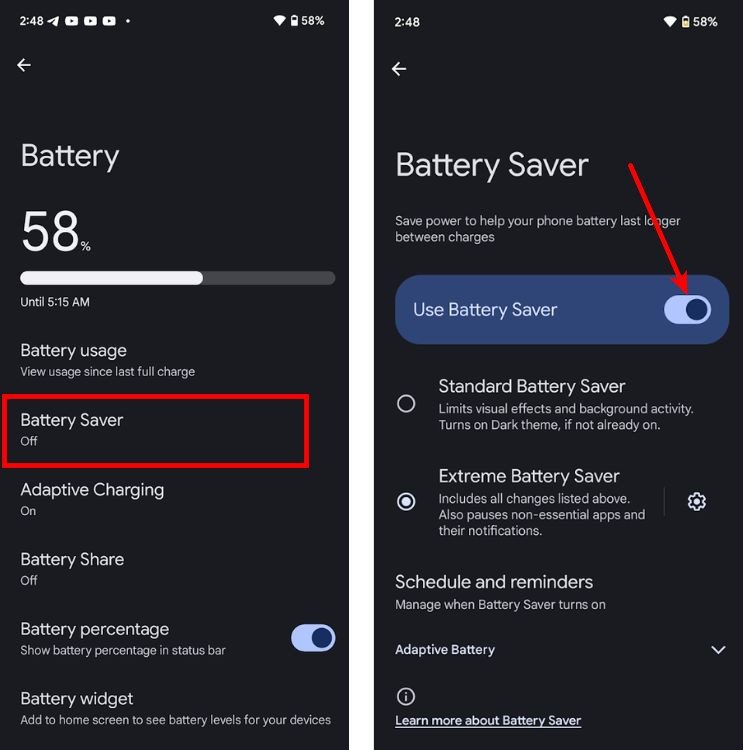
Power saver mode preserves power by restricting apps from running in the background. To start receiving notifications again, you need to turn off Battery Saver and you can do so by going to Settings > Battery > Battery Saver and toggling off the Use Battery Saver toggle.
8. Reinstall or Update your Apps
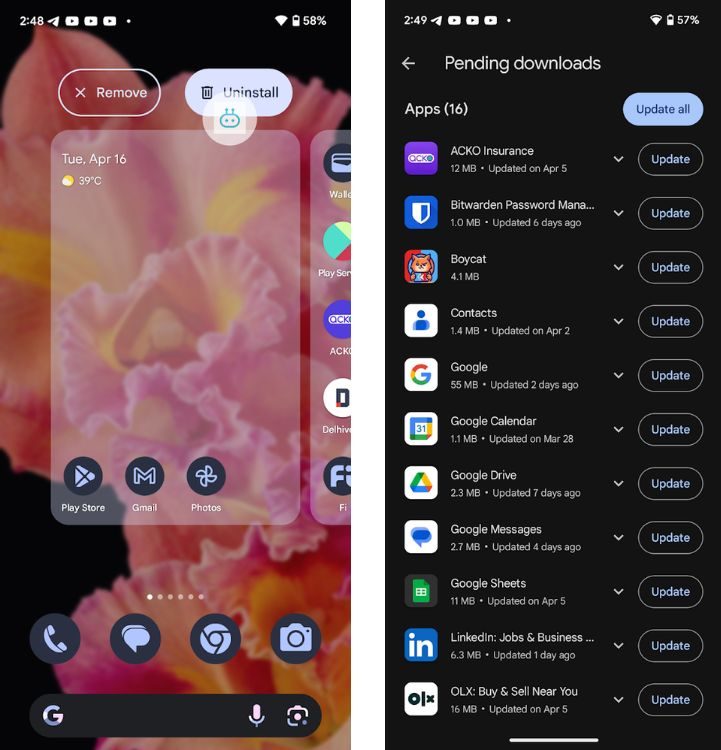
If none of the above methods have yielded positive results, the issue might not be with your phone, but rather the app itself. Ensure that apps are up to date by going to the Google Play Store as there’s a chance that a recent update to an app might have broken the notifications, and the developers have already pushed another update to fix the issue. However, if that doesn’t fix the issue, you might need to reinstall the app by long-pressing the app icon, dragging, and dropping it on the Uninstall button.
9. Update Your Android Device
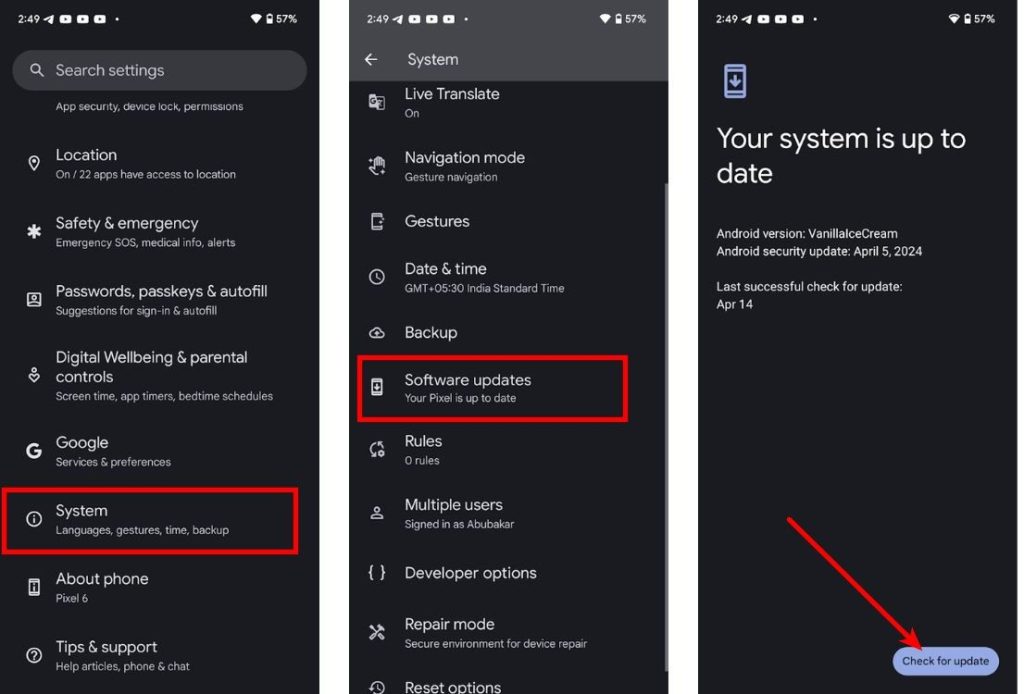
System updates are known to introduce errors, and if you recently upgraded to the latest version of Android, it may have introduced a few bugs. However, an issue such as users not receiving notifications on time is rather huge, and developers might have already pushed an update to fix it. Hence, go to Settings > System > Software updates to see if an update is available. If it is, it should hopefully fix the “notifications not showing up” issue.
10. Factory Reset Your Device
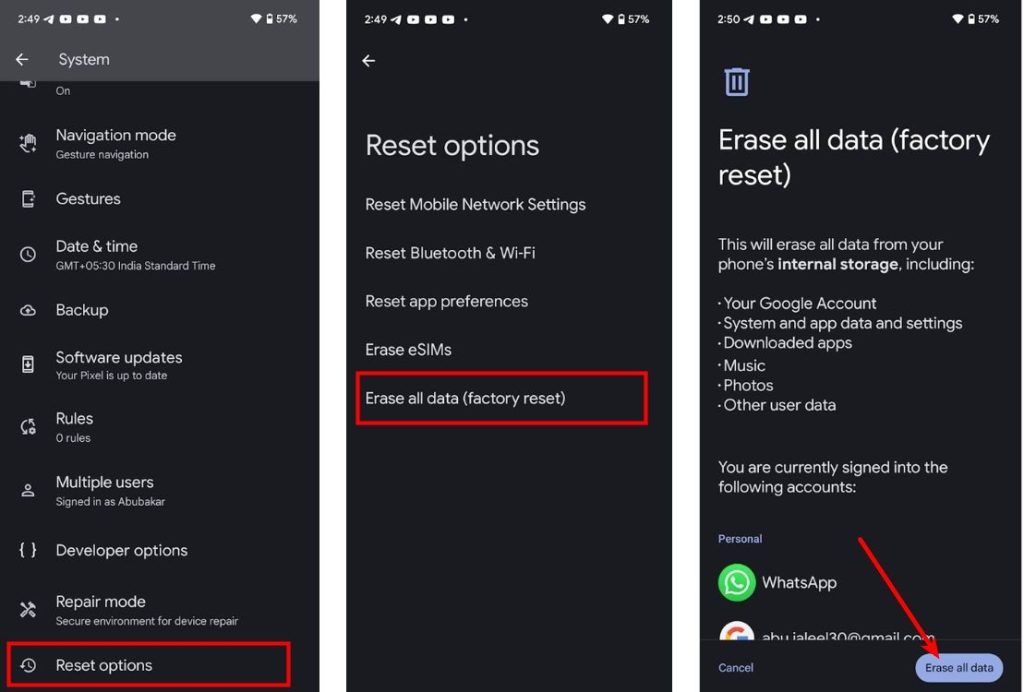
If none of the above methods have yielded results, a Factory reset is your final resort. To factory reset an Android device, go to Settings > System > Reset options and tap Erase all data (Factory reset) . Your phone will restart and start afresh.
Abubakar covers Tech at Beebom, with his passion for technology tracing back to 2011 when he received a Dell Inspiron 5100 as a gift. He’s also a passionate advocate for the right-to-repair movement, believing in empowering users to maintain and extend the life of their devices. Outside the tech world, he enjoys watching anime and exploring his newfound enthusiasm for Japanese cars. In his free time, you’ll often find him immersed in Genshin Impact or researching his next gadget purchase. Before joining Beebom, he contributed to leading publications like Android Police, How-To Geek, and Fossbytes.
Add new comment
Name
Email ID
Δ


