While many are still waiting for Android 15 to arrive on their smartphone, Google is already testing its next version called Android 16. This is a mid-season update, which is a first for the company, and brings some substantial upgrades along with several under-the-hood changes. Since the beta for the upcoming update is already available for Pixel phones, we have a good idea of all the new features coming to Android 16. We have listed them right here:
1. Android 16 Baklava is Here
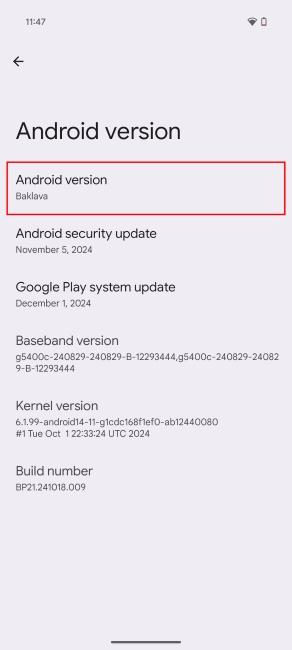
In October, we saw Google abandon its long-standing naming scheme and restarting from the start. The first Android 16 developer preview confirms this. As you can see below, Android 16 features the codename “ Baklava ” on the About page. Baklava is a Middle Eastern dessert made from a layered pastry with chopped nuts and sweet syrup.
2. Settings Page Gets a New Look
Android 16 also brings a design overhaul to the Settings page. The new Settings page is segmented, making it easier to find the options you are looking for. You will notice that the Google accounts page has been shifted to the very top , similar to iOS. Android 16’s About Phone page and the System settings also no longer sit at the bottom, and are now located above Security & privacy.

3. Bluetooth Audio Sharing
Bluetooth Audio Sharing is finally here with Android 16 (and hopefully, it stays). This feature lets you connect with multiple Bluetooth headphones at the same time. However, you need Bluetooth LE-supported earbuds to use this feature. But it requires Bluetooth LE-supported earbuds to work properly.

To access it, go to Settings > Connected devices > Connection preferences > Audio sharing. You can also scan the QR code to share your current media stream with another device, but it is not working as of the current Android 16 build.
4. Improved Bluetooth Menu
The second developer preview of Android 16 features a new Bluetooth menu. Now you will see a PNG of your connected and saved Bluetooth devices if it is available in Google’s database. If you tap on Device details, then you will also see a new circular battery indicator around the device itself.

5. Notification Cooldown Returns in Android 16
Notification Cooldown debuted with Android 15 DP1 but was removed in subsequent updates. Now, the feature is back again in Android 16 DP1 with a polished menu that shows how the feature works. In case you don’t remember, Notification Cooldown silences continuous alerts received in a short amount of time , thus, reducing the annoyance of incoming notifications.

6. Android 16 Modes Replaces Do Not Disturb
Taking a ‘Focus’-ed approach like iOS, Android 16 replaces Do Not Disturb with new Modes. You can not only manage the DND like you used to, but also create new custom modes with an icon, and set their behavior according to your preferences. Thus, you can create modes during bedtime, work, while gaming, or one for weekends. These modes are also accessible from quick settings.

7. Live Updates
Android 16 Beta 1 introduces support for live updates. This allows apps to show live notifications of any ongoing tasks. So you see a progress bar to show the time till an order reaches your doorstep. It can even work for navigation, timers, and other useful stuff. It is great to see Google embracing this trend that phone makers have hoped for.

Image Credit: Mishaal Rehman (@MishaalRahman on X)
Many phone makers are trying to replicate the live activities feature that Apple introduced with the iPhone 14 Pro. OnePlus is doing it in their latest release, and so is Samsung with the Now bar. However, they both lack third-party support, which limits their functionality.
8. Darker Media Playback Artwork
A new change added with Android 16 Beta 4 is the darker album art when playing music or video in the background. I feel this is a good change, as not only does it help to highlight the media controls in the notification, but also the lockscreen.

9. Enhanced Now Playing in Android 16
There’s a new Enhanced Now Playing option in the Settings menu in Android 16. It automatically fetches the album art for all the songs it has recognized. There’s also an option to select your default music player so you can play the identified song directly.

10. Gesture Navigation Demo
There’s a new demo option under gesture navigation settings. This will help new users who find it hard to switch to the gesture style, get a grip, and learn step by step how to get a hold of the best way to use Android these days. This was also added with the recent Beta 4 update.

11. Themed Icons No Longer in “Beta”
With the latest Beta 4, Google has also pulled the themed icon toggle out of beta. You can find it in the Wallpapers and Style section, where this option has shown a beta tag ever since Android 12. Now, that tag appears to have been removed. However, we didn’t notice any further changes.

Left: Android 15/ Right: Android 16 Beta 4
11. APV Codec Support in Android 16
Phone cameras are getting better day by day, and to leverage their capabilities, Android 16 includes support for APV codec. This stands for Advanced Protection Video, developed by Samsung offers lossless or near-RAW video quality. This can be used for professional-grade post-production.
Google has added APV 422-10 Profile support , which includes YUV 422 color sampling, 10-bit encoding, and up to 2 Gbps bitrates. It also adds multi-view video, auxiliary audio, and HDR 10/HDR 10+ content support.
12. Screen Off Fingerprint Unlock Feature in Android 16
Android 16 makes good use of the ultrasonic fingerprint sensor shipped with the Pixel 9 series. Google is testing a Screen-off Fingerprint Unlock option in Android 16 DP2 to unlock your device even when the screen is off. However, you will have to enable this option from settings. To do this, head to Settings > Security & Privacy > Device unlock > Face & Fingerprint Unlock > Fingerprint Unlock .

13. New Options in App Long Press Menu
Another change we caught in Android 16 Beta 4 is that when you long-press an app’s icon in the recents page, it now shows more options than it used to. There’s a new Close option to immediately quit the app. Then there’s a new Select option to copy a photo or a line of text. Lastly, there’s a Screenshot option to quickly take a capture of the current screen of the app.

14. Wi-Fi Sharing Gets a New Look
Android 16 also changes the visual look of the Wi-Fi sharing QR code. It used to be in a typical dull square, but now it is animated and also has a more curvy look, making it more attractive. Not sure if there are any practical reasons for this change seems to be aesthetic.

New and Old Wi-Fi Share Menu
15. Resizable Apps on Tablets and Foldables
With Android 16, Google is getting strict with developers, where it will no longer follow an app’s request to restrict itself to the same dimensions as a smartphone when used on large displays. This will help fix the annoying issue where apps wouldn’t resize on a tablet or a foldable.
Developers also need to make their apps look better in the expanded form, or they can opt out of this if they need more time for it.

16. 7-Day Privacy Dashboard
The Privacy Dashboard on Android shows you a graph of apps and which permissions they accessed in the last 24 hours. With Android 16, it shows the data for the last 7 days to help you better understand app behavior. To access it, tap the 3-dots icon at the top right and select Show 7 days .

17. Set Default Measurement System
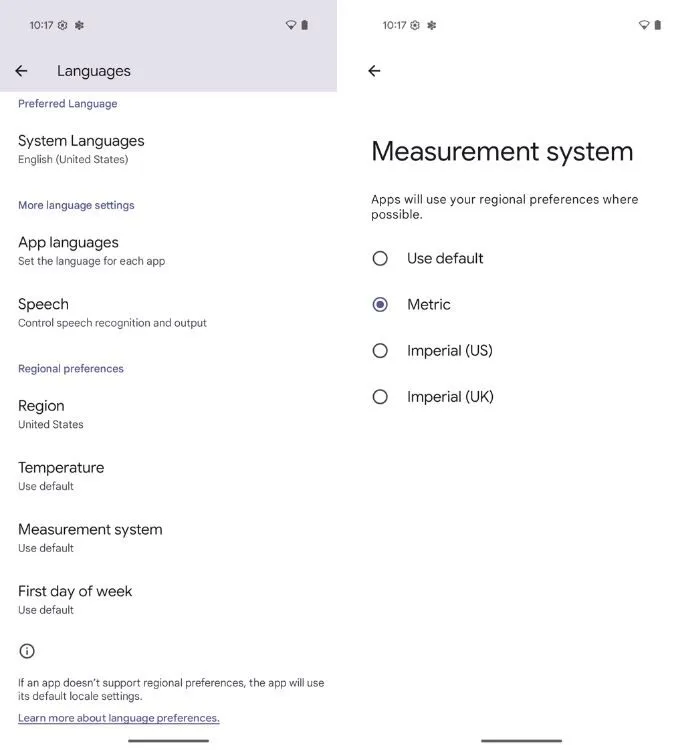
Starting with Android 16, you won’t have to struggle with changing from an imperial to a metric system, or vice versa, when you download an app. That is because the OS brings a native option to set the default measurement system. This option is located under System > Language & region > Measurement system .
18. Set Double-Press Power Button Action
Another accessible change coming with this update is an option to set the default action when you double-press the power button. Till now, you could only set it to launch the camera app. But now it opens up the option to bring up the Google Wallet on Pixel devices. I can see more apps being able to use this feature so I can quickly bring up Snapchat when I need to take a quick Snap.

19. New Profile Switcher Widget in Android 16
Multiple profiles are one of the most underrated features of Android. Not many people use it, and one of the reasons is that it isn’t as accessible. To solve this issue, Android 16 includes a new switch profile widget that you can add to your home screen to quickly jump between your phone’s profiles.

20. App List Shortcut for Home Screen
The App List shortcut opens up the app drawer when you long-press on the home screen. I don’t understand the reason for adding it, as you can bring up the app drawer by simply swiping up rather than long pressing and then selecting the shortcut. This could be a bug or an unfinished option introduced in beta 4, which might be removed in the final release.

21. Embedded Photo Picker in Android 16
Android 16 also includes new APIs for the photo picker tool . This will allow developers to implement it easily in their apps. In case you don’t know, Photo picker is a pop-up menu that lets you pick specific photos or videos you want to upload to an app rather than giving it access to all your files. Google is also adding a search option to it, making it easier to find your images.
22. Hybrid Auto Exposure Control for Camera Apps
The second A16 beta brings changes to Hybrid Auto exposure control, which allows developers to manually control several aspects of the camera exposure as well as precise tint and color adjustments for motion photos. Support for UltraHDR photos in HEIC format is also available.
23. Health Connect App Improvements
If you use Google’s Health Connect app, then there are some big improvements for you. It allows apps to read and write your medical records in FHIR (Fast Healthcare Interoperability Resources) format in Android 16 DP1. It is a standard that allows the exchange of electronic health records among apps. However, apps will require user permission to access or write medical records in Health Connect.
24. Predictive Back Gesture in More Places
Android 16 will require third-party apps to support the predictive back gesture introduced in Android 15. Particularly, apps that target Android 16 will need animations for back-to-home, cross-task, and cross-activity. The 3-button navigation also got support for predictive back gestures as well, offering a more coherent experience.

25. New APIs in Android 16
Android 16 brings an API so third-party apps can also get more control over the haptics of your phone, so you can expect the same tactile feedback as the other system settings. There’s also integration of the Night Mode Indicator API , which will help apps like Instagram and Snapchat adapt to the current lightning conditions and click a better night mode photo.
26. Changes to Privacy Sandbox
Lastly, Google has introduced a Privacy Sandbox for the Android module. The company only mentioned that it “incorporates the latest version” but didn’t share the new changes in the Privacy Sandbox.

With over 4 year of experience under the belt, I cover all facets of consumer tech, from smartphones to other consumer electronics, our favorite social media apps, as well as the growing realm of AI and LLMs. As an Apps and AI writer app Beebom, I provide my expertise in all these areas, weaving stories that help you get familiar with the tech around you. But you will find me playing NYT daily puzzles in my free time.
Add new comment
Name
Email ID
Δ


- Android 16 DP2 on Pixel 9 adds a new Screen-off Fingerprint Unlock option.
- When enabled, it allows users to unlock their devices even when the screen is completely off.
- This should be a useful feature for those who don’t want to use AOD because of battery woes but want the Fingerprint to always be active.
Pixel 9 series was the first set of Pixel devices to get ultrasonic fingerprint sensors for faster unlock and better accuracy. However, like on most phones, users need to wake up the screen before they can use their finger to unlock the device unless the always-on display is enabled. Well, that’s changing with the Pixel 9 series as Google has added an option to unlock using their Pixel 9’s fingerprint sensor even when the screen is off.
In the Android 16 Developer Preview 2 that Google rolled out today, there’s a new Screen-off Fingerprint Unlock toggle on the Fingerprint Unlock page with the description “Use Fingerprint Unlock even when the screen is off”.

As the name suggests, this keeps the Fingerprint sensor active even when the screen is completely off. Users can then roughly predict where the fingerprint scanner is, and place and scan their registered finger to easily unlock the device without waking the screen up first.
Unfortunately, this only seems to work with the Pixel 9 ( review ) series and will probably be exclusive to the series because it sports an Ultrasonic Fingerprint sensor. However, users with older Pixel devices can still unlock when the screen is off (technically) by enabling the Always-on display from Settings > Display > Lock screen > Always show time and info . Mind you, Always-on affects battery life.
The Screen-off fingerprint unlock is definitely a great feature for those who don’t use AOD but still want to unlock the device without tapping and waking it up, especially when it’s lying flat on a table.
Abubakar covers Tech at Beebom, with his passion for technology tracing back to 2011 when he received a Dell Inspiron 5100 as a gift. He’s also a passionate advocate for the right-to-repair movement, believing in empowering users to maintain and extend the life of their devices. Outside the tech world, he enjoys watching anime and exploring his newfound enthusiasm for Japanese cars. In his free time, you’ll often find him immersed in Genshin Impact or researching his next gadget purchase. Before joining Beebom, he contributed to leading publications like Android Police, How-To Geek, and Fossbytes.
Add new comment
Name
Email ID
Δ
