Debuted with iOS 13, Shortcuts is a built-in app on an iPhone that offers useful automation and shortcuts to perform a specific task. Right from editing your photos to accessing ChatGPT, you can do everything with the Shortcuts app, without having to download individual apps for each task. If you’re a first-time Apple user, you might not know how powerful the Shortcuts app actually is. But, you need not worry. In this article, I’ve shared the 8 most useful iPhone shortcuts I can’t live without. These free iOS shortcuts will help you unlock the true possibilities of what you can do with your iPhone. Without any ado, let’s jump to the list!
1. Merge Photos
If you ask me about one iPhone shortcut that has made my life easier , it has to be this one. Being an Apple Ecosystem writer, I have to deal with a lot of iPhone screenshots and images, which I have to combine into a single image. Earlier, I had to move all my screenshots to my MacBook where I would combine them using Canva, Photoscape, or any other third-party photo editing tool. Well, that’s the thing of the past now. Thanks to this custom-made iPhone shortcut, I can combine multiple images into a single one right on my iPhone, without hampering the overall quality. I can combine pictures horizontally or vertically and even adjust the spacing between them.
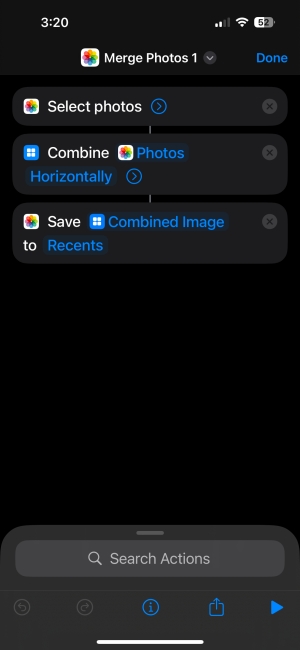
This shortcut might be a little complex and time-consuming to set up, but trust me it works wonders and can help you save a lot of time. Well, you don’t have to go through the hassle of creating this Shortcut from scratch, just click on the below link to add it on your iPhone. If you also have similar photo-editing needs, I recommend downloading this iPhone shortcut right now!
2. ChatGPT with Siri
The good news is Apple Intelligence brings the much-useful ChatGPT integration to Siri. And, the bad news is it’s only available on iPhone 15 Pro, iPhone 15 Pro Max, iPhone 16 models, and other Apple Intelligence compatible devices. So, if you’ve got an iPhone 15, iPhone 15 Plus, or an older model, you can’t use ChatGPT integration on your device. Thankfully, there’s a way to use ChatGPT with Siri on any iPhone model. Previously, you could use handy shortcuts like Siri Pro or SiriGPT. Since ChatGPT has now launched its own app and chat assistant, the previous integration won’t work now.

Interestingly, you can now utilize that app to use ChatGPT on an iPhone. First, you have to download OpenAI’s ChatGPT on your iPhone and then create a custom shortcut to start a new conversation with that ChatGPT app. When you run this shortcut using Siri, it will instantly start a new conversation with ChatGPT. For complete instructions, refer to our step-by-step guide on how to use ChatGPT with Siri on iPhone.
3. When Do I Need To Leave By?
Sometimes, it takes me 10 minutes to reach yo my office, and there are times when it takes around 30 minutes. With varying traffic, it can be hard to know the exact time you need to travel to your work. If you also find yourself in such situations, there’s a pre-made iPhone shortcut that can help you cut through the hassle. The “When Do I Need To Leave By?” shortcut uses your location and traffic information to calculate when you need to leave for your work, school, or other destination.

When you set up the shortcut, you’ll be asked to enter your home and work addresses. Once you add them, you just have to tap on the shortcut or ask Siri to run it for you. It will instantly show you the travel time and tell you when you must leave to reach there on time. You can always change the addresses and time, or customize other settings by tapping on the three dots on the top-right of the shortcut.
4. Speed Dial
Unfortunately, iPhones don’t have a speed dial option like Android smartphones. Thankfully, there’s a super-useful iPhone shortcut that lets you create a speed dial button on your iPhone. With the Speed Dial shortcut, you can create an app tile on the home screen, so you can call anyone in your contacts with just one tap, without having to open the Phone app. This is the easiest and quickest method to set up speed dial on an iPhone.

To configure the shortcut, simply type in a phone number or choose a person from your contact list. Next up, tap on the three dots present on the top-right of the shortcut, hit the Share button and add the shortcut to the home screen. Once you’ve done that, you can simply tap on the speed dial button to make a call. You can add multiple speed dial buttons on your iPhone home screen in the same way.
5. Shazam
Shazam is probably one of my favorite and most-used iPhone shortcuts. I’ve been using this shortcut for quite a while now and it’s doing a great job of identifying songs that I randomly hear while traveling. If you’re also a melophile who loves to discover songs playing around you, their lyrics, artists, and more, Shazam is a must-have shortcut for you.

When you run the Shazam shortcut, it will identify the song playing around you and then give you options to play that song in Apple Music or save it to your Apple Music library.
6. Intelligent Power
If your iPhone often runs low on battery and you can’t charge it every now and then, the Intelligent Power iPhone shortcut is gonna be your savior. It lets you save battery life with a super-useful Ultra Low Power Mode. With this shortcut, your iPhone will automatically enable Low Power Mode when the battery is less than 25%, and enter the Ultra Low Power Mode when the level dips to 5%. When the Ultra Low Power Mode is enabled, you can’t access the internet but can continue to make phone calls. Also, it will turn the display brightness to zero and disable other features like Wi-Fi, Bluetooth, Location Services, and more.

The best thing about this iOS shortcut is that you can choose the battery levels at which you wish to activate the Low Power and Ultra Low Power modes. You can always change the value later to suit your convenience.
7. Water Eject
Even though the latest iPhones have great water resistance, they aren’t completely waterproof. Also, Apple’s one-year warranty and even AppleCare+ don’t cover water damage. Therefore, it’s better to handle your device with care. Now, that doesn’t mean there’s no way to save your iPhone if it ever gets wet. Thankfully, there’s a super-useful iPhone shortcut that can help you get water out of iPhone speakers if you ever accidentally drop your iPhone in a pool or a bucket.

When you run the Water Eject shortcut on your iPhone, you’ll see the volume slider with the device volume set to 100%. You’ll hear a tone and your phone will vibrate. Once the process completes, you’ll hear a beep sound. The shortcut usually takes around 15 to 20 seconds to complete. With this shortcut, you never have to freak out if your iPhone is ever exposed to water. So, it’s worth having it in your Shortcuts gallery.
8. Charge Time
For years, Android smartphones can tell how long it will take to charge your phone. I always wanted Apple to bring a similar feature that displays the iPhone’s charging time estimates. While iOS 18 is expected to offer a similar “Battery Intelligence” feature, it might remain exclusive to Apple Intelligence-compatible iPhones. Now, that doesn’t mean there’s no way to check charging time estimates on devices not compatible with Apple Intelligence.

Charge Time is a must-have iOS shortcut that shows charging time estimates based on the current battery levels of your iPhone. For instance, if your current iPhone battery level is 60%, the Charge Time shortcut will tell you the approximate number of hours and minutes required to fully charge your iPhone.
Kanika has been a loyal iPhone user since 2014 and loves everything Apple. With a Master’s in Computer Applications, passion for technology, and over five years of experience in writing, she landed at Beebom as an Apple Ecosystem Writer. She specializes in writing How To’s, troubleshooting guides, App features, and roundups for Apple users to help them make the best use of their gadgets. When not writing, she loves to try out new recipes and enjoy some family time.
Add new comment
Name
Email ID
Δ


- Apple and Google have officially confirmed their team-up for the next-gen Siri AI.
- The Cupertino Giant will be using Google’s Gemini for a more personalized Siri model as well as Apple Intelligence features.
- We can expect the next-gen Siri to come out with iOS 26.4, sometime in March or April.
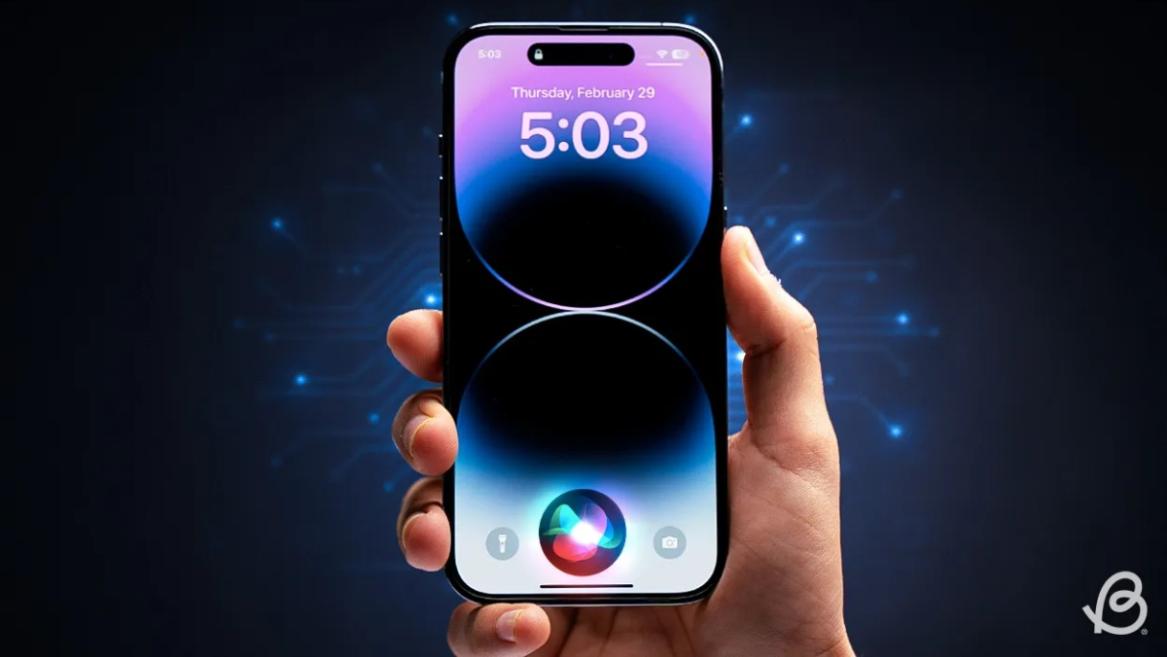
Apple has officially confirmed joining forces with Google to use its Gemini AI model to power the next-generation Siri. It will offer a more personalized experience and will be coming out with the iOS 26.4 update. Apple also plans to leverage Gemini’s capabilities for other Apple Intelligence features as well, later down the line.
The Next-Gen Siri will be powered by Google’s Gemini AI
Apple officially confirmed that it will be partnering with Google in a statement to CNBC . Here’s what it stated, “After careful evaluation, we determined that Google’s technology provides the most capable foundation for Apple Foundation Models, and we’re excited about the innovative new experiences it will unlock for our users.”
Later, Google also shared a post on X confirming the tie-up, “Apple and Google have entered into a multi-year collaboration under which the next generation of Apple Foundation Models will be based on Google’s Gemini models and cloud technology. These models will help power future Apple Intelligence features, including a more personalized Siri coming this year.”
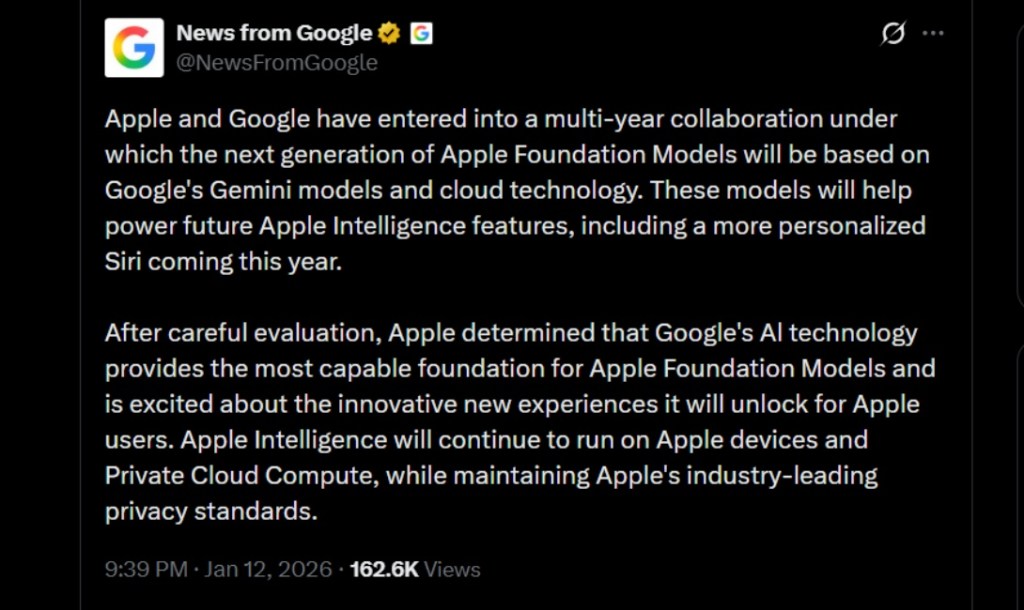
Image Credit: X/@NewsFromGoogle
Both statements clearly mention that the Cupertino Giant will be using Gemini to power its assistant Siri. This was already rumored, as Apple’s attempts to acquire Perplexity went nowhere. With Gemini, Siri will get a major AI update . It will be able to handle more nuanced conversations and provide better results. Something long-time Apple users have been asking for years.
The next-gen Siri will arrive with the iOS 26.4 update, which will launch sometime in March or April. And it is only going to be available for Apple Intelligence-supported devices .
Something else worth noting is how Google’s statement mentions that Gemini will power Apple Intelligence features. This leads us to believe that Apple could use Gemini’s multi-modal capabilities for its Writings tools , Image Playground , and Message summaries, too.
Elon Musk Not Happy With Apple and Google Tie Up
xAI CEO Elon Musk also responded to Google’s announcement post on X, sharing his thoughts on the matter by saying, “This seems like an unreasonable concentration of power for Google, given that they also have Android and Chrome.” Though we don’t expect either Apple or Google to respond to Elon, we will update the situation as it progresses.
It is worth noting that xAI is the company behind Grok, which is in hot water currently due to its inappropriate image generation fiasco , and has been getting backlash from multiple news outlets, X users, and even government authorities.
With over 4 year of experience under the belt, I cover all facets of consumer tech, from smartphones to other consumer electronics, our favorite social media apps, as well as the growing realm of AI and LLMs. As an Apps and AI writer app Beebom, I provide my expertise in all these areas, weaving stories that help you get familiar with the tech around you. But you will find me playing NYT daily puzzles in my free time.
Add new comment
Name
Email ID
Δ
