Photoshop has become synonymous with image editing in general. However, the service has numerous issues of its own. From bugs to incompatibility with several plugins, and software and the steep price one has to pay for the Adobe suite. This led many veteran users to abandon the service and look for other Photoshop alternatives. That’s what we’ll help you find with this list of ours.
Best Photoshop Alternatives for Professional Image Editing
The tools included in this list are added based on how much value they offer for the price, even if they are free, and their popularity. With that said, let us take a look at this list.
1. Photopea

Photopea is one of those tools that you don’t even need to download to use it. It offers an identical UI to Photoshop right from your web browser. And you don’t miss out on any of the essential features as it comes with layers, masks, and selection tools. It can even open and save files in PSD (Photoshop’s native format).
However, it does not feel as streamlined as Photoshop, which is understandable given that it is running in your browser. Though you can do more if your hardware allows for it. Photopea is a free program that, as far as we can tell, has no ads in its interface. That is why we have included it as the first stop on our list of Photoshop alternatives.
Why Should You Use it: Best suited for making quick online edits.
Pricing: Free
Availability: Works from Web Browser
2. GIMP
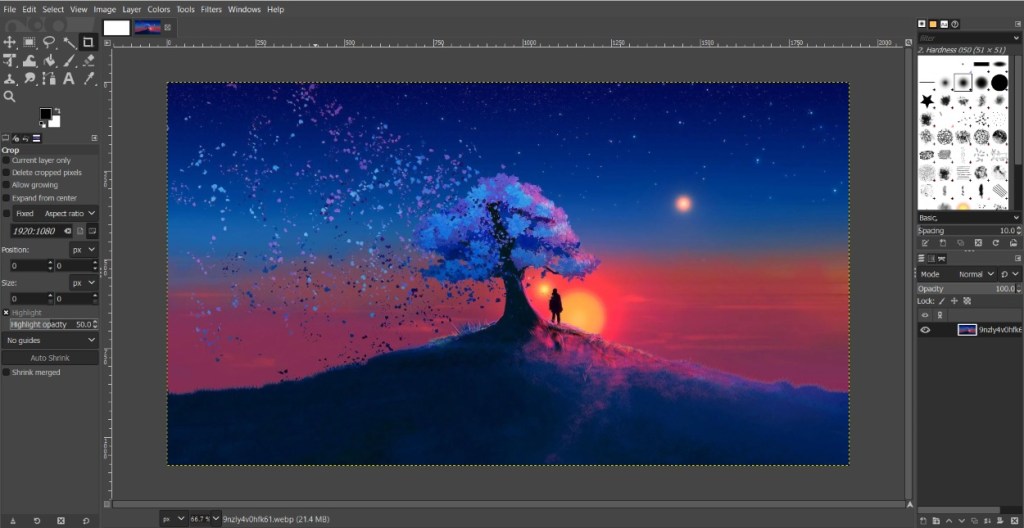
GIMP (GNU Image Manipulation Program) reigns supreme in several editing communities. This open-source software boasts a ton of features to rival Photoshop, like layers, masks, and professional-grade editing tools. You can even create your digital artwork from scratch. Its open-source nature allows for a vast library of plugins , offering plenty of customizations to your work environment.
However, GIMP’s interface can feel a bit overwhelming, especially for beginners. The learning curve is steeper compared to some user-friendly options we have mentioned here. But industry veterans should have little to no trouble getting used to things in no time. I feel GIMP is an absolute steal for people like me who are learning professional graphic designing and can’t pay Photoshop’s premium.
Why Should You Use it: Open source free tool with tons of plugins
Pricing: Free
Availability: Windows, macOS, and Linux
3. Affinity Photo 2
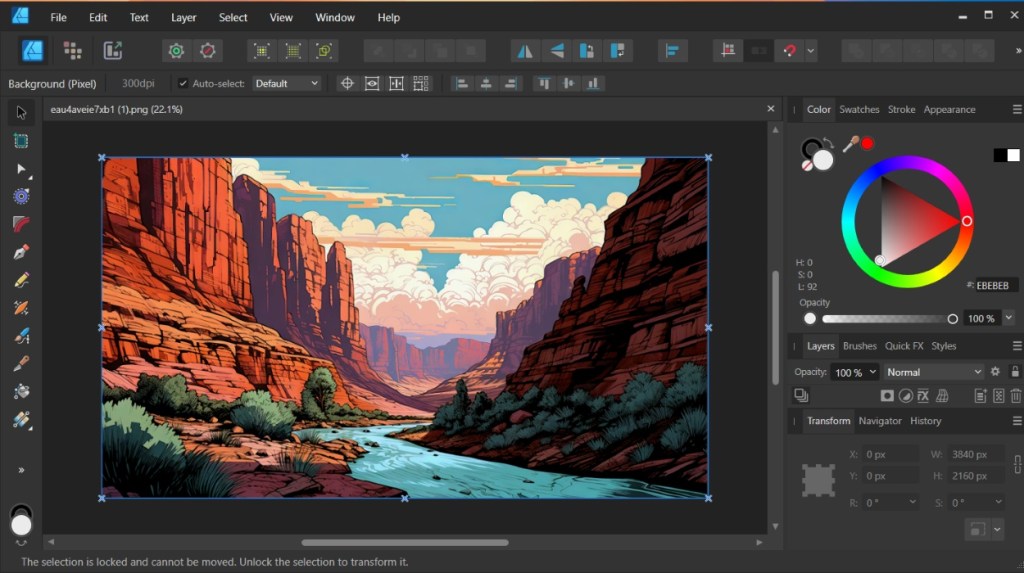
Affinity Photo is another good Photoshop alternative as it offers several quality-of-life improvements that professional graphic designers will be pleased with. First of all, it’s a one-time purchase for the whole suite and that includes future updates as well. Then you can sync between different environments without switching apps.
Other useful features include non-destructive layers, built-in masks , and live previews . This is a good option if you have a low-spec PC as it is optimized enough to not cause trouble on older hardware. Though you won’t find some advanced AI features that have recently been introduced with Photoshop, overall, and did I mention the complete experience is also available on iPadOS.
Why Should You Use it: Well-rounded tool with one-time purchase
Pricing: One-time payment of $34.99
Availability: Windows, macOS and iPadOS
4. Skylum Luminar Neo
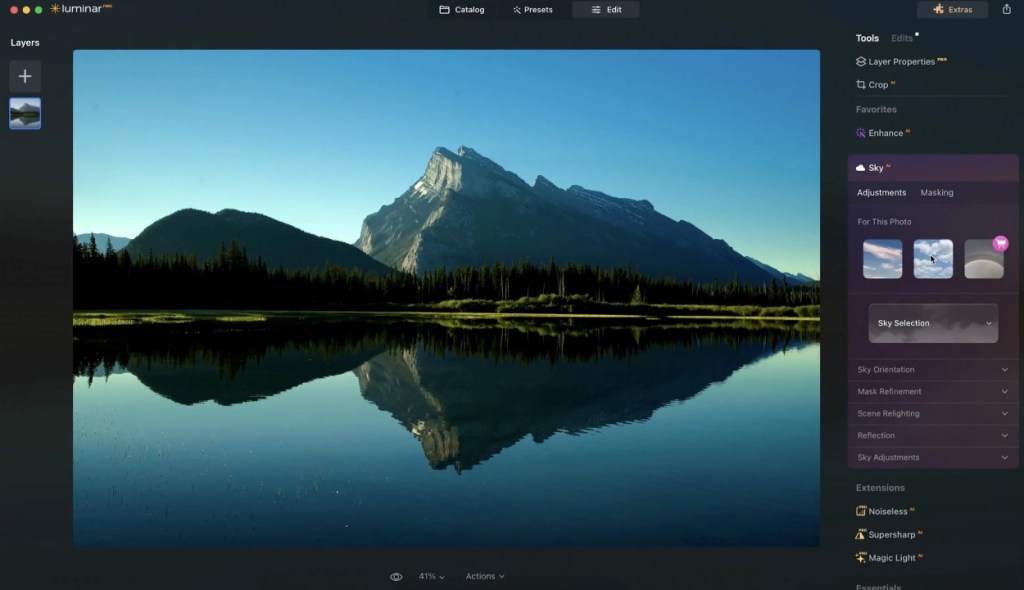
Image Credit: Skylum Luminar Neo
Skylum Luminar Neo caters to a different audience. Right off the bat, I want to make it clear that it is more of an image enhancement and refining tool than a full-fledged editing software. It can help adjust the lightning of the sky or fix blemishes using its AI-powered tools. You can also find advanced features like masking tools, object removal, and portrait retouching.
After trying it out myself, I can say that I liked the UI. As it is one thing that many people struggle with when leaving their Photoshop environment. But Skylum doesn’t offer as much flexibility when it comes to image manipulation as other Photoshop alternatives in this list. It is also worth noting that it is a subscription-based service. If you have doubts, you can use Skylum Luminar’s Photoshop plugin to get your first impressions.
Why Should You Use it: Best for people who take and edit landscape photos or portraits.
Pricing: Yearly subscription of $99 or $249 for a one-time purchase
Availability: Windows, macOS, and Photoshop plugin
5. Pixelmator Pro
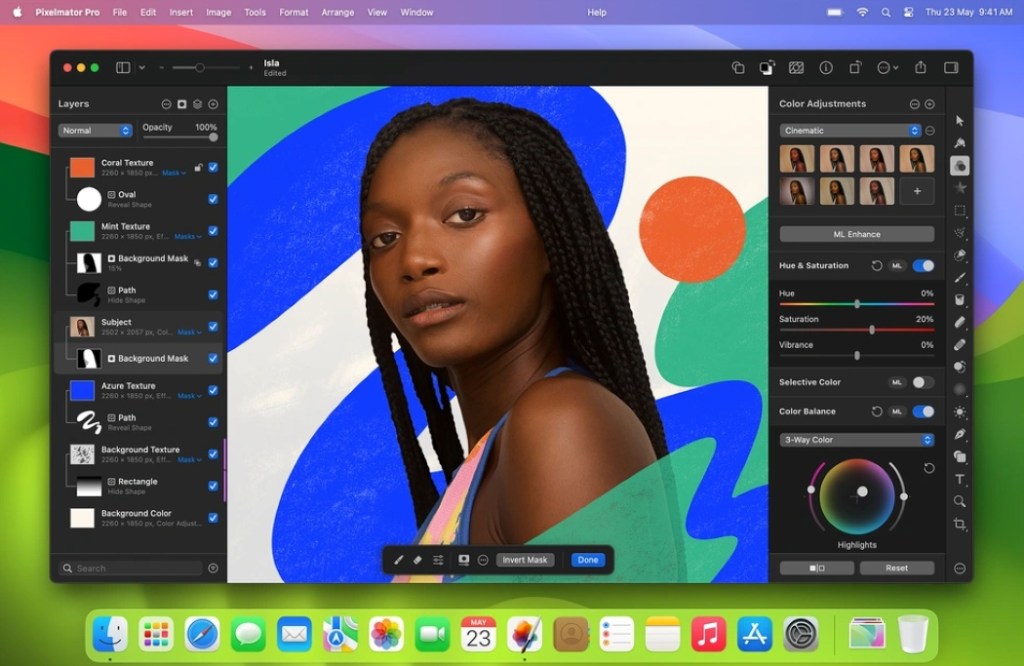
Image Credit: Photomator
Mac users in the house should try out Pixelmator Pro. This tool is specifically designed for macOS and offers a streamlined experience much like Adobe’s tool. It works well with the Photos app and lets you combine photo editing with illustration and painting tools in a single program. With Pixelmator, you can even create vector art , use its ML tools for quick adjustments, and cutouts to enhance your image as needed.
It even works with videos , and supports PSD format. The environment is customizable which is what I liked the most. As someone new to this tool, it felt pretty user-friendly. But still in line with something that Apple might have come up with themselves. Even beginners can make pretty crafty edits with Pixelmator Pro. The only drawback is you get a 7-day free trial. Then you need to pay to use the Pro tools.
Why Should You Use it: A genuinely good alternative for Mac users
Pricing: One-time purchase price $49.99
Availability: macOS
6. Pixlr
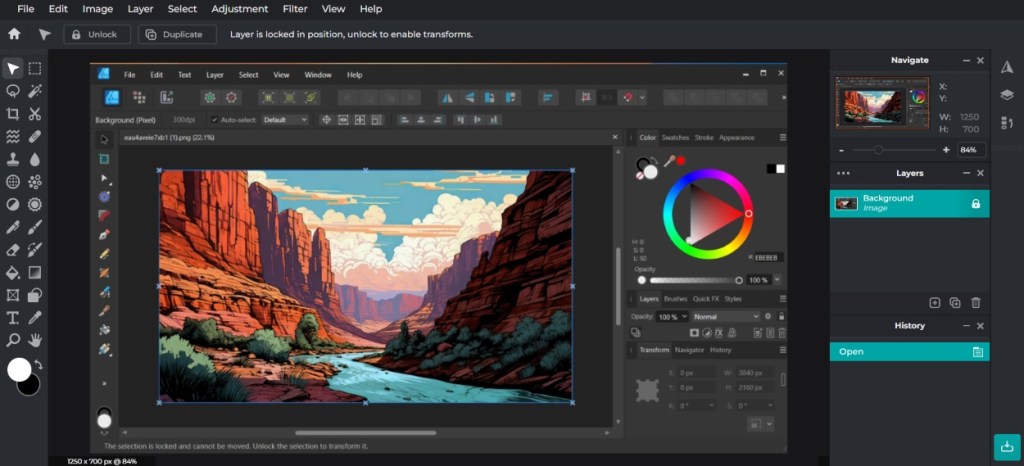
For anyone who has been editing photos for a while now may have heard about Pixlr. This online tool, much like Photopea lets you enhance and edit images from your browser. The tool is quite popular among students for all the features it has, and the adjustments it lets you make. It carries basic tools like filters, overlays, and borders along with layer selection , image duplication , and more.
Pixlr also features some AI magic like Faceswap and image generation . However, about a year ago, the company changed its policy to allow for limited exports per day which turned off a lot of users. Currently, you can use the free version with limited features or go with the monthly subscription which is still cheap compared to Photoshop and some alternatives in this list.
Why Should You Use it: Handy option for light editing over small and personal files
Pricing: Free and Paid, base plan starts at $1.99
Availability: Runs from a web browser
7. PhotoScape X
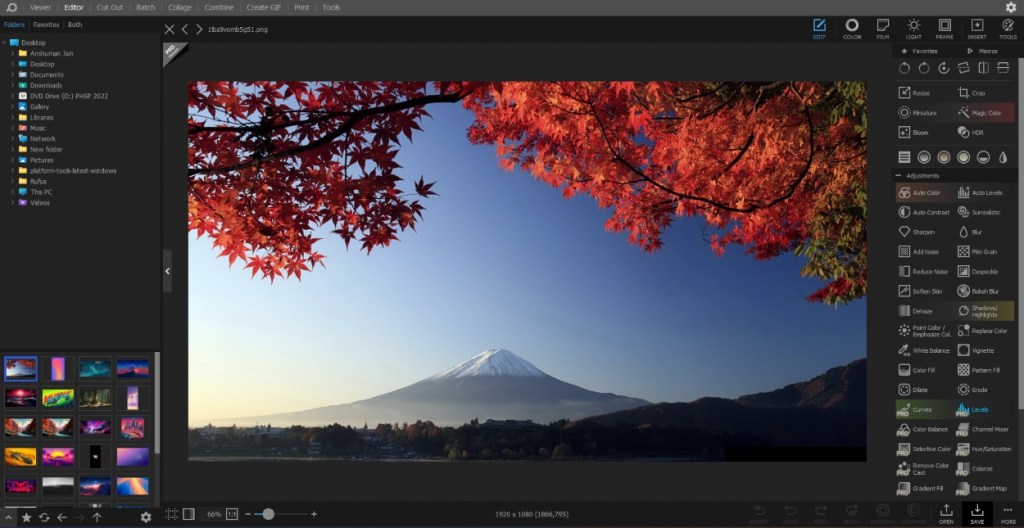
Before Photoshop, this was the tool that I used to use excessively daily. PhotoScape X is a standard photo editing tool that you can use to make minor adjustments and edits to an image. Though it has some image morphing features like liquify and layers, it’s mostly a general-purpose image editing tool. You can use it to refine a picture or easily add annotations using Photoscape.
What I like the most about it is its batch editing option. This lets you edit multiple images in a single batch saving you a lot of time and effort. Its interface is also simple enough that your parents can start using it. Plus it runs quite well on devices with lower-end hardware. It has a Pro version but you can still make the most out of it in the free version.
Why Should You Use it: Lightweight software for minor image alterations
Pricing: Free
Availability: Windows and macOS
8. Krita
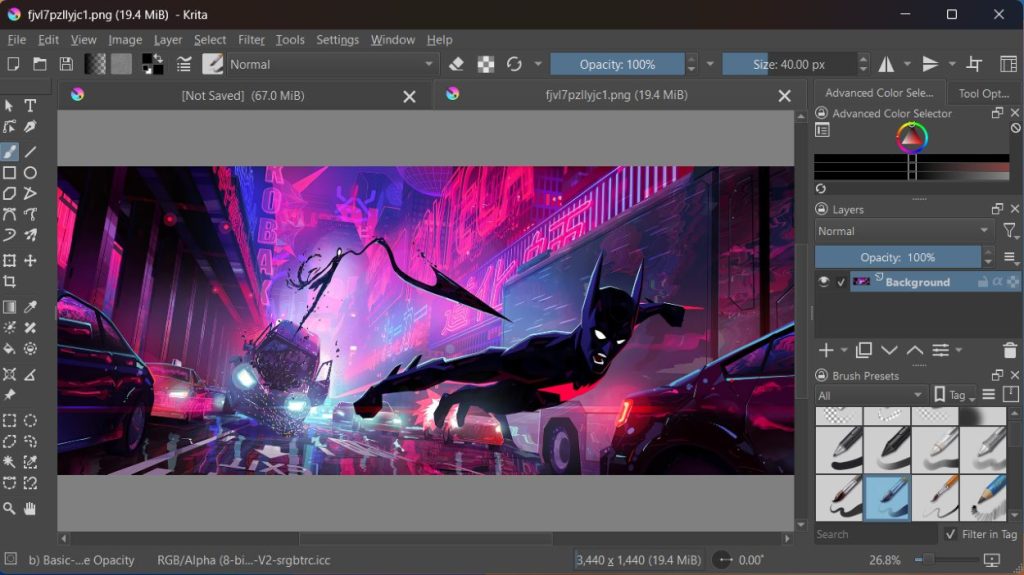
Krita is a compelling Photoshop alternative, especially for those focused on illustration and concept art . Developed by artists, for artists, it is a free and open-source painting program. It boasts over 100 different types of brushes, with multiple brush engines and a stabilizer that helps you get clean, natural strokes. It also supports layers, for complex art.
This also boasts a somewhat similar tools layout to that of Photoshop. However, it’s important to note that Krita lacks some of the advanced photo editing features. So, if you’re a digital artist and want a free solution for creating art and illustrations then you should try out Krita or you can consider Pixelmator and Affinity if you don’t mind paying up.
Why Should You Use it : Simple illustrations software with handy features
Pricing: Free
Availability: Windows, Linux, and macOS
9. ACDSee Photo Studio Ultimate
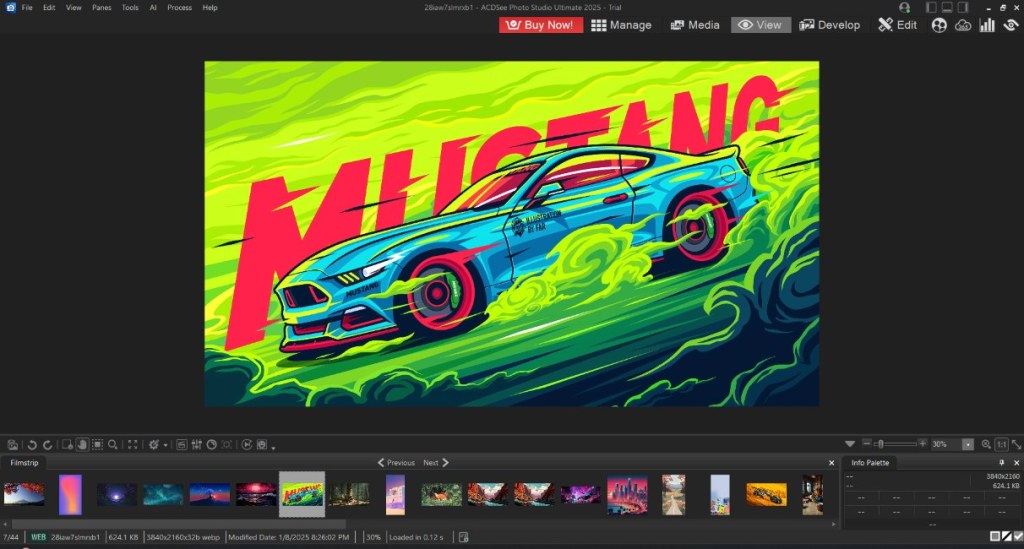
The ACDSee Photo Studio Ultimate is another decent option compared to Adobe Photoshop. Like some other image manipulation tools, it also consists of more or less the same feature set but some advanced options are missing here. Still, when I tried it out for myself, I felt in my brief time that it could suffice the need for a learning editor who isn’t exactly a pro yet.
But it is good to see that they offer their in-house tutorials when you first set it up. Seeing the trend lately, even ACDSee has added some AI tools. This makes tedious tasks like blurring the background or removing blemishes from a face just a one-button chore. They offer a limited free trial window after which you can opt for a monthly subscription or buy their complete license at once.
Why Should You Use it: Decent Photoshop alternative with AI tools
Pricing: Subscription starts at $8.90/month and Lifetime license for $105.95
Availability: Windows and macOS
10. Photos POS Pro
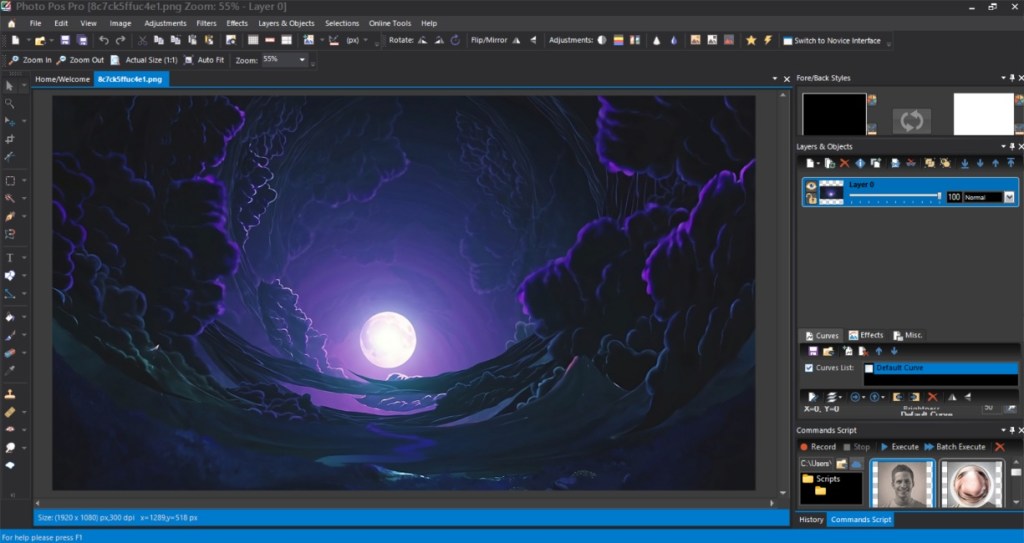
Photos POS Pro is a software that is a must if you are into designing or part of a firm’s marketing firm and need to create promotional material frequently but requires more flexibility than what Canva offers. This tool includes features like layers, masking, brushes, scripts , and batch editing.
Having tried it myself, I can say that I quite liked its dual interface style that you can pick depending on how proficient you are with such editing tools. Either you can go the beginner route or the pro one and get a feature-rich experience. Photos POS Pro supports Photoshop’s PSD format and RAW files as well. So you can quickly jump into it if you have to make a quick jump to a new software.
Why Should You Use it: Best suited for creating marketing materials
Pricing: Free
Availability: Works from Web Browser

With over 4 year of experience under the belt, I cover all facets of consumer tech, from smartphones to other consumer electronics, our favorite social media apps, as well as the growing realm of AI and LLMs. As an Apps and AI writer app Beebom, I provide my expertise in all these areas, weaving stories that help you get familiar with the tech around you. But you will find me playing NYT daily puzzles in my free time.
Add new comment
Name
Email ID
Δ

